Short answer: Find and replace in Word starts with Ctrl+H on Windows or Control+H on a Mac. Old text in Find what, new text in Replace with. Then Replace All, or Find Next to check each match. More options add Match case, formatting, special codes and wildcards.
To find and replace in Word, press Ctrl+H on Windows or Control+H on a Mac, type the old text in Find what and the new text in Replace with, then pick Replace All. Want to see each hit first? Find Next, then Replace. We do that on anything with names in it.
- Open the document. Click anywhere in the text.
- Press Ctrl+H. Or Home tab, Editing group, Replace.
- Type what you’re looking for in Find what.
- Type the new text in Replace with. Leave it empty to delete every match.
- Replace All changes every match at once.
- Find Next jumps to the next match. Replace it, or skip it with Find Next again.
- Changed too much? Ctrl+Z undoes the whole Replace All in one go.
We follow Microsoft’s own page, Find and replace text in Word. Same dialog in the subscription and the one-time versions.
How to find and replace in Word on Windows
Two places to start. The ribbon, or the keyboard.
- Ribbon: Home tab, far right, the Editing group, Replace. On a narrow window the group folds into one Editing button, so click that first.
- Keyboard: Ctrl+H. Faster, and it works from any tab.
The dialog has three tabs: Find, Replace and Go To. Replace is the one you want here. Find only looks. Go To jumps to a page or a line. We use it in our guide on how to delete pages in Word.
Select a paragraph before you press Ctrl+H and Word searches that selection first. Handy for a single table or one chapter. At the end of the selection, Word asks about the rest. Say No if the other pages must stay as they are.
Replace All ends with a small message. It tells you how many replacements Word made. Zero? Then the text in Find what doesn’t match anything, and the options below are usually why.
Ctrl+H, Ctrl+F and the other shortcuts
Ctrl+H opens Replace. Ctrl+F does something else in current Word: it opens the Navigation pane with a search box, not the old dialog.
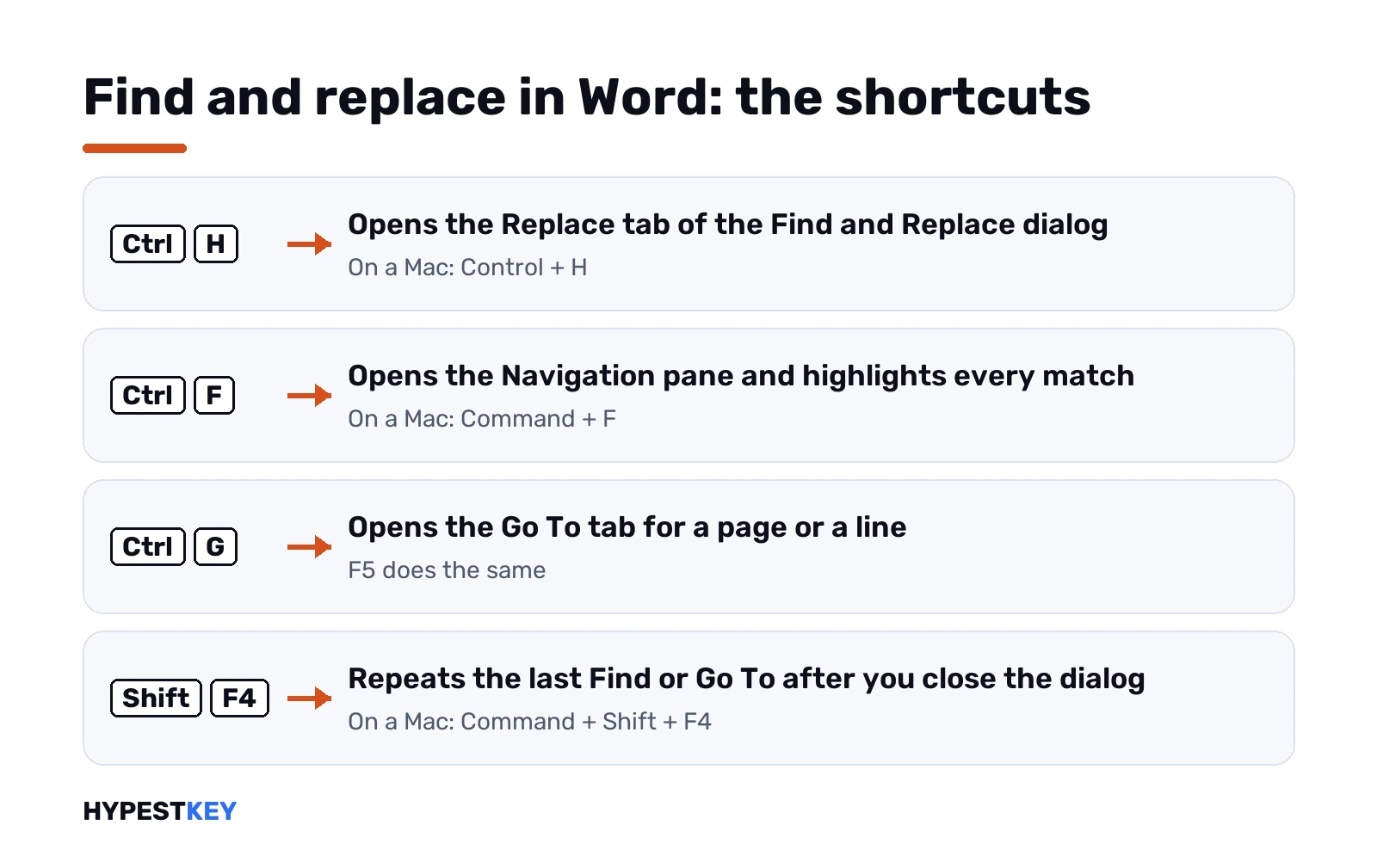
| What it does | Windows | Mac |
|---|---|---|
| Open Replace | Ctrl+H | Control+H |
| Search the document | Ctrl+F, Navigation pane | Command+F, the search box |
| Go To a page or line | Ctrl+G or F5 | Command+Option+G or F5 |
| Repeat the last Find or Go To | Shift+F4 | Command+Shift+F4 |
The Navigation pane highlights every hit in yellow and lists them in order. Good for counting. For changing, we’d still go back to Ctrl+H.
Shift+F4 is the one people forget. Close the dialog, edit, press it, and you’re at the next match. Ctrl+H doing nothing at all? Check that the key itself works with our online keyboard tester before blaming Word.
The More options in the Replace dialog
Click More >> at the bottom left of the dialog. A row of check boxes opens, plus the Format and Special buttons.
| Option | What it changes |
|---|---|
| Match case | Only finds the text with the same capital letters |
| Find whole words only | Finds “and” but skips “hand” and “command” |
| Use wildcards | Turns Find what into a pattern, see the wildcard section |
| Sounds like | Finds words that sound similar to the search text |
| Find all word forms | Searching “sit” also finds “sitting” and “sat” |
| Match prefix | Only words that begin with the search text |
| Match suffix | Only words that end with the search text |
| Ignore punctuation characters | Skips punctuation between words |
| Ignore white-space characters | Skips spaces between words |
Two of these save the most trouble. Find whole words only, because a short word hides inside longer ones. And Match case, for a reason that surprises people.
With Match case off, Word copies the capitals of what it replaces. Replace “abc” with “xyz” and an “ABC” in the text turns into “XYZ”. That’s the “replacing with all caps” puzzle people search for. Tick Match case and Word types your replacement exactly as written.
Sounds like and Find all word forms are rarer. We’d leave them off unless you’re hunting spelling variants of a name.
Replacing formatting instead of text
Find and replace in Word isn’t only about words. It can swap one look for another. Every bold phrase into italic, say, or one font into another.
- Ctrl+H, then More.
- Click in Find what. Leave it empty to match any text.
- Format, then Font. Pick Bold. OK.
- Click in Replace with. Leave it empty too.
- Format, Font, pick Not Bold and Italic. OK.
- Replace All.
Under each box Word now shows a small Format line. That line stays there for the next search, too. Our usual fix when a plain search finds nothing: click in the box and press No Formatting.
Replacement text keeps the formatting of what it replaces unless you set a format. Bold “abc” becomes bold “xyz”. Usually that’s what you’d want.
Special characters: paragraph marks, tabs and breaks
Extra blank lines, double tabs, a manual page break in the wrong spot. None of it is text you can type into the box. The Special button under More inserts a code for it instead.
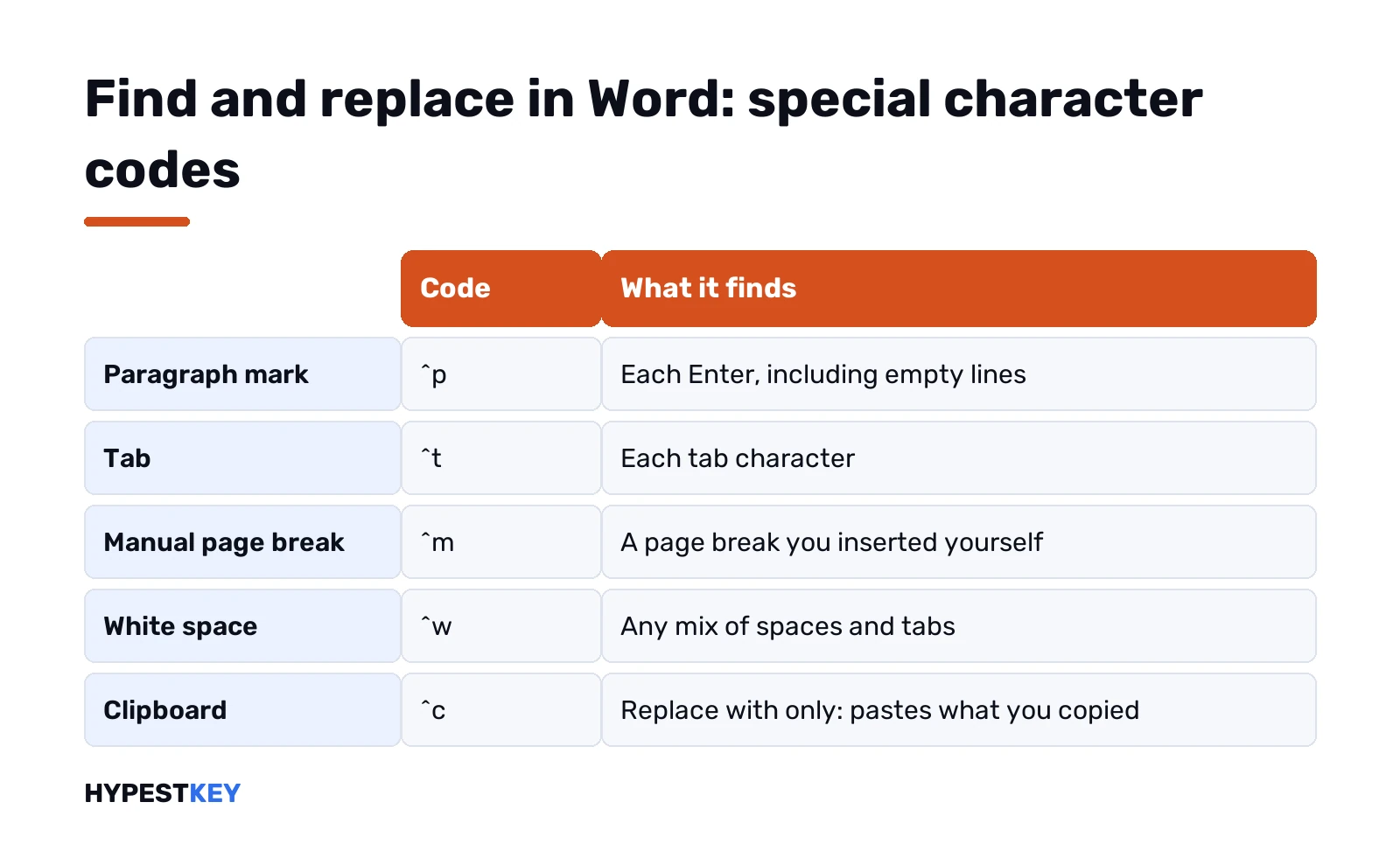
| To find | Code | Note |
|---|---|---|
| Paragraph mark | ^p | With wildcards on, use ^13 in Find what |
| Tab | ^t | Also ^9 |
| Manual line break | ^l | Shift+Enter breaks |
| Manual page break | ^m | |
| Section break | ^b | Find what only, wildcards off |
| Nonbreaking space | ^s | |
| White space | ^w | Any mix of spaces and tabs |
| Any digit | ^# | Wildcards off |
| Any letter | ^$ | Wildcards off |
| Em dash, en dash | ^+ and ^= | |
| What Find what found | ^& | Replace with only |
| Clipboard contents | ^c | Replace with only |
The classic job: double paragraph marks into single ones. Find what gets two codes, Replace with gets one.
Find what:     ^p^p
Replace with:  ^p
Run Replace All two or three times if the text had triple gaps. A blank page caused by a stray break? We cover that one in deleting pages in Word on a Mac, and the ^m code finds the break for you.
The ^c code is a neat trick. Copy a logo or a picture, then use ^c in Replace with. Every match of a placeholder word turns into that picture.
Wildcards in Word find and replace
Tick Use wildcards and Find what stops being plain text. It becomes a pattern, close to a regular expression.
| Wildcard | Finds | Example |
|---|---|---|
| ? | Any single character | s?t finds sat and set |
| * | Any string of characters | s*d finds sad and started |
| < | The beginning of a word | <(inter) finds interesting, not splintered |
| > | The end of a word | (in)> finds within, not interesting |
| [ ] | One of the listed characters | w[io]n finds win and won |
| [-] | One character in a range | [r-t]ight finds right, sight and tight |
| [!x-z] | Any character except the range | t[!a-m]ck finds tock and tuck |
| {n} | Exactly n of the previous character | fe{2}d finds feed, not fed |
| {n,m} | From n to m of them | 10{1,3} finds 10, 100 and 1000 |
| @ | One or more of the previous character | lo@t finds lot and loot |
| \ | Takes the next character literally | \? finds a real question mark |
Brackets make groups. In Replace with, we can move those groups around. Swapping “Smith John” into “John Smith” across a list takes one pass:
Find what:     (<[A-Z][a-z]@>) (<[A-Z][a-z]@>)
Replace with:  \2 \1
[A-Z] in the pattern means one capital letter, [a-z]@ the lowercase rest of the name. We’d test a new pattern with Find Next a few times before trusting Replace All with it.
Microsoft’s developer page on Word search options has the full wildcard and special-code tables we used here.
Find and replace in Word on a Mac
Word for Mac has two versions of the tool. A quick one and a full one.
- Quick: the search box in the top right corner, or Command+F. Type, and Word highlights every match. Click the magnifying glass, then Find and replace, for a simple swap.
- Full: View, Navigation Pane, the magnifying glass, then the gear icon and Advanced Find & Replace. Control+H opens the same pane directly.
The small arrow at the bottom expands the options. Match case, whole words, wildcards, Format and Special are all there, with the same codes as on Windows.
Command+period stops a search that runs too long. Useful on a long manuscript.
Word for the web, iPad and phones
Word in a browser does the basics. Find, Replace, Replace All, plus Match case and Find whole words only.
Start from the Home tab: the arrow next to Find, then Replace. Format, Special and wildcards aren’t there. For those, Microsoft’s advice is to open the document in Word for the desktop.
Working from a shared Google file instead? We compare the two editors in Google Docs vs Microsoft Office too. And if pages in a Docs file need numbers, see page numbers in Google Docs.
When Replace All in Word does nothing or goes wrong
We see the same few causes again and again.
- Leftover options. Match case, wildcards or a Format line from last time. Open More and look under both boxes.
- Selection. Text was selected, so Word searched only that bit. Click once in the text and run it again.
- Wildcards on. ^p stops working in Find what. Use ^13, or untick the box.
- Too short a search. “in” also sits inside “within” and “Monday’s interview”. Find whole words only.
- The whole ribbon is grey. Not a search problem. An Unlicensed Product banner in the title bar means Office runs in reduced functionality, and the unlicensed product fix walks through it.
- Activation failed after a reinstall. See Office product activation failed.
Undo is your friend here. One Ctrl+Z reverses an entire Replace All, so a bad guess costs nothing if you catch it right away.
Other Word jobs on our blog: adding checkboxes in Word and Excel, and a plain guide to what Microsoft 365 includes if you’re picking between a subscription and a one-time license. The Microsoft 365 vs Office 2024 comparison goes deeper on that choice.
No working copy of Word on this PC yet? Our Office Home and Business 2024 key is a one-time license for one PC or Mac, instant to email.
Related guides
FAQ
What's the shortcut for find and replace in Word?
Ctrl+H on Windows, Control+H on a Mac. Ctrl+F only opens the Navigation pane search, with no Replace box.
Why does Replace All turn my words into capitals?
Match case is off. Word then copies the capitals of the text it replaces. Tick Match case under More and it keeps your spelling.
Can I undo Replace All?
Yes. One Ctrl+Z, or Command+Z on a Mac, reverses the whole batch of replacements at once.
How do I remove extra blank lines with find and replace?
Put ^p^p in Find what and ^p in Replace with. Replace All, then run it again until Word reports zero.
Find and replace in Word Online, does it have wildcards?
Nope. The web version has Match case and whole words only. For wildcards, Format or Special, open the file in desktop Word.
Word finds nothing, but the word is right there?
Usually a leftover setting. Open More, untick wildcards and Match case, and press No Formatting under both boxes.
Can I replace text with a picture?
Yes. Copy the picture first, then type ^c in Replace with. Every match becomes that picture.