
 Microsoft Windows
 Microsoft Office
 Office for Mac
 Windows Server
Microsoft Planner is a kanban board app that ships free with most Microsoft 365 plans. You get task cards, due dates, assignees. Four views: board, grid, schedule, timeline. Lives inside Teams where your team probably already lives. Solid for small-to-mid teams. Not the right tool for enterprise portfolio work, Microsoft Project still wins that fight.
Key Takeaways:
- Free with Microsoft 365 Business, Enterprise, or Education. No trial nonsense, no separate account.
- Planner Premium is $10 per user per month. You get Gantt charts, task dependencies, sprints. Worth it only if you actually need them.
- The Feb 2026 update was big: task chats replaced the old comments, custom templates landed, Copilot agent finally works in Basic plans too.
- Project Online dies September 30, 2026. Microsoft is folding its features into Planner Premium.
- Access at planner.cloud.microsoft, or inside Teams, or the mobile apps. Same data everywhere.
- Microsoft Planner works fine for most teams. If you manage a 300-task construction timeline with dependencies, you still need Microsoft Project.
I’ve been running plans on this tool for a while now, both for small side projects and inside larger team setups. Below: what Microsoft Planner actually does, how the mobile app stacks up, what the Copilot agent can (and can’t) do, plus the annoying problems I’ve hit and how I fixed them.
What Is Microsoft Planner and Who Is It For?
Microsoft Planner is a lightweight task manager that lives inside Microsoft 365. At the core, you’ve got kanban boards, due dates, files attached to cards, and a progress bar that ticks up as you finish subtasks. Hooks into Outlook, Teams, and SharePoint too, which means you’re not jumping between five apps all day.
It’s good for: marketing teams tracking campaign deliverables, IT teams running their support queue, HR teams rolling out onboarding, product teams coordinating launches. Anything where you need “here’s who does what by when” without buying separate software. Per Microsoft’s official support documentation, the tool targets small and mid-size teams in particular.
What it’s not: Jira. Or Microsoft Project. You won’t find sprint velocity charts, resource leveling, critical path analysis, or budget tracking. No custom workflow engine either. If you need that stuff, keep scrolling or just go straight to Project.
But for the 80% of teams who basically want a shared checklist with faces on it, Planner does the job. And honestly, since most of these teams already pay for Microsoft 365, there’s zero reason not to use it.
How to Access Microsoft Planner
Four ways in, pick whichever you hate the least:
- Browser: Hit planner.cloud.microsoft, sign in with your work account.
- Teams: Three dots menu, type “Planner”, click add. Or drop it as a tab inside any channel (this is what most teams actually do).
- App launcher: The waffle icon, top-left of any Microsoft 365 page. Click Planner.
- Mobile: iOS or Android app. Same data, smaller screen.
Not seeing Planner in your Teams app list? Your admin probably turned it off at the tenant level. Ping them, they can flip it back on. Planner comes with basically every paid Microsoft 365 subscription.
Key Features in 2026
Microsoft’s been shipping Planner updates pretty steadily the last two years. The big stuff:
Task Boards and Kanban View
So the board view is the heart of it. Tasks show up as cards grouped into columns (Microsoft calls them “buckets”). You make buckets for whatever stages your workflow needs. “To Do,” “In Progress,” “Review,” “Done” is the classic setup most teams start with. Drag cards sideways as the work moves. On each card you’ll see who it’s assigned to, the due date, and the priority without opening anything.

Multiple Views for Different Needs
But Board is just one view. Then you also get Grid (spreadsheet-style task list, good for bulk work), Schedule (calendar, good for spotting deadline pile-ups), Charts (pie charts of progress, overdue, etc), and Timeline (Gantt-ish horizontal layout, Premium only). People view groups tasks by assignee, which is gold for spotting who’s drowning.
Integration with Microsoft Teams
The Microsoft Planner Teams integration is where this tool actually earns its keep. Drop it as a tab in a Teams channel and your team lives inside the board without switching apps. You can spin off a task directly from a chat message (three-dot menu → Create Planner task). Notifications land in your Teams activity feed, not buried in email.
The Feb 2026 update brought task chats. Old system: comments on a task, everyone got notified, inbox hell. New system: rich-text chat per task, only @mentioned people get pinged. It’s a small change but it genuinely helps. I’ve noticed way fewer “why am I getting this?” complaints from teammates since rollout.
Copilot and the Project Manager Agent
Got a Microsoft 365 Copilot license? You get the Project Manager AI agent inside Planner. It generates task lists from meeting notes, drafts status reports, builds work-back schedules. More on this below, there’s a whole section on what it’s actually useful for (and where it falls flat).
Custom Templates
2026 finally brought custom templates. Save any plan as a template, reuse it. Huge time saver if you run the same type of project over and over. More detail further down.
File Attachments and Checklists
Standard stuff here. Task cards take attachments from OneDrive or straight from your computer. Checklists for subtasks turn into a progress bar automatically, which is satisfying when you tick things off. Labels for color-coding, notes field for anything else you want to stick in there. Four priority levels: urgent, important, medium, low. Start date and due date are separate fields, useful when something needs prep time before it really kicks off. Recurring tasks work too, daily, weekly, monthly, yearly, whatever cadence, set it once.
Microsoft Planner Templates You Can Use Right Now
Templates save a ton of setup time if you’re running the same type of project on repeat. There’s a built-in gallery with pre-made ones, and as of the 2026 update you can roll your own too.
Built-in Plan Templates
Click “New plan,” and instead of starting blank, pick one of these:
- Marketing campaign planning: strategy, creative, launch, post-campaign buckets pre-built.
- Employee onboarding: IT setup, HR paperwork, first-week orientation tasks already filled in.
- Sprint planning: backlog, sprint, review, retrospective. Standard agile cadence.
- Event planning: pre-event, event day, post-event. Covers the whole arc.
- Project kickoff: a generic lifecycle template, works for anything.
- Product launch: pre-launch, launch, growth phase. Good starting point for SaaS teams.
- Business plan: market research, competitive analysis, financial planning, go-to-market.
Honestly most of these are decent starting points but you’ll rip out half the default tasks and rename the rest. That’s normal.
Custom Plan Templates (2026 Feature)
The custom templates feature shipped in early 2026. So set up a plan the way you like it, hit the plan menu, pick “Save as template,” name it. Next time you spin up a new plan, your template shows up in the gallery alongside the built-in ones. Works on both Basic and Premium plans. If you’re an org admin, you can also publish templates tenant-wide so every team starts from the same baseline, which is nice for keeping things consistent.
Microsoft Planner Mobile App for iOS and Android
The Microsoft Planner mobile app is free on the App Store and Google Play. Sign in with your work account, your plans appear. Tasks from desktop sync to mobile, stuff you add on your phone hits the web version too. Needs iOS 16+ or Android 10+.
On mobile the board view is touch-friendly, which frankly isn’t true for all Microsoft mobile apps. Tap a card to edit, swipe between buckets. Push notifications fire when someone assigns you a task. The Microsoft Planner mobile app handles attachments, checklists, comments, due dates, priority labels. You can spin up new plans and add members from your phone too.
Catch as of April 2026: the new task chat feature from the January 2026 rollout isn’t on mobile yet. On your phone you’re still looking at the old comments interface, which is a bit jarring if you switch between desktop and mobile. Microsoft says mobile task chat is coming later in 2026. No firm date though. Timeline view, custom fields, and Copilot agent also don’t work on the phone yet. For that stuff, stick with the web or Teams desktop version.
Planner Copilot and the AI Project Manager Agent
Microsoft Planner Copilot is the AI Project Manager agent baked into the tool for anyone with a Microsoft 365 Copilot license. Started as a preview in 2024, moved into Premium plans in 2025, and as of the February 2026 update, it’s live in Basic plans too.
What the Project Manager Agent Can Do
- Generate plans from a prompt: describe your project in a sentence, Copilot spins up buckets and tasks with suggested assignees. Output quality is hit-or-miss but even when I rip up 70% of it, the skeleton saves me 10 minutes of boring clicking.
- Pull tasks from meeting notes: after a Teams meeting, it grabs action items from the transcript and drops them in Planner. This one I actually rely on.
- Work-back schedules: give it a deadline, it proposes a sequence to hit it. Rough draft at best, but a useful starting point.
- Auto status reports: it rolls up plan progress, milestones, risks, and next steps into something you can forward to leadership without rewriting every line.
- Execute simple tasks: research, drafting, pulling stuff off the web. Your admin needs to flip on web search at tenant level before this works.
- Web search with citations: for research tasks it searches live and cites sources in the output. Respects whatever content filters your admin set up.
How to Access Copilot in Planner
You need a Microsoft 365 Copilot license, which runs $30 per user per month on top of your existing Microsoft 365 bill. With that license the Project Manager agent shows up like a team member you can assign tasks to. The 2026 update also dropped a floating chat button, bottom right of every plan. Click it to ask questions, get reorganization suggestions, or see what’s coming up next.
Limitations of Planner Copilot in 2026
The agent doesn’t run on mobile as of April 2026. Some deeper features are Premium-only. And it follows your org’s rules: DLP policies, sensitivity labels, admin content filters all apply. Admins can also just kill the whole thing at the tenant level if needed.
Microsoft Planner Pricing: Basic vs Premium Plans
The Microsoft Planner Basic vs Premium call is easier than Microsoft makes it look. When it’s time to pick a tier, it’s simpler than Microsoft makes it look. Here’s the breakdown as of April 2026.

| Plan | Price (per user/month) | Best For | Key Features |
|---|---|---|---|
| Planner Basic | Included with Microsoft 365 | Small teams, simple task tracking | Board, grid, schedule, charts views, Teams integration, file attachments |
| Planner Premium (Plan 1) | $10 | Teams running structured projects | Everything in Basic plus timeline (Gantt), dependencies, sprints, custom fields, task history |
| Plan 3 | $30 | Project managers and PMOs | Everything in Plan 1 plus roadmap, portfolio management, Copilot Project Manager agent |
| Plan 5 | $55 | Enterprise portfolio leadership | Everything in Plan 3 plus advanced analytics, full resource management |
Planner Basic is included with Microsoft 365 Business Basic ($6/user/month), Business Standard ($12.50/user/month), and all Enterprise E3/E5 plans. If you are already paying for Microsoft 365, you have Planner Basic at no extra cost. You can also try Premium features free for 30 days through the trial option in the Planner app.
How to Create Your First Plan
If you’re figuring out how to use Microsoft Planner for the first time, getting a plan going takes maybe two minutes. Here’s the flow.
Open Planner (Teams or web, doesn’t matter). Click “New Plan.” Pick blank or grab a template. Name it. If you want the plan shared with a team, link it to a Microsoft 365 group; otherwise keep it personal.
Next, add buckets. Hit “Add new bucket.” Call them whatever works for your flow: “Backlog,” “This Week,” “Review,” whatever. Under any bucket, click “Add task” to drop your first card. Task name, due date, assign someone. Done.
Open a card to dig deeper: checklists, attachments, labels, priority, notes, start dates. Whoever you assign will see the task in their My Tasks view and get a ping in Teams. That’s really the whole workflow.
What Changed in Microsoft Planner in 2026
The Microsoft Planner 2026 update rolled out between mid-January and mid-February. Hit both Basic and Premium tiers. Below is what actually shifted.
New Features Added in 2026
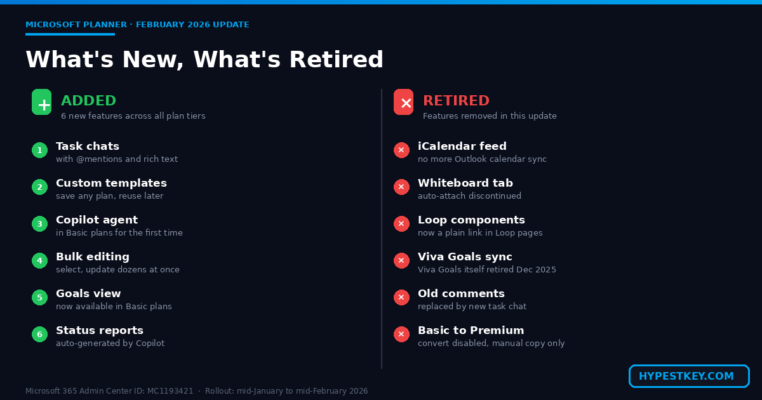
Task chats are the big one, they replaced the old comments system in Basic plans. Rich text, @mentions, threaded per task. Custom templates finally landed too, you can save any plan structure and reuse it. The Project Manager AI agent made its way into Basic plans for anyone with a Copilot license (was Premium-only before). In Grid view, bulk task editing lets you highlight a bunch of tasks and update them in one shot, which was long overdue honestly. And status reports now auto-generate summaries of progress, milestones, and risks, straight from Copilot.
Features Retired in the 2026 Update
However, several things got axed in the same update. Admins, all of this lives under message ID MC1193421 in the Microsoft 365 admin center if you want the full log. The iCalendar feed that synced Planner tasks out to Outlook or Google Calendar is gone. No direct replacement. That one stings. Whiteboard tab in Premium plans got pulled too, the thing that let you turn sticky notes into tasks. Planner components inside Microsoft Loop pages are retired, existing ones just show a plain link now. Viva Goals sync got dropped because Viva Goals itself shut down at the end of 2025. And here’s the weird one: converting a Basic plan to a Premium plan was temporarily disabled. So if you need to upgrade, you’re making a new Premium plan and copying tasks over by hand. Painful.
What this tells you: Microsoft is narrowing Planner’s scope. Less sprawl across the 365 ecosystem, more focus on Teams-first task management.
Microsoft Planner vs Microsoft Project: Which One Do You Need?
This is the question I see everywhere on Reddit and Microsoft forums. Short version: depends on how gnarly your projects are.
Microsoft Planner is for team task management. Make tasks, assign them, hit deadlines, track what’s done. Works great when you’ve got a clear list of deliverables and a small-to-mid team. If you could manage your project with sticky notes on a whiteboard, Planner is just that whiteboard with extra features.
Microsoft Project is the serious stuff. Task dependencies, critical path analysis, resource leveling across multiple projects, baselines, cost tracking, earned value. If you’re managing a construction timeline, a software release with 300 tasks, or an enterprise-wide program, you need Project.
Here’s a 2026 fact worth knowing if you’re picking between them: Microsoft is retiring Project for the Web and folding its features into Planner Premium. Project Online dies September 30, 2026. So the gap between Planner and Project is closing fast. Gantt charts, sprints, task dependencies, the stuff that used to be Project-only, all already working inside Planner Premium.
Microsoft Planner vs Trello vs Asana vs ClickUp vs Monday
If you’re not locked into the Microsoft world, here’s how Planner stacks against the main alternatives in 2026.
| Tool | Starting Price | Best For | Key Strength |
|---|---|---|---|
| Planner Basic | Free with M365 | Microsoft 365 teams | Native Teams integration |
| Trello | Free tier available | Small teams, simple boards | Power-Ups and Butler automation |
| Asana | Free up to 10 users | Mid-size cross-functional teams | Timeline and workload views |
| ClickUp | Free tier available | Teams wanting one app for everything | Custom views and dashboards |
| Monday.com | $9/user/month | Sales and operations teams | Workflow automations |
| Notion | Free for individuals | Docs and tasks hybrid | Flexible database system |
Planner vs Trello
Microsoft Planner vs Trello is the matchup I see most. Trello has a similar kanban experience but with way more flexibility on automations (Butler) and third-party integrations (Power-Ups). Great fit if your team uses Google Workspace or bounces between platforms. Trello’s free tier is actually usable, no paid subscription needed. If your team lives outside the Microsoft world, Trello is just the faster setup, no argument.
Planner vs Asana
For heavier project work, the Microsoft Planner vs Asana debate comes down to how gnarly your projects get. Asana goes deeper on real project management: timeline views, portfolios, workload tracking, workflow automations. Better choice for larger teams running reports across multiple projects if you’re not on Microsoft 365. Asana’s free tier handles up to 10 users with unlimited tasks and the basic views.
Planner vs ClickUp
The Microsoft Planner vs ClickUp fight is kind of “focused vs everything.” ClickUp tries to be every app at once: tasks, docs, goals, time tracking, dashboards. More features, steeper learning curve. If your team wants maximum customization and you’ve got time to set it up properly, ClickUp wins. If you just want a tool that works out of the box with your existing Microsoft 365 stack, Planner’s simpler, period.
Planner vs Monday.com
Budget-wise, the Microsoft Planner vs Monday.com call is almost always easy if you’re already a Microsoft shop. Monday is built for sales teams, ops, customer-facing work. Color-coded status columns and workflow automations are its strong points, they’re genuinely good. Downside: Monday starts at $9 per user per month, while Planner Basic is free if you already have Microsoft 365. For Microsoft-heavy orgs, Planner does most of what Monday does without a second bill.
Planner vs Notion
For Microsoft Planner vs Notion, the question is really about what you want your workspace to be. Notion mashes notes, docs, databases, and tasks into one flexible workspace. More flexible than Planner but less focused on team task flows. If you need Microsoft 365 integration, Planner wins. If you want one tool for your wiki, docs, and tasks, go Notion.
Why Choose Planner Over Alternatives
Microsoft Planner wins when your org already runs on Microsoft 365. The integration with Teams, Outlook, SharePoint, and OneDrive is tighter than anything Trello, Asana, ClickUp, Monday, or Notion can offer via connectors. Tasks you assign in the app show up in Microsoft To Do. Flagged emails land in your task list. When you use Copilot, Teams meeting action items flow into plans automatically. If you live in Teams all day, Planner just fits, no setup, no second subscription.
Common Microsoft Planner Problems and How to Fix Them
Most Microsoft Planner issues fall into a handful of buckets (no pun intended). These are the ones I see over and over on Microsoft Q&A and Reddit, with the fixes that actually work.
Microsoft Planner Is Missing in Teams
Not seeing Planner in your Teams apps? Your admin probably turned it off at the tenant level. Ping IT, they can flip it back on in the Microsoft 365 admin center. Sometimes you just need to add the app manually, three dots in the Teams sidebar, search “Planner,” pin it. Done.
Tasks Not Syncing Between Planner and Outlook
This one’s ugly. The iCalendar feed that used to sync Planner tasks to external calendars retired in the February 2026 update. No direct replacement from Microsoft yet. Flagged emails in Outlook still show up in your Planner My Tasks view, but two-way sync with Google Calendar or other external calendars is dead. Workaround: build a custom sync flow in Power Automate. Not elegant but it works.
Cannot Convert Basic Plan to Premium
So yeah, Microsoft disabled this in January 2026. Microsoft says it’s coming back but no date. So for now: create a new Premium plan, export your Basic plan to Excel, then copy tasks over manually. Tedious but it’s what we’ve got.
Missing Comments on Existing Tasks
After the 2026 update, Microsoft swapped the old comments system for task chat in Basic plans. Comments posted before the update aren’t directly visible on the task anymore, which surprises people. They’re still there though, just sitting in the Microsoft 365 group mailbox tied to the plan. Your admin can pull them from Outlook if you need the history for audit.
Notifications Not Working
Since the 2026 update, task chat only notifies users who’ve been @mentioned. This is a change from the old comments system that pinged everyone on the plan, and it trips people up. If your team is missing updates, the fix is simple: get people to use @mentions in task chats instead of just typing generic messages. Also check Teams notification settings, since Planner pings land in your Teams activity feed.
Planner Keyboard Shortcuts Not Responding
Quick tip: Insert key on Windows (or Fn+Enter on Mac) adds a new task fast. Ctrl+F6 jumps between main areas of the Planner interface. Standard browser shortcuts (Ctrl+F for search, Esc to close dialogs) work as expected. If nothing’s responding, click somewhere on the Planner canvas first to give it focus, that’s usually the issue.
Tips for Getting More Out of Microsoft Planner
A few things I’ve picked up from actually using the tool that make it way less painful.
Use Labels Consistently Across Plans
Labels in Microsoft Planner are color-coded tags on tasks. So decide what each color means at the start (red = blocked, blue = design, green = dev, yellow = waiting on someone else) and stick with it across plans. The board view becomes so much easier to scan at a glance. Mixing up colors across plans is the number one thing that makes Planner feel messy.
Connect Planner with Power Automate
Also worth knowing: Power Automate is where Microsoft Planner gets interesting. Build flows like: Slack message when a task hits “Done,” auto-create a Planner task when someone fills out a Microsoft Form, email a weekly overdue task digest. Saves hours of manual follow-up. The Planner connector in Power Automate has a decent trigger/action list, not huge, but covers most common needs.
Export Plans to Excel for Reporting
However, Planner’s built-in charts are fine only for a quick “how are we doing” glance but that’s it. Three-dot menu on any plan → “Export to Excel.” Now you’ve got a spreadsheet with every task detail. Pivot tables, variance calculations, whatever custom reporting your leadership actually wants, all possible from there.
Pin Important Plans in Teams
If you bounce between a bunch of plans in Microsoft Planner, pin the ones that matter. Right-click the Planner app in Teams, select “Pin.” Now those plans are one click away instead of buried three menus deep.
System Requirements for Microsoft Planner
Because Microsoft Planner is all web-based, requirements are basically nothing. A modern browser (Edge, Chrome, Firefox, Safari) and a Microsoft 365 work or school account, that’s it. The Teams desktop app itself runs on Windows 10+, macOS, and Linux. Mobile apps need iOS 16+ or Android 10+.
There’s no standalone desktop Planner app. It runs in your browser or inside Teams. Meaning it works on Chromebooks, tablets, anything with a browser. If you’ve already got Microsoft Office installed, Planner syncs through your account automatically, no extra setup needed.
Microsoft Planner FAQ
Is Microsoft Planner free?
Planner Basic ships free with most Microsoft 365 business, enterprise, and education subscriptions. There’s no standalone free version though, you need a paid Microsoft 365 plan to get in. Already paying for Microsoft 365? You’ve already got Planner Basic. Premium features (Gantt, dependencies, sprints) need a separate license starting at $10 per user per month.
What is the difference between Planner Basic and Premium?
Basic covers task boards, kanban, grid and schedule views, charts, Teams integration. That’s what most teams actually need. Premium (Plan 1, $10/user/month) adds Gantt timeline, task dependencies, sprint planning, custom fields, and task history. Plan 3 and Plan 5 stack on top with roadmap, portfolio management, and the Copilot Project Manager agent.
How do I access Microsoft Planner?
Four options: browser at planner.cloud.microsoft (sign in with work or school account), the Planner app inside Microsoft Teams, the app launcher (waffle icon) in any Microsoft 365 app, or the mobile app on iOS or Android. Same data across all of them.
Can Microsoft Planner replace Microsoft Project?
For small-to-mid-size team projects and day-to-day task management, yes, Planner’s plenty. For enterprise portfolio management, heavy dependency chains, or resource allocation across dozens of projects, no, you still need Project. Worth knowing: Microsoft is folding Project for the Web into Planner Premium, and Project Online retires September 30, 2026. So the gap’s closing fast.
What changed in Planner in 2026?
The February 2026 update added task chats with @mentions, custom templates, and the Copilot Project Manager AI agent to every plan tier including Basic. On the other side, several things got retired: the iCalendar feed, Whiteboard integration in Premium, Planner components in Loop pages, and the Viva Goals integration.
Does Planner integrate with Microsoft Teams?
Yes, Microsoft Planner is deeply integrated with Microsoft Teams and it works as a native tab, a chat action, and a notification channel. You can add Planner as a tab in any Teams channel, spin up tasks directly from Teams conversations, and get task notifications in your Teams activity feed. The Planner app in Teams gives you access to My Day, My Tasks, and all your shared plans.
How much does Planner cost in 2026?
Microsoft Planner Basic ships free with any paid Microsoft 365 business, enterprise, or education subscription, no extra cost. Planner Premium (Plan 1) is $10 per user per month. Plan 3 is $30 per user per month with the Copilot agent and advanced PM tools. Plan 5 is $55 per user per month with full portfolio and resource management. All paid plans billed annually.
Is Microsoft Planner Worth Using in 2026?
If your org runs on Microsoft 365, yes. Microsoft Planner in 2026 is the best version of the tool by a wide margin. Basic costs zero extra and handles what 80% of teams actually need from a task manager. And since it’s already inside Teams where your team lives all day, adoption is basically zero-effort.
Teams with heavier project needs: Planner Premium at $10 per user per month plugs the gap between a simple kanban board and full project management software. Gantt charts, dependencies, plus the AI Project Manager agent make it competitive with Asana and Monday.com now.
The 2026 update made it clear Microsoft is serious about making Planner the central work management hub inside Microsoft 365. Project for the Web is already merged in, Project Online retires in September, and Planner is getting all the attention going forward. If you already pay for a Microsoft 365 license, just spin up a plan and see how it fits. Zero extra cost, zero lock-in, nothing to lose.
Last updated: April 2026
