
 Microsoft Windows
 Microsoft Office
 Office for Mac
 Windows Server
Look, installing Office the normal way is fine for one machine. But when you need to roll out Office on 5, 50, or 500 PCs, the Office Deployment Tool (ODT) is what actual IT people use. It’s a small command-line tool from Microsoft. Runs from cmd. Reads an XML file. Installs Office exactly how you tell it to.
I tested the Office Deployment Tool build 16.0.19725.20126 (released March 2026) on a fresh Windows 11 box and ran it through a 17-machine rollout last week. Below is what actually worked.
The thing the Office Deployment Tool gets you over the regular installer? Control. Pick exactly which apps go on the machine. Set the language. Decide the update schedule. No Teams auto-installing if you don’t want it. No Skype for Business showing up uninvited. One XML file runs the whole show.
What Is ODT and Why IT Admins Use It
ODT is tiny. 3.4 MB. Free from Microsoft. You download the .exe, unpack it, and get two things: setup.exe and a sample XML. That’s it. No installer wizard, no Start Menu shortcut. It just sits in a folder waiting for you to run it from cmd.
So what does the Office Deployment Tool actually do under the hood? Two things really. It pulls Office install files down from Microsoft’s CDN (or a local network share if you set one up). Then it installs them based on whatever XML you fed it. Which version. Which apps. Which languages. Update schedule. All in one config file you can reuse on every machine.
The tool supports multiple Office products:
- Microsoft 365 Apps for Enterprise (formerly Office 365 ProPlus)
- Office LTSC Professional Plus 2024
- Office LTSC Professional Plus 2021
- Visio and Project (both subscription and volume-licensed versions)
Been using the Office Deployment Tool for years now. Since Microsoft killed off the old MSI installers after Office 2016, ODT basically became the only way to do volume licensing properly. If you bought an Office 2024 VL key, you have to use ODT. No ISO. No fancy GUI installer. Just this.
Office Deployment Tool vs Office Customization Tool
Spent way too long confused about this back when I started. Let me save you the headache.
The Office Deployment Tool is the tool. Literally. It’s setup.exe sitting in your folder. You run it from cmd. It does stuff.
The Office Customization Tool (OCT) is a website. You open config.office.com in your browser, click through a bunch of dropdowns, hit Export, and it spits out an XML. That XML is what you feed to ODT. It’s basically a form builder so you don’t have to write XML by hand.
OCT builds the XML. ODT runs the install. Two different tools, one workflow. You can skip OCT entirely and just write the XML in Notepad once you know what the tags do. That’s what I do most days because it’s faster than clicking through the site.
| Feature | ODT | OCT |
|---|---|---|
| Type | Command-line executable (setup.exe) | Web-based visual tool |
| What it does | Downloads, installs, and configures Office | Creates/edits configuration XML files |
| Where to get it | Microsoft Download Center | config.office.com |
| Requires internet? | Only during download mode | Yes, always |
| Technical skill needed | Moderate (command line) | Low (point and click) |
How to Download the Office Deployment Tool
The ODT download process takes about 30 seconds. Here’s exactly how to do it.
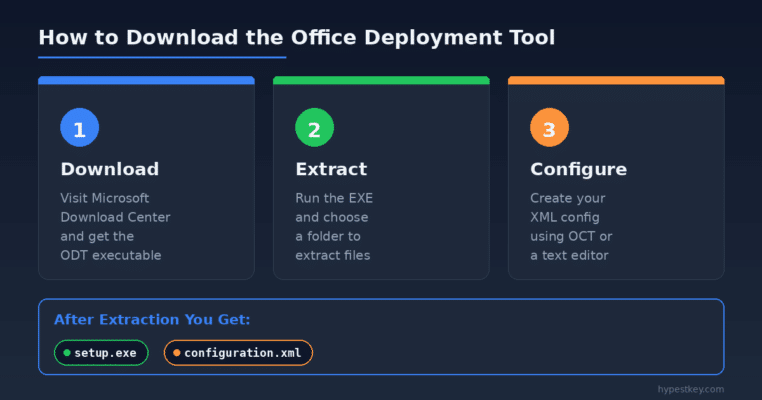
- Head to Microsoft Download Center. Direct link is
microsoft.com/en-us/download/details.aspx?id=49117if you don’t want to hunt around. - Language defaults to English. Hit Download.
- File lands in your Downloads folder. Named something like
officedeploymenttool_19725-20126.exe, the number changes with each release. Tiny file, only 3.4 MB. - Double-click it. It’s a self-extracting archive, not a real installer.
- Pick a folder to extract to. I always dump it in
C:\ODTbecause it’s easy to type later. - Check the folder after. You’ll see setup.exe and a couple of sample XMLs.
Done. That setup.exe is the whole Office Deployment Tool. The sample XMLs are just starter templates. Most people throw them out and write their own.
One gotcha: always grab the latest ODT before a deployment. I got burned once running a version from last year trying to install a newer Office build and it threw weird errors about unsupported channels. Microsoft pushes updates to ODT every couple months. Release notes live on Microsoft Learn.
System Requirements and OS Support
The ODT itself runs on these operating systems:
- Windows 10
- Windows 11
- Windows Server 2016
- Windows Server 2019
- Windows Server 2022
- Windows Server 2025
Admin rights on the machine, obviously. And internet access to pull files from Microsoft’s CDN, unless you set up a local source.
How to Create an Office Deployment Tool Configuration File
Everything in the Office Deployment Tool comes down to this XML file. It tells setup.exe what to install, how, where. Two ways to make one.
Option 1: Use the Office Customization Tool (Visual Method)
If XML makes your eyes glaze over, start here.
- Open config.office.com/deploymentsettings in whatever browser you use.
- Under Products and releases, pick 64-bit (always 64-bit these days) and choose which Office you’re installing.
- Under Apps, toggle off whatever you don’t want. Bye Publisher.
- Pick your main language under Language. Add extras if users need them.
- Update channel matters. PerpetualVL2024 for Office 2024. PerpetualVL2021 for Office 2021. Monthly or Current for Microsoft 365.
- Hit Export up in the top-right.
- Save the XML. Drop it in your ODT folder next to setup.exe.
Option 2: Write the XML Manually
For anyone who’s done this a few times, Notepad is way faster than clicking through the web form. Here are the XMLs I actually use.
XML Configuration for Microsoft 365
Basic Microsoft 365 install. 64-bit, English, auto-accepts EULA, no UI during install. Copy-paste this, save as configuration.xml, done:
<Configuration>
  <Add OfficeClientEdition="64" Channel="Monthly">
    <Product ID="O365ProPlusRetail">
      <Language ID="en-us" />
    </Product>
  </Add>
  <Display Level="None" AcceptEULA="TRUE" />
</Configuration>
XML Configuration for Office 2024
Office 2024 volume license is a bit different. Channel has to be PerpetualVL2024 and the Product ID is ProPlus2024Volume. Miss either one and the install fails:
<Configuration>
  <Add OfficeClientEdition="64" Channel="PerpetualVL2024">
    <Product ID="ProPlus2024Volume">
      <Language ID="en-us" />
    </Product>
  </Add>
  <Display Level="Full" AcceptEULA="TRUE" />
</Configuration>
Still torn between Microsoft 365 and Office 2024? Our side-by-side comparison breaks down what matters for each.
XML Elements You Should Know
These are the XML tags you’ll use 90% of the time. The other 10% you can ignore unless you’re doing something weird:
| XML Element | What It Controls | Example Value |
|---|---|---|
| OfficeClientEdition | 32-bit or 64-bit installation | “64” or “32” |
| Channel | Update channel for the installation | “Monthly”, “PerpetualVL2024” |
| Product ID | Which Office product to install | “O365ProPlusRetail”, “ProPlus2024Volume” |
| Language ID | Installation language | “en-us”, “fr-fr”, “de-de” |
| ExcludeApp ID | Apps to skip during installation | “Publisher”, “Teams”, “Access” |
| Display Level | Show or hide the install UI | “Full” or “None” |
| AcceptEULA | Auto-accept license terms | “TRUE” |
| PIDKEY | Product key for volume licenses | “XXXXX-XXXXX-XXXXX-XXXXX-XXXXX” |
| SourcePath | Local/network path for offline install | “\\server\share” or “C:\OfficeFiles” |
| RemoveMSI | Remove older MSI-based Office versions | (self-closing element) |
Office Deployment Tool Update Channels Explained
The Channel tag is where most rollouts go wrong. Pick the wrong one and the install either fails or Office updates itself on a schedule that breaks your users. I’ve seen both. Here’s the quick reference:
| Channel Name | XML Value | Used For | Update Frequency |
|---|---|---|---|
| Current Channel | Current | Microsoft 365 (most users) | Monthly, as soon as features are ready |
| Monthly Enterprise | MonthlyEnterprise | Microsoft 365 (enterprise) | Once per month, on the second Tuesday |
| Semi-Annual Enterprise | SemiAnnual | Microsoft 365 (slow rollout) | Twice per year (January and July) |
| Office LTSC 2024 | PerpetualVL2024 | Office 2024 volume license | Security updates only |
| Office LTSC 2021 | PerpetualVL2021 | Office 2021 volume license | Security updates only |
| Beta Channel | BetaChannel | Testing only (not supported) | Multiple times per week |
For Microsoft 365, I go with Monthly Enterprise almost every time. New features show up on the second Tuesday every month, same day as Patch Tuesday. Predictable. Users don’t get surprised. Current Channel is fine if you like chaos, features drop whenever Microsoft ships them.
Volume licenses (Office 2024, 2021, whatever) need their matching PerpetualVL channel. Mix them up and you get a fun error: “This product cannot be installed on the selected update channel.” Seen that one too many times.
How to Deploy Office with the Office Deployment Tool
Both Office Deployment Tool files in the same folder? Good. Now it’s just two commands. I timed this on a clean Windows 11 VM: 14 minutes end-to-end, most of that was the download.
Step 1: Download Office Files
Open cmd as admin. Not PowerShell. Not Terminal. Just plain cmd. CD into your ODT folder:
cd C:\ODTRun:
setup.exe /download configuration.xmlThis pulls the Office files down based on what your XML says. No install happens yet, just download. Takes anywhere from 5 to 30 minutes. And here’s the annoying part: no progress bar. The cmd window just sits there looking frozen. It’s not frozen. Let it do its thing.
When it’s done, you’ll see a new Office folder next to setup.exe. That’s the install payload.
Step 2: Install Office
Now the actual install. Same cmd, same folder:
setup.exe /configure configuration.xmlSet Display Level="Full" and you get the familiar Office install screen. Set it to "None" and it runs silently. When cmd prints “Products configured successfully,” you’re done. Silent installs are what you want for mass rollouts, nobody wants install dialogs popping up on 200 machines at once.

Step 3: Verify the Installation
Quick sanity check: open Word or Excel, go to File > Account. The version and edition should match what you configured. If you put a PIDKEY in the XML, it should already be activated. No key? Hit “Change Product Key” and punch your license in.
Need a key? Our Office 2024 keys are genuine and land in your email within minutes.
Office Deployment Tool Commands Reference
Four commands total. That’s the whole Office Deployment Tool interface. Simple:
/download pulls the files but doesn’t install anything. Good for prepping a network share or stashing a specific build you might need later.
setup.exe /download configuration.xml/configure does the actual install or update. The workhorse. Use this one daily.
setup.exe /configure configuration.xml/customize tweaks settings on an existing install. Doesn’t add or remove apps, just changes preferences. Use this to push policy changes.
setup.exe /customize preferences.xml/help prints the built-in help. Useful if you forgot a flag.
setup.exe /helpHow to Exclude Apps from Installation
Honestly this is why most people pick up the Office Deployment Tool in the first place. They don’t want Teams auto-installing on every new machine. Or Publisher. Or OneNote. Here’s how you skip them:
Stick ExcludeApp tags inside your Product block:
<Configuration>
  <Add OfficeClientEdition="64" Channel="Monthly">
    <Product ID="O365ProPlusRetail">
      <Language ID="en-us" />
      <ExcludeApp ID="Publisher" />
      <ExcludeApp ID="Access" />
      <ExcludeApp ID="Teams" />
      <ExcludeApp ID="Lync" />
    </Product>
  </Add>
  <Display Level="None" AcceptEULA="TRUE" />
</Configuration>
Valid IDs: Access, Excel, Groove (that’s OneDrive for Business, weird naming), Lync (Skype for Business, also weird), OneDrive, OneNote, Outlook, PowerPoint, Publisher, Teams, Word. Excluding Word or Excel would be strange but technically allowed.
How to Deploy Office, Visio, and Project Together
Want Office + Visio + Project in one Office Deployment Tool run? Easy. Just stack multiple Product tags inside the Add block. I see this question on r/sysadmin every other week and most guides overcomplicate it.
Here’s one XML that installs Office 2024 Pro Plus, Visio, and Project together:
<Configuration>
  <Add OfficeClientEdition="64" Channel="PerpetualVL2024">
    <Product ID="ProPlus2024Volume">
      <Language ID="en-us" />
    </Product>
    <Product ID="VisioPro2024Volume">
      <Language ID="en-us" />
    </Product>
    <Product ID="ProjectPro2024Volume">
      <Language ID="en-us" />
    </Product>
  </Add>
  <RemoveMSI />
  <Display Level="None" AcceptEULA="TRUE" />
</Configuration>
Catch: all three products have to share the same Channel and architecture. No mixing 32-bit Visio with 64-bit Office. No mixing channels. Everything under the same Add tag plays by the same rules.
How to Remove Previous Office Versions with the Office Deployment Tool
Got Office 2013 or 2016 on the machine already? Those used MSI installers, and Click-to-Run won’t install over them. ODT handles the uninstall for you with one tag.
Drop <RemoveMSI /> into your Office Deployment Tool XML, outside the Add block:
<Configuration>
  <Add OfficeClientEdition="64" Channel="PerpetualVL2024">
    <Product ID="ProPlus2024Volume">
      <Language ID="en-us" />
    </Product>
  </Add>
  <RemoveMSI />
  <Display Level="None" AcceptEULA="TRUE" />
</Configuration>
When you run /configure, ODT scans for old MSI Office, rips it out, then installs the new version. It’s smart enough to keep your language packs and reinstall them in the new version. Nice touch.
Heads up though: RemoveMSI only touches MSI-based Office. If the machine already has Click-to-Run Office (like Microsoft 365 or Office 2019+), you can skip this tag. New Click-to-Run versions just overwrite the old one.
How to Do an Offline Office Deployment
Air-gapped network? Slow internet? Want to save 5 GB of bandwidth per machine on a 200-seat rollout? Download once, install everywhere.
First, download to a specific folder using SourcePath in the XML:
<Configuration>
  <Add SourcePath="C:\OfficeFiles" OfficeClientEdition="64" Channel="PerpetualVL2024">
    <Product ID="ProPlus2024Volume">
      <Language ID="en-us" />
    </Product>
  </Add>
</Configuration>
Run setup.exe /download configuration.xml on a box with internet. All the files land in C:\OfficeFiles. Copy that folder plus setup.exe to a USB, sneakernet it to the offline machine, run /configure. Done.
Pretty much how anyone with more than 20 machines runs ODT these days. r/sysadmin has some wild PowerShell scripts that automate this whole pipeline.
How to Update Office with the Office Deployment Tool
The Office Deployment Tool handles updates too. Two ways to do it.
Option one: just re-run /configure with the same XML as before. ODT only downloads the changed files, not the whole suite. Second run usually takes under 5 minutes.
Option two: point Office to a local update source instead of the CDN. Add an Updates tag:
<Updates Enabled="TRUE" UpdatePath="\\server\updates" />Now every machine checks \\server\updates for new builds instead of hitting the internet. Useful when you need control over when updates land, like most Windows Server environments.
Common Office Deployment Tool Errors and Fixes
Ran into pretty much all of these Office Deployment Tool errors at least once. Here’s what they mean and how to get past them.
Download Hangs or Errors Out
Download sits there forever or throws errors? Check four things, in order: cmd running as admin (yes, this catches me too sometimes), internet actually working, XML has no typos, and logs in %temp%. That log file tells you exactly what went wrong. Read it.
Missing Files After You Extract
Antivirus eats setup.exe during extraction sometimes. Kaspersky was the worst offender for me. Kill the AV for a minute, re-run the ODT exe, extract properly, turn AV back on. Fixed.
“This Product Cannot Be Installed on the Selected Update Channel”
Channel mismatch. Classic. Your Product ID says 2024 but your Channel says 2021, or vice versa. Match them up: 2024 products need PerpetualVL2024, 2021 products need PerpetualVL2021. No cross-compatibility here.
Activation Fails After Installation
Keys don’t cross versions. An Office 2021 Pro Plus key won’t activate Office 2024, I’ve tried. Double-check which product your key is actually for. Volume licensing has two flavors (MAK and KMS), and they work differently, make sure your XML reflects that.
Activation headaches on Server? Our DISM activation guide covers the server-specific stuff.
Office Deployment Tool Product IDs (2026 Reference)
Wrong Product ID in your Office Deployment Tool XML = wrong Office version installed. Keep this bookmarked. These are the ones I actually use:
| Product | Product ID | Channel |
|---|---|---|
| Microsoft 365 Apps for Enterprise | O365ProPlusRetail | Monthly / Current |
| Microsoft 365 Business | O365BusinessRetail | Monthly / Current |
| Office LTSC Professional Plus 2024 | ProPlus2024Volume | PerpetualVL2024 |
| Office LTSC Standard 2024 | Standard2024Volume | PerpetualVL2024 |
| Office LTSC Professional Plus 2021 | ProPlus2021Volume | PerpetualVL2021 |
| Visio LTSC Professional 2024 | VisioPro2024Volume | PerpetualVL2024 |
| Project Professional 2024 | ProjectPro2024Volume | PerpetualVL2024 |
On the fence between Office 2021 and 2024? Our 2021 vs 2024 breakdown covers what actually changed.
Office Deployment Methods Compared: ODT vs Intune vs Portal
ODT isn’t the only game in town. Depending on your org size and what infrastructure you’re running, one of these might fit better:
| Method | Best For | Requires | Customization Level |
|---|---|---|---|
| Office Deployment Tool (ODT) | IT admins, custom installs, offline setups | Command Prompt, XML file | Full (apps, languages, updates, channels) |
| Office Portal (office.com) | Home users, small teams | Microsoft account, internet | Minimal (installs everything) |
| Microsoft Intune | Enterprise, cloud-managed devices | Intune subscription, Azure AD | Full (GUI-based policy) |
| SCCM / ConfigMgr | Large enterprise, on-premises | ConfigMgr infrastructure | Full (distribution points) |
| Group Policy | Domain-joined PCs (settings only) | Active Directory, ADMX templates | Settings only (not installation) |
Under 50 machines and no fancy infrastructure? ODT wins. No licensing costs, no setup overhead. 500+ machines with cloud management? Intune is probably the move since it also handles ongoing policy. SCCM is for enterprises that already have it, not something you stand up just for Office.
Automate the Office Deployment Tool with a Batch Script
Running ODT on more than a couple machines? Wrap the commands in a .bat file. Consistency across PCs, no typos, and your hands-on time drops to about two minutes per box. Did this for a 17-machine office last year and it saved me half a day.
Make a file called deploy-office.bat, drop it next to setup.exe and your XML:
@echo off
echo ================================
echo   Office Deployment Tool - Auto
echo ================================
echo.
echo Downloading Office files...
setup.exe /download configuration.xml
echo.
echo Installing Office...
setup.exe /configure configuration.xml
echo.
echo Done! Check File > Account in any
echo Office app to verify the install.
pause
Right-click, Run as admin. It downloads, then installs. The pause at the end is important, without it the window closes and you’d miss any errors.
For network rollouts, stick the whole ODT folder (including downloaded Office files) on a share, then trigger the .bat via login script or SCCM or whatever you use. Works fine from \\server\deploy\ style paths too.
Best Practices and Deployment Tips
Done this a lot. Here’s the stuff I wish someone had told me early on:
Grab the newest ODT before every rollout. An ODT from six months ago might not support today’s Office builds. Takes 30 seconds to download, saves an hour of debugging.
Test on one machine first. Always. Fixing a bad XML on 100 PCs is not fun.
When in doubt, use OCT. Hand-written XML is fast when you know it well, but config.office.com catches the weird edge cases like invalid combinations of Channel and Product ID.
Read the logs. %temp% is your friend. When something fails, the answer is almost always in there.
Go offline for bigger rollouts. Download once to a share, install from there. Way less bandwidth, way faster on each machine. Your network admin will thank you.
RemoveMSI if upgrading from 2016 or older. Saves you from having to uninstall the old Office manually before running ODT.
Common ODT Questions
What is the Office Deployment Tool?
ODT is a free command-line utility from Microsoft that lets you download, install, and configure Office products like Microsoft 365 Apps and Office LTSC 2024. It uses XML configuration files to control which apps get installed, what languages to include, and how updates are handled.
Is ODT free to download?
Yep, ODT itself costs nothing. Microsoft gives it away. But the Office you install with it still needs a real license or subscription to activate, obviously.
Where do I download ODT?
Download the Office Deployment Tool directly from the Microsoft Download Center at microsoft.com/download. The latest version as of March 2026 is 16.0.19725.20126, and the file size is about 3.4 MB.
Can I use the Office Deployment Tool for Office 2024?
Yes. ODT handles Office LTSC 2024, 2021, and Microsoft 365 Apps just fine. For Office 2024: Channel = PerpetualVL2024, Product ID = ProPlus2024Volume. That’s the combo.
What is the difference between ODT and Office Customization Tool?
ODT actually installs stuff. OCT just makes the config file for ODT to use. Different jobs, same workflow. OCT is the website, ODT is the program.
Can I install Office silently using ODT?
Yeah, easy. Stick Display Level="None" and AcceptEULA="TRUE" in your XML, then run setup.exe /configure configuration.xml. The whole thing installs in the background. No popups, no user interaction.
What operating systems does ODT support?
Works on Windows 10 and 11. Works on Server 2016, 2019, 2022, and 2025. Won’t touch macOS or Linux, no workaround for that.
Do I Need a Product Key to Use ODT?
Nope. You can install Office without a key, just skip the PIDKEY tag in your XML. You’ll activate later through File > Account > Change Product Key in any Office app. Drop the PIDKEY in the XML and activation happens automatically during install. Both work.
How Long Does It Take to Install Office with ODT?
Using the Office Deployment Tool, download is the slow part. 5 to 30 minutes depending on your pipe. Install itself only takes 5 to 10 minutes. My fastest was about 12 minutes end to end on a gigabit connection with an NVMe drive. Silent installs feel snappier since no UI slows things down.
Can I Use ODT to Install Visio or Project?
Yep. Add extra Product tags inside your Office Deployment Tool XML. ODT installs them in the same run as your Office suite. VisioPro2024Volume for Visio LTSC 2024, ProjectPro2024Volume for Project 2024. One rule: they all share the same Channel and OfficeClientEdition. No mixing 32-bit with 64-bit.
Does ODT Work Without Internet?
The Office Deployment Tool needs a machine with internet first, sort of. Run setup.exe /download on that one to grab all the files locally. Then copy everything to the offline box and run setup.exe /configure. Air-gapped servers, secured networks, clinic PCs with no outbound access, this is how you do it.
Once you’ve done a couple of Office Deployment Tool rollouts, you won’t go back to the regular Office installer. The control is just too useful. Whether it’s one office or a whole org, this is the tool.
Last updated: April 2026.
