Short answer: WinZip Disk Tools: a disk cleanup and defrag utility from WinZip SystemTools, separate from the WinZip archiver. Free version? Scans only. Fixes need a paid license. Its page lists Windows 10, 8, 7 and Vista. We'd remove it in Settings, Apps, Installed apps and use the free cleanup tools Windows already has.
WinZip Disk Tools is a paid disk cleanup and defrag utility from the WinZip SystemTools line, not part of the WinZip archiver. Its free version only scans; fixing needs a license. If it appeared without your say, remove it in Settings, Apps, Installed apps. Windows already includes free cleanup and drive optimization tools.
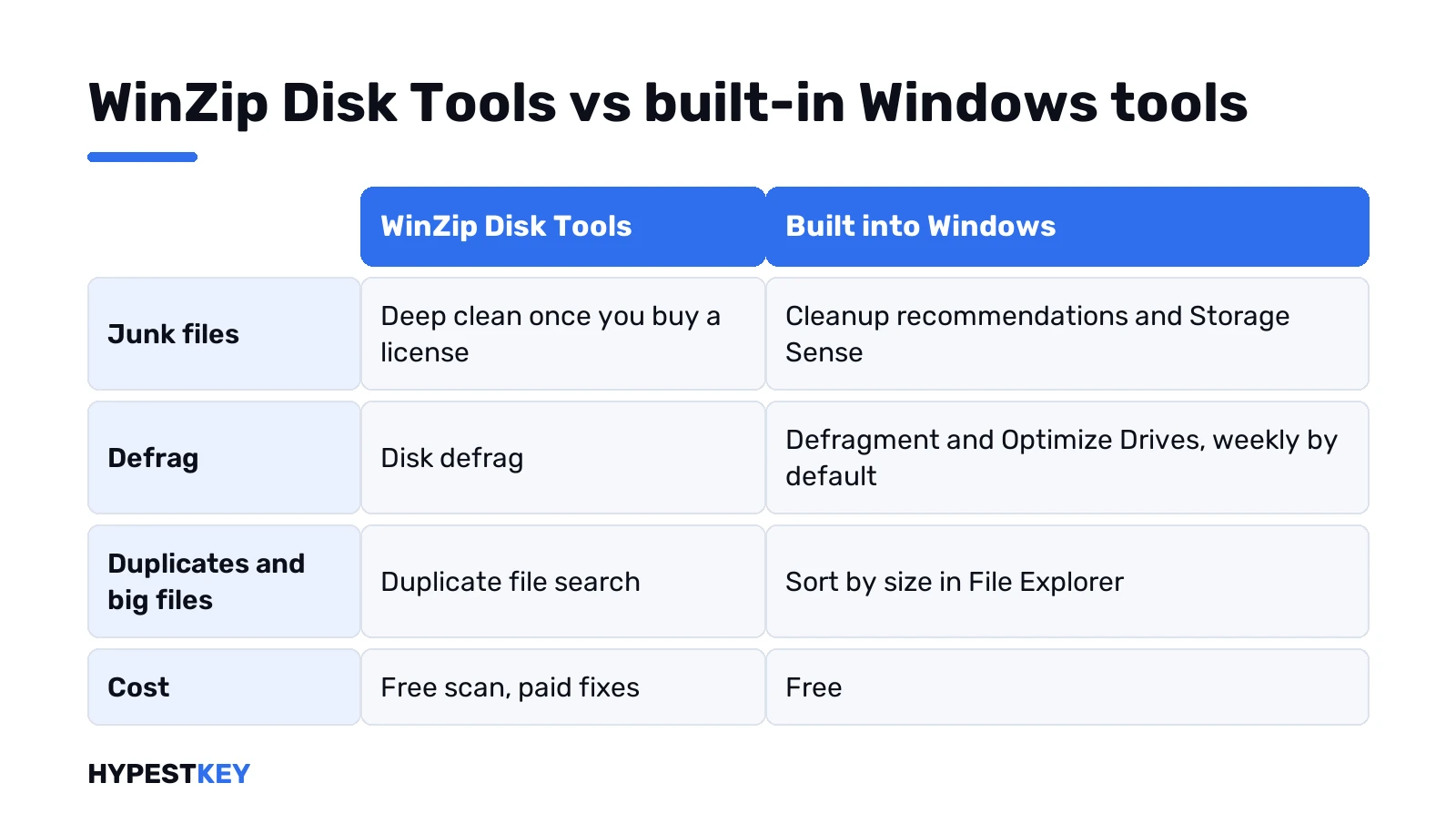
| Job | WinZip Disk Tools | Built into Windows |
|---|---|---|
| Junk and temporary files | Deep clean, after purchase | Cleanup recommendations, Storage Sense |
| Duplicate files | Duplicate search | Sort by size in File Explorer |
| Defragmentation | Disk defrag | Defragment and Optimize Drives, weekly by default |
| Price | Free scan, paid fixes | Free |
| Windows 11 listed | No, the product page names 10, 8, 7 and Vista | Yes |
What WinZip Disk Tools does
Four things, going by the vendor’s product page:
- Cleans junk and temporary files to free space.
- Searches for duplicate files so you can delete them.
- Scans and defragments the hard drive.
- Fixes drive issues and runs benchmark tests.
There’s a scheduler too. The vendor’s help pages suggest running the program at least once a month, which tells you the business model: it wants to stay on the PC.
WinZip Disk Tools vs the WinZip you know
Same brand, different product. WinZip the archiver opens and creates ZIP files. Disk Tools comes from the separate WinZip SystemTools family, sold by Corel on its own site. Its neighbours there? A driver updater, a registry optimizer, the System Utilities Suite.
So uninstalling Disk Tools leaves your archive program alone. Want the archiver itself? Our WinZip download for Windows 11 page covers the safe download. Most people don’t even need it; see how to unzip files on Windows with nothing extra.
Free scan, paid fixes
Trial? Just a scan. Per the vendor’s FAQ, the free version runs a full system scan and lists errors and things to optimize. Fixing them or optimizing the disk needs a purchased license code.
That’s the part we’d think twice about. A scan that finds problems and then asks for payment is a common pattern among PC optimizers. Before paying, we’d run the free Windows tools further down and compare what’s left.
Windows 11 support: not on the list
Officially it isn’t listed. The product page says it’s compatible with Windows 10, 8, 7 and Vista, and Windows 11 isn’t named.
It may install anyway. Still, a disk utility that touches system files on an unlisted Windows version is a gamble we wouldn’t take. Not sure what you run? Here’s how to check your Windows version.
Why security tools flag it
Malwarebytes lists it as PUP.Optional.WinZipDiskTools, a potentially unwanted program. Not malware. The label goes to system optimizers that, in Malwarebytes’ words, sometimes use intentional false positives to sell the fix.
- A warning during installation, from the security tool.
- Scheduled tasks in Task Scheduler.
- An entry in Programs and Features.
Malwarebytes doesn’t block the install, by the way. You can keep it if you bought it and like it. Just know what it is.
How to uninstall WinZip Disk Tools
Settings first. It’s the Windows 11 route Microsoft gives for any app.
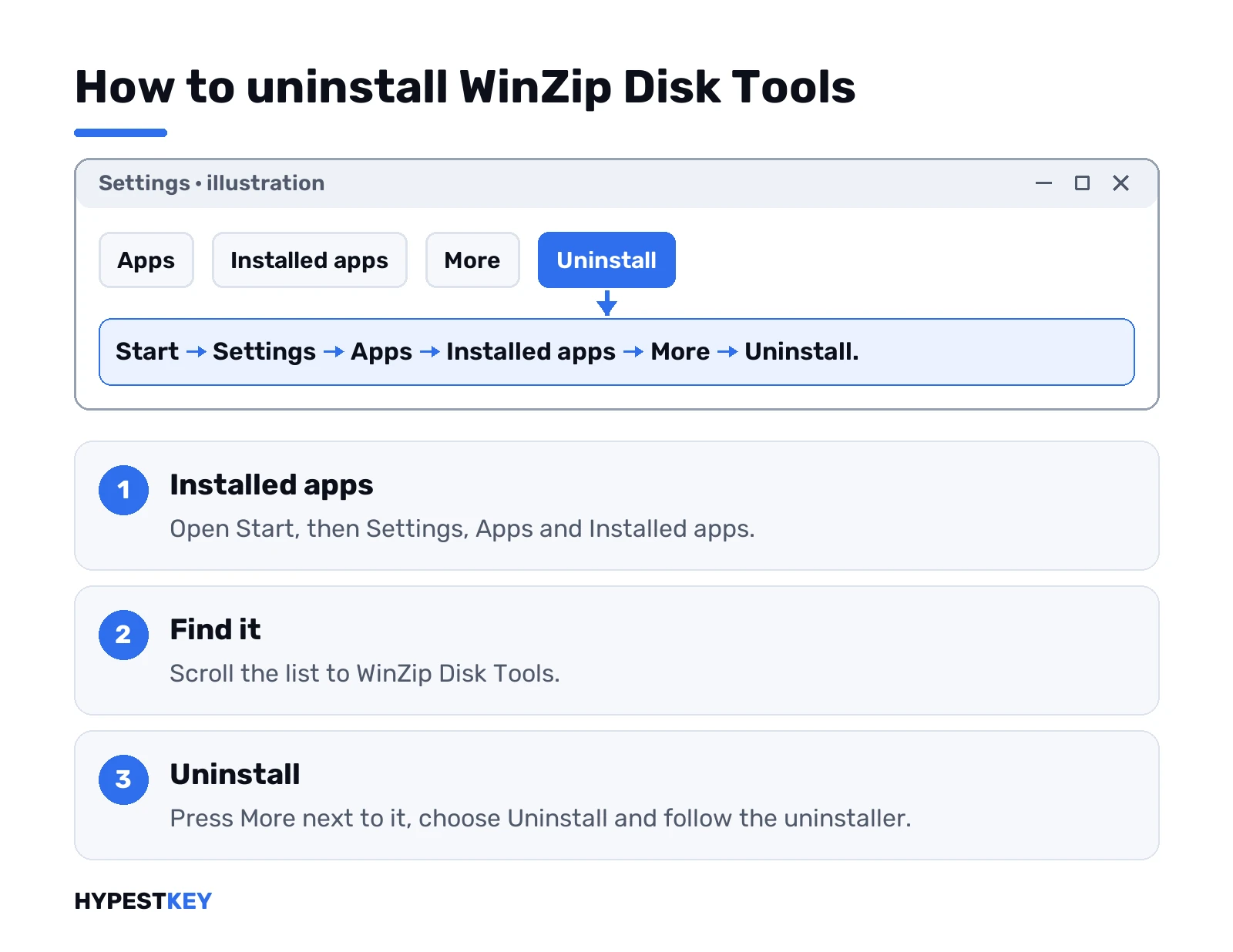
- Start, Settings, Apps, Installed apps.
- Find WinZip Disk Tools in the list.
- The More button next to it, then Uninstall.
- Follow the uninstaller to the end.
Prefer Control Panel? Programs, Programs and Features, right-click Disk Tools, Uninstall/Change. The vendor’s own FAQ gives that path, plus an Uninstall Disk Tools entry in its Start menu folder.
Afterwards we’d open Task Scheduler and look for leftover tasks with the product’s name. Delete those. Then restart.
Several of these programs at once? Same routine as when you delete McAfee on Windows 11. Office leftovers have their own Microsoft Office uninstall tool.
Windows’ own disk tools do the same job
Free and already there. For space:
- Start, Settings, System, Storage, Cleanup recommendations. Temporary files, large or unused files, files synced to the cloud, unused apps.
- Storage Sense in the same Storage page clears temporary files and the Recycle Bin on its own.
Microsoft’s page on how to free up drive space in Windows walks through each option.
Defrag next. Search defrag on the taskbar, open Defragment and Optimize Drives. Analyze, then Optimize. We’d rarely bother, since Windows runs it weekly by default and sends trim to an SSD instead of defragmenting. More on that in Microsoft’s guide to defragmenting and optimizing drives.
Duplicates and big files without extra software
No built-in duplicate finder, true. Big files are easier.
- Open File Explorer in Downloads or Documents.
- View, Details.
- Right-click the column header area and sort by Size.
The largest files float to the top. Old installers and ISO files usually sit there; our page on ISO files in Windows explains what they are. Cloud copies via OneDrive Files On-Demand free space too.
Still slow after the cleanup?
Disk cleaning rarely fixes a slow PC on its own. What we’d check next:
- Pending updates. Our Windows Update guide covers the stuck ones.
- Heat. A hot CPU throttles; here’s how to check CPU temp.
- Startup apps. Safe mode shows whether a program is the cause; see Windows 11 safe mode.
- A safety net before big changes: create a restore point.
Last resort? A clean start with our guide to factory reset Windows 11. Moving to a fresh install anyway? A Windows 11 Pro key from us is Retail and instant to email.
FAQ
Is WinZip Disk Tools a virus?
No. Malwarebytes calls it a potentially unwanted program, which is a lower category than malware.
Why is it on my PC if I never installed it?
It may have come along with another program you installed. Check Installed apps and uninstall it if you don't want it.
Will removing it break WinZip?
No. Disk Tools and the WinZip archiver are separate programs, so the archiver keeps working.
Is the free version enough?
It only scans. Fixing what it finds needs a paid license code, according to the vendor's FAQ.
Does it support Windows 11?
Not officially. Its product page names Windows 10, 8, 7 and Vista, and Windows 11 isn't on the list.
What can I use instead for free?
Cleanup recommendations and Storage Sense in Settings, plus Defragment and Optimize Drives. All built into Windows.
It came back after uninstalling, what now?
Look for another program from the same family in Installed apps, remove it, then clear leftover tasks in Task Scheduler.