Short answer: The Windows 10 error sound is the Critical Stop system sound. To change or mute it, open the Sounds tab with Win + R and mmsys.cpl. Select Critical Stop. Pick another file, or "None". Random dings with no message? Usually Device Connect, Device Disconnect or a notification.
The Windows 10 error sound is the system sound called Critical Stop, the one Windows plays with an error message. Warnings use Exclamation, plain message boxes use Default Beep. All of them live on the Sounds tab of the Sound control panel. Swap, mute or trace them there in a couple of minutes.
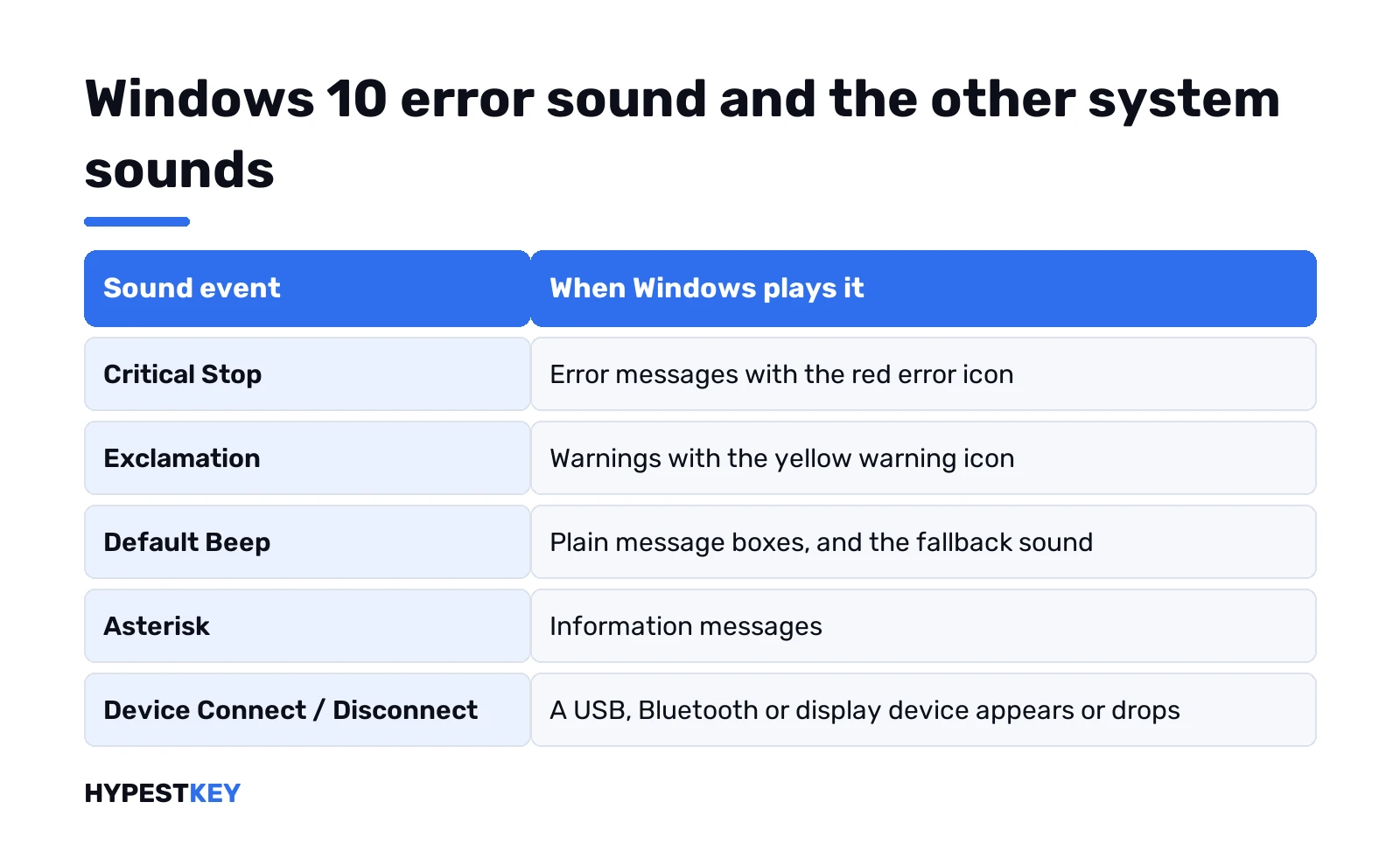
| Sound event | When you hear it |
|---|---|
| Critical Stop | Error messages with the red error icon |
| Exclamation | Warnings with the yellow warning icon |
| Default Beep | Plain message boxes; also the fallback sound |
| Asterisk | Information messages |
| Question | Messages with the question icon |
| Device Connect / Device Disconnect | Something USB, Bluetooth or a display was plugged in or dropped |
| Notification sounds | Apps posting to Action Center |
Hearing an “error” with no message on screen? Usually it’s one of the last two rows. We cover those below.
Which sound is the Windows 10 error sound
Programs don’t usually pick a WAV file themselves. They ask Windows for a type of sound, and Windows plays whatever you assigned to that event.
Ask for an error and you get Critical Stop. A warning gets Exclamation. An information box, Asterisk. That mapping comes from Microsoft’s documentation of the MessageBeep function, the call apps use for these sounds.
One more detail from the same page. Can’t play the chosen sound? Windows falls back to the system default sound, then to a simple tone. Plain beep instead of the chime? We’d suspect a missing or broken sound file.
Open the Sounds tab
Two ways in. Slow one first:
- Control Panel.
- Hardware and Sound.
- Sound. Then the Sounds tab.
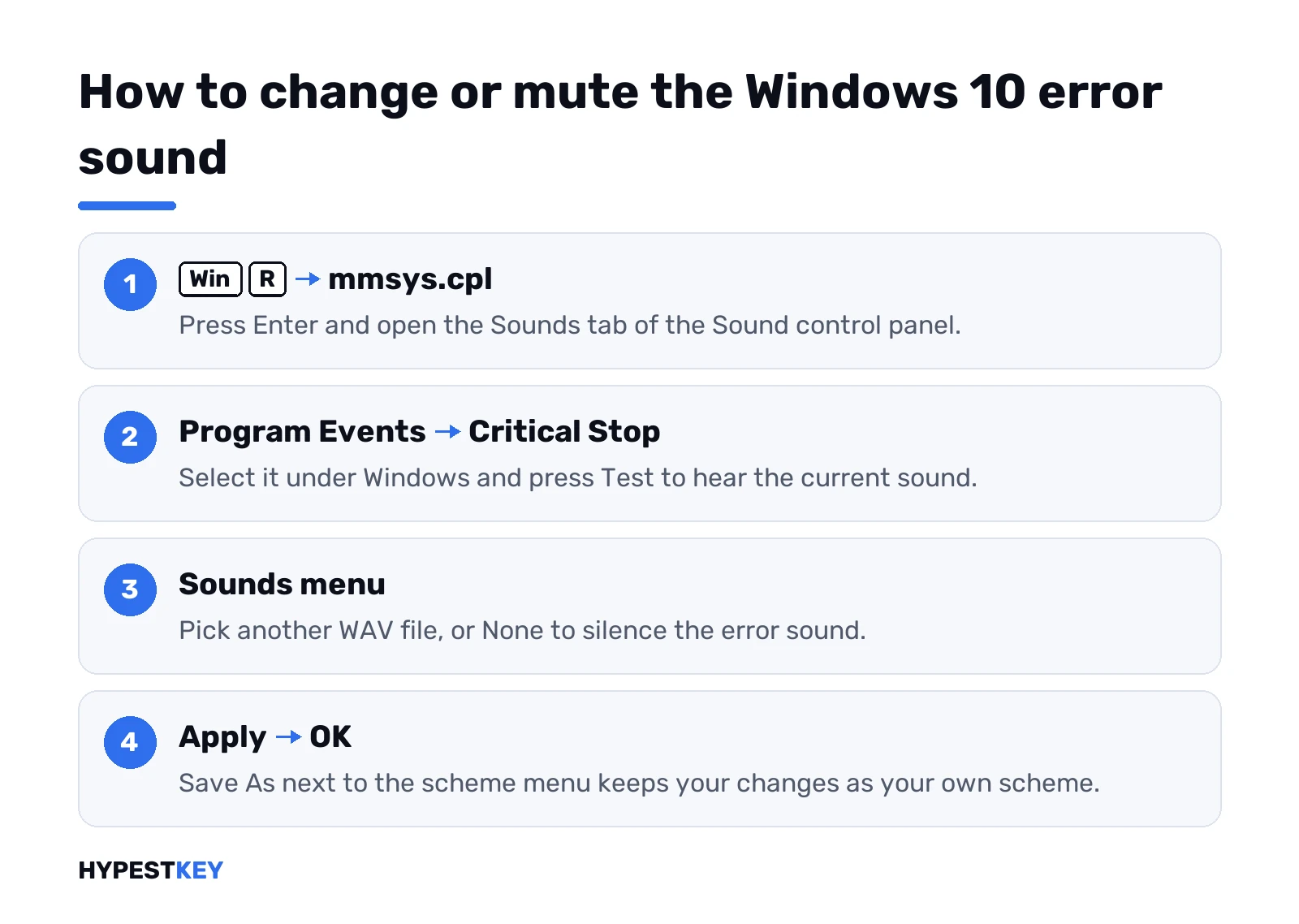
Fast one. Win + R, then this:
mmsys.cplEnter, then the Sounds tab. You’ll see a Sound Scheme menu at the top and a long Program Events list below it. Click an event, press Test, hear it. Handy for matching the noise that’s bugging you.
Change or turn off the Windows 10 error sound
- In Program Events, under Windows, select Critical Stop.
- Open the Sounds menu at the bottom.
- Pick another sound, or “None” to silence it.
- Apply, OK.
Want your own file? Browse lets you choose one. It has to be a WAV. Microsoft’s design guide for Windows sounds recommends 16-bit, 44.1 kHz uncompressed PCM. An MP3 renamed to .wav won’t do; convert it properly first.
Changed several events? Save As, next to the scheme menu. Your own scheme, kept. Next time a theme resets things, you’d pick it again in one click.
Exclamation annoys you more than Critical Stop? Same steps, different event. We’d mute the noisy one and leave the rest alone. Error sounds are useful when you’re not looking at the screen.
Silence every system sound at once
Sound Scheme, top of the Sounds tab. Choose No Sounds. Apply.
That kills error sounds, warnings, the device chimes, all of it. Music, videos and calls still play. Microsoft’s own description: the Sounds tab is where users change system sounds, nothing more.
Want them back? Pick Windows Default in the same menu.
A random Windows 10 error sound with nothing on screen
This is the search most people actually make. A ding, nothing visible. The usual suspects, in order:
- Device Connect or Disconnect. A USB hub, a mouse receiver, a monitor waking up. Each drop and reconnect plays a sound.
- A notification. Some app posted to Action Center and the toast came and went.
- An error box hidden behind another window. Check the taskbar for a blinking icon.
To find out which, go back to the Sounds tab. Test Device Connect, Device Disconnect and Critical Stop one by one. The one that matches is your answer.
Device sounds? A Microsoft moderator’s fix on Microsoft Q&A: set both to “None”. That stops the noise. The device still drops, though. Try another USB port or cable, and look at which gadget was plugged in when it started. Mouse or keyboard acting up at the same moment? Our online keyboard tester shows whether keys register.
Notification sounds aren’t error sounds
They sound similar. They’re set somewhere else.
- Settings, System.
- Notifications & actions.
- Clear “Allow notifications to play sounds”.
Only one app is noisy? Same page, under “Get notifications from these senders”. Open that app, clear “Play a sound when a notification arrives”. We’d do it per app; the rest keep talking.
No error sound at all on Windows 10
The opposite problem. Errors pop up in silence.
- Scheme set to No Sounds? Switch to Windows Default.
- Critical Stop set to “None”? Pick a sound again.
- Everything silent, music too? Then it’s audio in general, not the scheme.
For that last case Microsoft’s checklist goes like this. Settings, Update & Security, Troubleshoot, Playing audio. Then the output device in the taskbar’s speaker menu. Then sound drivers in Device Manager. Last, restart the Windows Audio service. The full list is on fix sound or audio problems in Windows. Microphone silent as well? Our microphone test checks that side in a browser.
Sounds broke right after an update or a driver install? Booting into safe mode helps tell a driver problem from a settings one; here’s how to enter safe mode in Windows 10.
Where the sound files are, and the download question
People search for the Windows 10 error sound as an MP3 or WAV to download. You already have it.
Windows keeps its sound files in the Media folder inside the Windows folder:
C:\Windows\MediaWhich file is the error one on your PC? Sounds tab, select Critical Stop. The file name shows in the Sounds menu at the bottom. Copy that file somewhere else before you play with it. We wouldn’t edit or replace anything inside the Media folder itself; Windows protects it, and a broken file there brings back the plain beep.
Windows 10 editions, reinstalls and licences
Sound settings work the same on every edition. Comparing editions? See our Home vs Pro guide. Thinking of moving up? There’s the upgrade comparison too, and going from Home to Pro without reinstalling. Reinstalling anyway? Find your Windows 10 product key first. Then a clean install of Windows 10, then activate Windows 10.
No licence for that fresh install? We sell a Windows 10 Pro key, retail, one PC, instant to email.
FAQ
What is the Windows 10 error sound called?
Critical Stop. You'll find it on the Sounds tab of the Sound control panel, in the Program Events list under Windows.
How do I turn off the Windows 10 error sound?
Press Win + R, type mmsys.cpl, open the Sounds tab, select Critical Stop and choose "None" in the Sounds menu. Then Apply.
Why does my PC make an error sound for no reason?
Usually it's Device Connect or Device Disconnect, a USB or display device dropping and coming back. Notifications are the second suspect.
Where is the Windows 10 error sound file?
In the Media folder inside the Windows folder. Select Critical Stop on the Sounds tab to see which file your PC uses.
Can I use an MP3 as the error sound?
No. Windows system sounds have to be WAV files, so convert the MP3 to a proper WAV first instead of renaming it.
Will No Sounds mute my music and videos too?
No. The No Sounds scheme only silences Windows system sounds, while apps, music, videos and calls keep playing.
Why do I hear a plain beep instead of the usual sound?
Windows falls back to the default sound, then to a simple tone, when it can't play the chosen file. Pick the sound again on the Sounds tab.