Short answer: CHKDSK checks a Windows drive for file system errors. Command Prompt, as administrator. Type chkdsk C: and you get a report, nothing changed. Add /f to fix errors, or /r to hunt bad sectors too. On the system drive we'd answer Y and restart; the check then runs before Windows loads.
CHKDSK is the Windows command that checks a drive’s file system for errors and, with /f or /r, repairs them. Run on its own, it only reports. Admin Command Prompt, then the command with a drive letter. The system drive gets checked at the next restart.
| What you want | Command | What happens |
|---|---|---|
| Just look, change nothing | chkdsk C: | Status report only, no fixes |
| Fix file system errors | chkdsk C: /f | Locks the drive; on C: it waits for a restart |
| Fix errors and hunt bad sectors | chkdsk C: /r | Everything /f does, plus a read of every sector |
| Fix a data drive that is in use | chkdsk D: /f /x | Dismounts the drive first, open handles are dropped |
| Check without taking the drive offline | chkdsk C: /scan | Online scan on NTFS, problems queued for later |
| Fix only what the scan found | chkdsk C: /spotfix | Short offline repair on NTFS |
How to run chkdsk from Command Prompt
You need administrator rights. Without them the command refuses to fix anything.
- Start menu. Type cmd.
- Right-click Command Prompt, then Run as administrator.
- Say yes to the User Account Control prompt.
- Type the command below and press Enter.
A read-only pass on drive C first:
chkdsk C:Errors listed? Then the repair run:
chkdsk C: /fWindows Terminal or PowerShell as admin work the same way. The command doesn’t care which window it lives in.
One limit from the chkdsk command reference: local disks only. A network share mapped to a drive letter can’t be checked this way. We’d run it on the PC that owns the disk.
The Check button in File Explorer
No typing at all. Same engine underneath.
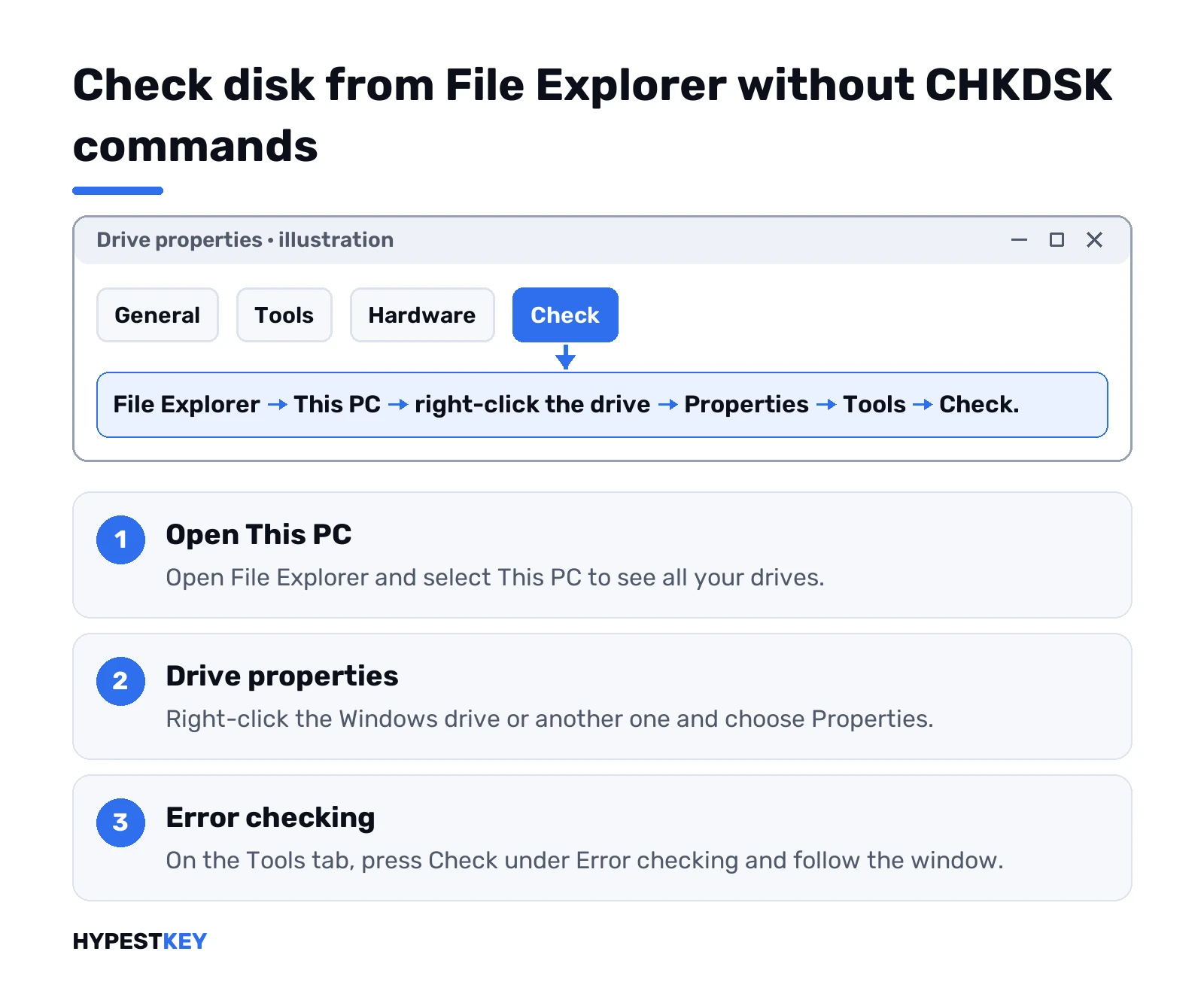
- File Explorer, then This PC.
- Right-click the Windows drive or another one. Properties.
- Tools tab. Under Error checking, press Check.
- Follow what the window says.
Often the answer is short: no errors found, nothing to scan. You can still press Scan drive. We’d use this route on a relative’s laptop over the phone, since nobody has to spell out switches.
Chkdsk parameters: /f, /r, /x and the rest
Most people need two letters. The rest exist for special cases and mostly apply to NTFS.
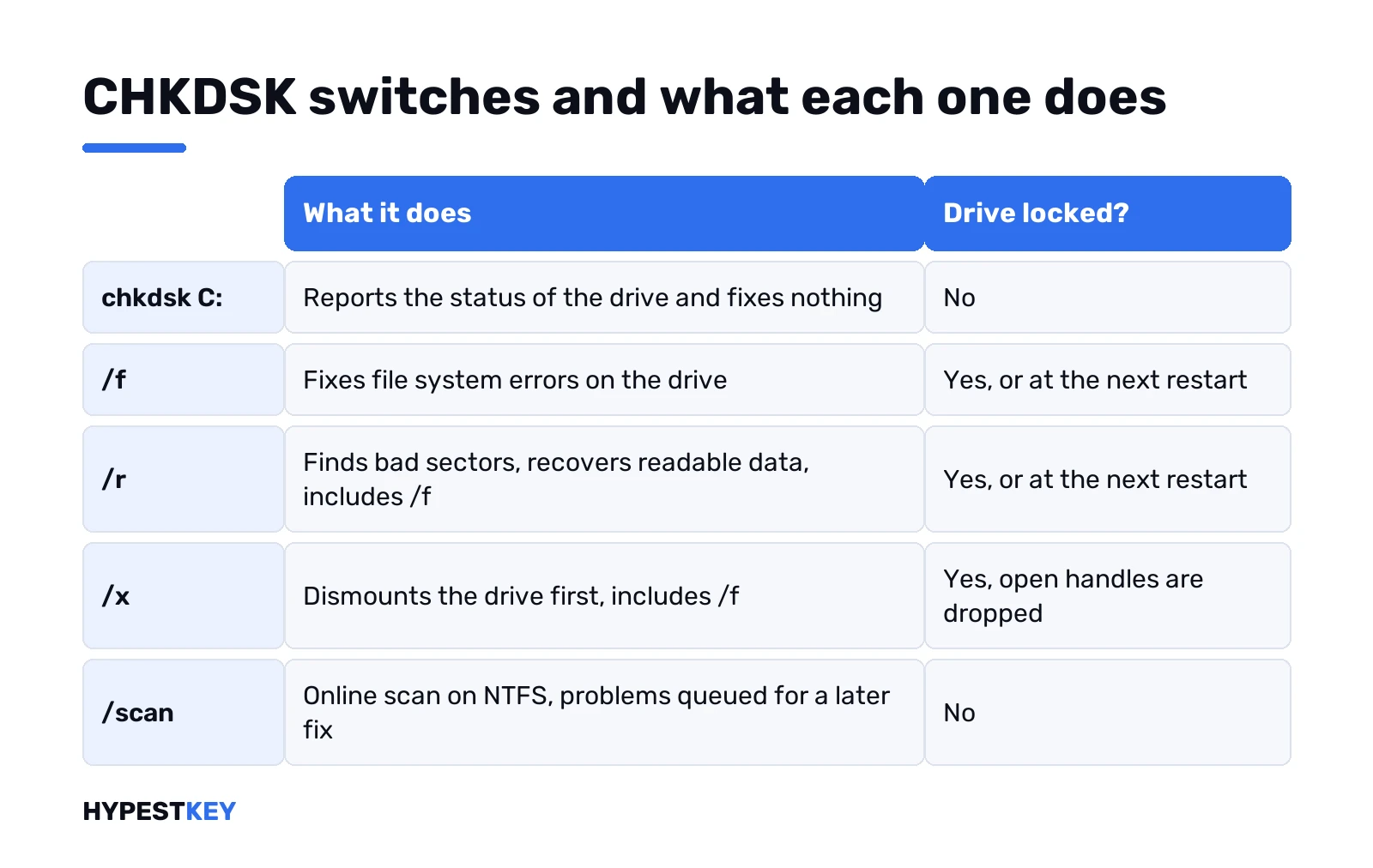
| Switch | What it does |
|---|---|
| /f | Fixes errors on the disk. The disk must be locked. |
| /r | Locates bad sectors and recovers readable data. Includes /f. |
| /x | Dismounts the volume first if needed. Includes /f. |
| /v | Shows the name of every file as it is checked. |
| /i | NTFS only. Lighter check of index entries, so it runs faster. |
| /c | NTFS only. Skips cycle checks in the folder structure, also faster. |
| /b | NTFS only. Clears the bad cluster list and rescans everything. Includes /r. |
| /scan | NTFS only. Online scan of the volume. |
| /forceofflinefix | With /scan. Skips online repair and queues every defect for offline repair. |
| /perf | With /scan. Uses more system resources to finish sooner. |
| /spotfix | NTFS only. Spot fixing on the volume. |
| /sdcleanup | NTFS only. Garbage collection of unneeded security descriptor data. |
| /offlinescanandfix | Offline scan and fix of the volume. |
| /l | NTFS only. Shows or changes the log file size. |
| /freeorphanedchains, /markclean | FAT, FAT32 and exFAT only. |
Which of the two, then. Quick logical repair with /f. Clicking sounds, slow file copies or read errors on a hard drive call for the second. Since /r already includes /f, typing both changes nothing.
After cloning a disk onto a new one, Microsoft points to /b. Rare for home users, and it takes the longest of all.
Scan first, fix later: the NTFS online scan
A gentler order on a drive you’re working on. Scan online, keep using the PC, repair the found items in one short offline step.
chkdsk C: /scanThen, if the scan queued something:
chkdsk C: /spotfixThe spot fix only touches what the scan recorded. Less downtime than a full /f pass. On a busy work PC we’d pick this pair over a blind repair.
When chkdsk wants a restart
Run /f on C: and you get this:
Chkdsk cannot run because the volume is in use by another process. Would you like to schedule this volume to be checked the next time the system restarts? (Y/N)Type Y. Restart. The check runs before Windows loads, fixes errors on its own and then boots normally. A boot partition restarts the PC by itself after the check.
Leave it alone during that screen. Interrupting chkdsk isn’t recommended, although Microsoft says canceling it shouldn’t leave the volume more corrupt than before. Running it again picks up the rest.
Laptop owners: power cable in. A dead battery mid-repair is the scenario nobody wants to test.
A scan that repeats on every boot usually means the drive still has a dirty flag. We’d let one full run finish, then read the log described below before anything else.
Running chkdsk when Windows won’t start
Windows itself has a way in. After several failed starts it opens the Windows Recovery Environment on its own. From a working desktop: hold Shift and press Restart.
- Troubleshoot.
- Advanced options.
- Command Prompt.
Drive letters can differ in that window. List a folder first to be sure which letter holds Windows:
dir C:\Then the usual repair on that letter:
chkdsk C: /fEncrypted drive? Some recovery tools want the BitLocker recovery key first, and our BitLocker guide for Windows 11 shows where it’s stored. Half-starts instead? We’d try Safe Mode: Windows 11 Safe Mode or Safe Mode in Windows 10.
No recovery screen at all? A USB stick from the Windows 11 Media Creation Tool boots into the same tools through Repair my PC.
How long it takes on an HDD and an SSD
Minutes to hours. Size, file count and the switch decide it.
| Drive | Plain check or /f | /r or /b |
|---|---|---|
| Hard disk | Slow with millions of files | Reads every sector through the moving head; hours on a large disk are normal |
| SSD | Usually quick | Also reads every sector, but far faster with no seek time |
Finished suspiciously fast on a big hard disk? Microsoft lists possible reasons: the volume was locked, not every sector got scanned, or the read head is failing.
On an SSD, an occasional check is fine. Repeated full-surface /r runs add write and erase cycles for no benefit, so we wouldn’t schedule them weekly.
Reading the result and the logs
The report ends with an exit code. Scripts read it, people can too.
| Exit code | Meaning |
|---|---|
| 0 | No errors were found |
| 1 | Errors were found and fixed |
| 2 | Disk cleanup done, or skipped because /f was not given |
| 3 | The disk could not be checked or errors were not fixed |
A check at boot scrolls past before anyone reads it. The text lands in Event Viewer.
- Press Win + R, type eventvwr.msc, OK.
- Windows Logs, right-click Application, Filter Current Log.
- Event sources: tick Chkdsk and Wininit. OK.
Prefer PowerShell? This prints the latest chkdsk entries:
get-winevent -FilterHashTable @{logname="Application"} | ?{$_.providername -match "chkdsk"} | fl timecreated, messageSwap chkdsk for wininit in that line to see the boot-time check.
Files named File0000.chk in the root of a FAT drive? Those are lost chains chkdsk saved after you said yes to converting them. Open them and keep anything useful.
Chkdsk, SFC and DISM: which does what
| Tool | What it checks | Typical line |
|---|---|---|
| chkdsk | The file system and disk sectors of a volume | chkdsk C: /f |
| DISM | The Windows component store that SFC repairs from | DISM.exe /Online /Cleanup-image /Restorehealth |
| SFC | Protected system files, replaced from a cached copy | sfc /scannow |
Different layers. Disk damage can break system files. Fixing the files won’t repair the disk. Our order is chkdsk first. Then DISM and SFC in the same admin window, as in Microsoft’s System File Checker article.
Updates failing? Separate story. For those we have the Windows Update troubleshooter guide.
Repair-Volume, the PowerShell version
Same job, PowerShell names. Handy in scripts.
| Repair-Volume switch | Matches |
|---|---|
| -Scan | chkdsk /scan: scan only, findings go to the $corrupt file |
| -SpotFix | chkdsk /spotfix: volume briefly offline, only logged issues fixed |
| -OfflineScanAndFix | chkdsk /f: volume offline, full scan and fix |
Repair-Volume -DriveLetter C -ScanAdmin PowerShell, of course.
When the disk itself is failing
Chkdsk repairs structures and marks bad sectors. It doesn’t make a dying drive young again.
Many bad sectors on each run. New errors every week. A check that hangs at the same percent. Then we’d copy files off first and repair second. A fresh restore point in Windows 11 won’t help here, since it sits on the same disk.
New drive in? Windows goes back on with a clean Windows 11 installation or by installing Windows 11 from USB. Disk fine, Windows wrecked? We’d go the lighter way and try factory resetting Windows 11. Firmware settings during a swap: see how to enter BIOS.
Same PC, digital license? It comes back on its own, and checking the activation status takes a minute. New PC with no license? We sell a Retail Windows 11 Pro key, instant to email.
Related guides
FAQ
chkdsk /f or /r, which one do I type?
Start with /f for file system errors. Use /r when you suspect bad sectors, since it already includes everything /f does.
Can I stop chkdsk halfway?
Better not. Microsoft says stopping it shouldn't make the volume worse, but you then have to run it again to finish the repair.
Why does it ask to restart?
The system drive is in use, so chkdsk can't lock it. Type Y, restart, and it runs before Windows loads.
It's been at the same percent for an hour. Normal?
On a big hard disk with /r, often yes. Every sector gets read. If it never moves, copy your files off once it ends.
Is chkdsk bad for an SSD?
Not for an occasional check. Repeated full /r scans only add write cycles, so we'd skip them as routine maintenance.
Where do I see the results after a reboot?
Event Viewer, Windows Logs, Application. Filter by the Chkdsk and Wininit sources to find the full report.
Same thing as sfc /scannow?
No. Chkdsk checks the disk and its file system, while SFC repairs protected Windows system files from a cached copy.
Why does it say Access Denied?
The window most likely runs without admin rights. Close it, open Command Prompt with Run as administrator and type the command again.