Short answer: BSOD Windows 10 crash: Windows hit a stop error, showed a stop code and restarted. One restart often fixes it. Repeats? Note the stop code and remove new hardware. Then update or disable drivers in Device Manager. Free disk space, install updates, test memory. Still crashing? We'd use System Restore or reset the PC.
A BSOD Windows 10 crash, the blue screen of death, is a stop error: Windows hits a problem it can’t safely continue from, shows “Your device ran into a problem and needs to restart” with a stop code, and reboots. One restart often fixes it. Same blue screen again? Work through these in order.
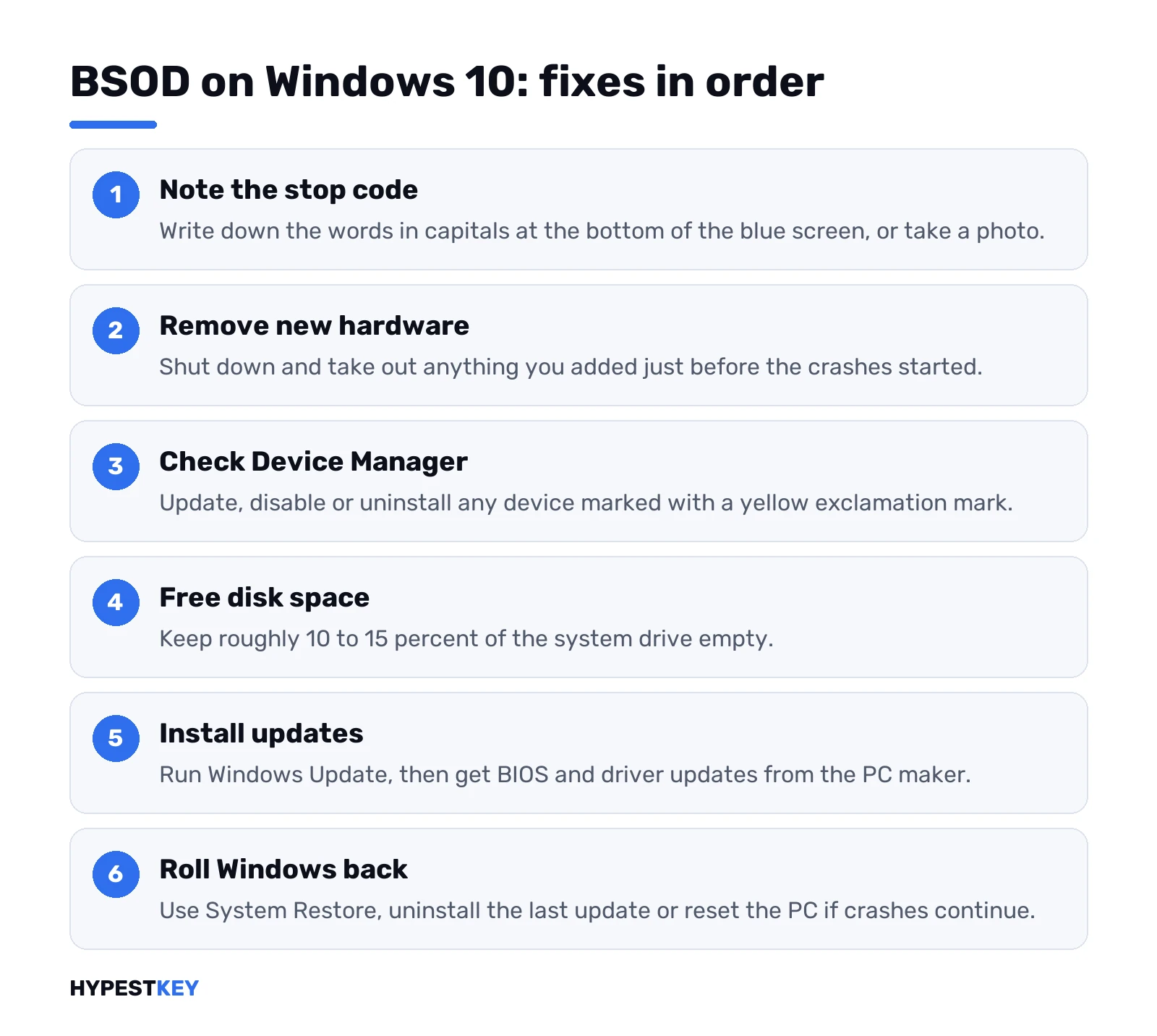
- Write down the stop code at the bottom of the screen.
- Remove any hardware you added just before the crashes started.
- Can’t reach the desktop? Start in Safe Mode.
- Device Manager: update, disable or uninstall devices with a yellow exclamation mark.
- Free up space so 10 to 15 percent of the drive is empty.
- Install Windows updates, then BIOS and firmware updates from the PC maker.
- Still crashing? Restore Windows to a restore point or use the recovery options.
That’s Microsoft’s own order, from its blue screen troubleshooting page. Each step gets its own section below, plus the stop codes people see most.
What the Windows 10 blue screen is telling you
Three bits of text matter. The sad face and the restart message don’t.
- Stop code. Words in capitals, like MEMORY_MANAGEMENT or PAGE_FAULT_IN_NONPAGED_AREA.
- What failed. Sometimes a file name, often ending in .sys. That’s the driver that was running.
- QR code. Scan it with a phone. It leads to Microsoft’s stop code help page.
Screen gone before you could read it? Take a photo next time. Or check Event Viewer later, covered further down.
Who’s usually to blame? Microsoft’s analysis of crashes puts 70 percent on third-party driver code. Ten percent hardware, five percent Microsoft’s own code. The other 15 percent can’t be traced because memory was too damaged. So when we see a BSOD, we’d suspect a driver first.
BSOD Windows 10: the first fixes, in order
New hardware out. A new graphics card, extra RAM, a USB dock. Shut down, remove it, restart. Crashes stop? Then that part or its driver is the problem.
Device Manager.
- Right-click Start. Device Manager.
- Look for a yellow exclamation mark.
- Right-click that device. Update driver.
- No luck? Disable it, or uninstall it.
Disk space. Windows wants room for the page file and updates. Microsoft says keep roughly 10 to 15 percent free. Nearly full drive? Classic cause.
Updates. Settings, Update & Security, Windows Update, Check for updates. Then the maker’s site for the BIOS and chipset drivers. We’d get the graphics driver from the card maker too.
Malware scan. Microsoft’s own list includes a virus scan that checks the boot sector. Windows Security does a full scan; Microsoft Safety Scanner works as a second opinion.
Can’t get past the blue screen? Safe Mode
Crash on every start? Then there’s no desktop to fix things from. Safe Mode loads only basic drivers, so the faulty one often stays quiet.
After two failed starts, Windows 10 usually opens the recovery screen by itself. From there:
- Troubleshoot. Advanced options.
- Startup Settings. Restart.
- Press 4 for Safe Mode. Or 5 if you need the internet to download a driver.
Then do the Device Manager and update steps from inside Safe Mode. Every route is in our Windows 10 safe mode guide. Newer PC? We’d use the Windows 11 safe mode steps, almost the same.
Common Windows 10 stop codes and what helps
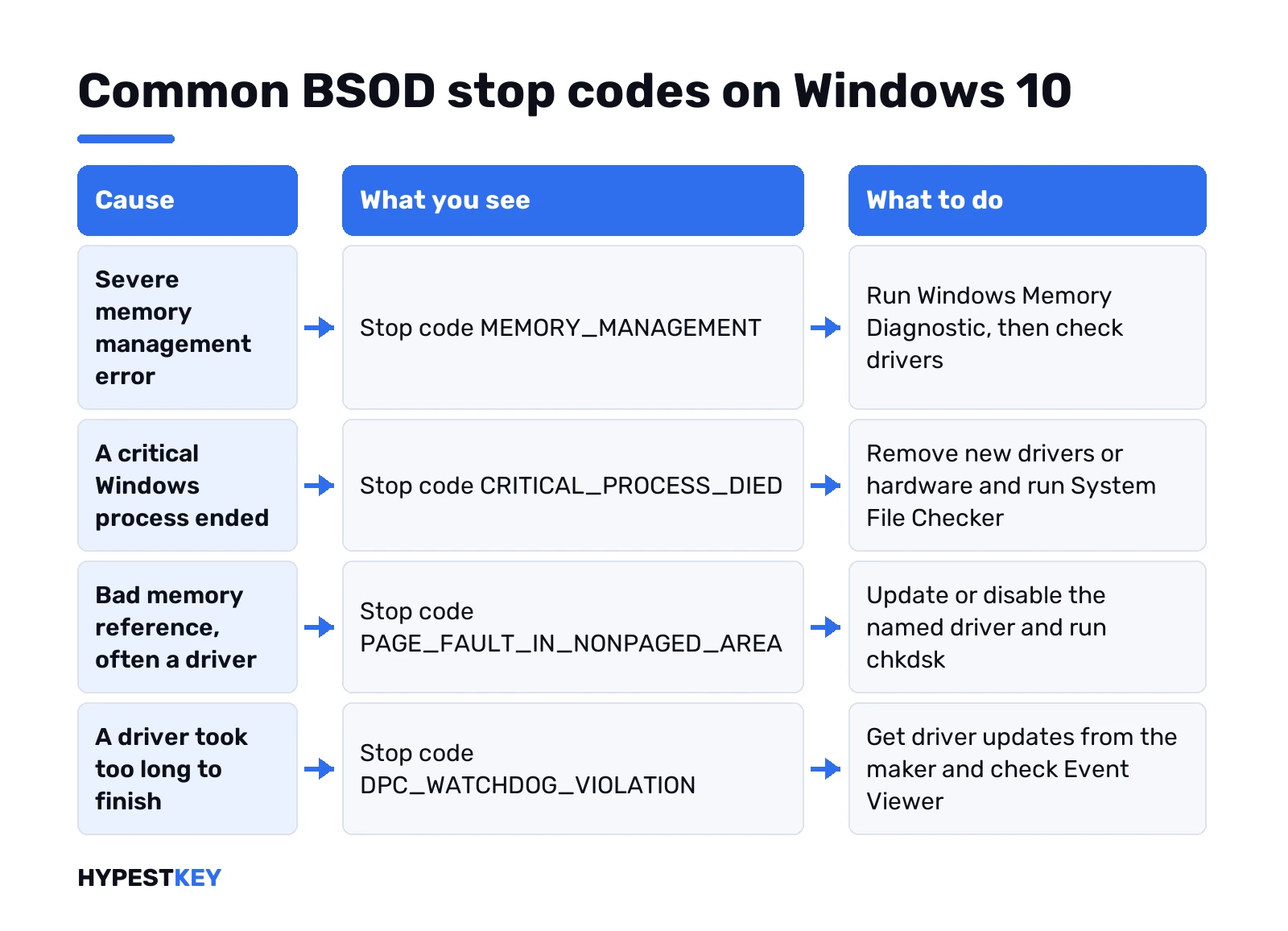
Many codes share the same fixes, so the general steps above come first. Microsoft’s notes for the ones people search most:
| Stop code | Usual cause | What to try |
|---|---|---|
| MEMORY_MANAGEMENT (0x1A) | Severe memory management error | Windows Memory Diagnostic, then drivers |
| CRITICAL_PROCESS_DIED (0xEF) | A critical Windows process ended | Recent drivers or hardware out, System File Checker, Event Viewer |
| PAGE_FAULT_IN_NONPAGED_AREA (0x50) | Bad memory reference, often a driver | Update or disable the named driver, run chkdsk |
| SYSTEM_SERVICE_EXCEPTION | Exception in system code | System File Checker |
| DRIVER_IRQL_NOT_LESS_OR_EQUAL (0xD1) | A driver used a bad address | Update drivers, network drivers especially |
| KMODE_EXCEPTION_NOT_HANDLED (0x1E) | Driver fault | Disable or remove the named or newest driver |
| DPC_WATCHDOG_VIOLATION (0x133) | A driver took too long | Driver updates from the maker, Event Viewer |
| NTFS_FILE_SYSTEM (0x24) | File system damage or bad sectors | Disk check, the maker’s disk diagnostics |
| VIDEO_TDR_TIMEOUT_DETECTED (0x117) | Display driver stopped responding | New display driver from the GPU vendor |
Full list: Microsoft’s bug check code reference. Written for developers, but the first paragraph of each code reads fine.
Repair system files and check the disk
Codes pointing at Windows itself, like SYSTEM_SERVICE_EXCEPTION or CRITICAL_PROCESS_DIED? System File Checker. Command Prompt as administrator, then:
sfc /scannowIt scans Windows files and replaces damaged ones. Takes a while. Let it finish.
Disk-related codes? Check the drive for errors. Same admin window:
chkdsk /f /rOn the system drive Windows asks to run it at the next restart. Say yes, restart, wait. Prefer clicks? Right-click the drive in File Explorer, Properties, Tools, Check.
Test the memory
RAM faults cause odd, random crashes. Different stop codes each time? That’s the hint.
Windows has a tester built in. Start, type Windows Memory Diagnostic, then Restart now and check for problems. Or run this:
mdsched.exeThe PC restarts and tests before Windows loads. Results show after sign-in. Errors found? Try one RAM stick at a time to find the bad one. Building or upgrading? Our RAM calculator helps pick a sensible amount.
Find the crash in Event Viewer and the dump file
Missed the stop code? Windows logged it.
- Right-click Start. Event Viewer.
- Windows Logs, System.
- Look for critical errors at the time of the crash.
Windows also saves a memory dump. Small ones go to the Minidump folder inside the Windows folder. The full one is MEMORY.DMP. Want to be sure it’s saved? Search for Advanced system settings. Startup and Recovery, Settings. Under Write debugging information, Automatic memory dump.
Reading a dump takes WinDbg from Microsoft and some patience. Its analyze command names the faulting driver. We’d skip this at home and hand the dump to whoever repairs the PC.
Driver Verifier, for stubborn crashes
Microsoft estimates about 75 percent of stop errors come from faulty drivers. Driver Verifier stresses drivers on purpose until the bad one crashes in a traceable way.
Fair warning, straight from Microsoft. It slows the PC a lot and can cause more crashes. Don’t verify all drivers at once; test the suspicious ones, newest first. If Windows won’t boot because of it, Safe Mode turns it off, since Verifier doesn’t run there. We’d only try this after everything above.
When the Windows 10 blue screen keeps coming back
Drivers updated, memory fine, disk fine, and it still crashes? Roll Windows back.
- System Restore. Recovery screen, Troubleshoot, Advanced options, System Restore. Pick a point from before the crashes. Files stay, recent apps and drivers go. How restore points work is in our restore point guide.
- Uninstall an update. Started right after a Windows update? Same Advanced options menu, Uninstall Updates.
- Reset this PC. Keep my files or Remove everything. Steps are close to our factory reset guide.
- Clean install. The last software fix. A USB stick from our bootable Windows 10 USB guide, then the clean install steps.
Blue screen even during a clean install? Then it’s hardware, and no setting will fix it. Time for the maker’s diagnostics or a repair shop. Want to ask Microsoft first? Our page on contacting Microsoft support lists the ways.
Reinstalling on new hardware and need a license? We sell a retail Windows 10 Pro key and Windows 10 Home key, instant to email. Thinking of moving on instead? See Windows 11 vs Windows 10 and the Windows 11 requirements first.
Related guides
FAQ
Is one blue screen something to worry about?
Usually not. Microsoft says a restart alone fixes most cases, and the fixes only matter if the same stop code keeps coming back.
How do I see the stop code after the screen is gone?
Open Event Viewer, then Windows Logs and System, and look for critical errors at the time of the crash.
Can a bad driver really cause all this?
Yes. Microsoft's crash analysis blames third-party driver code for about 70 percent of stop errors, so drivers are the first suspect.
Will System Restore delete my files?
No. It keeps your personal files and only rolls back apps, drivers and updates installed after the restore point.
What does MEMORY_MANAGEMENT point to?
A severe memory management error. Run Windows Memory Diagnostic first, then check drivers and recently added hardware.
Blue screen during a clean install, now what?
Then software is ruled out and hardware is the likely cause. Run the maker's diagnostics or take the PC to a repair shop.
Does Safe Mode stop the crashes?
Often, because it loads only basic drivers. That makes it the place to update or remove the driver that crashes normal mode.