Short answer: The 0x80080008 error stands for CO_E_SERVER_STOPPING: a Windows component shut down while Windows Update was calling it. Restart the PC and run the troubleshooter. Then restart BITS and Windows Update and rename SoftwareDistribution and catroot2. Still failing? Run DISM and SFC, or install the update by hand.
The 0x80080008 error is CO_E_SERVER_STOPPING: a Windows component was shutting down at the moment Windows Update called it. In practice the update download or install stalls and fails. Restart the update services, reset the update cache, repair system files, and use Microsoft’s installer if a feature update keeps failing.
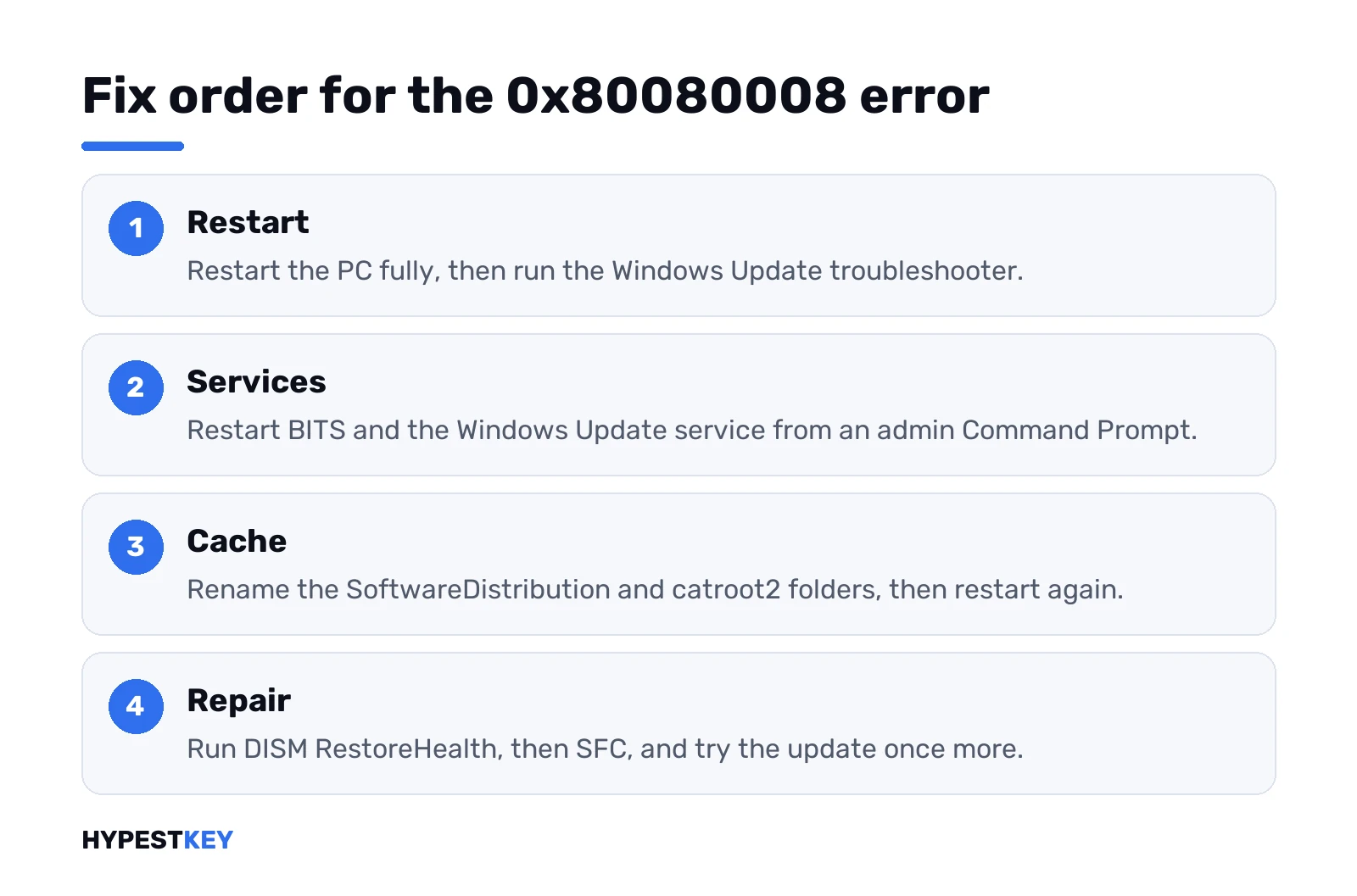
- Restart the PC and run the Windows Update troubleshooter.
- Restart BITS and the Windows Update service.
- Rename SoftwareDistribution and catroot2.
- Run DISM, then SFC.
- Clean boot, or install the update by hand.
What the 0x80080008 error means
A COM code, not a Windows Update one. The 8008 part points to COM, the plumbing Windows parts use to call each other.
Microsoft’s COM error table has the full text: “Object server is stopping when OLE service contacts it.” Put plainly, we’d read it as one part of Windows asking another for work while that other part was already closing.
Microsoft has no separate support article for this code. So we stick to Microsoft’s general Windows Update steps below, in the order that costs the least time.
Why Windows Update shows 0x80080008
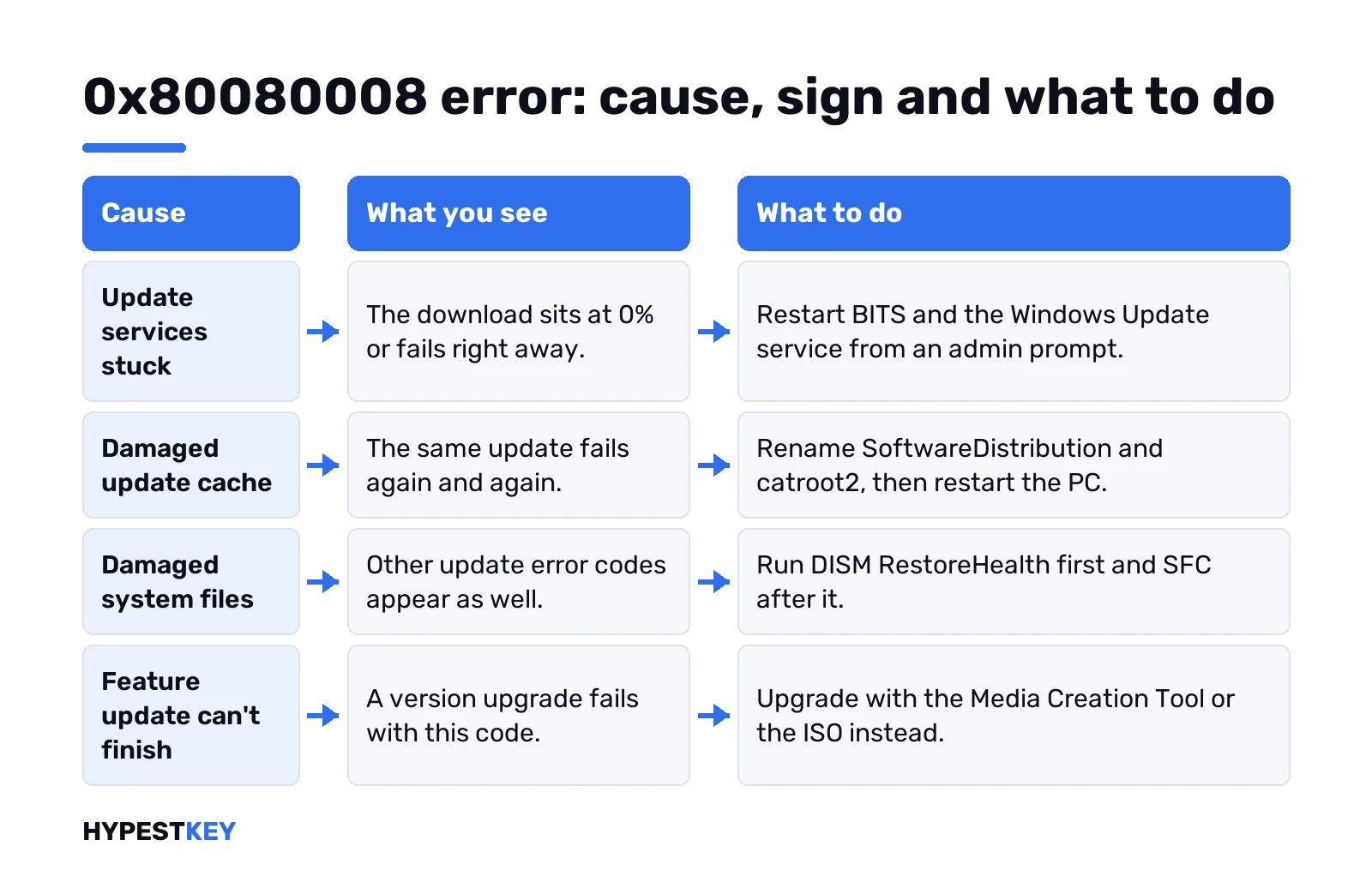
| Cause | What you see | Fix |
|---|---|---|
| Update services stopped or stuck | Download sits at 0% or fails right away | Restart BITS and Windows Update |
| Damaged update cache | Same update fails again and again | Rename SoftwareDistribution and catroot2 |
| Damaged system files | Other update codes appear too | DISM RestoreHealth, then SFC |
| Other software in the way | Fails only with antivirus or tools running | Clean boot and retry |
| Feature update can’t finish | Version upgrade fails with this code | Media Creation Tool or ISO |
Restart first, then the troubleshooter
Boring, but restarts clear stuck services. One full restart, not Sleep.
Then the Windows Update troubleshooter:
- Windows 11: Settings, System, Troubleshoot, Other troubleshooters. Windows Update, Run.
- Windows 10: Settings, Update & Security, Troubleshoot, Additional troubleshooters. Windows Update, Run the troubleshooter.
Before you go further, the checks from Microsoft’s general list. Power and internet on. An administrator account. Date and time set automatically. Extra drives and docks unplugged.
Restart BITS and Windows Update
Background Intelligent Transfer Service moves the downloads. Windows Update does the rest. If either one is half stopped, calls between them fail, which is exactly what this code describes.
Command Prompt, as administrator:
net stop bits
net stop wuauserv
net start bits
net start wuauserv
Check for updates again. A “service is not started” reply on a stop line is fine.
A start line answers “service is disabled” instead? Then the startup type is the real problem. Our 0x80070422 error guide covers that.
Check the services in the Services window
Want to see it rather than trust the command? Win + R:
services.mscTwo rows matter: Background Intelligent Transfer Service and Windows Update.
- Status Running: good, move on to the cache reset.
- Startup type Disabled: that’s your problem. Properties, set it to Automatic, Start.
- Stuck on Stopping: restart the PC. Then run the update before opening anything else.
Reset the update cache for 0x80080008
Next step if the services run fine. Same admin window, one line at a time:
net stop bits
net stop wuauserv
ren %systemroot%\softwaredistribution softwaredistribution.bak
ren %systemroot%\system32\catroot2 catroot2.bak
net start bits
net start wuauserv
These are Microsoft’s advanced steps from its update troubleshooting page. Restart after. Only cached update files go, and Windows downloads them again on the next check.
Prefer clicks? Services window, stop Windows Update, empty the SoftwareDistribution folder, start the service again. Microsoft gives both ways.
Repair system files with DISM and SFC
Damaged system files break more than one service at once. Two commands, in this order. DISM first, give it time:
DISM /Online /Cleanup-Image /RestoreHealthThen:
SFC /ScannowRestart and try the update. SFC found nothing? Fine. That rules one cause out.
Clean boot to rule out other software
Third-party antivirus and system tools can stop or block services mid-update. A clean boot starts Windows with only Microsoft’s services and no startup apps.
Win + R, then:
msconfig- Services tab. Tick “Hide all Microsoft services”, then Disable all.
- Startup tab. Open Task Manager and disable the startup items.
- Restart and run the update.
Works now? Turn things back on a few at a time to find the one in the way. Undo the clean boot when you’re done.
0x80080008 on a feature update or upgrade
Version upgrades are big, and Windows Update isn’t the only way to get them. Microsoft’s installers do the same job without the Windows Update client.
- The Windows 11 Media Creation Tool or the ISO. Run setup from inside Windows and keep files and apps.
- On the older system, the Windows 10 Media Creation Tool works the same way.
Setup shows a second code after a dash? That’s the extend code. Its first digit is the setup phase, the last two digits the operation, and Microsoft’s upgrade error tables decode both.
Planning a clean start instead? Our clean install guide and USB install guide walk through it.
Read the update log
Windows 10 and 11 don’t keep WindowsUpdate.log as a plain file any more. PowerShell builds one for you on the desktop:
Get-WindowsUpdateLogOpen it and search for 80080008. The lines just above usually name the update and the step it was on. Download, install, or a restart? That tells you which section here to go back to.
Wups2.dll and other forum fixes
Many guides for this code tell you to re-register Wups2.dll with regsvr32. Microsoft’s own update steps don’t include that, and on current Windows we wouldn’t start there.
Same for registry “fixes” copied from old threads. They were written for Windows 7 or early Windows 10 builds. We’d stay with the steps above, then a repair install. Fewer surprises.
Install the update by hand
Monthly update stuck on this code? Skip the client and get the package yourself.
- Note the KB number from Settings, Windows Update, Update history.
- Search it in the Microsoft Update Catalog.
- Pick the file for your version and architecture, then run it.
A .msu file opens in the Windows Update Standalone Installer. Click through, restart when it asks. It skips the download step of the Windows Update client, so a stuck download can’t get in the way.
Installs fine that way? Then the Windows Update client was the weak spot, and the cache reset above is worth one more go.
When it still fails
- Free space. Microsoft asks for at least 16 GB on 32-bit Windows, 20 GB on 64-bit.
- Safe Mode once: Windows 11 or Windows 10.
- In-place repair with the Media Creation Tool. Setup reinstalls Windows over itself and keeps apps and files.
- Reset this PC. Our factory reset guide says what you keep.
Before a repair install or a reset, we’d make a restore point in Windows 11. Takes a minute. Saves an afternoon.
Related update codes: 0x8007000D for invalid update data, and 0x80070490 when an element isn’t found.
After a reinstall we’d check the activation status. Need a license for it? Our Windows 11 Pro key is Retail, instant to email.
FAQ
What does 0x80080008 mean?
Server stopping. One part of Windows called another, and that part was already shutting down.
Is there a Microsoft article just for this code?
No. Microsoft lists it in its COM error table, so the general Windows Update fixes apply.
Will resetting SoftwareDistribution delete my files?
No. Only cached update downloads go, and Windows fetches fresh copies on the next check.
Should I turn off my antivirus?
Try a clean boot first. If the update works then, look at that software's settings.
A feature update keeps failing with it
Use the Media Creation Tool or the ISO. Setup does the upgrade without the Windows Update client.
Can I install the update manually?
Yes. Find the KB number in Update history, then download it from the Microsoft Update Catalog.