Short answer: For the 0x80070422 error, look at services first: one that Windows needs is set to Disabled, almost always Windows Update. Open services.msc and set Windows Update to Automatic. Press Start, then restart and check for updates. Check Background Intelligent Transfer Service the same way if updates still fail.
The 0x80070422 error is ERROR_SERVICE_DISABLED: Windows tried to start a service it needs, and that service is set to Disabled. In Windows Update it’s almost always the Windows Update service itself. Switch it back to Automatic, start it, restart the PC and check for updates again.
- Open Services and find Windows Update.
- Set Startup type to Automatic, then press Start.
- Do the same check for Background Intelligent Transfer Service.
- Restart and run Check for updates.
What the 0x80070422 error means
Two parts. The 8007 says it’s a plain Windows system error. The 0422 is error number 1058.
Microsoft’s text for 1058 reads: “The service cannot be started, either because it is disabled or because it has no enabled devices associated with it.” Nothing is broken or missing. A switch is off.
The list of common Windows Update errors on Microsoft Learn puts it in one line too. The Windows Update service stopped working or isn’t running. So we’d check that service before anything else.
Causes and signs of the 0x80070422 error
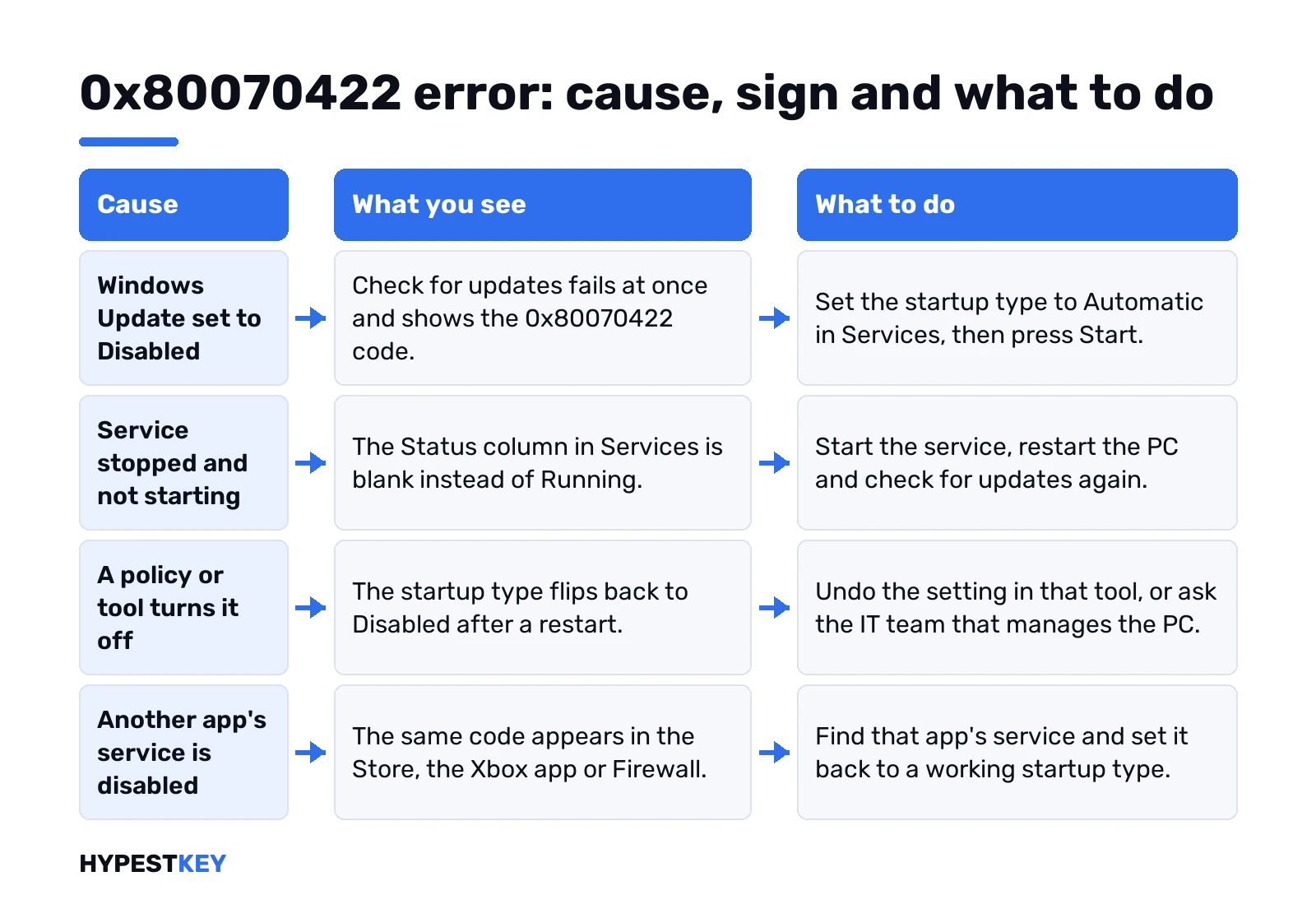
| Cause | What you see | Fix |
|---|---|---|
| Windows Update service set to Disabled | Check for updates fails at once with 0x80070422 | Startup type Automatic, then Start |
| Service stopped and not starting | Status in Services is blank, not Running | Start it, restart the PC |
| A policy or tool keeps turning it off | Startup type flips back to Disabled | Undo the tool’s setting, or ask IT |
| Another app’s service disabled | Same code in the Store, Xbox app or Firewall | Find that app’s service and enable it |
Turn the Windows Update service back on
Here’s the fix from Microsoft, step by step. Two minutes, tops.
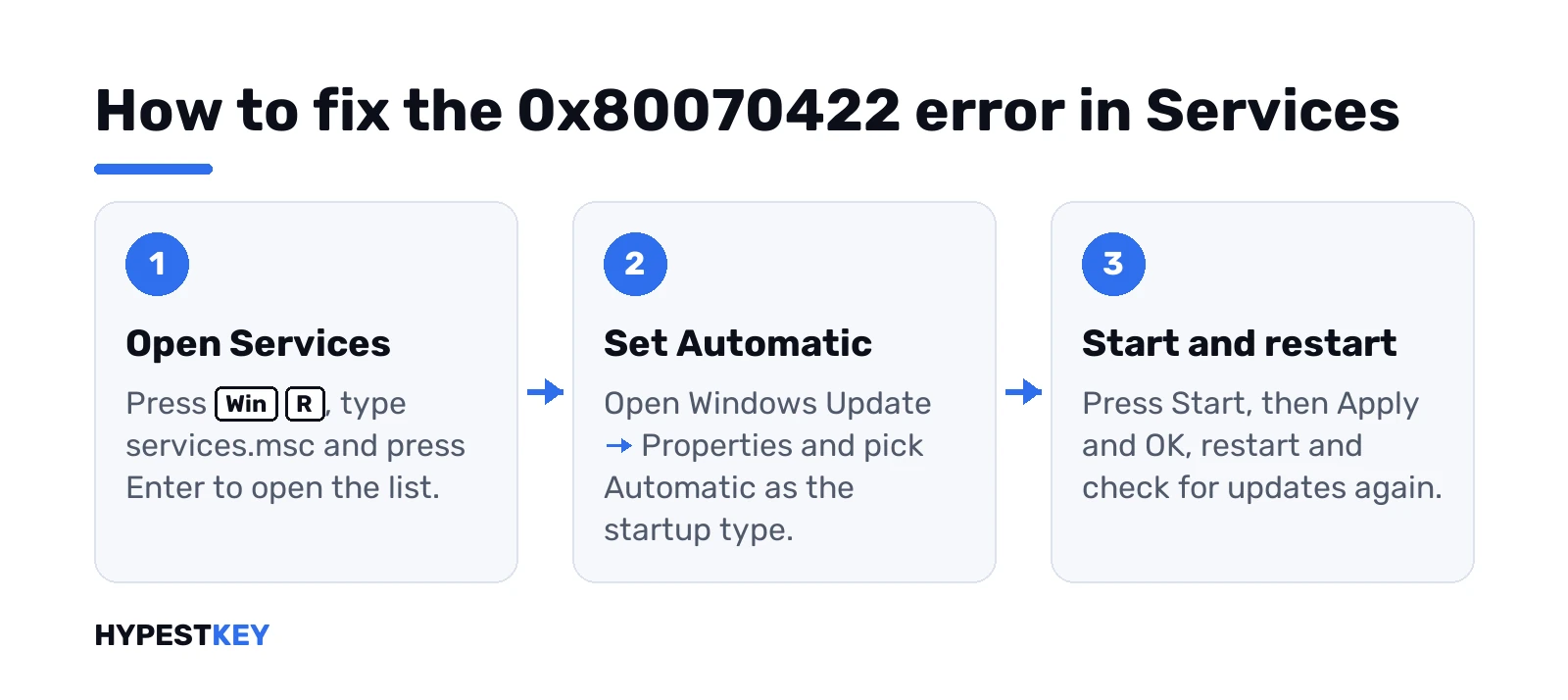
Win + R first, then this:
services.msc- Scroll to Windows Update. Right-click, Properties.
- Startup type: Automatic.
- Service stopped? Press Start.
- Apply, then OK.
Restart. Then Settings, Windows Update, Check for updates. Install whatever shows up.
Did Start throw a new error, or stay greyed out? Skip down to the part about settings that won’t stick.
Set the service from Command Prompt
Services window won’t open, or you’d rather type? Same result from Command Prompt, as administrator.
See what the startup type is now:
sc qc wuauservLook at the START_TYPE line. DISABLED there confirms the cause. Then set it to automatic and start it:
sc config wuauserv start= auto
net start wuauserv
Keep the space after “start=”. Easy to miss. Without it, sc answers with its usage text and changes nothing. Restart, check for updates.
Check BITS and restart the update services
Background Intelligent Transfer Service carries the downloads. Disabled there? Updates fail in a similar way, so we’d look at it in the same window. Same routine: Properties, a startup type other than Disabled, Start.
Prefer the command line? Command Prompt, as administrator:
net stop bits
net stop wuauserv
net start bits
net start wuauserv
A “service is not started” message on the stop lines is fine. It only means it was already off.
Run the Windows Update troubleshooter
It checks the services and resets a few settings on its own. Worth one run after you change the startup type.
- Windows 11: Settings, System, Troubleshoot, Other troubleshooters. Windows Update, Run.
- Windows 10: Settings, Update & Security, Troubleshoot, Additional troubleshooters. Windows Update, Run the troubleshooter.
On Windows 11 Microsoft now points to the Get Help version first. More on both in our Windows Update troubleshooter guide.
The setting won’t stick or says Access is denied
You set Automatic, restart, and it’s Disabled again. Something is switching it off on purpose.
- Work or school PC? An administrator may manage updates centrally. Ask them before you fight it.
- Ran an “update blocker” or a tweak script once? Undo it inside that tool. Changing the service by hand won’t last.
- Access is denied on Apply? Sign in with an administrator account. Standard accounts can’t change services.
Still flipping on a home PC with none of the above? We’d boot into Safe Mode in Windows 11 or Safe Mode in Windows 10 and set it there. Then a clean boot, to see which startup program turns it off.
0x80070422 in Microsoft Store, Xbox app or Firewall
The number only says “a service is disabled”. Not which one. So it pops up outside Windows Update too.
- Microsoft Store or Xbox app installs. We’d enable Windows Update first, then reset the Store cache.
- Windows Firewall settings. Here it’s the firewall’s own service that’s off.
- Any app with its own updater service. Same idea: find that service and set it back.
Store trouble? Reset its cache first. Win + R again:
wsreset.exeA blank window opens, closes after about ten seconds, and the Store starts by itself.
Clear the update cache if the code comes back
Service running, updates still fail with a different code? Then the cache is next. Microsoft’s advanced steps, in an admin Command Prompt, one line at a time:
net stop bits
net stop wuauserv
ren %systemroot%\softwaredistribution softwaredistribution.bak
ren %systemroot%\system32\catroot2 catroot2.bak
net start bits
net start wuauserv
Restart after. Only cached update files go. Windows downloads fresh ones on the next check.
When updates still won’t run
- Free space. Microsoft asks for at least 16 GB on 32-bit Windows, 20 GB on 64-bit.
- Date and time set automatically.
- Wi-Fi stable? Our Wi-Fi fixes for Windows 11 help there.
- Last resort: an in-place repair with the Media Creation Tool, or a factory reset.
Other update codes we cover: 0x80070490 for element not found and 0x8007000D for invalid data. Then 0x800F0922, when an installer inside the update fails. Microsoft’s Windows Update troubleshooting page has the full list.
After a reset we’d check the activation status too. Need a license for a fresh install? Our Windows 11 Pro key is Retail, instant to email.
Related guides
FAQ
What does 0x80070422 mean?
Service disabled. Windows wanted to start a service, usually Windows Update, and its startup type said no.
Is it a virus?
No. It's a plain service error, and fixing the startup type is normally all it takes.
Which startup type should Windows Update have?
Microsoft's fix sets it to Automatic. Anything except Disabled lets it start when needed.
It switches back to Disabled after a restart
Something turns it off on purpose. Check work policies, update-blocker tools and startup programs.
I get 0x80070422 in the Microsoft Store
Same cause, different window. Enable Windows Update first, then reset the Store cache with wsreset.
Will turning the service on install updates right away?
Not by itself. Restart the PC, then press Check for updates in Settings to start them.