Short answer: The 0x8007000D error stands for "The data is invalid", usually a damaged Windows Update download or update cache. Run the Windows Update troubleshooter. Clear the SoftwareDistribution folder, then DISM and SFC. During setup, get fresh media. Activation or IIS errors? We'd look at a registry permission or a config file there.
The 0x8007000D error reads “The data is invalid”: Windows found a file or setting it couldn’t use, most often a damaged update download or a corrupt update cache. Run the Windows Update troubleshooter, clear the cache, then repair system files with DISM and SFC. Upgrades, activation and IIS have their own fixes.
- Windows Update troubleshooter, then restart.
- Clear the SoftwareDistribution cache.
- DISM, then SFC.
- Check the disk, try a clean boot.
- Still stuck? In-place upgrade with Microsoft’s own media.
What the 0x8007000D error means
Its Windows name is ERROR_INVALID_DATA. Microsoft’s upgrade help describes the code in four words: the data is invalid.
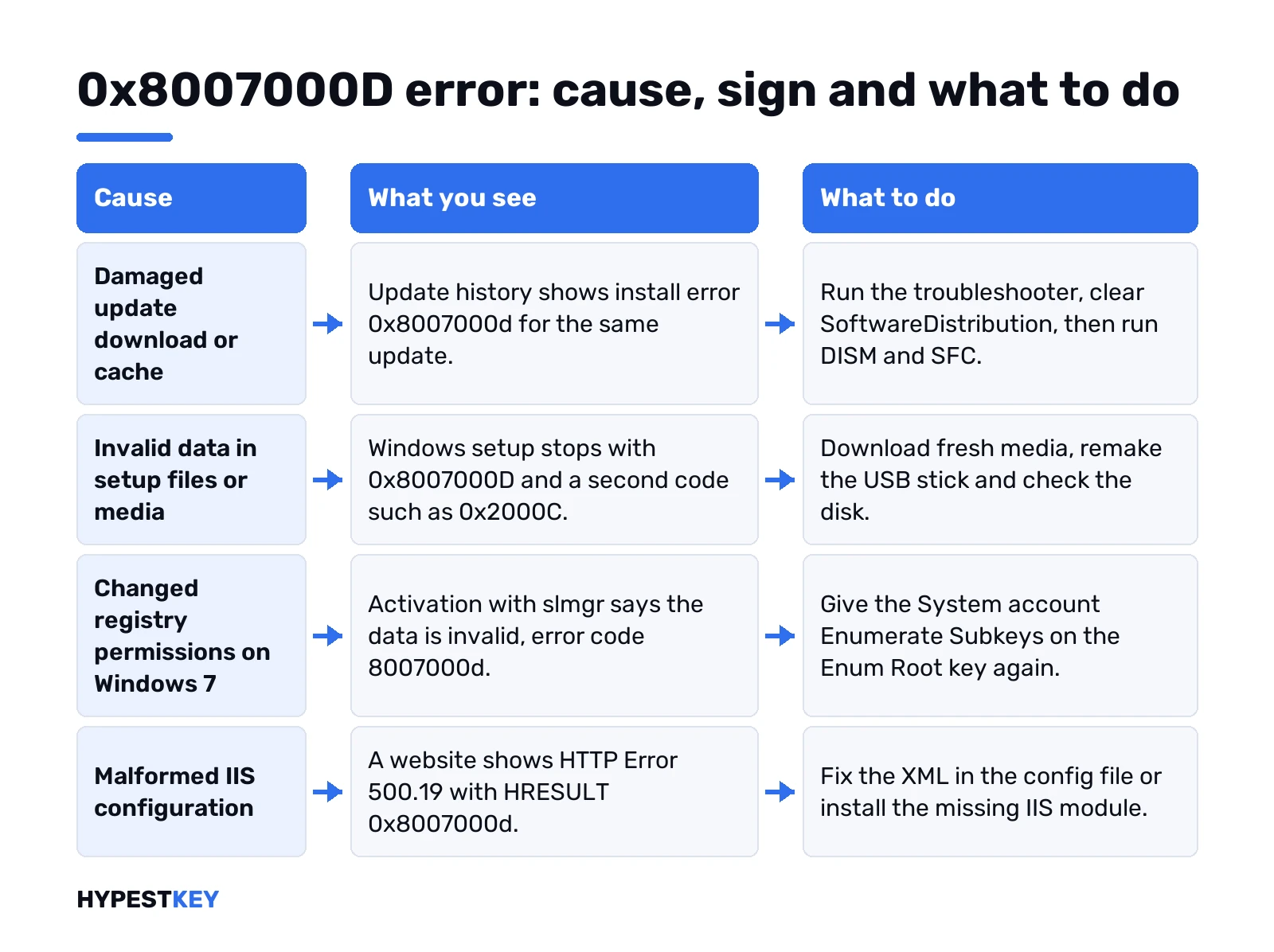
So something Windows read was broken or made no sense to it. In Windows Update that’s usually a downloaded file. Elsewhere it can be a registry key with odd permissions, or a config file with a typo.
Microsoft’s Windows 11 table for update errors puts it plainly. Cause: a problem with the Windows Update files or a corrupted update cache. Fix: troubleshooter, then clear the cache.
Where you saw the code matters more than the code. We’d note three things before touching anything:
- The tool. Windows Update, Setup, slmgr, a browser on an IIS site.
- The KB number, if it’s an update.
- A second code after a dash, like 0x2000C. Setup adds that one.
Where this code shows up
| Where | Sign | Likely cause | First fix |
|---|---|---|---|
| Windows Update | “Install error 0x8007000d” in Update history | Damaged download or update cache | Troubleshooter, clear the cache |
| Windows 11 upgrade or setup | 0x8007000D with an extra code such as 0x2000C | Invalid data in the setup files or media | New media from Microsoft, check the disk |
| Windows 7 activation | “The data is invalid. Error code 8007000d” from slmgr | Changed permissions on a registry key | Give the System account its permission back |
| IIS website | HTTP Error 500.19 with HRESULT 0x8007000d | Malformed or unknown XML in a config file | Fix the XML or install the missing module |
The rest of the page follows that order. Home PC with a failed update? The next few sections are yours. Server admin with a broken site? Jump to the IIS part near the end, it has nothing to do with updates.
Before you start: a restore point
Most fixes below are harmless. Two touch the registry, one rebuilds Windows. So a safety net first.
Search Start for “Create a restore point”, pick the system drive, Create. Our restore point guide has the details. Backed up your documents lately? Now’s a good moment.
Windows 10 users, one note. Microsoft’s Windows 10 table of update codes doesn’t list this one, only the Windows 11 table does. The fixes are the same anyway, just with older menu names.
Fix 0x8007000D in Windows Update: troubleshooter first
Microsoft’s first step, and it costs a minute.
- Settings, System, Troubleshoot.
- Other troubleshooters. Windows Update, Run.
- Restart when it’s done.
- Check for updates.
On Windows 10 the path is Update & Security, Troubleshoot, Additional troubleshooters. Our Windows Update troubleshooter guide has both, plus what to do when it finds nothing.
A quick check of the basics while you’re there. Plugged in. Online. Signed in as an administrator. Date and time set automatically. Microsoft lists all four for failing updates, and each one has tripped people up before.
Clear the update cache behind 0x8007000D
A damaged download stays in the cache. Windows tries the same broken file again, and you get the same code again. Emptying the folder makes it download a fresh copy.
- Win + R, type services.msc, Enter.
- Windows Update. Right-click, Stop.
- Open this folder and delete everything inside:
C:\Windows\SoftwareDistribution- Back to Services. Windows Update, Start.
- Check for updates.
Prefer the command line? Same job, as administrator:
net stop wuauserv
cd %systemroot%
ren SoftwareDistribution SoftwareDistribution.old
net start wuauserv
No personal files live there. Update history may look emptier afterwards, that’s all.
Reset catroot2 as well
Cache reset didn’t do it? Microsoft resets catroot2 together with SoftwareDistribution in its fix for a failing cumulative update with a related code. We’d try the same here. Cheap, and safe with the backup copy.
Command Prompt, as administrator:
net stop cryptsvc
md %systemroot%\system32\catroot2.old
xcopy %systemroot%\system32\catroot2 %systemroot%\system32\catroot2.old /s
del %systemroot%\system32\catroot2\* /q
net start cryptsvc
The copy step keeps a backup, in case you want it back. Restart, check for updates.
Repair system files with DISM and SFC
Cache clean and still failing? Then the damage might sit in Windows itself. Microsoft names SFC and DISM for this code on its upgrade help page.
Command Prompt, as administrator. DISM first:
DISM.exe /Online /Cleanup-image /RestorehealthThen the file checker:
sfc /scannowOrder matters. DISM pulls healthy copies through Windows Update. SFC then uses them to replace broken files. Restart, try the update again.
DISM fails to download repair files on a work PC? A Group Policy can block that. Its name is Specify settings for optional component installation and component repair. On a managed machine we’d pass that to IT instead of changing it ourselves.
Check the disk for errors
Sometimes the disk itself wrote the data wrong. Microsoft’s upgrade help includes a disk check for exactly that reason.
Command Prompt, as administrator:
chkdsk/f C:Windows asks to run it at the next restart. Say yes, restart, and let it finish. It can take a while on a big drive.
Disk nearly full? Updates need room too. Microsoft asks for at least 16 GB free on 32-bit Windows and 20 GB on 64-bit before an upgrade. Settings, System, Storage, then temporary files.
Clean boot and third-party antivirus
Background software can lock or change files mid-install. Two ways to rule it out.
- Clean boot. Only essential services and programs start. Update goes through? A startup app was the problem.
- Third-party antivirus. For upgrades Microsoft suggests uninstalling it and using Windows Defender meanwhile. Reinstall it afterwards.
Safe Mode is the blunter version of the same idea. Our Windows 11 Safe Mode guide and the Windows 10 Safe Mode steps show how to get in and out.
Unplug extras too. External drives, docks, card readers. Keyboard, mouse and screen can stay.
0x8007000D during a Windows 11 upgrade or clean install
Setup errors come in pairs. The first part is the error, the second tells you where setup was when it happened.
The 0x2000C half shows up a lot. In Microsoft’s upgrade table it stands for a failure while the Windows image was being applied in the SafeOS phase. For other codes with that ending, two culprits. Corrupt setup media or a bad storage medium. Outdated drivers or disk errors.
What we’d do, in order:
- Get fresh media. Download it again through the Windows 11 Media Creation Tool.
- Remake the USB stick. Our install from USB guide walks through it.
- Run the disk check above on the target drive.
- Update storage and chipset drivers, unplug everything you don’t need.
- Accept “Download and install updates” when setup offers it.
Setup also writes its own logs. setuperr.log holds only the errors, so it’s the short read:
C:\$Windows.~BT\Sources\Panther\setuperr.logNew PC rather than an upgrade? Then a clean install is simpler. See our clean install guide for Windows 11. Also worth a look first: does the PC meet the requirements, such as TPM 2.0.
Install the update another way
One KB keeps failing in Windows Update, everything else works. Then we’d stop fighting the update client.
- Microsoft Update Catalog. Microsoft’s KB pages point there for the standalone package. Search the KB number, pick your architecture, run it.
- In-place repair upgrade. Run setup from Microsoft’s media and keep files and apps. That replaces the system files in one go.
- Pause updates for a week. A newer cumulative update often replaces the failed one.
Feature updates take long by nature, so a slow one isn’t a failure. Our page on Windows 11 update time covers what’s normal.
Read the logs before guessing
Three logs, three jobs.
- CBS.log. The install part, inside the servicing stack.
- WindowsUpdate.log. Search, download and the handlers that start the install.
- setuperr.log. Feature updates and upgrades only.
CBS.log sits here. Copy it to the desktop and open the copy:
C:\Windows\Logs\CBS\CBS.logWindowsUpdate.log needs one step first. Windows writes trace files, and a PowerShell cmdlet merges them into a readable file on your desktop:
Get-WindowsUpdateLogThat copy doesn’t update itself. Run the cmdlet again after the next failed attempt.
For upgrades Microsoft also offers SetupDiag, a free tool that reads the setup logs and names the likely reason for the failure. We’d run it before reinstalling anything.
Search each log for 8007000d. The lines just above the hit usually name the file, the package or the driver. That’s the real lead.
Which fix for which situation
| Your situation | Start with | Then |
|---|---|---|
| One monthly update fails | Troubleshooter, cache reset | DISM and SFC, then the Update Catalog |
| Every update fails | DISM and SFC, disk check | Clean boot, in-place upgrade |
| Feature update or Windows 11 upgrade fails | Fresh media, disk check | Drivers, setuperr.log, SetupDiag |
| USB install fails partway | Remake the USB stick | Another USB port, check the target disk |
| slmgr on Windows 7 fails | Registry permission on Enum\Root | Activate again |
| IIS site shows 500.19 | Event Viewer for the line | Fix XML or install the module |
What we’d skip
Registry cleaners and “update fixer” downloads. The built-in tools above come from Microsoft, cost nothing and can’t add new problems. A random fixer can.
Deleting folders in the Windows directory by hand, beyond the two caches above. And reinstalling Windows as a first step. We’d try an in-place upgrade before that, since apps and files stay.
Repair Windows 11 through Windows Update
Windows 11 has a gentler version of the in-place upgrade built in. Microsoft calls it Fix problems using Windows Update.
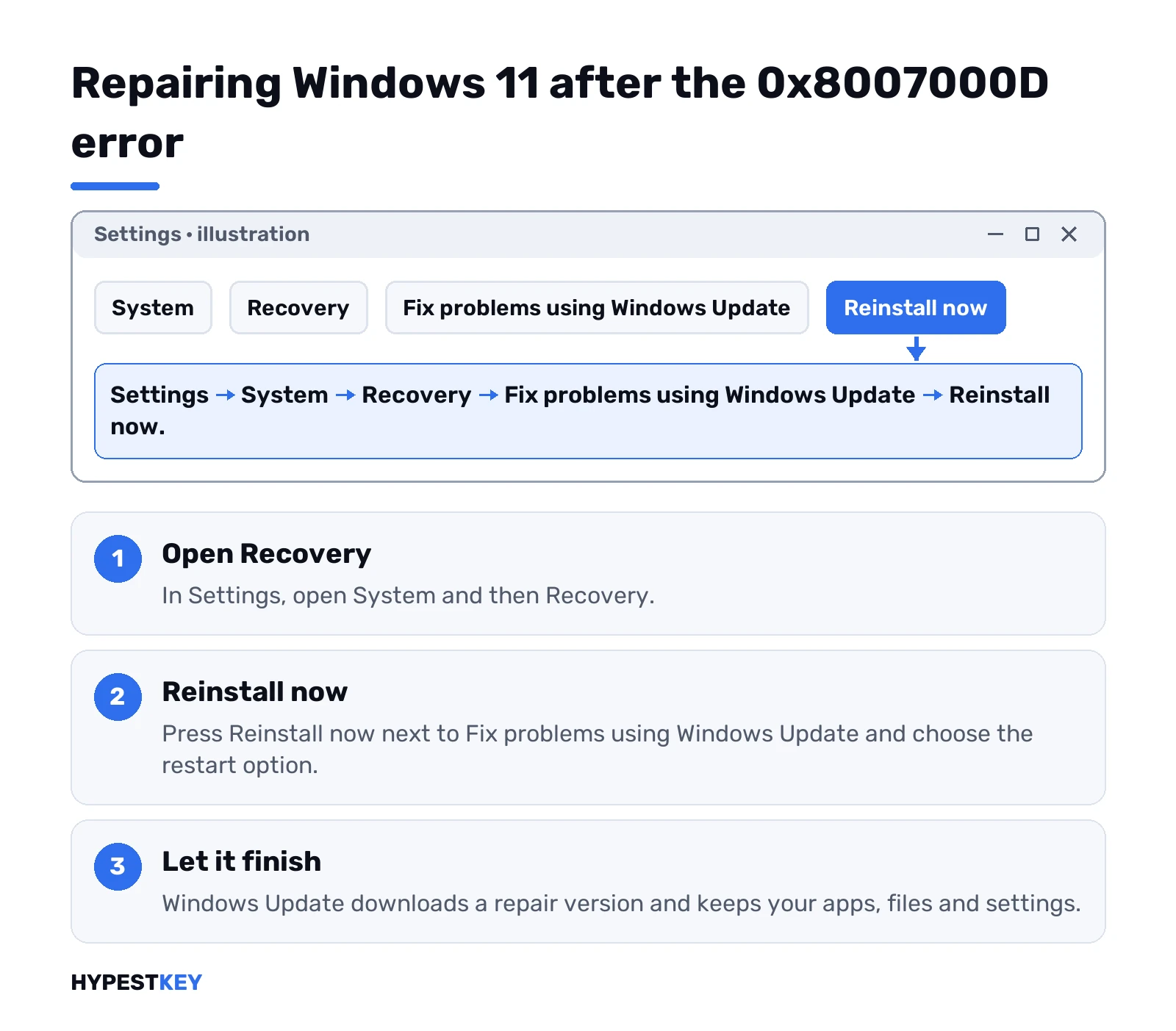
- Settings, System, Recovery.
- Next to Fix problems using Windows Update, press Reinstall now.
- Choose whether the PC restarts by itself 15 minutes after the install. OK.
- Windows Update opens and downloads a repair version of the last update that installed fine.
What it does, per Microsoft. Same Windows version, system files and components repaired, apps, files and settings kept. Keep the laptop plugged in and online until it’s done.
Don’t see the option? Managed work PCs hide it. It also needs a fairly recent Windows 11 build. Then the media route from the section above is the way.
0x8007000D when activating Windows 7
Different place, different cause. Running slmgr to activate Windows 7 returns this:
The data is invalid. Error code 8007000d.Microsoft traced it to registry permissions. By default the System account has Full Control on one key and its subkeys. Someone changed them? Activation fails with this code. Any product key, same result.
HKEY_LOCAL_MACHINE\SYSTEM\CurrentControlSet\Enum\RootThe fix from Microsoft’s activation article: give the System account at least Enumerate Subkeys on that key and all its subkeys. We’d export the key first. Then:
- Registry Editor, as administrator.
- Go to the Root key above. Right-click, Permissions.
- Pick SYSTEM. Check what it has.
- Restore the permission, applied to the subkeys too.
- Close, restart, activate again.
Different system, different story. Microsoft’s article covers Windows 7 SP1 only.
Other activation codes look similar but aren’t. For access problems see our 0x80070005 activation error page, and the slmgr commands list explains each switch.
HTTP Error 500.19 with 0x8007000D in IIS
Web server, not Windows Update. The browser shows HTTP Error 500.19 and says the related configuration data for the page is invalid.
Microsoft’s IIS 500.19 article names three causes for this HRESULT:
- A module in the config whose IIS feature isn’t installed. URL Rewrite is the usual one.
- A syntax error. An unclosed tag, a stray bracket.
- Config files merged from different servers with entries that don’t fit.
Find the line first. Event Viewer, Windows Logs, Application, then look for WAS or IIS-W3SVC events. They often name the line and the element.
No event? Try IIS Manager. Pick the site, open Configuration Editor and load the section named in the error. Refuses to load? That’s the broken or unknown section. A code editor with XML validation catches unclosed tags fast too.
Then one of these. Fix the XML. Install the missing module. Comment out a section the server doesn’t need. Or copy a known-good config from a working server. To check the sections from the command line:
%windir%\system32\inetsrv\appcmd list config /section:system.webServerASP.NET Core app? Microsoft adds that a missing Hosting Bundle can cause 500.19 too. And back up config files before any update, Microsoft’s own advice. On virtual machines we’d take a snapshot before patching as well, which Microsoft recommends for any update, Windows or otherwise.
When nothing else works
Bigger steps, smallest first:
- System Restore to a point before the trouble. See restore points in Windows 11.
- In-place repair upgrade, keeping files and apps.
- Reset this PC. Our factory reset guide explains what stays and what goes.
Similar update codes, each with its own page. 0x800F0922: an installer in the update fails and rolls back. 0x80070490: a driver step can’t find what it needs.
After a reset we’d check the activation status once. Doing a clean install and need a license? Our Windows 11 Pro key is Retail, instant to email.
Related guides
FAQ
What does error 0x8007000d mean?
The data is invalid. Windows read a file or setting it couldn't use, most often a broken update download.
Does clearing SoftwareDistribution delete my files?
No. It holds only downloaded update files, and Windows fetches fresh copies the next time it checks for updates.
What is 0x8007000D - 0x2000C?
A setup failure while the Windows image was being applied. Fresh media, a disk check and updated drivers come first.
Is 0x8007000d a sign of a virus?
Not by itself. Microsoft ties it to damaged update files, permissions or config files, so start with the repair steps.
Should I reinstall Windows right away?
No. Troubleshooter, cache reset, DISM and SFC fix most update cases, and an in-place upgrade keeps your files.
Why does IIS show 500.19 with this code?
Its config file has malformed or unknown XML. Check Event Viewer for the line, then fix it or add the module.