Short answer: The 0x80070005 activation error reads "Access denied". The activation command ran in a window without administrator rights. I'd close it, right-click Command Prompt, choose Run as administrator and run the line again. On a work PC, IT has to do it.
The 0x80070005 activation error reads “Access denied”. Windows refused to run the activation step because the window you typed it in doesn’t have administrator rights.
| Where you were | What to do |
|---|---|
| Command Prompt or PowerShell | Close it, open it again with “Run as administrator”, repeat the line |
| Settings, signed in as a standard user | Enter an administrator’s password when asked, or sign in as an administrator |
| Work PC | You’re not an administrator there; ask IT |
Your key and your license aren’t in question. The command simply never ran.
What 0x80070005 stands for
The full message: “Access denied. The requested action requires elevated privileges.”
Microsoft’s activation error codes reference names the cause. User Account Control doesn’t let activation processes run in a command prompt that isn’t elevated.
The solution there has three steps. Open the Start menu and search for Command Prompt. Right-click it and select Run as administrator. Then run the licensing script.
Changing a license affects the whole system. So Windows asks for the highest rights before it lets anyone do it.
Causes
| Cause | Detail |
|---|---|
| Normal Command Prompt | Opened with a plain click; even an administrator account runs it without elevation |
| Script started by double-click | A batch file with activation lines runs with normal rights |
| Standard user account | The account can’t get those rights without an administrator’s password |
| Remote computer | The account used has no administrator rights on the other machine |
| Deployment task with the wrong account | A scheduled task runs the lines as a normal user |
How to fix the 0x80070005 activation error
Open the right kind of window and say it again.
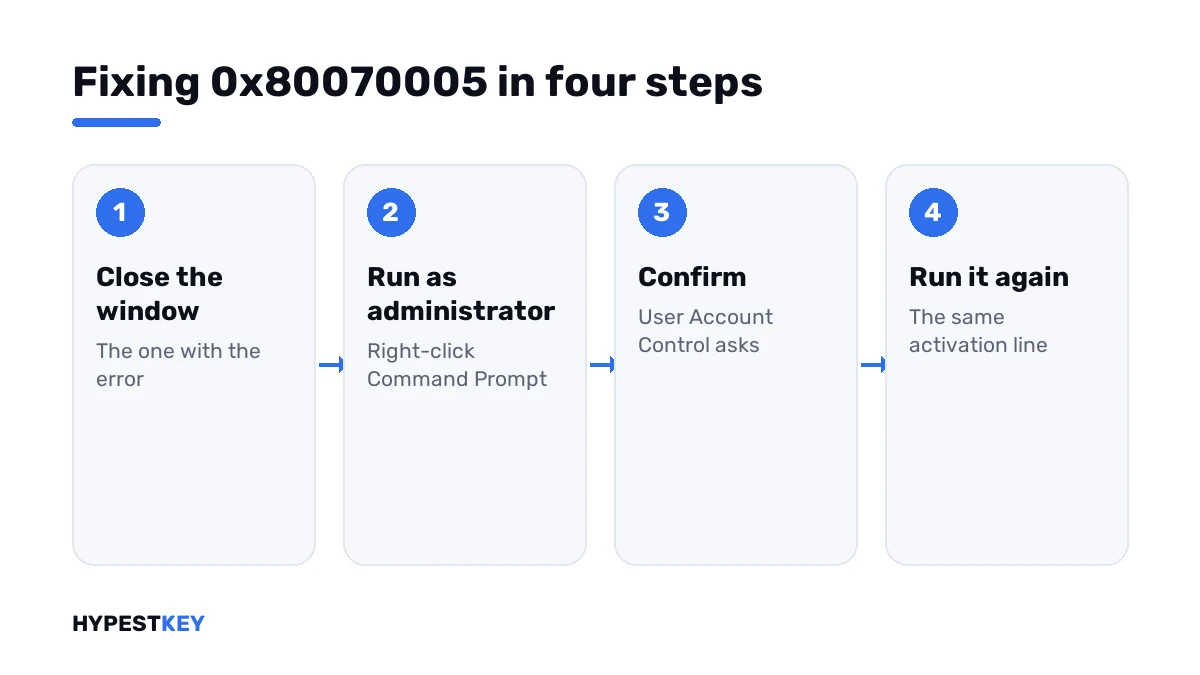
- Close the Command Prompt or PowerShell window that showed the error.
- Press Start and type cmd.
- Right-click Command Prompt and choose Run as administrator.
- Confirm the User Account Control prompt, or enter an administrator’s password.
- Check the title bar: it should begin with “Administrator”.
- Run the key line if needed, then the activation line.
- Confirm the result with the expiry line.
slmgr /ipk XXXXX-XXXXX-XXXXX-XXXXX-XXXXX
slmgr /ato
slmgr /xpr| Line | What it does | Needs elevation |
|---|---|---|
slmgr /ipk |
Installs the key typed after it | Yes |
slmgr /ato |
Asks for activation | Yes |
slmgr /upk |
Uninstalls the key | Yes |
slmgr /xpr |
Shows whether the machine is activated | No |
slmgr /dli |
Shows basic license information | No |
On Windows 11 there’s a shortcut. Right-click the Start button and pick the Terminal entry marked Admin.
Elevated or not
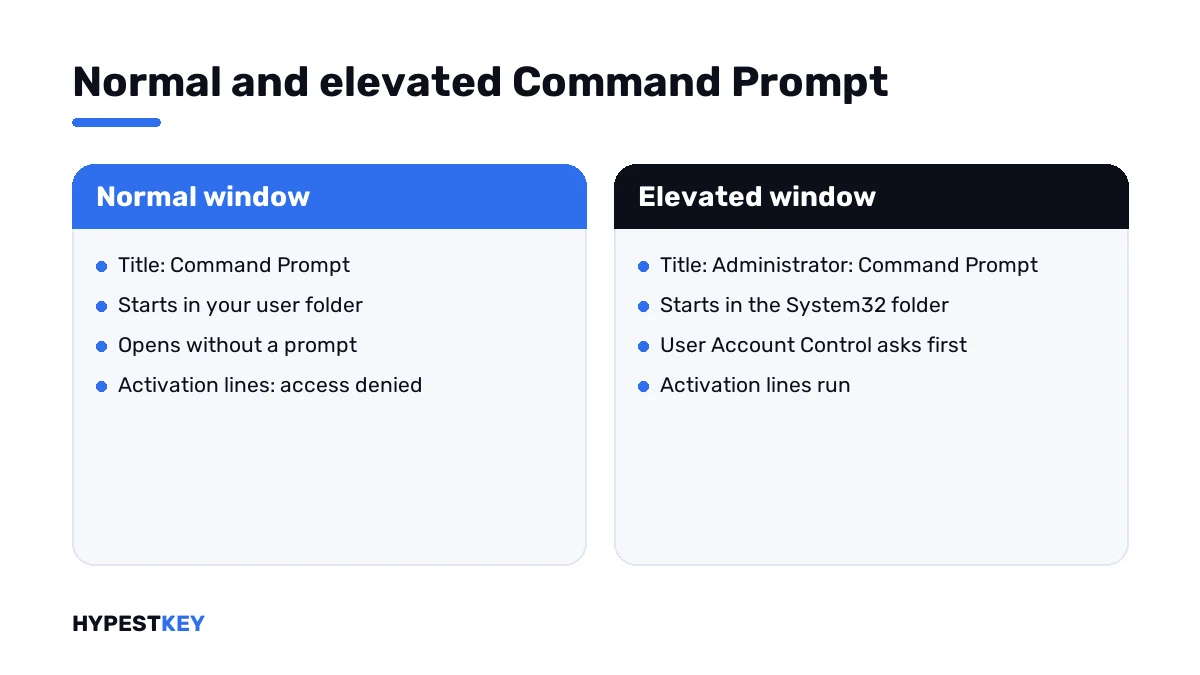
Being signed in as an administrator isn’t enough. Each window starts with normal rights unless you ask for more.
| Sign | Normal window | Elevated window |
|---|---|---|
| Title bar | Command Prompt | Administrator: Command Prompt |
| Starting folder | Your user folder | The System32 folder |
| Prompt on opening | None | User Account Control asks first |
| Activation lines | Access denied | Run |
Without the command line
Settings does the same job and handles the rights for you. Open Settings, System, Activation and press Change product key.
A standard user gets a password box at that point. Type an administrator’s password and carry on.
The whole route with screens is in how to activate Windows 11. For the older system there’s the Windows 10 activation guide.
On a work or school PC
There you usually aren’t an administrator, and that’s on purpose. The license belongs to the organisation.
Report the code to IT. I wouldn’t hunt for a way around the prompt. Tools that promise that tend to bring trouble of their own.
Scripts and remote computers
For administrators the code shows up in two more places.
- A batch file started by double-click. Start it from an elevated prompt, or set the task to run with highest privileges.
- A licensing command aimed at another computer. The account needs administrator rights on that machine.
On servers the same rule holds. Our Windows Server 2022 activation guide runs every line from an elevated prompt for that reason.
The same number elsewhere
Windows uses 0x80070005 wherever access is refused: in updates, in the Store, when files are copied. Those cases have other causes and other fixes.
In activation it has one meaning, and you’ve read it above.
| After the elevated retry you see | Go to |
|---|---|
| Activated | Done |
| 0xC004F050 | The key isn’t valid for this edition |
| 0xC004C003 | The key is blocked |
| 0xC004F074 | A company KMS server didn’t answer |
| 0xC004FC03 | No internet, or a firewall in the way |
Every other code is in our list of Windows 11 activation errors.
No key to enter yet? Ours are genuine and arrive instant to email: Windows 11 Pro and Windows 10 Pro.
Where these steps apply
| System | Notes |
|---|---|
| Windows 11 | All steps; Terminal (Admin) works as well |
| Windows 10 | Same steps; PowerShell (Admin) is in the Start button’s right-click menu |
| Windows Server | Same commands, same rule |
| Office volume editions | The Office licensing script needs an elevated prompt too |
Mistakes we see most
- Running the line again in the same window.
- Assuming an administrator account makes every window elevated.
- Reinstalling Windows over a missing right-click.
- Switching User Account Control off for good.
- Following fixes for the update version of this number.
Terms used on this page
| Term | Meaning |
|---|---|
| User Account Control | The Windows feature that asks before a program gets administrator rights |
| Elevated | Running with administrator rights |
| Standard user | An account without administrator rights |
| Licensing script | The built-in script behind the slmgr commands |
| Run as administrator | The right-click option that starts a program elevated |
FAQ
What does error 0x80070005 mean during activation?
Access denied. The requested action needs elevated privileges. Per Microsoft, User Account Control stops activation processes in a prompt that isn't elevated. I'd reopen the prompt as administrator.
How do I fix 0x80070005 with slmgr?
Press Start, type cmd, right-click Command Prompt and choose Run as administrator. Confirm the prompt and run the same line again. That's Microsoft's own fix for the code.
I'm an administrator already. Why is access denied?
The account is, the window isn't. Programs start with normal rights even for administrators. We check the title bar: an elevated window says "Administrator" in front.
Can I activate without administrator rights?
No. Installing a key and activating change the whole system, so Windows asks for an administrator. In Settings, a standard user gets a password box for that.
Does this error say my product key is wrong?
No. The command never ran, so the key wasn't checked. I'd repeat it in an elevated window and read what comes back then.
Should I turn off User Account Control to avoid it?
I wouldn't. The prompt protects system settings from changes you didn't ask for. One right-click on Run as administrator does the job without weakening the PC.
Why does my batch file fail with 0x80070005?
A double-click starts it with normal rights. Start it from an elevated prompt. For a scheduled task, we'd tick "Run with highest privileges" and use an administrator account.