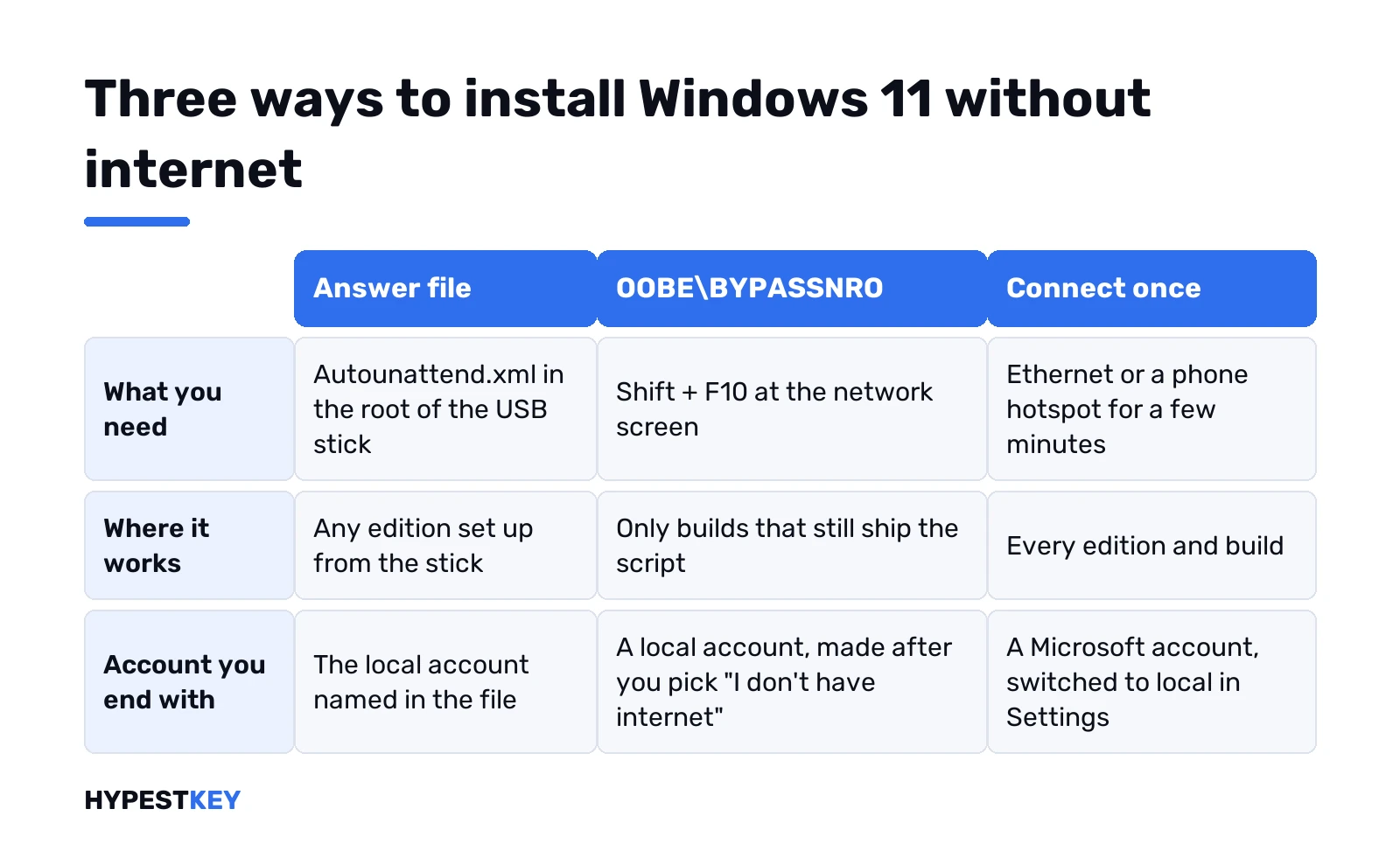
Short answer: To install Windows 11 without internet, boot from a USB stick as usual: copying files needs no connection. The network screen comes later. Home and Pro want internet and a Microsoft account there. We'd put an Autounattend.xml answer file on the stick. Older builds take OOBE\BYPASSNRO. Or connect once, then switch to a local account.
You can install Windows 11 without internet: copying Windows from a USB stick never needs a connection, and only the setup screens after the first restart ask for one. Home and Pro want a network and a Microsoft account there. Built-in ways around that screen exist, and Microsoft keeps closing some of them.
| Route | Where it works | Where it stands now |
|---|---|---|
| Autounattend.xml answer file on the USB stick | Any edition, set up from the stick | Windows Setup feature documented on Microsoft Learn |
| OOBE\BYPASSNRO from Shift + F10 | Builds that still ship the script | Removed from Insider builds in March 2025 |
| start ms-cxh:localonly | Some recent builds | Removed from Insider builds in October 2025 |
| Connect once, then switch to a local account | Every edition and build | Always works, Microsoft describes the switch |
| Work or school setup | Enterprise and Education in an organisation | Set by the IT department |
What an offline Windows 11 install can and can’t do
Setup runs in two halves. The first one boots from the stick and asks for language, product key, edition and the disk. No network involved at all.
Then a restart. What follows is the out-of-box experience, OOBE for short: region, keyboard, network, account, privacy. The offline PC stops at “Let’s connect you to a network”.
The rule behind it sits on the Windows 11 specifications page. Home and Pro for personal use need internet connectivity and a Microsoft account during initial device setup. We’d take that at face value and plan around it.
Past the desktop, nothing else depends on a connection. Updates, Store apps and activation can wait for days.
Prepare the USB stick while you still have a connection
The download itself needs internet, just on another computer. Media Creation Tool or ISO, both from Microsoft’s download page. A stick of 8 GB or more. We cover it in the Media Creation Tool guide, and this one covers a Mac.
Then the small stuff people forget:
- A folder with the network and storage drivers from the PC or motherboard maker. Wi-Fi first.
- Your product key on paper. Or plan to press “I don’t have a product key” and enter it later.
- A look at the Windows 11 requirements, TPM 2.0 and Secure Boot before you wipe anything.
The disk part of setup is the same as any other install. Our step-by-step USB install guide has the partition screens, so we won’t repeat them.
Install Windows 11 without internet using an answer file
This one is Microsoft’s own mechanism, built for factories and IT departments. Windows Setup looks for a file named Autounattend.xml in the root of removable drives and reads the settings it finds there.
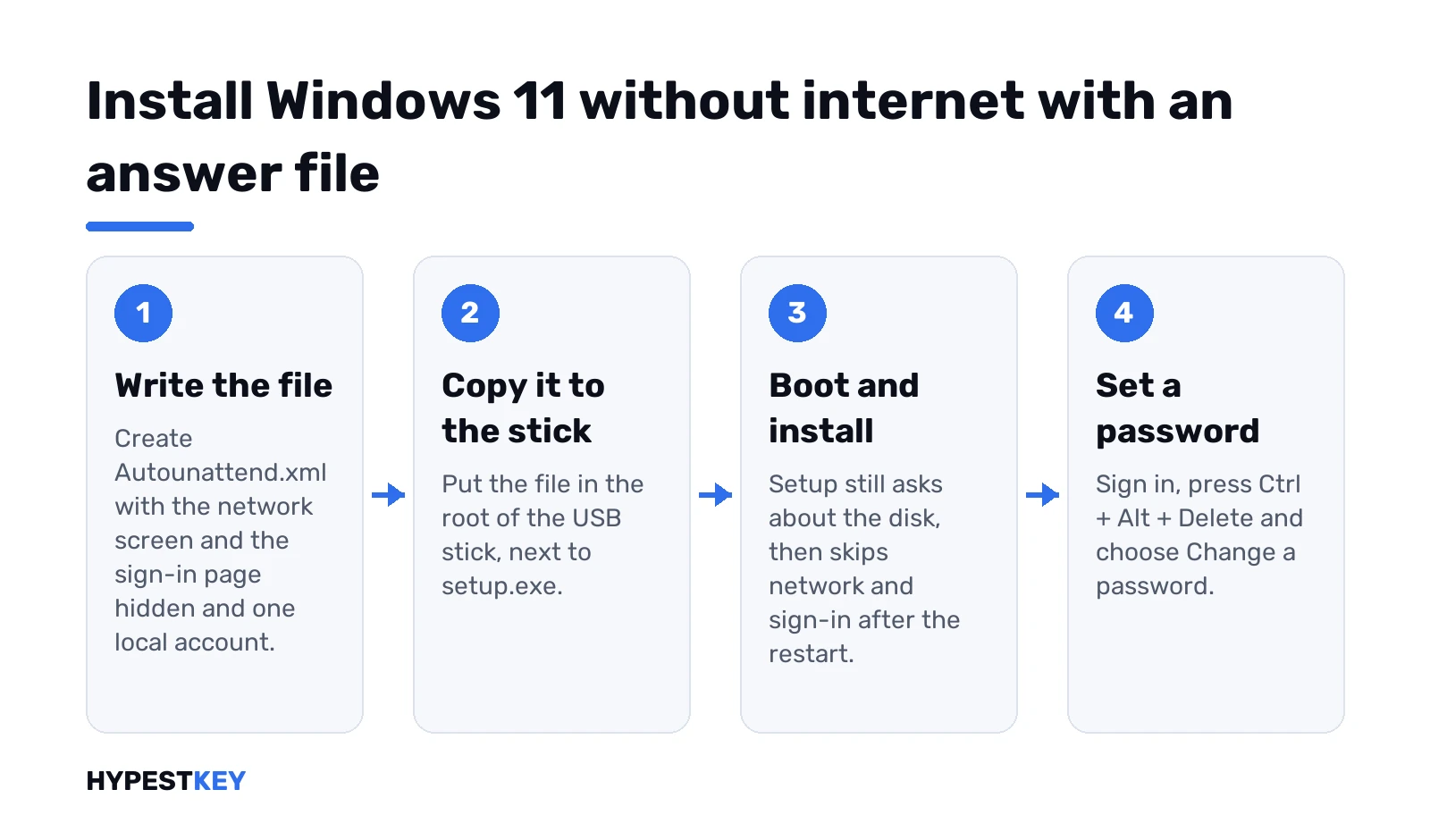
Three settings do the job for the OOBE stage:
- HideWirelessSetupInOOBE hides the Network screen.
- HideOnlineAccountScreens hides the Microsoft account sign-in page.
- LocalAccounts creates the local user for you.
A minimal file looks like this. Change the account name, keep the rest:
<?xml version="1.0" encoding="utf-8"?>
<unattend xmlns="urn:schemas-microsoft-com:unattend" xmlns:wcm="http://schemas.microsoft.com/WMIConfig/2002/State">
  <settings pass="oobeSystem">
    <component name="Microsoft-Windows-Shell-Setup" processorArchitecture="amd64" publicKeyToken="31bf3856ad364e35" language="neutral" versionScope="nonSxS">
      <OOBE>
        <HideWirelessSetupInOOBE>true</HideWirelessSetupInOOBE>
        <HideOnlineAccountScreens>true</HideOnlineAccountScreens>
      </OOBE>
      <UserAccounts>
        <LocalAccounts>
          <LocalAccount wcm:action="add">
            <Name>Sam</Name>
            <Group>Administrators</Group>
            <Password><Value></Value><PlainText>true</PlainText></Password>
          </LocalAccount>
        </LocalAccounts>
      </UserAccounts>
    </component>
  </settings>
</unattend>
Save it as Autounattend.xml in the root of the stick, next to setup.exe. Boot from the stick as usual. Disk questions still come. After the restart, no network screen and no sign-in page.
The password stays empty on purpose. Set one at the first sign-in, Ctrl + Alt + Delete, Change a password. We’d never write a real password into this file.
Two more notes. On an Arm PC, processorArchitecture is arm64 instead of amd64. And Setup keeps a copy of the answer file in the Panther folder under Windows, which Microsoft says to delete before the PC goes to someone else.
Will every future Home build honour it? We can’t promise that. Microsoft’s deployment docs still describe these settings, which is more than the command tricks below can say.
The OOBE\BYPASSNRO route on builds that still have it
Older advice, still everywhere online. It works only if your build still ships the script.
- Stop at the network screen.
- Press Shift + F10. On many laptops it’s Fn + Shift + F10.
- Type the command below and press Enter.
- The PC restarts and OOBE begins again.
- On the network screen, pick “I don’t have internet”, then “Continue with limited setup”.
- Name, password, three security questions. Done.
OOBE\BYPASSNRO“Not recognized”? Then the script is gone. Microsoft removed it from Insider build 26200.5516 so that everyone leaves setup with internet and a Microsoft account. We’ve seen people set the same registry value by hand:
reg add HKLM\SOFTWARE\Microsoft\Windows\CurrentVersion\OOBE /v BypassNRO /t REG_DWORD /d 1 /f
shutdown /r /t 0
Same caveat. It’s the same switch, and on the newest builds we’d expect it to be ignored.
A third command opened a local account window straight from that Command Prompt:
start ms-cxh:localonlyMicrosoft’s notes for Insider build 26220.6772 say these local-only mechanisms are gone from OOBE. Their reason: they also skipped screens that finish the setup properly.
No route left? Connect once, then go local
Our honest default for a single PC. Five minutes of internet beats an hour of commands.
- Plug in an Ethernet cable, if the PC has a port. No password to type, which helps.
- Or share a phone’s mobile hotspot and pick it on the network screen.
- Sign in with a Microsoft account. Free to create on the spot.
At the desktop, switch. Microsoft describes it on its account switching page:
- Settings, Accounts, Your info.
- Sign in with a local account instead.
- Username, password, hint. Next, then Sign out and finish.
One side effect. Windows names the user folder after your Microsoft email address. Insider builds let you pick the name at the sign-in page. Shift + F10, then this. Up to 16 characters:
cd oobe
SetDefaultUserFolder.cmd Sam
Forgot the local password later? Here’s how to reset a Windows 11 password.
Wi-Fi drivers after you set up Windows 11 offline
No Wi-Fi icon at all after the first boot. Typical for new chipsets, and the reason the network screen showed no networks in the first place.
The folder you copied to the stick fixes it:
- Right-click Start, Device Manager.
- Find the device with a yellow mark, usually under Other devices or Network adapters.
- Update driver, Browse my computer for drivers, pick the folder on the stick, tick Include subfolders.
The same from a Command Prompt as administrator, with D: as the stick:
pnputil /add-driver D:\Drivers\*.inf /subdirs /installDriver in but the connection still drops? Our Windows 11 Wi-Fi problems guide takes it from there.
Activation on a PC that stays offline
Windows 11 installs and runs without activation. You get a watermark and locked personalisation, nothing worse for a while.
A digital license or a key typed during setup activates the first time the PC sees the internet. No action needed.
A machine that never goes online? Phone activation still exists. Steps in our phone activation guide. Then check the activation status. We’d also read how to activate Windows 11 and digital license vs product key for the general picture.
Home, Pro, Enterprise and Education offline
Microsoft’s statement names Home and Pro for personal use. Those two are where the network screen bites.
Enterprise and Education are set up through an organisation’s own sign-in, provisioning or answer files. Company PC? Ask its IT team before you try anything here.
The edition comes from your key, not from a setup trick. Our Windows 11 editions overview, Home vs Pro and Enterprise vs Pro pages help pick one.
Shortcuts we’d skip for an offline Windows 11 install
Search for this topic and you’ll find modified ISOs, “debloated” builds and tools that patch Setup. We don’t recommend any of them.
Nobody outside the author knows what else was changed in such an image. Updates can break it, and security software can’t vouch for it. Our page on modified Windows images explains the risks in detail.
The answer file does the same job with Microsoft’s own mechanism. Plus you can read every line of it.
First time online after the offline setup
Sooner or later the PC meets a network. Give it an evening.
- Windows Update. Several rounds, restart in between. Our Windows Update guide explains the types.
- Optional driver updates under Advanced options. Graphics and chipset often arrive there.
- Microsoft Defender definitions update on their own, nothing to click.
- A restore point once everything works.
Update stuck on an error? The Windows Update troubleshooter is the first stop.
Need a key for the fresh install? We sell a Windows 11 Pro key, retail, one PC, instant to email.
FAQ
can windows 11 install with no internet at all
Yes. The file copy from the stick runs offline, only the setup screens after the first restart ask for a network.
bypassnro says not recognized, now what
Your build no longer ships the script. Use an answer file on the stick, or connect once and switch to a local account.
is the answer file safe to use
Yes. It's Windows Setup's own feature from Microsoft Learn, and you can read every line before you boot.
no wifi networks on the setup screen
Driver missing. Use Ethernet or a phone hotspot, or load the Wi-Fi driver later from the stick.
does an offline install still activate
Later, yes. A digital license or typed key activates the first time the PC goes online, or by phone.
can i switch to a microsoft account later
Sure. Settings, Accounts, Your info, then Sign in with a Microsoft account instead. Files and apps stay.