Short answer: Tiny11 comes from outside Microsoft: an unofficial, trimmed Windows 11 image. Tiny10 does the same to Windows 10. Both remove apps and skip hardware checks. Neither includes a license, updates aren't guaranteed, and nobody can confirm what changed. We'd install Windows from Microsoft's media and activate it with a genuine key.
Tiny11 is an unofficial, trimmed copy of the Windows 11 installer, made by a community developer and not by Microsoft. Tiny10 is the same idea for Windows 10. Both remove apps and skip the hardware checks. Neither one comes with a license, and we’d treat both as a risk on any PC you care about.
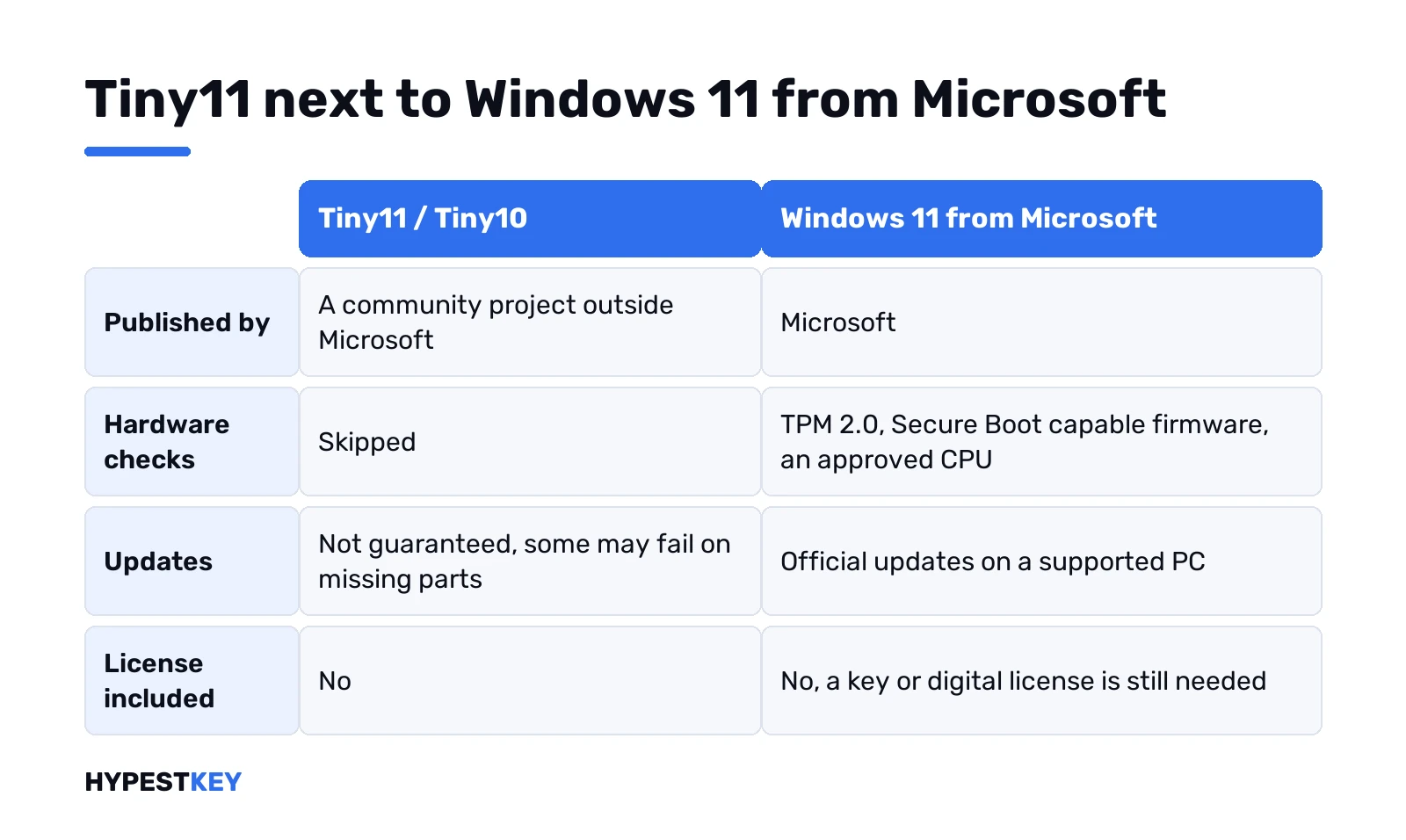
| Tiny11 / Tiny10 | Windows 11 from Microsoft | |
|---|---|---|
| Who publishes it | A community project, outside Microsoft | Microsoft |
| Where it comes from | Third-party sites and mirrors | microsoft.com, Microsoft’s own download page |
| Hardware checks | Skipped | TPM 2.0, Secure Boot capable firmware, an approved CPU |
| Updates | Not guaranteed, some may fail on missing parts | Microsoft’s updates on a supported PC |
| License included | No | No, a key or digital license is still needed |
| Support from Microsoft | None | Yes |
Short version: smaller, faster to install, and nobody vouches for it. Reviews quote 2 GB of RAM. Around 8 GB of disk. Whose numbers? The builders’, not Microsoft’s. Microsoft still asks for 4 GB of RAM and 64 GB of storage.
What Tiny11 is, in plain terms
Take the normal Windows 11 install image. Strip out a long list of apps and components. Turn off the checks that stop old PCs. Pack it again and share it. That’s Tiny11.
The pitch is simple. An old laptop that fails the Windows 11 check gets Windows 11 anyway, and it feels lighter. We understand why that sounds good. A PC that still works shouldn’t go in the bin.
The catch sits in the word “modified”. Microsoft’s own definition of genuine Windows starts with “published by Microsoft, properly licensed, and supported by Microsoft or a trusted partner”. First part already failed. We’d say that before anyone types a key.
Tiny10 and Tiny11: the same idea, two versions
Tiny10 came first and trims Windows 10. Tiny11 does the same to Windows 11. Several builds of each float around, and later ones follow newer Windows releases.
From a licensing point of view they’re identical. Neither ships with a key. Neither is published by Microsoft. And neither can be checked against a Microsoft copy, since Microsoft doesn’t make one.
Stuck between the two because of hardware? We compare the real versions in Windows 11 vs Windows 10, which is the better starting point.
Tiny11, Tiny11 Core and custom builds
Newer releases changed shape. Less a ready-made file, more an app. It strips a Windows 11 image right on your PC. Starting point, per the developer’s notes: a Microsoft image or your own ISO. Source left untouched. The output? Still a modified image, and nobody at Microsoft has seen it.
| Variant | What the developer says it keeps or drops | Our take |
|---|---|---|
| Tiny11 | A leaner image that keeps Windows Update, Defender and recovery | Still unsupported by Microsoft |
| Tiny11 Core | For disposable test VMs, removes update and recovery support and disables Defender | Never on a PC with your files |
| Custom | Removes chosen apps, components, services, drivers and fonts | Each removal is a guess |
Two lines from those same notes stand out. Core “cannot be updated or serviced”. And “Advanced Custom removals can break Windows, apps or devices.” The developer also suggests trying an image in a virtual machine first. Fair advice, honestly. We’d take it one step further and keep it there.
Nano11, a sibling project, cuts even deeper. Same story, smaller file. We don’t link to any of these builds or their scripts, and we won’t walk through running them.
What a trimmed image changes in Windows
General terms only. No steps, no files. Three kinds of change happen:
- Apps go. Built-in apps get removed, often the browser too. Some builds remove parts that Windows uses to add features or languages later.
- Checks go. TPM 2.0, Secure Boot and the CPU list stop blocking setup.
- Setup changes. Some builds skip the Microsoft account step, which Windows 11 Home normally asks for during setup.
Someone else decided each of those for your PC. Some are harmless. Others break quietly, and we’d expect you to notice months later, usually when an update arrives.
The checks exist for a reason. Our page on TPM 2.0 and how to turn it on explains what the chip does, and the full list is in our guide to Windows 11 hardware requirements.
Is Tiny11 safe? The security risks
That depends on trust, and trust is exactly what a modified image can’t give you. Windows is the layer everything else runs on. Whoever changed it had full control.
- No Microsoft source. There’s no signed release from Microsoft to compare with. Same name, different file, from site to site.
- Removed defenses. A build can drop parts you’d never notice missing. You only find out when something should have protected you.
- Old hardware, fewer protections. No TPM check, no TPM protections either.
- Ready-made images. A copy someone else built and uploaded is the riskiest kind. We’d never put a bank login on one.
We’d also be careful with images sold as “pre-activated”. Translation: someone tampered with activation too. Two problems, one download.
Updates, stability and unsupported PCs
Here Microsoft is blunt. Read its page about devices that don’t meet the requirements. Such PCs “aren’t guaranteed to receive updates”. Security updates included.
Same page, two more lines worth reading. Those devices “might malfunction due to compatibility or other issues”. And damage from that “isn’t covered under the manufacturer warranty”.
A trimmed image adds its own layer. An update expects certain parts to be there. Removed? Then the update can fail, and nobody at Microsoft tests that combination. So the PC either stops updating or waits for the next third-party build. We wouldn’t call either one stable.
Microsoft also adds a watermark on the desktop of unsupported PCs running Windows 11. Not the activation one, a different note about requirements. If you see the Activate Windows watermark instead, that’s a licensing issue.
Licensing: Tiny11 still needs a Windows key
Removing apps doesn’t remove the license requirement. Tiny11 needs a valid key or digital license, same as the original. Even Microsoft’s own ISO from its download page reads your product key to pick the edition.
So a trimmed image isn’t free Windows. It’s unlicensed Windows until a real key goes in. And even then, Microsoft points out that activation “does not guarantee that the copy of Windows is genuine”. A valid key on a modified copy is still a modified copy.
Key types confusing? We explain retail, OEM and volume licenses separately. The free generic keys on our page of free Windows 10 and 11 keys install an edition but don’t activate it, on any image.
What US copyright law says
We’re a key shop, not a law firm, so here’s the statute and nothing more. Running Windows without a license is copyright infringement, and US law lets the owner ask for statutory damages.
| Source | What it says |
|---|---|
| 17 U.S.C. §504(c)(1) | Statutory damages of not less than $750 or more than $30,000 per work, as the court considers just |
| 17 U.S.C. §504(c)(2) | If the infringement was committed willfully, the court may increase the award to not more than $150,000 per work |
The full text of 17 U.S.C. § 504 at Cornell Law School is public. Other countries have their own rules.
How to check Windows is genuinely activated
Two minutes. Settings first:
- Windows 11. Start, Settings, System, Activation.
- Windows 10. Start, Settings, Update and Security, Activation.
Good lines read “Windows is activated with a digital license” or “Windows is activated with a digital license linked to your Microsoft account”. Want detail? Command Prompt. Then this:
slmgr /dliIt shows the license on the installed edition. Then the expiry check:
slmgr /xprRetail activation is perpetual. An expiry date on a home PC points to KMS-style activation, which a home PC has no real reason to use. Our guide to checking Windows activation status walks through every result.
Office on the same PC? Any Office app, File, then Account. The product name there should match what you bought.
A used laptop, sold with Windows 11 already on it. Same checks, before anything personal goes on it. Missing apps, no browser, and a hardware report that says the PC fails the requirements are three hints of a trimmed image.
Lighter Windows 11 with Microsoft’s own tools
Most of what people want from a trimmed image has a route Microsoft supports. Not all of it, but enough.
| What you want | Microsoft’s way |
|---|---|
| Fewer preinstalled apps | Settings, Apps, Installed apps, then More and Uninstall next to each one |
| A fresh, fast start | A clean install from Microsoft’s own media |
| Windows on an older PC | Windows 10 on hardware that fails the Windows 11 check |
| Windows 11 on a PC that almost qualifies | Turn on TPM and Secure Boot in the firmware first |
| A very old machine for the web only | ChromeOS Flex, on a model Google lists as supported |
A clean install does more than people expect. No vendor extras, no leftover drivers. We cover it step by step in how to clean install Windows 11, with the USB part in our Windows 11 Media Creation Tool guide.
Some apps can’t be removed in Settings. For those, Microsoft points to Control Panel. Still lighter than a stranger’s image, and every part that stays is one Microsoft still updates.
Already on a modified image? What we’d do
No panic. A calm order works:
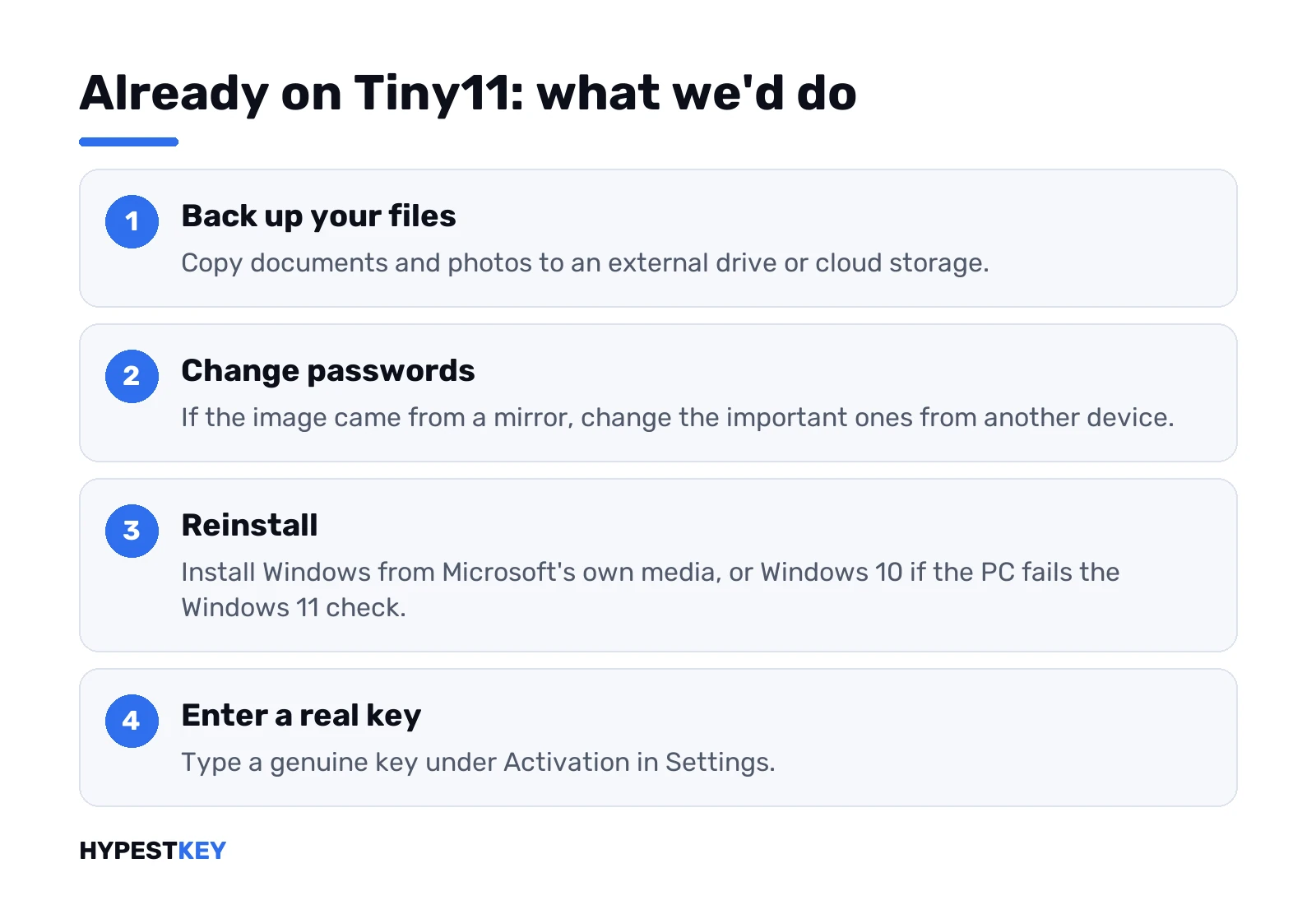
- Back up your files. Documents and photos to an external drive or cloud storage.
- Passwords. If the image came from a mirror, change the important ones from another device.
- Reinstall. Windows from Microsoft’s own media, Windows 10 if the PC fails the Windows 11 check.
- A real key. Enter it under Activation in Settings.
Activation itself is covered in how to activate Windows 11. Not sure about Home or Pro? Our Windows 11 Home vs Pro comparison settles it fast.
A genuine key instead of a Tiny11 shortcut
PC passes the check? For everyday use we’d go with the Windows 11 Home key. Older PC that fails it? Our Windows 10 Pro key is retail, with a free upgrade to Windows 11 Pro on compatible hardware later. For most people we’d pick the Windows 11 Pro key: one PC, lifetime, sent instant to email.
FAQ
Is Tiny11 made by Microsoft?
No. It's a community project built outside Microsoft, so Microsoft doesn't publish, test or support it.
Is Tiny11 safe for a main PC?
We wouldn't use it there. Nobody can confirm what was changed in a modified image, and updates aren't guaranteed.
Do I still need a Windows key for Tiny11?
Yes. A trimmed image comes without a license, so Windows still needs a valid key or digital license.
Does Tiny11 get Windows updates?
Not reliably. Microsoft doesn't guarantee updates on unsupported PCs, and removed parts can make some updates fail.
Tiny10 or Tiny11, which is better?
Neither. Both are modified images with the same risks, so the real choice is Windows 10 or Windows 11 from Microsoft.
Can I make Windows 11 lighter another way?
Yes. Uninstall unused apps in Settings, or do a clean install from Microsoft's own media for a fresh start.
How do I know my Windows is genuine?
Settings, then Activation. Then compare the installed edition and apps with the copy you actually bought from a trusted seller.
Tiny11 Core, does that one get updates?
Nope. Its own developer says Core cannot be updated or serviced. It's meant for throwaway test VMs, nothing more.