Short answer: To install Windows Server 2022, make a bootable USB stick from Microsoft's ISO and boot the server from it. We choose the edition that matches the key, with Desktop Experience for a desktop. Pick the disk, set the Administrator password and sign in. We'd rename the server and install updates before adding roles.
To install Windows Server 2022 you need a bootable USB stick and a server that meets Microsoft’s minimums. Setup asks a handful of questions. Two of them need thought: the edition and the disk. We’d settle both before booting. A clean install erases that disk.
| You need | Detail |
|---|---|
| Installation image | The Windows Server 2022 ISO from Microsoft |
| USB stick | 8 GB at least |
| Product key | For the edition you’ll install: Standard or Datacenter |
| A decision | Server Core or Server with Desktop Experience |
| A backup | Of anything on the target disk; a clean installation erases it |
Microsoft’s own walk-through is Install Windows Server from installation media.
What the hardware needs
| Component | Microsoft’s minimum |
|---|---|
| Processor | 1.4 GHz, 64-bit, with NX, DEP and Second Level Address Translation |
| Memory | 2 GB; 4 GB recommended for Server with Desktop Experience |
| Memory type | ECC or similar for physical hosts |
| Storage | 32 GB |
| Network | An Ethernet adapter with at least 1 Gbps |
| For BitLocker and Secured-core | UEFI with Secure Boot and TPM 2.0 |
The figures are from Microsoft’s Hardware requirements for Windows Server. They get the system to boot and no more.
One note from that page concerns virtual machines. Setup fails on a VM with only 1,024 MB of memory. Microsoft says to give it 1,280 MB or more for the installation.
Server Core or Desktop Experience
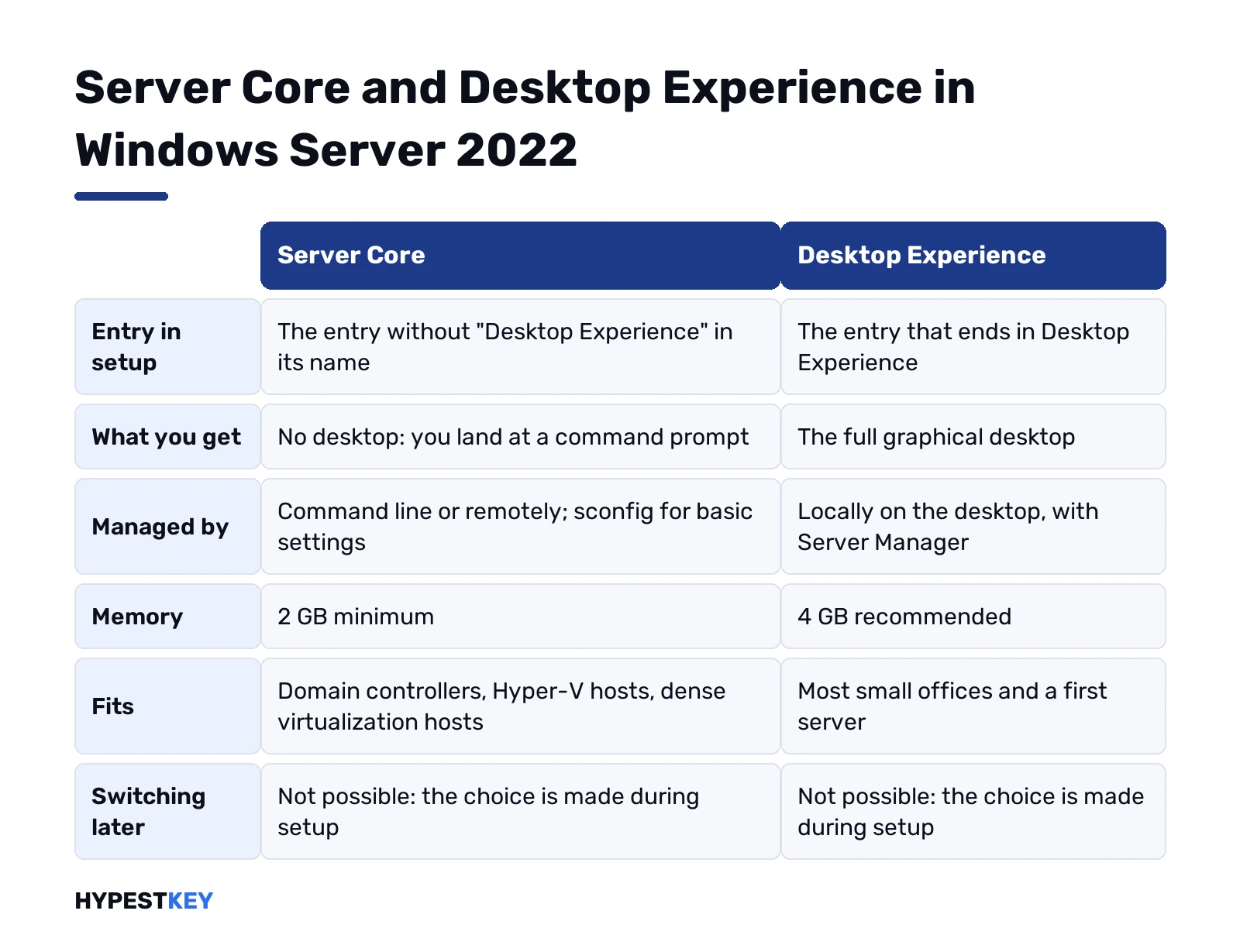
Setup offers each edition twice. The choice is made during installation and can’t be switched afterwards.
| Option | What you get | Fits |
|---|---|---|
| Standard | Server Core: no desktop, managed by command line or remotely | Domain controllers, Hyper-V hosts, experienced administrators |
| Standard, Desktop Experience | The full graphical desktop | Most small offices; a first server |
| Datacenter | Server Core | Dense virtualization hosts |
| Datacenter, Desktop Experience | The full graphical desktop | The same, with local management |
In the list, the entry without “Desktop Experience” is Server Core. People pick it by accident and land at a bare command prompt.
The edition has to match your key. Which one you need is settled in Windows Server 2022 Standard vs Datacenter.
Making the USB stick
Microsoft’s article gives a script for it. In short: mount the ISO, format the stick, copy the files, make it bootable.
Format-Volume -DriveLetter E -FileSystem NTFS -NewFileSystemLabel "WinServerUSB"
robocopy F:\ E:\ /COPYALL /Z /E /SEC /R:3 /W:3
bootsect /nt60 E:
Here E is the stick and F the mounted ISO. Run the lines in PowerShell opened as administrator, and check the drive letters twice, because the first line erases the stick.
For a server that boots in UEFI mode from FAT32 only, Microsoft’s page has a second script that splits the large image file.
How to install Windows Server 2022 from USB
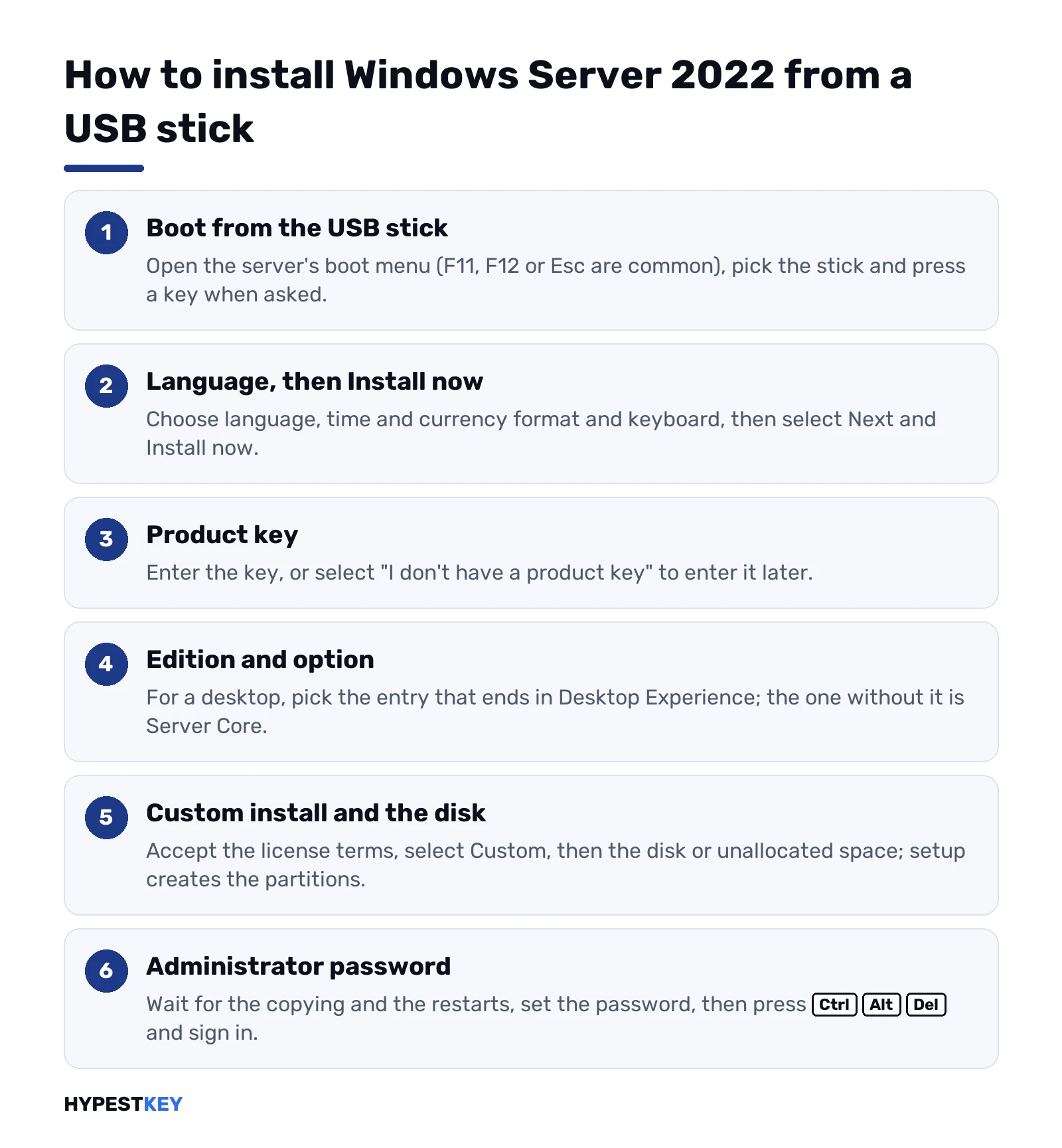
Plug the stick in, start the server and open the boot menu. The key for it depends on the maker: F11, F12 or Esc are common.
- Boot from the USB stick and press a key when asked.
- Choose language, time and currency format and keyboard, then select Next and Install now.
- Enter the product key, or select “I don’t have a product key” to enter it later.
- Select the edition and option: for a desktop, the entry that ends in Desktop Experience.
- Accept the license terms.
- Select Custom: Install Microsoft Server Operating System only.
- Select the disk or the unallocated space and select Next; setup creates the partitions itself.
- Wait for the copying and the restarts, then set a password for the Administrator account.
- Press Ctrl+Alt+Delete and sign in.
The other choice in step 6, Upgrade, keeps files and applications. It’s for a server that already runs an older Windows Server, started from inside that system.
The disk screen when you install Windows Server 2022
This is the only screen where data can be lost.
| What you see | What to do |
|---|---|
| One disk, all unallocated | Select it and continue |
| Old partitions on the system disk | Delete them only if nothing on them is needed, then select the unallocated space |
| Several disks | Find the right one by size; unplug data disks if unsure |
| No disk at all | Use Load driver with the storage controller’s driver |
On a server with a RAID controller, build the array in the controller’s setup first. Windows then sees it as one disk.
First tasks after signing in
| Task | Where |
|---|---|
| Rename the server | Server Manager, Local Server, Computer name |
| Set a fixed IP address | Local Server, Ethernet |
| Set the time zone | Local Server, Time zone |
| Install updates | Settings, Update and Security |
| Activate | Settings, Update and Security, Activation |
| Turn on Remote Desktop | Local Server, Remote Desktop |
| Add roles | Server Manager, Manage, Add Roles and Features |
On Server Core the same list runs through one menu. Type the command below and choose by number.
sconfigRename the server before adding roles. Renaming a domain controller later is far more work.
Activating Windows Server 2022 after the install
If you skipped the key during setup, enter it now. On the desktop: Settings, Update and Security, Activation, Change product key.
slmgr /ipk XXXXX-XXXXX-XXXXX-XXXXX-XXXXX
slmgr /ato
The two lines do the same from a command prompt, which is the way on Server Core. Every case is covered in our Windows Server 2022 activation guide.
Installed from the evaluation image? That copy has to be converted before a retail key fits: see converting Windows Server 2022 evaluation to Standard and activating Windows Server via DISM.
Keys for this installation
Our Windows Server 2022 Standard key covers one server with up to 16 physical cores and two Windows Server VMs. The Windows Server 2022 Datacenter key is for hosts with many VMs. Both arrive instant to email, with the link to Microsoft’s ISO.
People who connect to the server need CALs: see managing CAL licenses in Windows Server 2022. Everything for this release is under Windows Server 2022.
What to set up next
- Remote access: enabling RDP on Windows Server.
- Accounts: adding users in Windows Server.
- A domain: joining Windows Server to a domain.
- Backups: Windows Server Backup.
- A newer release instead: our comparison of the three current releases.
Common mistakes when you install Windows Server 2022
- Picking the entry without Desktop Experience and expecting a desktop.
- Installing Datacenter with a Standard key in hand.
- Deleting partitions on the wrong disk.
- Installing the evaluation image and then typing a retail key.
- Adding roles before renaming the server and fixing its IP address.
- Leaving the server without updates until “later”.
Related guides
Terms used on this page
| Term | Meaning |
|---|---|
| ISO | The installation image as one file |
| Server Core | The installation option without a graphical desktop |
| Desktop Experience | The installation option with the full desktop |
| Clean installation | Installing onto an empty disk, as opposed to an upgrade |
| sconfig | The text menu for basic settings on Server Core |
| Evaluation image | Microsoft’s trial copy, which must be converted before a retail key works |
FAQ
How do I install Windows Server 2022?
Boot the server from a USB stick made from Microsoft's ISO. Choose language, edition and disk, then set the Administrator password. We'd rename the server and update it before anything else.
Should I choose Server Core or Desktop Experience?
Desktop Experience for a first server or a small office. Server Core has no desktop and is managed by command line or remotely. We'd decide before setup, because the option can't be switched later.
Can I install Windows Server 2022 without a product key?
Setup lets you continue with "I don't have a product key". The server then has to be activated afterwards. We enter the key in Settings or with slmgr.
How much memory does Windows Server 2022 need?
Microsoft's requirements page gives 2 GB as the minimum, with 4 GB recommended for Desktop Experience. Real servers need more, by role. We'd plan memory from what the server will run.
Why does setup show no disk?
The storage controller needs a driver that setup doesn't carry. Use Load driver on the disk screen with the maker's driver on a second stick. We see this mostly with RAID controllers.
Can I install over an older Windows Server?
Yes, as an in-place upgrade started from inside the old system, from 2016 or 2019. A clean installation from USB erases the disk. We'd take a full backup either way.