Short answer: Windows Server editions come in four current forms: Essentials, Standard, Datacenter and Datacenter: Azure Edition. Essentials covers up to 25 users. Standard covers two VMs per license and Datacenter unlimited VMs. We'd pick by users and VMs first.
Windows Server editions come in four current forms: Essentials, Standard, Datacenter and Datacenter: Azure Edition. Essentials suits a small business of up to 25 users. We’d put Standard on physical servers with little virtualization, and Datacenter on heavily virtualized hosts. Azure Edition runs only in Azure or on Microsoft’s hybrid platform.
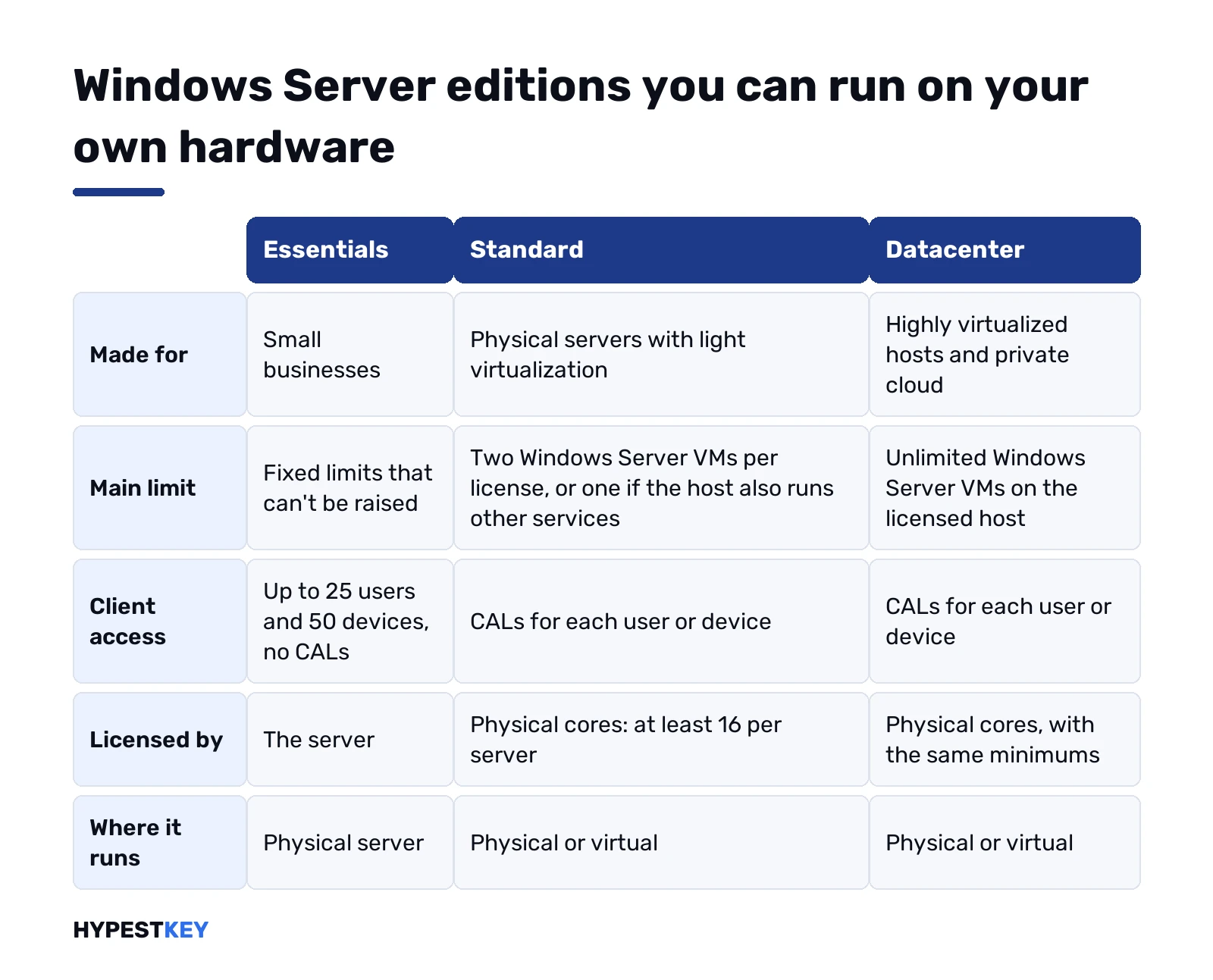
- Essentials: small businesses, up to 25 users and 50 devices, no CALs.
- Standard: physical servers, two Windows Server VMs per license.
- Datacenter: unlimited Windows Server VMs on the licensed host, plus a few extra features.
- Datacenter: Azure Edition: a VM in Azure or on Azure Stack HCI, with features that arrive there first.
The details below come from Microsoft’s Comparison of Windows Server editions, Comparison of locks and limits and the Microsoft Learn module Choose a Windows Server edition.
Windows Server editions at a glance
| Edition | Made for | Windows Server VMs | Client access | Where it runs |
|---|---|---|---|---|
| Essentials | Small businesses | See below | Up to 25 users and 50 devices, no CALs | Physical server |
| Standard | Physical servers, light virtualization | 2 per license | CALs for each user or device | Physical or virtual |
| Datacenter | Highly virtualized hosts, private cloud | Unlimited on the host | CALs for each user or device | Physical or virtual |
| Datacenter: Azure Edition | Azure and hybrid deployments | Unlimited | CALs for each user or device | Azure VM or Azure Stack HCI only |
Standard and Datacenter share one code base. Microsoft’s comparison lists the same roles in both, apart from a short list of Datacenter-only features. We’d treat the choice as a licensing decision first and a feature decision second.
Essentials: the small-business edition
Microsoft describes Essentials as the edition for small businesses. Its limits are fixed and can’t be raised.
| Rule | What Microsoft says |
|---|---|
| Users and devices | Up to 25 users and 50 devices |
| CALs | Not needed to connect; the 25-user limit can’t be raised |
| Memory | Up to 64 GB of RAM |
| Cloud identity | Microsoft Entra ID through Microsoft Entra Connect |
| As a domain controller | Must be the only domain controller and run all FSMO roles; no two-way trusts with other domains |
The domain controller rules decide it for most offices. A company that wants a second domain controller, or a trust with another domain, has outgrown Essentials. We’d also look ahead: the jump from 25 users to 26 means a move to Standard plus CALs for everyone.
Our Windows Server 2022 Essentials and Windows Server 2019 Essentials keys cover this edition.
Standard: physical servers, light virtualization
Standard is the edition for physical servers with little or no virtualization. Microsoft says it supplies most of the roles and features of Windows Server.
- Up to 64 sockets and an unlimited number of cores.
- In 2022 and 2025, up to 4 PB of RAM on hosts with 5-level paging, 256 TB with 4-level paging.
- Two Windows Server VMs per license, if the physical host only hosts and manages them.
- One VM, if the host also runs other services such as DNS.
- Unlimited Windows containers, and up to two Hyper-V isolated containers.
- Storage Replica limited to one partnership and one resource group with a single 2 TB volume.
The one-VM rule is the one people miss most often. A Standard host that also runs DNS, DHCP or file shares covers a single guest, not two.
A file server, a domain controller, a print server or a small application server all fit Standard. So does a host with one or two Windows Server VMs.
Datacenter: unlimited virtual machines
Microsoft positions Datacenter for highly virtualized infrastructure, private cloud and hybrid cloud. It has all the roles and features of Windows Server.
| What Datacenter adds | What it does |
|---|---|
| Unlimited Windows Server VMs | Any number of guests on the licensed host |
| Storage Spaces Direct | Shared storage built from the local disks of clustered servers |
| Storage Replica without limits | Any number of partnerships and volumes |
| Host Guardian Hyper-V Support | Lets the host run shielded virtual machines |
| Network Controller | The management point of software-defined networking |
| Automatic Virtual Machine Activation as a host | Guests activate against the host without their own key |
| Unlimited Hyper-V isolated containers | Standard stops at two |
The sockets, cores and memory limits are the same as Standard’s. Datacenter isn’t faster; it gives more rights and a few infrastructure features.
Datacenter: Azure Edition, built for Azure
Microsoft built Azure Edition as a Datacenter variant for Azure. Its training module says it runs only on Azure Stack HCI or as a VM in Azure. We can’t run it under Hyper-V on our own servers, on bare metal, on another vendor’s hypervisor or in another cloud.
| Limit | 2022 | 2025 |
|---|---|---|
| Logical processors | 1,024 | 2,048 |
| RAM, generation 2 VM | 240 TB | 240 TB |
| RAM, generation 1 VM | 1 TB | 1 TB |
| KMS host | No; activated by Azure | No; activated by Azure |
We’d be careful with 2022 guides that credit Hotpatching and SMB over QUIC to plain Datacenter; in 2022 they were Azure Edition features. Windows Server 2025 changed that: SMB over QUIC is in every edition, and Hotpatching reaches Standard and Datacenter as an Azure Arc-enabled service. We read Microsoft’s footnote as tying it to machines enrolled in Windows Server Management enabled by Azure Arc with Software Assurance or a subscription license.
You can’t buy Azure Edition as a key for your own hardware. It comes with the Azure platform.
Windows Server editions: limits side by side
Microsoft’s locks and limits page gives the same values for Standard and Datacenter in most rows.
| Limit | Standard | Datacenter |
|---|---|---|
| Maximum users | Based on CALs | Based on CALs |
| 64-bit sockets | 64 | 64 |
| Cores | Unlimited | Unlimited |
| RAM, 2016 and 2019 | 24 TB | 24 TB |
| RAM, 2022 and 2025 | 4 PB with 5-level paging, 256 TB with 4-level paging | 4 PB with 5-level paging, 256 TB with 4-level paging |
| RDS connections | 65,535 | 65,535 |
| SMB connections | 16,777,216 | 16,777,216 |
| Windows Server VMs | 2, plus one Hyper-V host per license | Unlimited, plus one Hyper-V host per license |
| Hyper-V isolated containers | 2 | Unlimited |
| Storage Replica (2019 and later) | 1 partnership, 1 resource group, one 2 TB volume | Unlimited |
So hardware isn’t the reason to pick Datacenter. Virtual machines and the feature list are.
What differs from 2016 to 2025
The edition line-up stayed the same, but the gap between Standard and Datacenter moved a little with each release.
| Release | Datacenter-only or limited in Standard | Other edition notes |
|---|---|---|
| 2016 | Storage Spaces Direct, Storage Replica, Host Guardian Hyper-V Support, Network Controller | Standard and Datacenter include MultiPoint Services and the Essentials Experience role |
| 2019 | Storage Spaces Direct, Host Guardian Hyper-V Support, Network Controller | Storage Replica reaches Standard with a 2 TB limit |
| 2022 | The same three | Datacenter: Azure Edition joins; Hotpatching and SMB over QUIC there only |
| 2025 | The same three | SMB over QUIC in all editions; Hotpatching via Azure Arc; GPU partitioning in Standard for standalone servers |
GPU partitioning in 2025 Standard has a condition. Microsoft says it is designed for standalone servers with live migration for planned downtime. Clustering for unplanned downtime needs Datacenter.
What changed between the releases themselves, not the editions, is in our comparison of the three current releases.
Server Core and Desktop Experience
These two names often get mixed up with editions. They’re installation options, and every current edition offers both.
| Option | What you get |
|---|---|
| Server Core | No desktop; managed with PowerShell, Windows Admin Center or remote tools; fewer updates and a smaller attack surface |
| Server with Desktop Experience | The full graphical interface; some roles, such as Remote Desktop Session Host features, need it |
The license is the same for both. A Standard key activates Server Core Standard and Desktop Experience Standard alike.
Editions that no longer exist
Older guides list editions that Microsoft has dropped. You’ll still meet them on old servers.
- Foundation: a low-cost edition for small servers in Windows Server 2012 and 2012 R2; Essentials took its place.
- Hyper-V Server: a free, Hyper-V-only release; the 2019 version was the last one Microsoft shipped.
- Web, Storage Server and others: special editions of the 2008 and 2012 era.
- Nano Server: once an install option, now only a container base image.
We treat a server still running one of these as an upgrade project, not an edition switch. Our guides on moving off Windows Server 2012 R2 and moving off Windows Server 2016 cover the paths.
How Windows Server editions are licensed
| Edition | Licensed by | Client access |
|---|---|---|
| Essentials | The server | Built in for up to 25 users and 50 devices |
| Standard | Physical cores: at least 16 per server and 8 per processor | Windows Server CALs; RDS CALs for Remote Desktop |
| Datacenter | Physical cores, with the same minimums | Windows Server CALs; RDS CALs for Remote Desktop |
| Azure Edition | Through Azure | As for Datacenter |
The core minimums come from Microsoft’s core-based licensing guidance; we work through examples in Windows Server 2022 Standard vs Datacenter. The CAL side is in RDS CAL per user vs per device, and the packs are under Windows Server CALs.
Microsoft also publishes a free evaluation of Standard and Datacenter that runs for 180 days. We convert it to a full edition with a key, as in converting Windows Server evaluation to Standard.
Release channels across Windows Server editions
Editions are one axis; the servicing channel is another. Microsoft’s page Windows Server servicing channels describes two of them.
| Point | Long-Term Servicing Channel | Annual Channel |
|---|---|---|
| What it is for | File servers, traditional apps, infrastructure roles, hyper-converged infrastructure | Container hosts for containerized applications |
| New releases | Typically every 2 to 3 years | Typically every 12 months |
| Activation keys | All Windows Server keys | Datacenter keys |
| Licensing | All licensing programs | Software Assurance customers only |
| Installation options | Server Core and Desktop Experience | Server Core for a container host only |
| Where to get it | All distribution channels | Volume Licensing Service Center and Visual Studio Subscriptions |
The numbered releases, from 2016 to 2025, all belong to the Long-Term Servicing Channel, and so does every key we sell. Annual Channel releases carry names such as version 23H2. Microsoft notes that moving to one takes a clean installation, not an update.
We’d only look at the Annual Channel for a container platform run by a team that redeploys hosts often. For a domain controller, a file server or a Hyper-V host, the long-term releases are the normal choice.
Checking which edition a server runs
On a server you didn’t install yourself, we check the edition before ordering anything. Either line below works in PowerShell:
(Get-CimInstance Win32_OperatingSystem).Caption
DISM /online /Get-CurrentEdition
The first prints the full name, for example Microsoft Windows Server 2022 Standard. The second, which we run in an elevated prompt, prints the internal edition ID, such as ServerStandard or ServerDatacenter. An evaluation copy shows up as ServerStandardEval or ServerDatacenterEval.
On Desktop Experience, typing winver in the Run box shows the same name in a window. For Server Core, the PowerShell line is the quickest route.
Changing between Windows Server editions later
Standard converts to Datacenter in place with DISM and a Datacenter key, without a reinstall. Microsoft documents that direction only, so we plan a fresh install to go down from Datacenter to Standard.
DISM /online /Get-CurrentEdition
DISM /online /Get-TargetEditions
The two lines show the installed edition and what it can become. The conversion itself is in activating Windows Server via DISM.
How to choose a Windows Server edition
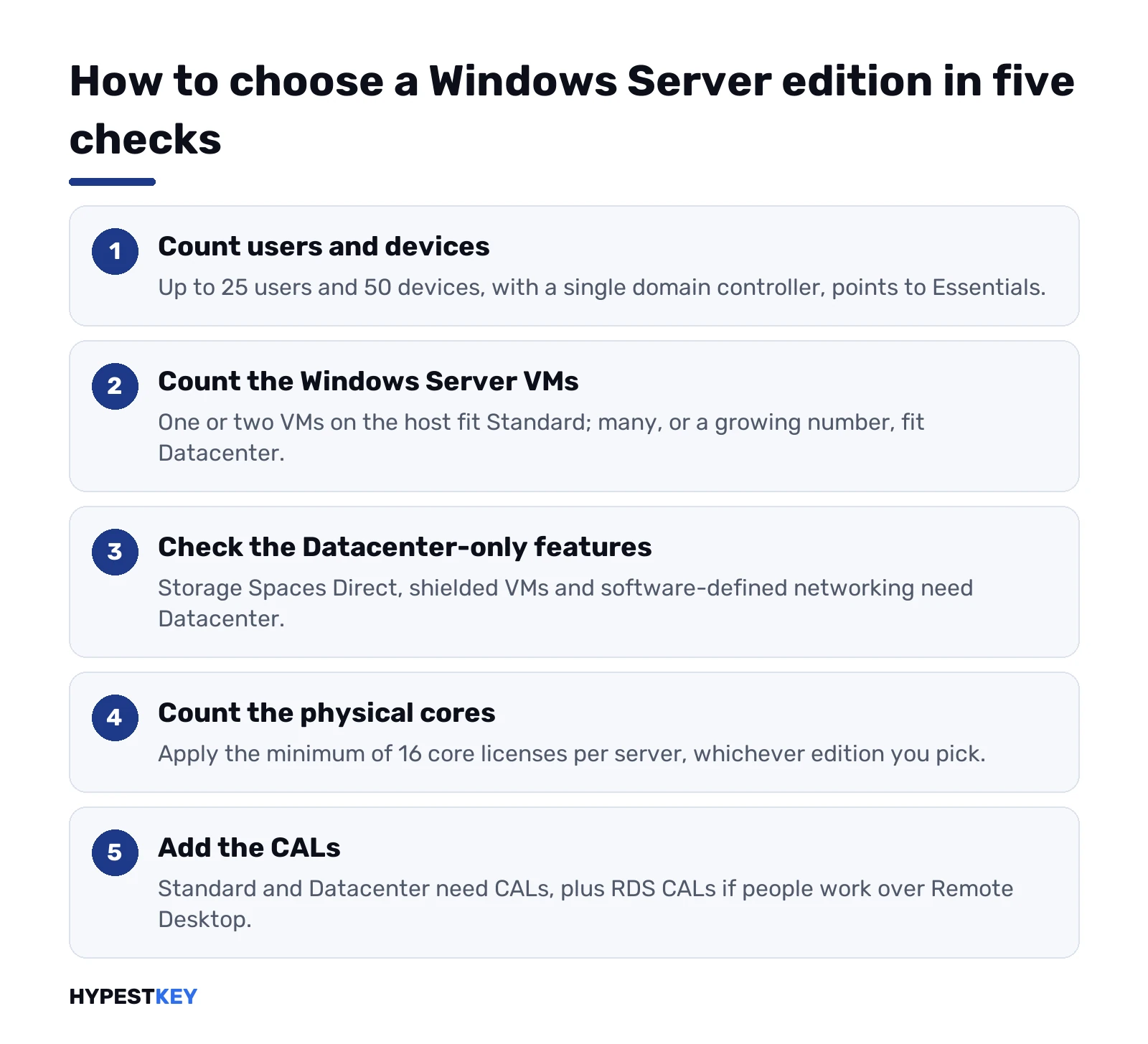
- Count users and devices. Up to 25 users and 50 devices, with a single domain controller, points to Essentials.
- Count the Windows Server VMs the host will run. One or two: Standard. Many, or a growing number: Datacenter.
- Check the Datacenter-only features: Storage Spaces Direct, shielded VMs, software-defined networking.
- Count the physical cores and apply the 16-core minimum.
- Add CALs for Standard and Datacenter, and RDS CALs if people work over Remote Desktop.
Our full comparison of the two main editions across every release is Windows Server Standard vs Datacenter.
| Your server | Edition that fits |
|---|---|
| An office of 15 people with one server | Essentials |
| A domain controller and file server for 60 people | Standard plus CALs |
| A Hyper-V host with two Windows Server guests | Standard |
| A Hyper-V host with ten guests | Datacenter |
| A Storage Spaces Direct cluster | Datacenter |
| VMs in Azure that need Hotpatching on 2022 | Datacenter: Azure Edition |
For Windows Server 2025 we sell Standard and Datacenter keys, and earlier releases are under Windows Server keys. Every key arrives instant to email.
Windows Server Standard vs Datacenter: virtual machine rights
This is the difference that settles most purchases. Microsoft states it the same way for every release from 2016 to 2025.
- A Standard license covers two Windows Server VMs on a host whose physical cores are all licensed.
- The physical installation can run beside those two VMs only if it does nothing but host and manage them.
- If the host also runs other services, such as DNS, the license covers one VM.
- Datacenter covers unlimited Windows Server VMs on the same hardware.
Hyper-V doesn’t count anything. A Standard host starts a fifth VM without a warning, and the license terms are the only limit. It’s the rule people miss more often than any other.
Only Windows Server guests count. Linux VMs, or Windows 11 VMs licensed on their own, don’t use up the two Standard rights.
Windows Server editions bought outright or pay-as-you-go
There’s a second way to license Standard and Datacenter now. Pay-as-you-go through Azure Arc, billed to an Azure subscription, as an alternative to a perpetual key. It changes how the edition choice works, so we’d look at it before comparing editions on price.
| Point | Perpetual key | Pay-as-you-go with Azure Arc |
|---|---|---|
| Versions | Any numbered release | Windows Server 2025 Standard or Datacenter only |
| Where the server runs | Your hardware or your VMs | Outside Azure, Arc-enabled, with an internet connection |
| Standard vs Datacenter price | Different, per core | The same for both editions |
| Windows Server CALs | Needed for each user or device | Not needed for standard functionality |
| RDS CALs | Needed for Remote Desktop | Still needed |
| Rights for VMs on the host | Two with Standard, unlimited with Datacenter | None; each VM needs its own license, and AVMA isn’t available |
| When billing stops | Paid once | Only when you disable it; a shut-down server keeps billing |
So on pay-as-you-go the edition stops being a money question. Datacenter costs the same as Standard there. Pick it for the features, Storage Spaces Direct for example.
The catch sits in the VM row. A Datacenter host on pay-as-you-go doesn’t cover its guests. That’s the main reason buyers choose Datacenter in the first place.
Already activated with an OEM, retail or volume key? Then the server can’t switch to pay-as-you-go until that license is gone. A seven-day trial comes first, free.
Our take? A perpetual key for a server that will run for years. Pay-as-you-go for short projects on 2025. Counting VMs under one Standard license, with stacking and a two-host example? That’s on our page about the Windows Server 2022 Standard VM limit.
Microsoft’s own page: Windows Server pay-as-you-go with Azure Arc.
Containers on each edition
Containers follow the same split as VMs, with one twist. Process-isolated Windows containers are unlimited in both editions. Hyper-V isolated containers, which run each container in a small VM, stop at two on Standard.
| Container type | Standard | Datacenter |
|---|---|---|
| Windows Server containers, process isolation | Unlimited | Unlimited |
| Hyper-V isolated containers | 2 | Unlimited |
| Annual Channel container host releases | Not offered | Activated with Datacenter keys, for Software Assurance customers |
The Annual Channel row comes from Microsoft’s servicing channels page. A container platform that needs Hyper-V isolation at scale lands on Datacenter almost by default.
Remote Desktop on both
Remote Desktop Services works the same way in both editions. Each allows up to 65,535 RDS connections, and each needs RDS CALs for the people or devices that connect.
So a terminal server is no reason to pay for Datacenter. We’d choose the edition by the VM count of the host, then add the CALs; our guide to managing CAL licenses in Windows Server 2022 shows how they’re installed.
Moving from Standard to Datacenter
We don’t reinstall to move up. Microsoft documents an in-place conversion with DISM and a Datacenter key, run in an elevated Command Prompt:
DISM /online /Get-TargetEditions
DISM /online /Set-Edition:ServerDatacenter /ProductKey:XXXXX-XXXXX-XXXXX-XXXXX-XXXXX /AcceptEula
The first line lists the editions this server can become. The second converts and asks for a restart. Microsoft has no procedure for the other direction, so we plan a fresh install to go from Datacenter down to Standard.
An evaluation copy converts the same way. We cover it in converting Windows Server evaluation to Standard or Datacenter and activating Windows Server via DISM.
Activating guests on Windows Server Standard and Datacenter
On a Datacenter host, Windows Server guests can activate through Automatic Virtual Machine Activation, without a key typed into each VM. We rely on Microsoft’s comparison here: a Standard guest can use it only on a host activated with Datacenter.
On a Standard host, each guest activates with its own key or through KMS. Volume setups use the keys in Windows Server KMS keys.
Features only Datacenter has
Microsoft’s edition comparison marks these as missing or limited in Standard.
| Feature | What it does |
|---|---|
| Storage Spaces Direct | Pools the local disks of clustered servers into shared storage |
| Host Guardian Hyper-V support | Lets the host run shielded virtual machines |
| Network Controller | The management point of software-defined networking |
| Storage Replica without limits | Standard replicates one volume of up to 2 TB |
| Automatic Virtual Machine Activation as a host | Guests activate against the host; no key is typed into each VM |
Automatic Virtual Machine Activation works in one direction. A Standard guest can use it, but only on a host activated with Datacenter.
None of this matters for a file server or a domain controller. It matters a great deal for a hyperconverged cluster.
CALs are the same for both
Neither edition includes client access licenses. Each user or device that reaches the server needs a Windows Server CAL, on Standard and on Datacenter alike.
Remote Desktop sessions need RDS CALs on top. We compare the two kinds in RDS CAL Per User vs Per Device.
The basics are in our guide to managing CAL licenses in Windows Server 2022. The packs themselves are under Windows Server CALs.
Converting Windows Server 2022 Standard to Datacenter
You don’t have to reinstall to move up. Microsoft documents the conversion in Convert Windows Server editions and license types.
DISM /online /Get-CurrentEdition
DISM /online /Get-TargetEditions
DISM /online /Set-Edition:ServerDatacenter /ProductKey:XXXXX-XXXXX-XXXXX-XXXXX-XXXXX /AcceptEula
Run the three lines in a Command Prompt opened as administrator. The first shows the current edition, the second lists what it can become, the third converts.
Microsoft’s page describes this one direction. It has no procedure for going from Datacenter down to Standard, so we’d plan a fresh install for that.
An evaluation copy converts in a similar way: see converting Windows Server 2022 evaluation to Standard. More on the tool is in activating Windows Server via DISM.
Where Azure Edition fits
Microsoft lists a third edition, Datacenter: Azure Edition. It runs as a virtual machine in Azure or on Azure Stack HCI, not on ordinary hardware.
In the 2022 release, Hotpatching and SMB over QUIC belong to that edition alone. Listings that credit them to plain Datacenter are wrong for 2022.
Windows Server 2025 changed this. SMB over QUIC is in every 2025 edition, and Hotpatching reaches Standard and Datacenter through Azure Arc.
Release by release, the changes are in our comparison of the three current releases.
We compare the two editions in every release from 2016 to 2025 in Windows Server Standard vs Datacenter. The whole line-up is in Windows Server editions explained.
Related guides
Terms used on this page
| Term | Meaning |
|---|---|
| Edition | The license level of a release: Essentials, Standard, Datacenter, Azure Edition |
| Release | The version: 2016, 2019, 2022, 2025 |
| CAL | Client access license for a user or a device |
| OSE | Operating system environment: one running instance, physical or virtual |
| FSMO roles | The single-master roles of an Active Directory domain |
| Azure Arc | Microsoft’s service for managing servers outside Azure from Azure |
FAQ
What are the Windows Server editions?
Essentials, Standard, Datacenter and Datacenter: Azure Edition. Essentials is for small businesses, Standard for physical servers, Datacenter for heavy virtualization and Azure Edition for Azure only.
What is the difference between Windows Server Standard and Datacenter?
Virtual machine rights and a few features. Standard covers two Windows Server VMs per license; Datacenter covers unlimited VMs and adds Storage Spaces Direct, shielded VMs and Network Controller.
How many users can Windows Server Essentials have?
Up to 25 users and 50 devices, and the limit can't be raised. No CALs are needed within it.
Is Datacenter faster than Standard?
No. Microsoft lists the same sockets, cores and memory limits for both. Datacenter gives more virtualization rights and a few infrastructure features.
Can I run Azure Edition on my own server?
No. Microsoft says Azure Edition runs only on Azure Stack HCI or as a VM in Azure, not on bare metal or under your own Hyper-V.
Is Server Core a separate edition?
No. Server Core and Desktop Experience are installation options of the same edition. One key covers either.
Can I change from Standard to Datacenter without reinstalling?
Yes. DISM converts Standard to Datacenter in place with a Datacenter key. Going down from Datacenter to Standard isn't documented, so we'd reinstall.
How many VMs can I run on Windows Server Standard?
Two Windows Server VMs per license, if the host only hosts them. If the host runs other services, one. More VMs need every core licensed again for each further pair.