Short answer: Windows Server 2019 end of life is January 9, 2029, when extended support and security updates end. Mainstream support ended on January 9, 2024. Servers keep running and stay activated afterwards; we plan the move to 2022 or 2025 well before the date.
Windows Server 2019 end of life is January 9, 2029, when extended support ends and security updates stop. Mainstream support already ended on January 9, 2024, so we only get security fixes now. Servers keep running and stay activated after 2029; they just stop receiving updates, which is why we plan the move early.
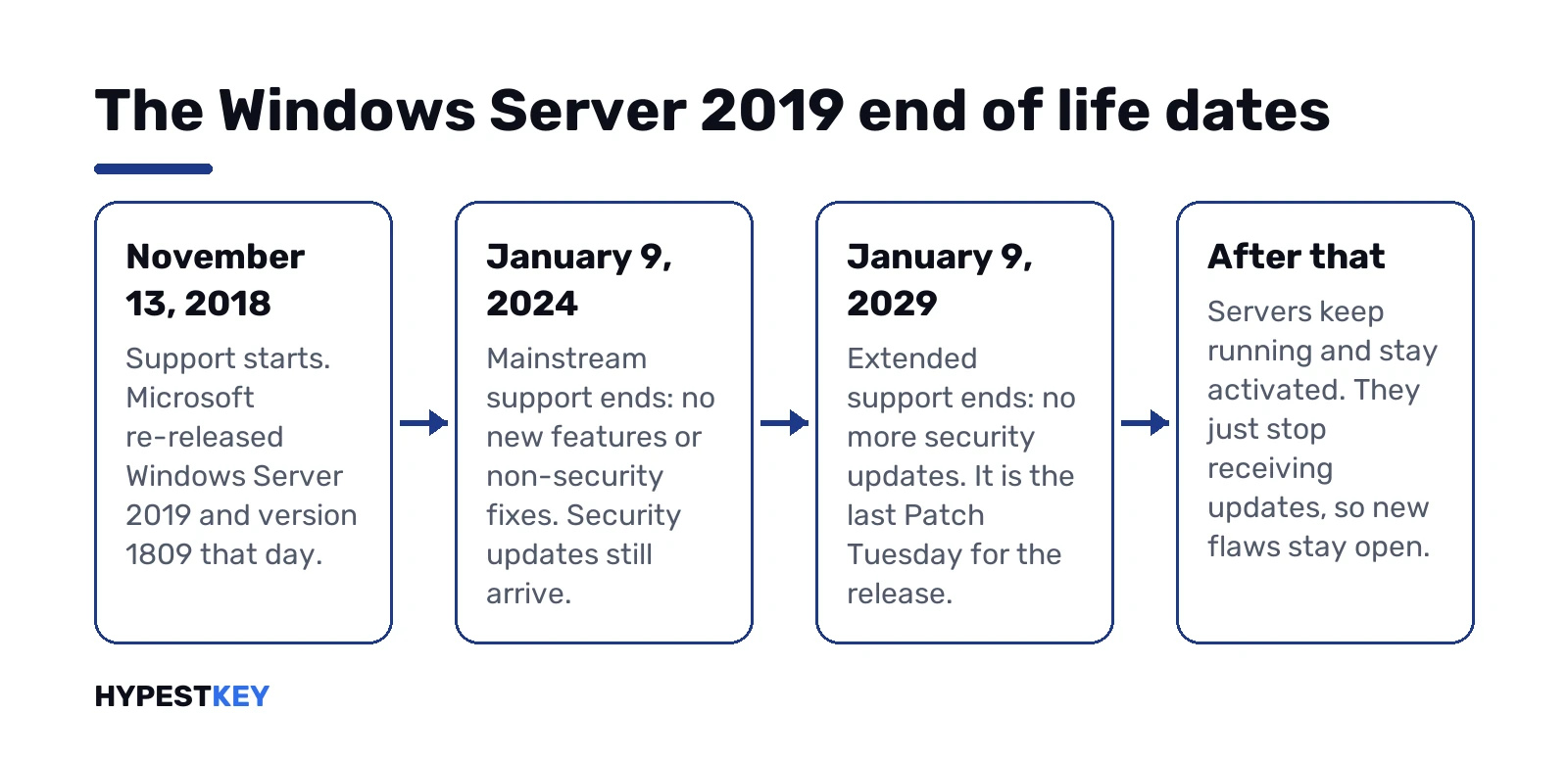
- November 13, 2018: support starts, after the re-release.
- January 9, 2024: mainstream support ends; no new features or non-security fixes.
- January 9, 2029: extended support ends; no more security updates.
- After that: everything keeps working, without patches.
The dates come from Microsoft’s lifecycle page for Windows Server 2019, which lists them in Pacific time. They apply to the Datacenter, Essentials and Standard editions.
Windows Server 2019 end of life dates
| Product | Start | Mainstream support ends | Extended support ends |
|---|---|---|---|
| Windows Server 2019 Standard, Datacenter, Essentials | November 13, 2018 | January 9, 2024 | January 9, 2029 |
| Hyper-V Server 2019 | November 13, 2018 | January 9, 2024 | January 9, 2029 |
| Containers released with Windows Server 2019 | The same dates | January 9, 2024 | January 9, 2029 |
Microsoft’s page shows the end dates as 6:59:59 AM on January 10 in Pacific time. We read that as the end of January 9, the second Tuesday of the month and the last Patch Tuesday for the release.
The start date is November 13, 2018 because Microsoft re-released Windows Server 2019 and version 1809 that day. Support dates were adjusted to match.
What each phase means
Windows Server 2019 follows Microsoft’s Fixed Lifecycle Policy. The policy table lists what each phase includes.
| Type of support | Mainstream, until January 9, 2024 | Extended, until January 9, 2029 | After end of support |
|---|---|---|---|
| Security updates | Yes | Yes | Only through an Extended Security Update program |
| Non-security updates | Yes | No | No |
| Design and feature changes | Yes | No | No |
| Self-help online support | Yes | Yes | Yes, for at least 12 months |
| Paid support | Yes | Yes | Only with an Extended Security Update program |
So today, in 2026, Windows Server 2019 is in extended support. Monthly security updates still arrive. Bugs that aren’t security issues stay unfixed unless a security update happens to touch them.
What keeps working after January 9, 2029
End of support isn’t a shutdown. Microsoft doesn’t switch anything off on that date.
| Area | After the date |
|---|---|
| The server itself | Boots and runs as before |
| Activation | Stays activated; the license doesn’t expire |
| Roles and applications | Keep running: Active Directory, file shares, IIS, Hyper-V |
| Security updates | Stop |
| New vulnerabilities | Stay open |
| Third-party software | Vendors tend to drop support for an unsupported OS |
| Compliance | Audits and cyber insurance often flag unpatched systems |
The risk grows month by month after the date, not on the day itself. We’d expect every new flaw found after January 2029 to stay open on those servers.
Extended Security Updates after Windows Server 2019 end of life
For some older releases, Microsoft sold paid Extended Security Updates after end of support. We cover the best-known case, Windows Server 2012 and 2012 R2, in our 2012 R2 guide. Our Windows Server 2016 guide covers the next release in line.
Microsoft’s lifecycle page for Windows Server 2019 lists no Extended Security Update program at the time of writing. We’d plan around January 9, 2029 as the real deadline and treat any later program as a bonus, not a plan.
Finding the 2019 servers you have
In an Active Directory domain, one PowerShell line lists every computer account that reports Windows Server 2019. It needs the Active Directory module, which comes with the RSAT tools:
Get-ADComputer -Filter 'OperatingSystem -like "*Server 2019*"' -Properties OperatingSystem,OperatingSystemVersion | Select-Object Name,OperatingSystem,OperatingSystemVersionThe version column reads 10.0 (17763) for this release. Machines outside the domain, appliances and hosted VMs won’t show up, so we add them by hand.
On a single server, Microsoft’s own pre-upgrade check is quicker:
Get-ComputerInfo -Property WindowsProductName,WindowsBuildLabEx,WindowsEditionIDUpgrade paths Microsoft supports
Microsoft’s Plan your Windows Server upgrade page sets the rules for moving off 2019.
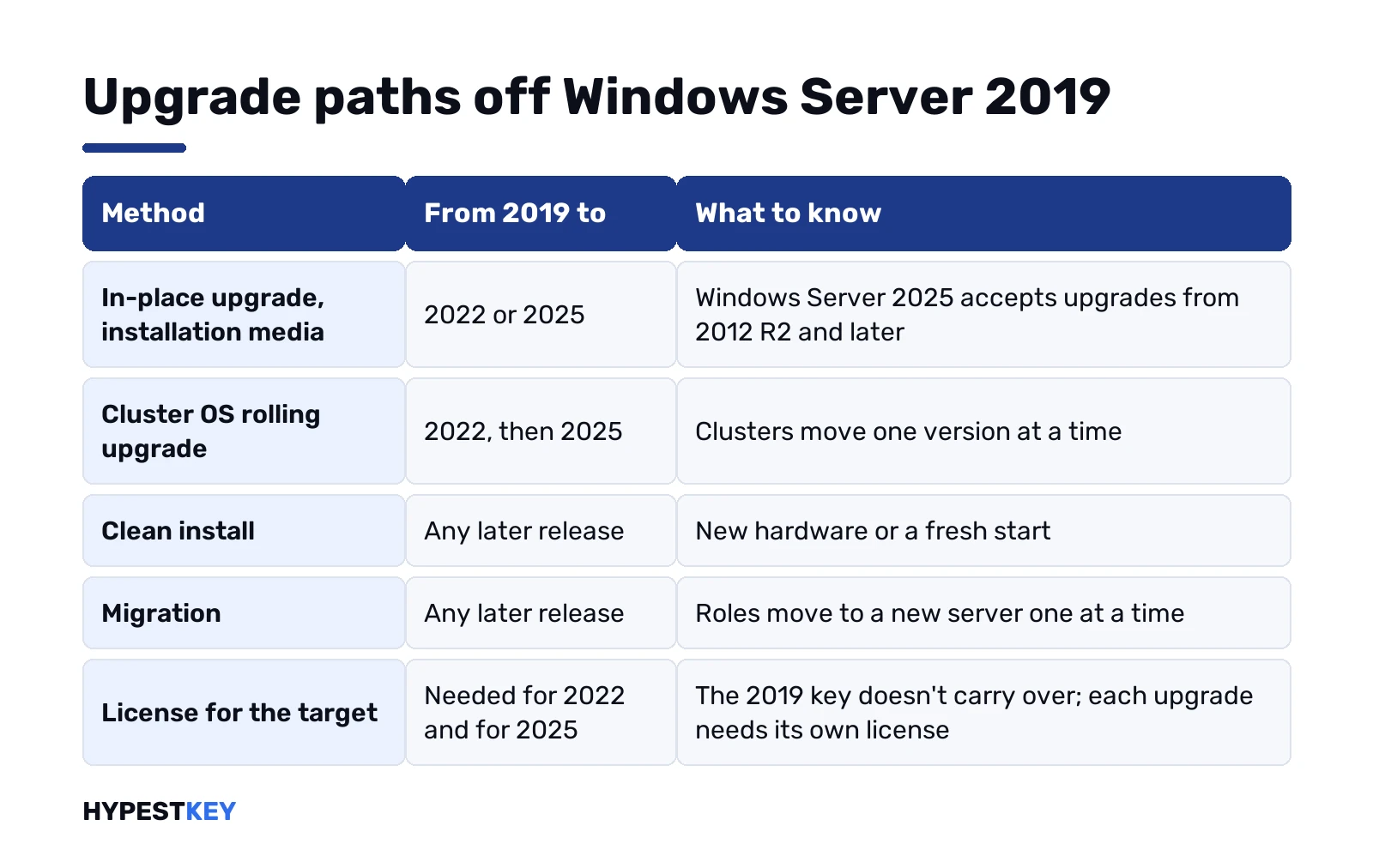
| Method | From 2019 to | Note |
|---|---|---|
| In-place upgrade, installation media | 2022 or 2025 | Windows Server 2025 accepts upgrades from 2012 R2 and later |
| Cluster OS rolling upgrade | 2022, then 2025 | Clusters move one version at a time |
| Clean install | Any later release | New hardware or a fresh start |
| Migration | Any later release | Roles move to a new server one at a time |
Microsoft also says each Windows Server upgrade needs its own license, unlike Windows client. The 2019 key doesn’t carry over to 2022 or 2025.
How to plan the move off Windows Server 2019
- List every Windows Server 2019 machine, physical and virtual, with its roles.
- Check each application’s support for Windows Server 2022 or 2025 with its vendor.
- Choose the method per server: in-place, rolling upgrade for clusters, or migration.
- Count cores and buy licenses for the target release, plus CALs for it.
- Back up, test the upgrade on one server, then roll out in waves.
- Keep the old servers patched with the monthly updates until the last one is gone.
Domain controllers get different treatment. Microsoft advises against upgrading a domain controller in place. We add a new one on the target release and move the FSMO roles. Then we demote the old one.
Where 2019 stands among its neighbours
Microsoft’s lifecycle pages give these dates for the releases around it, read as the last day in US time.
| Release | Mainstream support ends | Extended support ends |
|---|---|---|
| Windows Server 2016 | January 11, 2022 | January 12, 2027 |
| Windows Server 2019 | January 9, 2024 | January 9, 2029 |
| Windows Server 2022 | October 13, 2026 | October 14, 2031 |
| Windows Server 2025 | November 13, 2029 | November 14, 2034 |
That table settles the target question for most of our readers. A move to 2022 buys under three years beyond 2029; a move to 2025 buys almost six. We’d also note that Windows Server 2022 has left mainstream support, so it gets security fixes only, just like 2019 does today.
Upgrading in place, step by step
Microsoft’s Perform an in-place upgrade of Windows Server page lists the prerequisites. We need a full backup with a restore test and a maintenance window. The server can’t be clustered, and the key must match the target release. Running VMs on the server must be shut down or moved first.
| Route | What it takes |
|---|---|
| Installation media | Mount the 2022 or 2025 ISO, run setup.exe, keep files, settings and apps, enter the key, install |
| Windows Update, to 2025 | A registry value that allows the Windows Server feature update, the March 2026 cumulative update or later (KB5078752 for 2019), then Download and Install in Settings |
| Server Core | The same feature update through SConfig option 6 |
After the restart, Microsoft’s check is one line; the product name should show the new release and edition:
Get-ComputerInfo -Property WindowsProductNameIf something fails, Microsoft points to the Setup logs in this folder, which its SetupDiag tool reads:
C:\Windows\PantherWe keep the pre-upgrade output of systeminfo and ipconfig off the server, as Microsoft suggests. That record helps if the upgrade has to be rolled back from backup.
A realistic timetable before Windows Server 2019 end of life
We’d work back from January 9, 2029. Our planning rule of thumb, not a Microsoft schedule:
| When | What we’d have done |
|---|---|
| By mid-2027 | Inventory, application checks, target release chosen, licenses budgeted |
| By end of 2027 | A pilot server and one cluster upgraded and running |
| During 2028 | Waves of upgrades and migrations, domain controllers replaced |
| By late 2028 | The last 2019 servers retired, with a few months left as a buffer |
Hardware refresh cycles often decide the order. A host due for replacement anyway is the natural candidate for migration rather than an in-place upgrade.
2022 or 2025 as the target
| Point | Windows Server 2022 | Windows Server 2025 |
|---|---|---|
| In-place from 2019 | Yes | Yes |
| Cluster rolling upgrade from 2019 | Yes | Through 2022 first |
| Hotpatching | Azure Edition only | Standard and Datacenter via Azure Arc |
| SMB over QUIC | Azure Edition only | All editions |
| Upgrade span for non-clustered servers | Up to two versions | Up to four versions |
| Extended support ends | October 14, 2031 | November 14, 2034 |
For most servers we’d go straight to 2025: it’s the newer release and the in-place jump from 2019 is supported. Clusters are the exception, since they step through 2022. The differences in detail are in our comparison of the three current releases.
Hyper-V Server 2019 end of life
The free Hyper-V Server 2019 shares the same dates, and Microsoft’s page notes its mainstream support has ended. There’s no newer free Hyper-V Server to move to.
Microsoft’s page links to three ways forward: Hyper-V on Windows Server 2022 or 2025, Azure Stack HCI, or VMs in Azure. We’d note that Hyper-V on Windows Server needs a Standard or Datacenter license for the host. Which one fits depends on the number of Windows Server guests, as we explain in Windows Server Standard vs Datacenter.
Licensing the new release
Windows Server licenses are bought per release, per physical core, with a minimum of 16 cores per server. We buy CALs per release too: Windows Server 2025 CALs cover users or devices on 2025 servers and earlier releases.
For 2025 we sell Standard and Datacenter keys, and for 2022 a Standard key for those who prefer it; each arrives instant to email. CAL packs are under Windows Server CALs, and the editions are compared in Windows Server editions explained.
Keeping Windows Server 2019 healthy until end of life
Until the last server moves, Windows Server 2019 still gets monthly cumulative updates. We install them as usual and test cluster updates on one node first. We’d point to the July 2025 update as the reason: see KB5062557 and the cluster VM issue.
Activation, editions and keys keep working as before. Our Windows Server 2019 keys remain valid for servers that stay on 2019 until the move.
Related guides
Terms used on this page
| Term | Meaning |
|---|---|
| Mainstream support | The first phase: features, non-security fixes and security updates |
| Extended support | The second phase: security updates only |
| End of support | The day security updates stop |
| ESU | Extended Security Updates, a paid program some releases got after end of support |
| Cluster OS rolling upgrade | Upgrading cluster nodes one at a time, one version per step |
| Fixed Lifecycle Policy | Microsoft’s policy with dates set at launch |
FAQ
When is Windows Server 2019 end of life?
January 9, 2029. That's when extended support ends and Microsoft stops releasing security updates for Windows Server 2019.
Has mainstream support for Windows Server 2019 ended?
Yes, on January 9, 2024. Since then Windows Server 2019 gets security updates only, no new features or non-security fixes.
Will Windows Server 2019 stop working after 2029?
No. The server keeps running and stays activated. It just stops receiving security updates, so new vulnerabilities stay open.
Is there ESU for Windows Server 2019?
Microsoft's lifecycle page lists no Extended Security Update program for Windows Server 2019 at the time of writing. We'd plan around January 9, 2029.
Can I upgrade Windows Server 2019 to 2025 directly?
Yes, for a server outside a cluster. Microsoft supports in-place upgrades to 2025 from 2012 R2 and later. Clusters move one version at a time, through 2022.
Do I need a new license to upgrade from 2019?
Yes. Microsoft says each Windows Server upgrade needs its own license, and CALs for the new release too.
Does Hyper-V Server 2019 have the same end date?
Yes, January 9, 2029. There's no newer free Hyper-V Server, so the move is to Hyper-V on Windows Server, Azure Stack HCI or Azure.