Short answer: The Windows Server 2019 ISO comes free from the Microsoft Evaluation Center. Register, choose the 64-bit ISO and a language, and download. It installs a 180-day evaluation that must activate online within 10 days. A retail key converts it in place with DISM. No reinstall needed for Standard or Datacenter.
The Windows Server 2019 ISO is free to download from the Microsoft Evaluation Center, the only official public source. Register, pick the 64-bit ISO and your language. Done. It installs a 180-day evaluation. Later, a retail or volume key turns that install into a licensed server.
- Open the Windows Server 2019 page on the Microsoft Evaluation Center.
- Choose ISO, the 64-bit edition.
- Register and pick a language.
- Save the ISO. Use it for a USB stick, a DVD or a virtual machine.
- Activate over the internet within 10 days of installing.
Where to download the Windows Server 2019 ISO
One place. The Windows Server 2019 page on the Microsoft Evaluation Center. That’s Microsoft’s own download for anyone without a volume licensing account, and it costs nothing.
Three choices sit on that page:
- ISO, 64-bit. The one most people want, for bare metal or any hypervisor.
- VHD, 64-bit. A ready disk for Hyper-V, English only.
- Windows Server on Azure. A cloud trial, no download at all.
Companies with a volume licensing agreement get their keys through the Microsoft 365 admin center instead. Same product, different door. Everyone else uses the Evaluation Center.
Step by step on the Evaluation Center
A couple of minutes before the download starts:
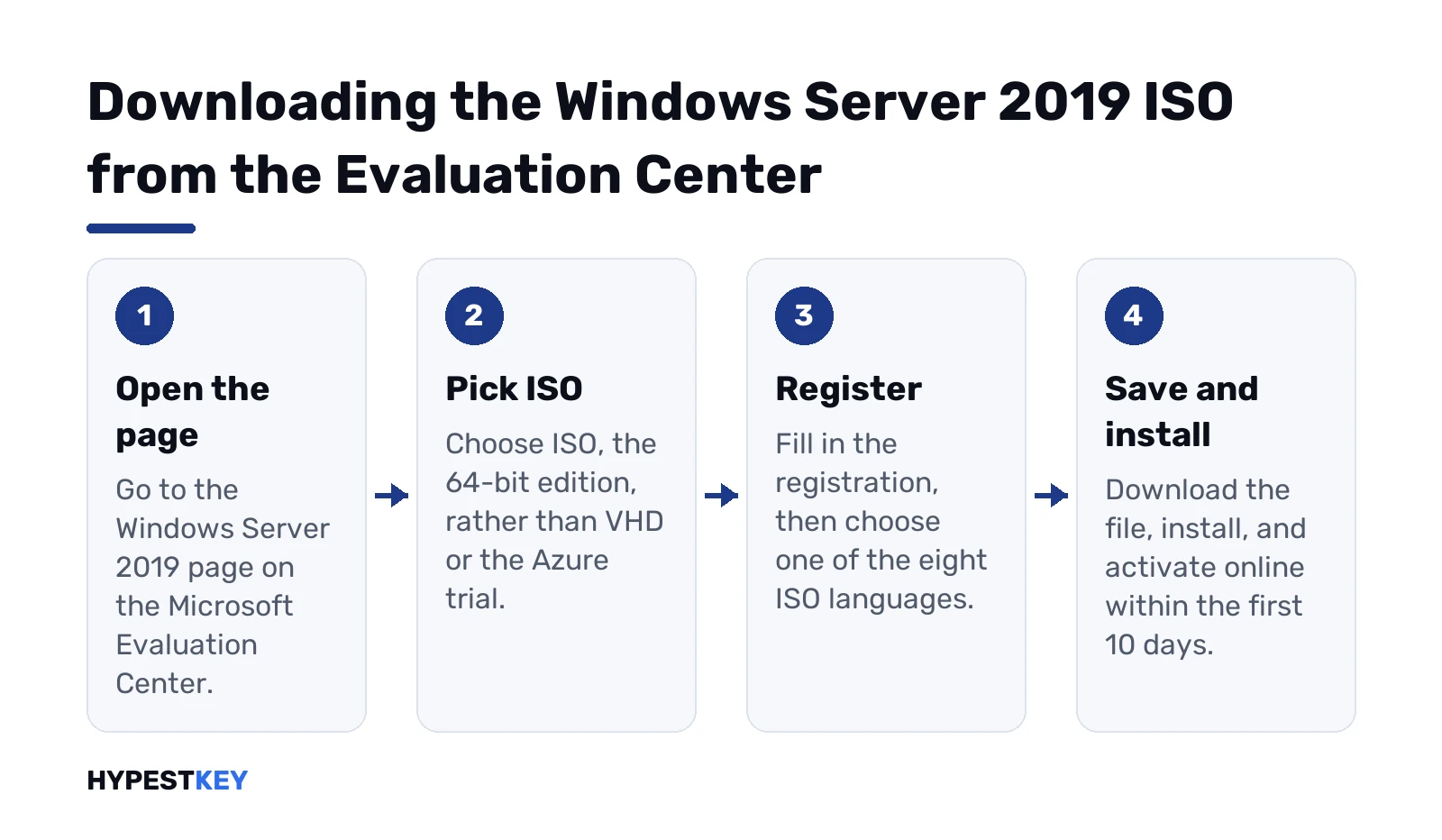
- Open the Windows Server 2019 page. Pick ISO.
- Register. The page asks for it before the download.
- Choose the language.
- Click the 64-bit edition link. The browser saves the ISO.
Languages for the ISO:
- English, United States. Also the VHD language.
- Chinese, Simplified.
- French and German.
- Italian and Spanish.
- Japanese and Russian.
Need another language? Language packs go on after setup. We’d download the English ISO if nobody on the team minds, since every format exists in English.
What’s inside the ISO: editions and install options
One image, several choices. Setup shows a list, and you pick before the disk is touched:
| Choice in setup | What you get |
|---|---|
| Standard Evaluation | Server Core, no desktop. Managed remotely or from the command line. |
| Standard Evaluation (Desktop Experience) | The full graphical desktop with Server Manager. |
| Datacenter Evaluation | Server Core, Datacenter features. |
| Datacenter Evaluation (Desktop Experience) | Datacenter with the desktop. |
Pick carefully. Since Windows Server 2016 a Desktop Experience evaluation can’t become a Core retail version. A Standard Core evaluation converts only to Datacenter Core. Wrong choice? Then we’d plan for a fresh install.
Standard or Datacenter? Mostly a question of virtual machines and storage features. Our Windows Server editions guide lays out the differences. Not sure 2019 is even the right release? Our comparison of the last three Server releases helps.
180 days, 10 days to activate: the evaluation rules
Two numbers to remember. The evaluation runs for 180 days. And it has to activate over the internet in the first 10 days, or it starts shutting itself down. So we’d connect the server to the internet on day one, even in a lab.
Not sure what’s installed? Either of these, from an elevated prompt:
DISM /online /Get-CurrentEdition
slmgr.vbs /dlv
Eval in the edition name? EVAL in the slmgr output? Then you’re on the trial. The desktop also shows the days left, bottom right, until Windows is activated. Our slmgr commands list explains the rest of that output.
Minimum hardware requirements
Modest numbers. Microsoft’s minimums for 2019:
| Part | Minimum |
|---|---|
| CPU | 1.4 GHz, 64-bit, x64 instruction set, NX and DEP, Second Level Address Translation |
| RAM | 1 GB for Server Core, 2 GB for Desktop Experience, ECC or similar on physical hosts |
| Disk | 32 GB, treated as an absolute minimum |
| Network | Ethernet adapter with at least 1 gigabit per second |
A catch for virtual machines. Setup fails on a VM with only 512 MB of RAM. Give it 800 MB or more during install, then lower it if you like.
From the Windows Server 2019 ISO to a USB stick or a VM
Virtual machine first, since it’s the easy one. Hyper-V, VMware and the rest all take the ISO directly as a virtual DVD. Attach it, boot, install.
Physical server? Then a USB stick of 8 GB or more. On a Windows PC, double-click the ISO to mount it. Copy the files to a FAT32 stick. One snag: FAT32 can’t hold a file over 4 GB. Is install.wim bigger? Then we’d split it into .swm pieces, which Windows Setup reads from the sources folder. Microsoft’s split command:
Dism /Split-Image /ImageFile:C:\sources\install.wim /SWMFile:E:\sources\install.swm /FileSize:3800More detail on the stick itself? Our guide to creating a bootable USB drive uses the same ideas. The setup screens after boot match our Windows Server 2022 install walkthrough almost one to one. Forgot how to mount an image? Our guide to mounting an ISO covers it.
Convert the evaluation to a full license
No reinstall needed. Microsoft documents an in-place conversion with DISM. Elevated prompt, three steps.
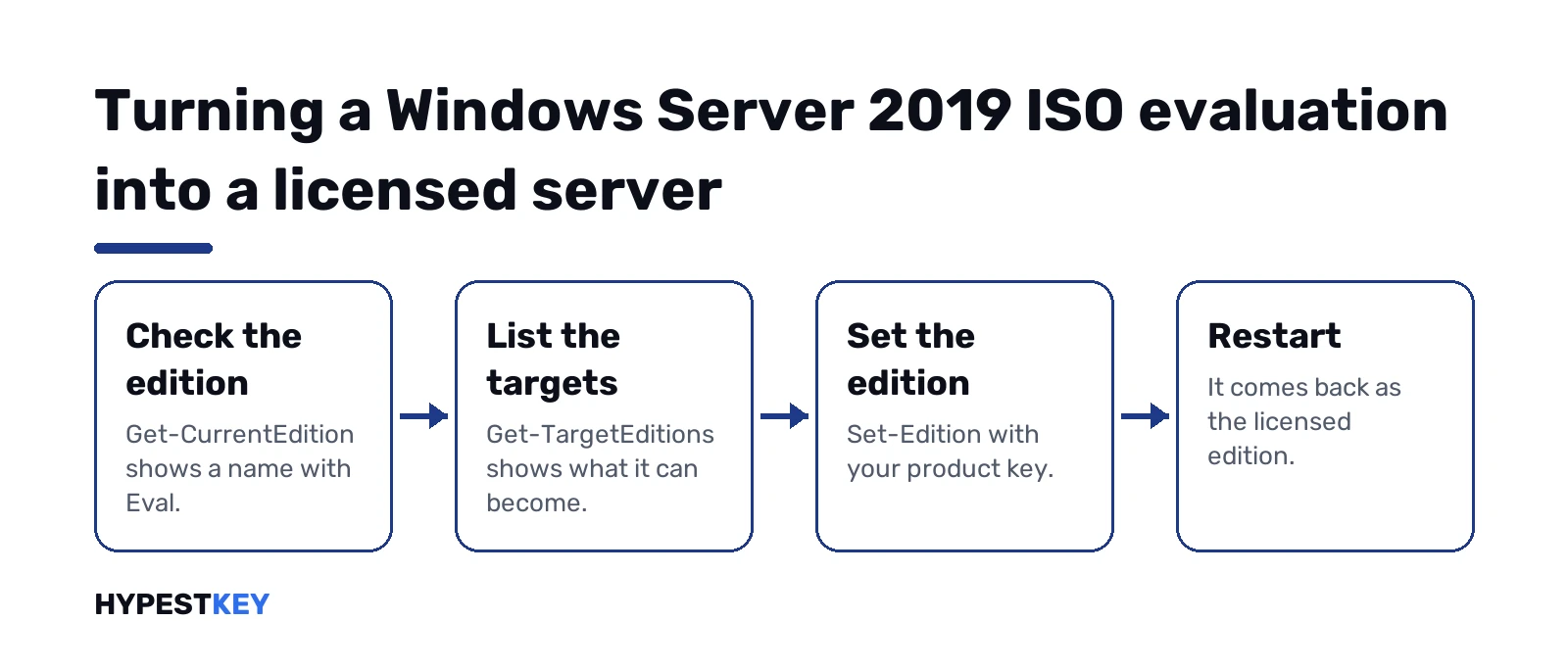
See which editions this install can become:
DISM /online /Get-TargetEditionsThen set the edition with your key. ServerStandard and ServerDatacenter are the usual names:
DISM /online /Set-Edition:ServerStandard /ProductKey:XXXXX-XXXXX-XXXXX-XXXXX-XXXXX /AcceptEulaRestart when asked. A few rules from Microsoft’s conversion page:
- Standard Evaluation can become Standard or Datacenter.
- Datacenter Evaluation can only become Datacenter.
- A domain controller can’t be converted. Promote a second, licensed server, move the roles, then demote the evaluation one.
- Target not listed by Get-TargetEditions? A fresh install of that edition is the only way.
Microsoft’s edition conversion guide has the full table. The same flow on the next release is in our page on converting Server 2022 evaluation to Standard, and the commands are identical.
KMS client keys: they install an edition, not a license
Microsoft publishes generic KMS client keys for volume licensing setups. They install an edition. They don’t activate it on their own. Activation only happens against a KMS host on your network, which companies run with their own host key.
| Edition | KMS client key | Copy |
|---|---|---|
| Windows Server 2019 Standard | N69G4-B89J2-4G8F4-WWYCC-J464C | |
| Windows Server 2019 Datacenter | WMDGN-G9PQG-XVVXX-R3X43-63DFG | |
| Windows Server 2019 Essentials | WVDHN-86M7X-466P6-VHXV7-YY726 |
No KMS host? Then these keys leave the server unactivated. Our Windows Server KMS keys page lists every release, and how KMS activation works explains the host side.
Sites offering a full Windows Server 2019 ISO download
Plenty of them. Direct links, so-called full versions, Google Groups posts with mirrors. We’d skip all of them.
The evaluation ISO already is the full product. The same bits accept a retail key, so there’s nothing to gain from a stranger’s upload and a lot to lose. A server holds passwords, domain data and backups. Nobody can say what a reworked image carries.
Already running 2019 and need to start it in Safe Mode? See booting Windows Server 2019 in Safe Mode. Ready to license the trial? Our Windows Server 2019 Standard key comes with a direct Microsoft download link and is delivered instantly by email.
Related guides
FAQ
Is the Windows Server 2019 ISO free?
Yes. The Evaluation Center download costs nothing, and the evaluation runs for 180 days.
Can I turn the evaluation into a licensed server later?
Yes, in place. Run DISM with Set-Edition and a retail key, then restart when Windows asks.
Is there a separate ISO for Standard and Datacenter?
No. One ISO holds both editions, each with Server Core and Desktop Experience as install options.
What happens if I don't activate in time?
Trouble. Microsoft says the evaluation must activate online in the first 10 days, or it shuts down automatically.
Can I use a KMS client key to activate Windows Server 2019?
Only with a KMS host. Without one the key installs the edition but leaves it unactivated.
Can a domain controller be converted from evaluation?
Nope. Add a licensed domain controller, move the FSMO roles, then remove AD DS from the evaluation server.
Is there a VHD instead of an ISO?
Yes. The Evaluation Center offers a 64-bit VHD for Hyper-V, in English only.