Short answer: There is a problem with this Windows Installer package appears when an .msi setup can't run one of its own scripts, programs or DLLs. We'd download the installer again and run it as administrator. Then repair or remove the old version. Check the Windows Installer service. Clear Temp. Still failing? A verbose log shows the broken step.
There is a problem with this Windows Installer package is the message Windows Installer shows when an .msi setup can’t run one of its own steps, usually a script, a helper program or a DLL. The cause is mostly local: a damaged download, missing rights, the Temp folder or the installer service itself.
| Error number | What the rest of the message says | Where we’d look first |
|---|---|---|
| 1720 | A script required for this install to complete could not be run | Fresh download, antivirus, run as administrator |
| 1721 | A program required for this install to complete could not be run | Damaged setup files, permissions |
| 1722 | A program run as part of the setup did not finish as expected | Leftovers of an older version, the log file |
| 1723 | A DLL required for this install to complete could not be run | Temp folder, the installer service |
| No number, during uninstall | The removal step itself fails | Repair first, then Microsoft’s uninstall troubleshooter |
What “There is a problem with this Windows Installer package” means
Every .msi file carries a list of actions. Copy files, write registry keys, and sometimes run a small program or DLL the vendor packed inside. That last kind is called a custom action.
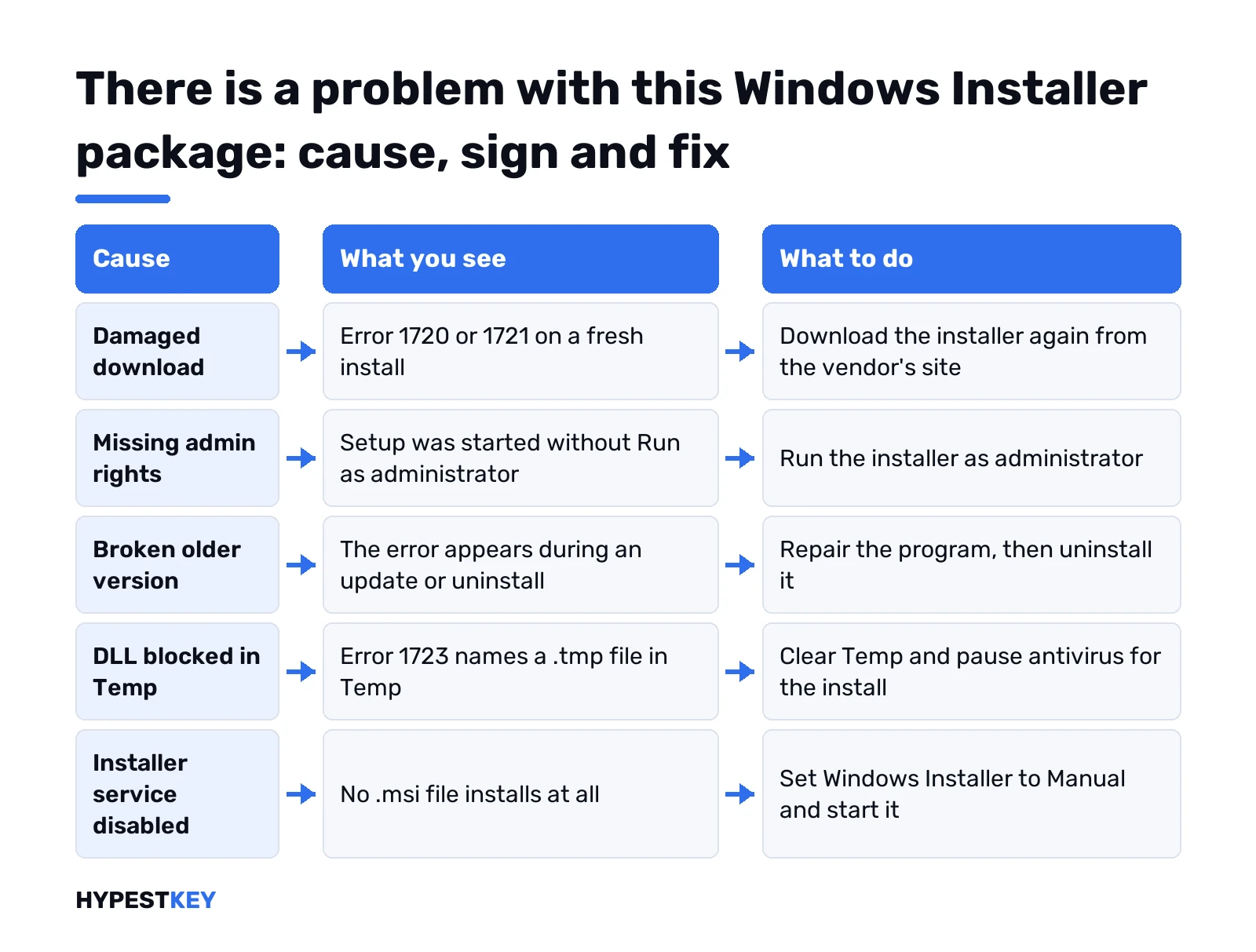
When one of those can’t start or quits early, Windows Installer stops the whole setup and shows this message. The full text ends with “Contact your support personnel or package vendor”. Not much help at home.
The number in front tells you which kind of step broke. The words after it, like Action, location or library, name the exact file. Worth writing down before you click OK.
It hits installs, updates and uninstalls alike. In our chat it’s often iTunes or iCloud. Printer drivers and VPN clients too. Modern Microsoft 365 uses its own Click-to-Run installer, so we’d expect different Office errors there, like Office error 30015-11.
Quick checks before anything else
Three minutes, and they solve a fair share of cases.
- Restart the PC. A pending update or a stuck earlier install can hold Windows Installer busy.
- Download the installer again. From the vendor’s own site, never a mirror. A half-finished download breaks the package in exactly this way.
- Run it as administrator. Right-click the file. Run as administrator. For an .msi without that option, start it from an admin Command Prompt, shown further down.
- Check free disk space. Setup unpacks to Temp on the system drive first.
- Pick the right file. A 32-bit package on a 64-bit PC is usually fine. An ARM or very old package may not be.
Saved the installer on a network drive or USB stick? Copy it to the desktop first. We’ve seen setups fail only because the source vanished mid-install.
Repair the program, then uninstall it
Updating or removing something that’s already there? Then the broken part is usually the old installation, not the new package.
Windows 11 route:
- Settings. Apps. Installed apps.
- Three dots next to the program.
- Modify, or Advanced options, then Repair.
On Windows 10, or if Settings has no repair option: Control Panel, Programs and Features, select the program, Repair.
After a successful repair, uninstall. Then install the new version clean. Apple’s advice for iTunes and iCloud follows the same order. Repair each Apple program. Uninstall it. Reinstall. And the Microsoft Store versions of both don’t run into this error at all.
Use Microsoft’s Program Install and Uninstall troubleshooter
When repair and uninstall both fail, this small Microsoft tool goes after the registry side. It fixes:
- corrupted registry keys on 64-bit Windows;
- broken keys that control update data;
- problems that stop new programs from installing;
- problems that stop old ones from being fully removed or updated;
- programs that refuse to leave through Programs and Features.
Download it from Microsoft’s page and run it. Installing or Uninstalling. Then the program from the list. Not in the list? It asks for the product code, which IT people read from the .msi file with an MSI viewer. We’d stick to Microsoft’s own tool here and skip third-party registry cleaners.
One catch. The download sits in the Windows 10 part of that page. For Windows 11 the same page points to repair, reset and uninstall in Settings instead.
For Office specifically there’s a separate route. Our guide to the Microsoft Office uninstall tool covers it, since Office leftovers have their own removal steps.
Check the Windows Installer service
Every .msi install runs through one service. If it’s disabled, nothing installs.
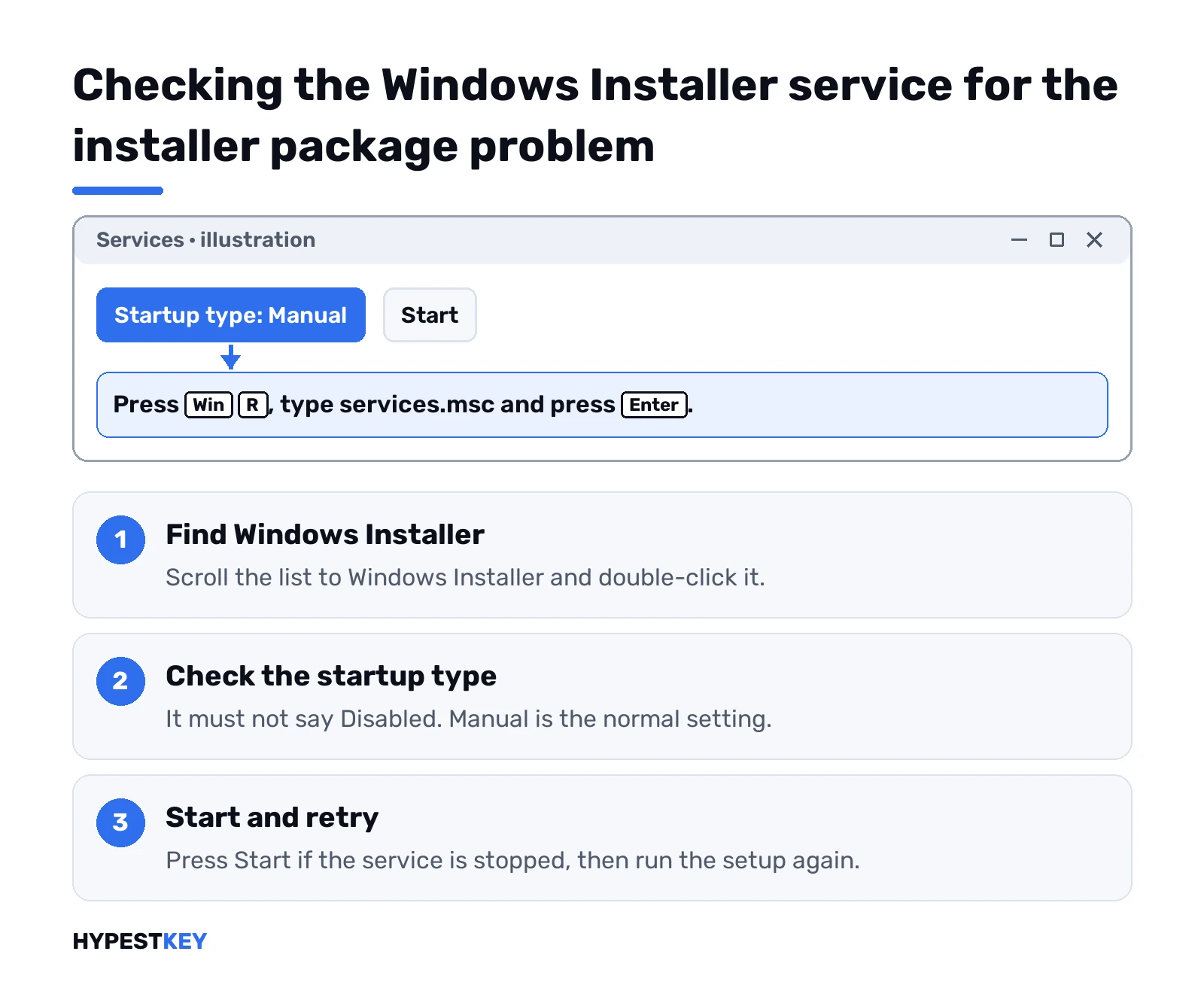
- Win and R. Type services.msc. Enter.
- Find Windows Installer.
- Double-click. Startup type must not be Disabled; Manual is normal.
- Start, if it’s stopped. Then try the setup again.
Still failing? Many answers on Microsoft’s Q&A forum suggest re-registering the installer engine. Admin Command Prompt, one line at a time:
msiexec /unregister
msiexec /regserver
No message? Good, that’s normal. Restart afterwards.
Booted in Safe Mode for some other fix? Windows Installer doesn’t run normally there, so restart into normal mode before installing. Our Windows 11 Safe Mode guide shows how to get out.
Error 1723 and the Temp folder
For 1723 the message usually names a library in your Temp folder, something like MSI plus a few characters, ending in .tmp. Setup unpacks the DLL there, then fails to load it.
- Clear Temp. Win and R, type %temp%, delete what Windows lets you delete. Skip anything in use.
- Antivirus. It may lock or quarantine the freshly unpacked DLL. Pause it for the install only, then turn it back on.
- Your user account. Try from another administrator account. Works there? Then your profile’s Temp folder has a rights problem.
Developers who build the package see 1723 for a different reason too. The function the custom action calls has to actually be exported from the DLL.
Read the installer log to find the failing step
When the guesswork runs out, we’d let the package tell us. A verbose log names the exact action that failed.
Make a folder for the log first, since Windows Installer won’t create one. Then in an admin Command Prompt:
mkdir C:\logs
msiexec /i "C:\Users\You\Downloads\setup.msi" /L*V "C:\logs\setup.log"
For an uninstall, swap /i for /x. Open the log in Notepad and search for “return value 3”. The lines right above it show which custom action broke and what file it tried to run.
That’s what the vendor’s support will ask for anyway. Send them the log.
Windows Installer package errors caused by Windows itself
If every .msi on the PC fails, not just one, the problem sits deeper. Often it’s damaged system files.
Admin Command Prompt, these two in this order, waiting for each to finish:
DISM.exe /Online /Cleanup-image /Restorehealth
sfc /scannow
Then restart and install Windows updates. Windows Update stuck as well? Our Windows Update troubleshooter guide is the next stop.
A restore point from before the trouble started is another way back. Here’s how to use a restore point in Windows 11.
Last resort, when nothing installs at all: reset Windows and keep your files. We cover the Keep my files option in our Windows 11 factory reset guide.
When the installer package problem is the package
Sometimes the PC is fine and the .msi is simply broken or too old for your Windows.
- Old software on Windows 11. Look for a newer version from the vendor first.
- Same error on two different PCs. Then it’s the package. Contact the vendor with the log.
- Windows Installer 4.5 downloads. They’re for much older Windows versions and don’t repair Windows 10 or 11.
- “Fixer” downloads from random sites. We’d avoid them. Microsoft’s own troubleshooter and the steps above cover what they promise.
Office installs fail in their own ways. If it’s Office that’s stuck, see Office taking too long to install, Office error 30068-4 or the Office offline installer guide.
Reset turned into a fresh Windows install? We sell a Retail Windows 11 Pro key for one PC, instant to email. The Windows 11 activation guide covers the rest.
Microsoft’s references: the list of Windows Installer error messages and the page Fix problems that block programs from being installed or removed.
FAQ
What do the numbers 1720 to 1723 mean?
They name the step that failed: a script for 1720, a helper program for 1721 and 1722, a DLL for 1723.
Does this error mean my PC has a virus?
Usually not. A damaged download, missing admin rights or antivirus blocking the setup are far more common reasons.
Can I fix it without reinstalling Windows?
Almost always. A fresh download, repair, the uninstall troubleshooter or the installer service fix it in most cases we see.
The error shows up when I uninstall, what now?
Repair the program first, then uninstall it. If that fails too, run Microsoft's Program Install and Uninstall troubleshooter.
iTunes or iCloud keeps showing this error, any tip?
Repair each Apple program in Control Panel, uninstall them, then reinstall. The Microsoft Store versions avoid this error completely.
Will Windows Installer 4.5 fix it on Windows 11?
No. That download is meant for much older Windows versions and doesn't repair the installer on Windows 10 or 11.
How do I find which step failed?
Run the package with a verbose log, then search the log for return value 3 and read the lines above it.