Short answer: Office error 30068-4 appears when the Click-to-Run service can't start during installation. I'd restart and try again, then set the Microsoft Office Click-to-Run Service from Disabled to Manual or Automatic. If that isn't enough, uninstall the suite with Microsoft's troubleshooter and install it fresh.
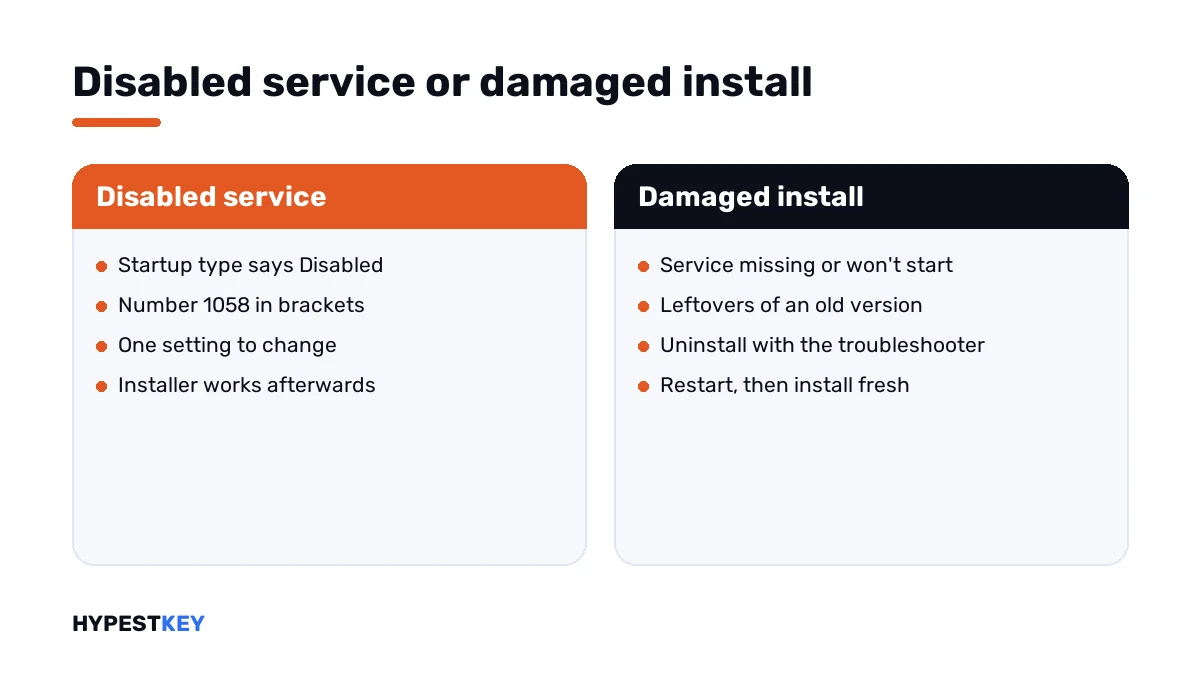
Office error 30068-4 stops the installer because the service that installs and updates the suite can’t start. Usually it’s switched off. Sometimes an earlier install left it broken.
| Step | What it does |
|---|---|
| Restart and install again | Clears a service that hung |
| Check the Click-to-Run service | A disabled service can’t be started by the installer |
| Uninstall, then reinstall | Removes a damaged earlier install |
Those three are Microsoft’s own steps, in Microsoft’s order. Nothing about this code touches your license or your documents.
What 30068-4 stands for
Microsoft’s support article Error code 30068 when installing Office covers every variant that starts with 30068. Its list of products runs from the 2016 version to Microsoft 365.
The suite installs through a background service called Microsoft Office Click-to-Run. The installer hands the work to that service. If it can’t start, the setup ends with this number.
A second number often follows in brackets. It’s a standard Windows error number, and it says why the service didn’t start.
| In brackets | Windows’ meaning |
|---|---|
| 1058 | The service is disabled |
| 1053 | The service didn’t respond to the start request in time |
| 5 | Access is denied |
| 2 or 3 | A file or path wasn’t found |
Causes
| Cause | Detail |
|---|---|
| Service set to Disabled | A “tune-up” tool, a manual tweak or a policy switched it off |
| Leftovers of an older install | The service entry points at files that are gone |
| Interrupted setup or update | The service was left half-configured |
| Security software | It blocks the service or its files during setup |
| Installer started without enough rights | The service can’t be registered |
How to fix Office error 30068-4
Follow Microsoft’s order. Try the installer again after each part.
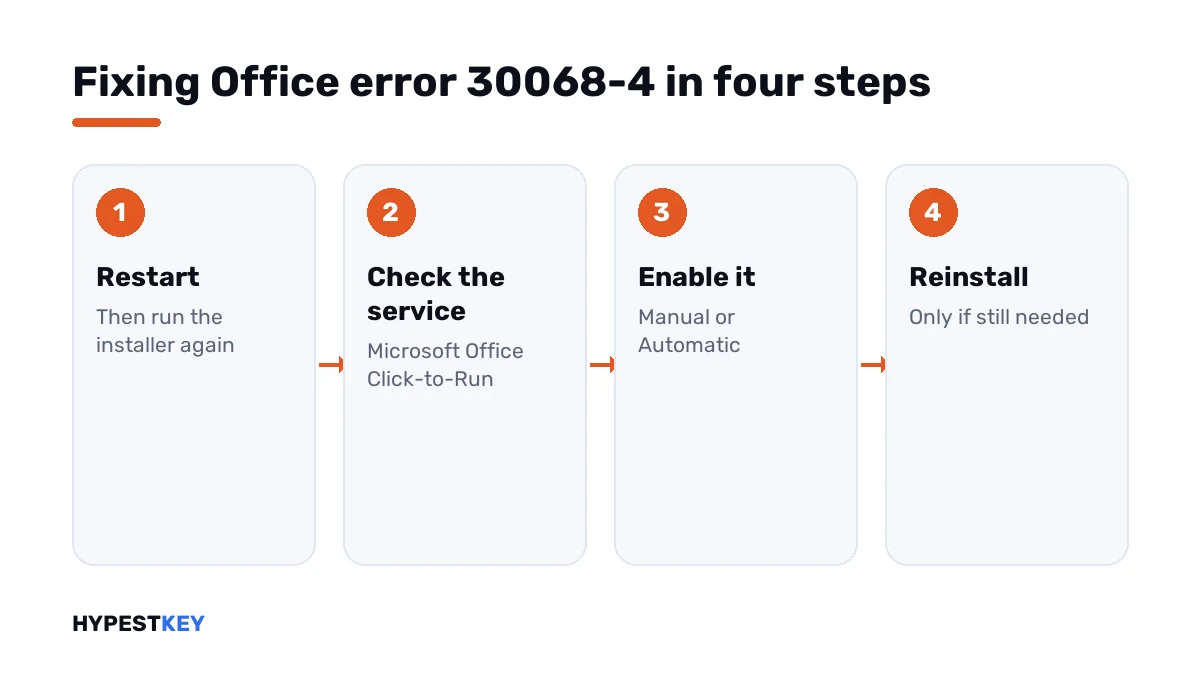
- Restart the computer and run the installer once more.
- Press the Windows key and R, type the services console name and press Enter.
- Find Microsoft Office Click-to-Run Service in the list and look at its startup type.
- If it says Disabled, open Properties, set Startup type to Manual or Automatic, then press Apply and OK.
- Run the installer again.
- Still failing: uninstall the suite with Microsoft’s uninstall troubleshooter, restart when asked.
- Install again from your Microsoft account or with your installer.
services.mscThe same check from an administrator Command Prompt:
sc qc ClickToRunSvc
sc config ClickToRunSvc start= auto
net start ClickToRunSvc| Line | What it does |
|---|---|
sc qc ClickToRunSvc |
Shows how the service is configured, including its start type |
sc config ClickToRunSvc start= auto |
Sets the start type to Automatic; the space after the equals sign belongs there |
net start ClickToRunSvc |
Starts the service |
If the service isn’t in the list at all, no install got far enough to create it. Skip to the uninstall step and start clean.
The uninstall step
Microsoft’s troubleshooter removes the suite more thoroughly than the Apps page does. The article above has the button that starts it.
| Version | Uninstall troubleshooter |
|---|---|
| Microsoft 365 | Yes |
| Office 2021, 2019, 2016 | Yes |
| Office 2024 | No; Microsoft says the troubleshooter can’t uninstall it for now |
For the 2024 version, use Settings, Apps, Installed apps, find the suite and choose Uninstall. Then restart before you install again.
Our guide to the Office uninstall tool goes through the screens. What Click-to-Run is and why the suite depends on it is in Click-to-Run explained.
If it still won’t install
Past Microsoft’s three steps, these checks have helped people in its support forum. They’re community advice, and I’d take them in this order.
- Pause third-party security software for the length of the setup.
- Right-click the installer and choose Run as administrator.
- Use the offline installer or the Office Deployment Tool, so the download can’t be the weak point.
- Repair system files with the two built-in tools, then try once more.
sfc /scannow
DISM /Online /Cleanup-Image /RestoreHealth
The deployment tool has its own guide, Office Deployment Tool step by step. The standard setup is in installing Office 2024 and installing Microsoft 365.
After it installs
The install problem is one thing, activation is the next. Open Word, go to File, Account and read what Product Information says.
| You see | Go to |
|---|---|
| Product Activated | Done |
| “Unlicensed Product” | Unlicensed Product fix |
| “Product Activation Failed” | Product Activation Failed fix |
| 0x4004F00C | 0x4004F00C fix |
| Another install code, 147-0 | Error 147-0 fix |
No license for the fresh install yet? Our Office LTSC Professional Plus 2024 key is genuine and arrives instant to email. For an older PC there’s Office Professional Plus 2019.
Where these steps apply
| Product | Notes |
|---|---|
| Microsoft 365 | All steps |
| Office 2021, 2019, 2016 | All steps |
| Office 2024 | All steps; uninstall through Settings |
| Work devices | The service may be disabled by policy; ask IT |
Mistakes we see most
- Running the installer five times without a restart.
- Leaving the service on Disabled and blaming the download.
- Installing a second version on top of a broken one.
- Editing registry keys from forum posts. Microsoft’s article doesn’t ask for that.
- Forgetting to switch the security software back on.
Terms used on this page
| Term | Meaning |
|---|---|
| Click-to-Run | The technology that installs and updates current versions of the suite |
| Click-to-Run service | The background service that does that work |
| Startup type | Whether a service may start: Automatic, Manual or Disabled |
| Uninstall troubleshooter | Microsoft’s tool that removes the suite completely |
| Offline installer | A full download that installs without fetching files during setup |
FAQ
What does Office error 30068-4 mean?
The installer couldn't get the Click-to-Run service to do its job. Microsoft's article covers every code that starts with 30068. I'd check first whether that service is disabled.
How do I fix error 30068-4 when installing Office?
Restart and run the installer again. Then open the services console and set Microsoft Office Click-to-Run Service to Manual or Automatic if it's disabled. The last step is uninstall and reinstall.
What does the number in brackets mean?
It's a Windows error number that explains why the service didn't start. We see 1058 most, which says the service is disabled. 1053 says it didn't respond in time.
How do I enable the Click-to-Run service?
Press the Windows key and R, open the services console and find Microsoft Office Click-to-Run Service. In its Properties, I'd set Startup type to Manual or Automatic. Then Apply and OK. That's Microsoft's own instruction.
Can the uninstall troubleshooter remove Office 2024?
Not at the moment. Microsoft states that the troubleshooter can't uninstall Office 2024. I'd remove that version through Settings, Apps, Installed apps and restart afterwards.
Will I lose my documents when I uninstall Office?
No. Uninstalling removes the apps, not your files. Documents stay where you saved them. Outlook data files stay too, though I'd back those up before any reinstall.
Does error 30068-4 have anything to do with my product key?
No. It happens before any license is checked. Once the suite installs, activation is a separate step. If that fails, we'd look at the message under File, Account.