Short answer: To remove an Office product key, open Command Prompt as administrator and go to the Office16 folder. I'd run the status line of the licensing script to see each key's last five characters. With those, the uninstall switch removes the key. Then enter the right one and activate.
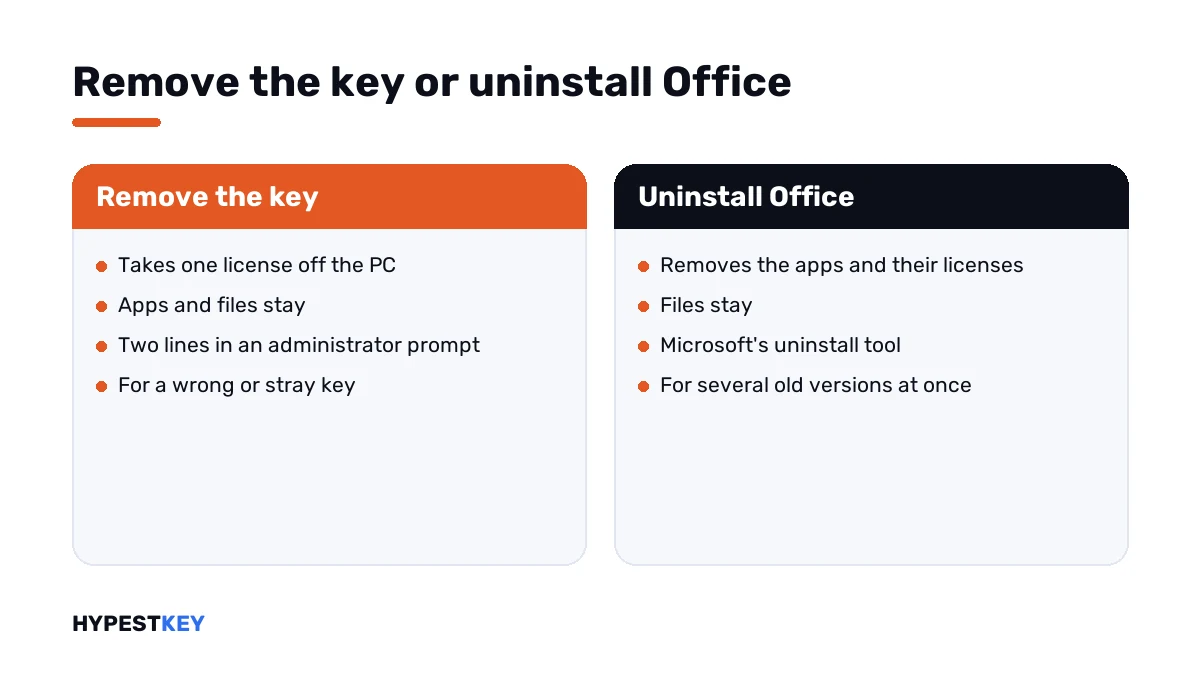
To remove an Office product key you need two lines of the Office licensing script. The first lists the installed keys. The second uninstalls the one you name.
| Situation | What to do |
|---|---|
| A wrong or old key keeps Office unlicensed | Uninstall that key, then enter the right one |
| Two licenses fight each other after an upgrade | Uninstall the one you don’t use |
| The PC changes hands | Uninstall the key, or uninstall the suite |
| Microsoft 365 or a Home edition | No key to remove; sign out or remove the device in your account |
Removing a key doesn’t delete the apps or your files. The suite simply goes back to “unlicensed” until it gets a key again.
When removing the key helps
A PC can hold more than one Office license at a time. It happens after an upgrade, after a trial, or when a volume edition was installed over a retail one.
The apps then pick one of them, and not always the one you paid for. The usual signs:
- “Unlicensed Product” although a valid key was entered.
- A request to activate at every start.
- File, Account names a different edition than the one you bought.
- Error 0x4004F00C that doesn’t go away.
Clearing out the stray key is the fix. It beats a full reinstall by about half an hour.
How to remove an Office product key
Close all Office apps first. Then:
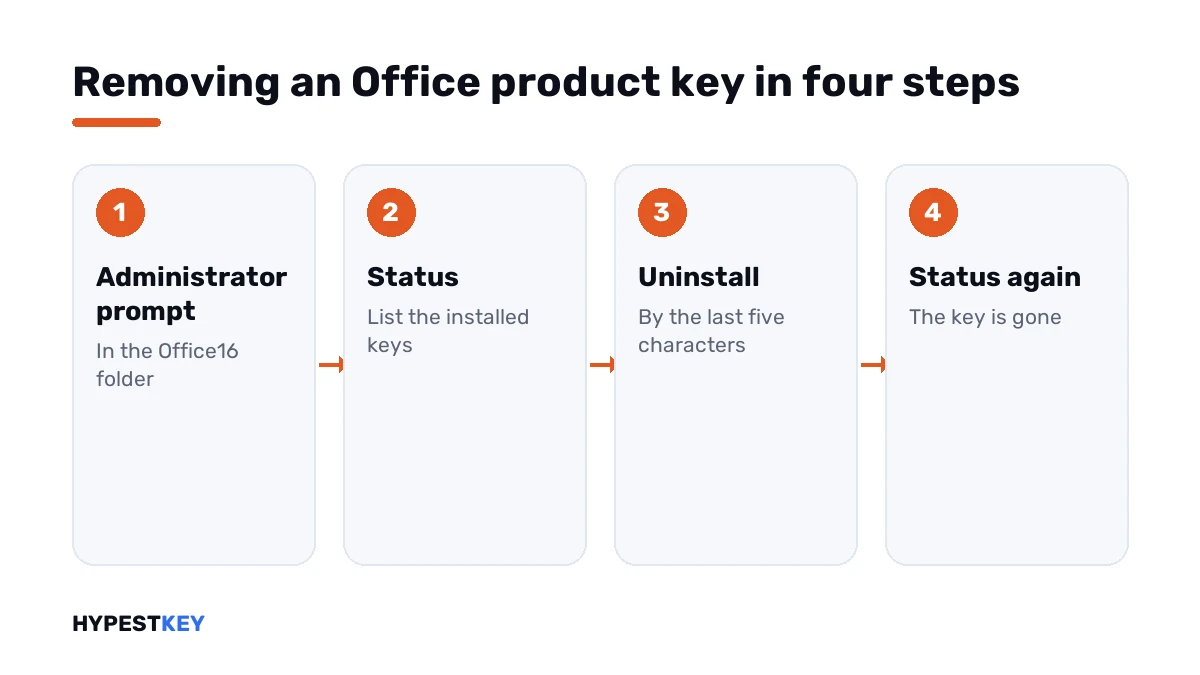
- Press Start, type cmd, right-click Command Prompt and choose Run as administrator.
- Go to the Office folder that holds the licensing script.
- Run the status line and find the license you want gone.
- Note the last five characters of its installed product key.
- Run the uninstall line with those five characters.
- Run the status line again; that license should no longer be listed.
- Enter the right key, activate and check once more.
cd "C:\Program Files\Microsoft Office\Office16"
cscript ospp.vbs /dstatus
cscript ospp.vbs /unpkey:XXXXX
cscript ospp.vbs /inpkey:XXXXX-XXXXX-XXXXX-XXXXX-XXXXX
cscript ospp.vbs /act| Line | What it does |
|---|---|
cd with the folder |
Goes to the script; 32-bit Office on 64-bit Windows keeps it under Program Files (x86), and some installs add a “root” folder in between |
/dstatus |
Lists installed licenses with name, status and the last five characters of each key |
/unpkey |
Uninstalls the key that ends in the five characters after the colon |
/inpkey |
Installs a new key |
/act |
Asks for activation |
These switches are Microsoft’s own. They’re described in its article on tools to manage volume activation of Office.
Reading the status output
Each license gets its own block in the answer. Three lines matter.
| Line in the output | What it tells you |
|---|---|
| LICENSE NAME | Which product and channel the license belongs to |
| LICENSE STATUS | LICENSED, or a grace or notification state |
| Last 5 characters of installed product key | What you type after the uninstall switch |
Two blocks in the list? That’s the conflict. Keep the one that says LICENSED for the edition you own, and remove the other.
Not sure which is which? Compare the five characters with the end of the key in your order email.
Where it doesn’t apply
The script works for volume and key-activated editions. Microsoft notes that it doesn’t work for Microsoft 365 Apps.
| Product | How the license is released |
|---|---|
| Professional Plus and LTSC editions | The uninstall switch on this page |
| Microsoft 365 | Sign out in the app, and sign the device out in your Microsoft account |
| Home editions tied to an account | Uninstall the suite; the license stays in your account for the next install |
| Work installs | IT’s task |
For Microsoft 365, the sign-out sits under File, Account in any app. The list of signed-in devices is in the subscription section of your Microsoft account.
After the key is gone
| What you see | Why |
|---|---|
| “Unlicensed Product” in the title bar | No license is installed now; enter the new key |
| Editing is switched off | The same reason |
| The other edition activates by itself | The remaining license took over, as intended |
The steps for entering a key are in how to activate Office 2024 and how to activate Office 2021. If the title bar message stays, see Unlicensed Product.
Need the key that replaces it? Ours are genuine and arrive instant to email: Office LTSC Professional Plus 2024 or Office 2021 Professional Plus.
Moving Office to another PC
A one-time purchase covers one computer at a time. Removing the key on the old PC is the tidy first step of a move.
- Remove the key or uninstall the suite on the old PC.
- Install on the new PC.
- Enter the key and activate.
Whether your license may move at all is covered in moving Office to a new computer.
When a clean sweep is better
Several old versions, a trial from the PC maker and a failed setup on top: at that point removing keys one by one stops paying off.
Uninstall everything with Microsoft’s tool, restart and install the one edition you own. Our guide to the Office uninstall tool walks through it.
Setup errors along the way have their own pages: Office error 30068-4 and Office error 30015-11. Activation that fails afterwards is in Product Activation Failed.
Where these steps apply
| Product | Notes |
|---|---|
| Office LTSC 2024 and 2021, Office 2019, Office 2016 | All steps as written |
| Professional Plus editions | All steps as written |
| Project and Visio | The same script; they appear as their own blocks |
| Microsoft 365 | Not with this script |
Mistakes we see most
- Running the script in a normal prompt.
- Removing the licensed key and keeping the stray one.
- Typing the whole key after the uninstall switch; it wants five characters.
- Looking for the script in the wrong Program Files folder.
- Expecting the switch to work for Microsoft 365.
- Removing a key that isn’t written down anywhere.
Terms used on this page
| Term | Meaning |
|---|---|
| Licensing script | The script in the Office folder that installs, removes and shows keys |
| Partial key | The last five characters of an installed key |
| License block | The part of the status output that describes one license |
| Unlicensed Product | The state in which editing is switched off |
| Volume edition | An edition licensed to organisations, activated with a key in the app or a company server |
FAQ
How do I remove an Office product key?
Run the Office licensing script as administrator. The dstatus switch lists the installed keys by their last five characters. The unpkey switch, followed by those five characters, uninstalls that key.
Where is ospp.vbs?
In the Office16 folder of the Office installation, under Program Files. Per Microsoft, a 32-bit Office on 64-bit Windows keeps it in the x86 variant of that folder. Some installs have a "root" folder in between.
Will removing the key delete Office or my files?
No. Only the license is removed. The apps stay installed and your documents aren't touched. Until a key is entered again, I'd expect the Unlicensed Product message.
Why does Office have two keys installed?
Usually an upgrade or a trial left its license behind, or a second edition was installed over the first. The status line shows a block for each. We'd remove the one that isn't yours.
Can I remove a Microsoft 365 license this way?
No. Microsoft says the script doesn't work for Microsoft 365 Apps. There's no key to uninstall. I'd sign out in the app and sign the device out in the Microsoft account.
Do I need the full key to remove it?
No, only its last five characters. The status line prints them for every installed key. That's also how we tell two licenses apart when the full keys aren't at hand.
Can I use the key on another PC after removing it?
If the license allows a move, yes. A one-time purchase covers one computer at a time. After removing it here, I'd install on the other PC and activate there.