Short answer: To remove a Windows product key, open Command Prompt as administrator. Run the upk line of slmgr, then the cpky line, and restart. The key is uninstalled and cleared from the registry. A firmware key and a digital license stay with the hardware, so I'd save a retail key first.
To remove a Windows product key you run two short lines in an administrator Command Prompt. The first uninstalls the key from Windows. The second wipes it from the registry.
| Why remove it | Does this do it |
|---|---|
| Moving a retail key to another PC | Yes; this is the first step of the move |
| Selling or giving away a PC with your retail key on it | Yes |
| Replacing a wrong or volume key | Yes, though installing the new key replaces the old one anyway |
| Removing the key that came with a branded PC | No; that one sits in the firmware |
| Cancelling a digital license | No; it stays on record for the hardware |
Write the key down before you start. Windows can’t show it to you once it’s gone.
What gets removed
Microsoft’s reference for the licensing script describes both switches.
| Switch | Microsoft’s description, in short |
|---|---|
/upk |
Uninstalls the product key of the current Windows edition; after a restart the system is unlicensed unless a new key is installed |
/cpky |
Removes the product key from the registry, so malicious code can’t read it |
Both need an elevated Command Prompt. The reference is Slmgr.vbs options on Microsoft Learn.
Nothing else changes. Apps, files and settings stay exactly as they were.
How to remove a Windows product key
The whole job takes two minutes.
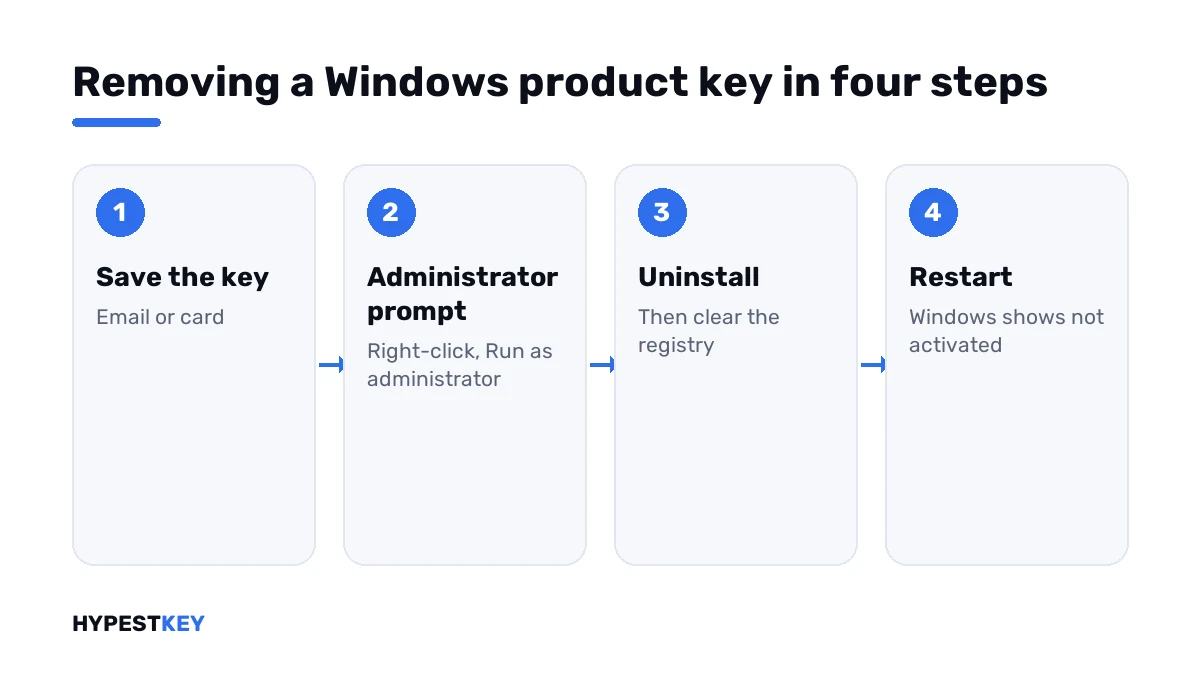
- Find your key in the order email or on the card, and keep a copy outside this PC.
- Press Start, type cmd, right-click Command Prompt and choose Run as administrator.
- Run the license line and note the last five characters, to be sure which key is installed.
- Run the uninstall line and wait for “Uninstalled product key successfully”.
- Run the clear line and wait for “Product key from registry cleared successfully”.
- Restart the PC.
- Open Settings, System, Activation; it should say Windows isn’t activated.
slmgr /dli
slmgr /upk
slmgr /cpky| Line | What it does |
|---|---|
slmgr /dli |
Shows the edition, the channel and the last five characters of the installed key |
slmgr /upk |
Uninstalls the key |
slmgr /cpky |
Clears it from the registry |
A line that answers “Access denied” was run in a normal window. That’s 0x80070005, and the cure is the right-click in step 2.
What the PC looks like afterwards
| Area | After the key is removed |
|---|---|
| Activation page | Windows is not activated |
| Desktop | The “Activate Windows” text appears after a while |
| Personalisation | Greyed out |
| Apps, files, updates | Unchanged |
What that state limits is in our watermark guide. To activate again, enter a key under Change product key.
What it can’t remove
Two things survive the two lines, and both surprise people.
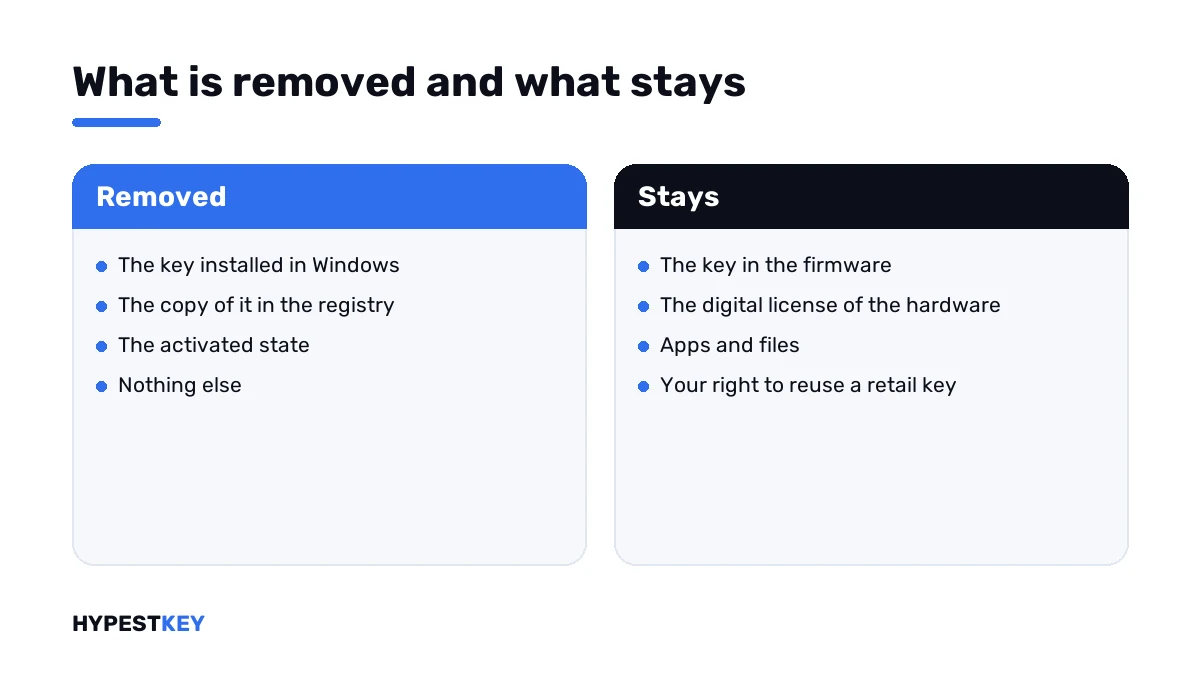
The firmware key. A branded PC that shipped with Windows carries its key on the motherboard. No command deletes it. Reinstall, and setup reads it again by itself.
The digital license. Once a PC was activated, Microsoft has that hardware on record. Uninstalling the key doesn’t change the record. A fresh install of the same edition reactivates on that PC.
| Your license | After /upk and /cpky | After a reinstall on the same PC |
|---|---|---|
| Retail key you typed in | Not activated; the key is free to use elsewhere | May reactivate through the hardware record; that’s fine as long as only one PC uses the key |
| Preinstalled, key in the firmware | Not activated until the next reinstall or key entry | Activates again by itself |
| Digital license from an upgrade | Not activated | Activates again by itself |
How to tell those license types apart is in digital license vs product key.
Moving the key to another PC
This is the main reason to remove a key. A retail license covers one PC at a time, so the old PC lets go first.
- Remove the key on the old PC with the two lines.
- Enter it on the new PC under Settings, System, Activation, Change product key.
- If the new PC reports that the key is in use, see 0xC004C770.
Only retail keys may move. The whole procedure, and how to check the channel, is in transferring a Windows license to a new PC.
Before selling a PC
| The PC has | What I’d do |
|---|---|
| Your own retail key | Remove the key, then reset the PC; you keep the license |
| The key it shipped with | Just reset the PC; the license belongs to the machine and goes with it |
| A company key | Hand it to IT before it leaves the building |
The reset is under Settings, System, Recovery. For a fully fresh system, our clean install guide has the steps.
Replacing a key without removing it
Want a different key on the same PC? Then you can skip the removal. Installing a new key replaces the old one silently.
slmgr /ipk XXXXX-XXXXX-XXXXX-XXXXX-XXXXX
slmgr /ato
That’s how a volume key on a home PC is swapped for a retail one. On such a PC, I’d clear any KMS server name as well. The switch for it is in our slmgr commands reference.
Need the replacement? Ours are genuine and arrive instant to email: Windows 11 Pro and Windows 10 Pro. The Settings route is shown in how to activate Windows 11.
Where these steps apply
| System | Notes |
|---|---|
| Windows 11 and Windows 10 | All steps as written; on Windows 10 Activation sits under Update & Security |
| Windows Server | The same two lines |
| Work devices | Leave the key alone; it’s the organisation’s |
Lost the key before removing it? See how to find your Windows product key first.
Mistakes we see most
- Removing a key that isn’t written down anywhere.
- Expecting the firmware key to disappear.
- Removing an OEM key to “move” it to another PC.
- Forgetting the restart and wondering why Windows still says activated.
- Running only the first line and leaving the key in the registry.
Terms used on this page
| Term | Meaning |
|---|---|
| Product key | 25 characters that activate one copy of Windows |
| Firmware key | A key the PC maker stores on the motherboard |
| Digital license | Activation recorded for a device, with no key to enter |
| Retail | A license bought separately that may move to another PC |
| Elevated | Running with administrator rights |
FAQ
How do I remove a Windows product key?
Open Command Prompt as administrator. Run the upk switch of slmgr to uninstall the key, then the cpky switch to clear it from the registry. After a restart, Windows shows as not activated.
What does slmgr /upk do?
It uninstalls the product key of the current Windows edition. Per Microsoft, the system is unlicensed after a restart unless a new key is installed. Files and apps aren't affected.
Does removing the key deactivate it on Microsoft's side?
It frees the key on this PC. Microsoft's record of the hardware stays. For a move to another PC that's enough in most cases. If the new PC still says the key is in use, we'd use the offline activation route.
Can I remove the key that came with my laptop?
Not really. That key is stored in the firmware and no command deletes it. The two lines only take it out of the running Windows. A reinstall reads it again.
Should I remove my key before selling a PC?
If it's a retail key you want to keep, yes. If the PC shipped with its key, the license belongs to the machine. Then I'd only reset the PC.
Can I see my key after removing it?
No. Windows only ever showed the last five characters, and after removal it shows nothing. I'd find the key in the order email or on the card before running the lines.
Do I have to remove the old key before entering a new one?
No. Installing a new key replaces the old one silently. Removal is for freeing a key, not for changing it. We'd only remove first when the old key is moving elsewhere.