Short answer: Software Center is the app on company-managed Windows PCs where you install apps, updates and Windows upgrades that your IT team approved. It comes with the Microsoft Configuration Manager client. Open it from Start by typing Software Center. Not there? Ask IT. It isn't a separate download.
Software Center is the self-service app on work and school Windows PCs managed with Microsoft Configuration Manager. Your IT team publishes apps, updates and Windows upgrades there, and you install them yourself, without calling the help desk. It arrives with the Configuration Manager client. Not something you download.
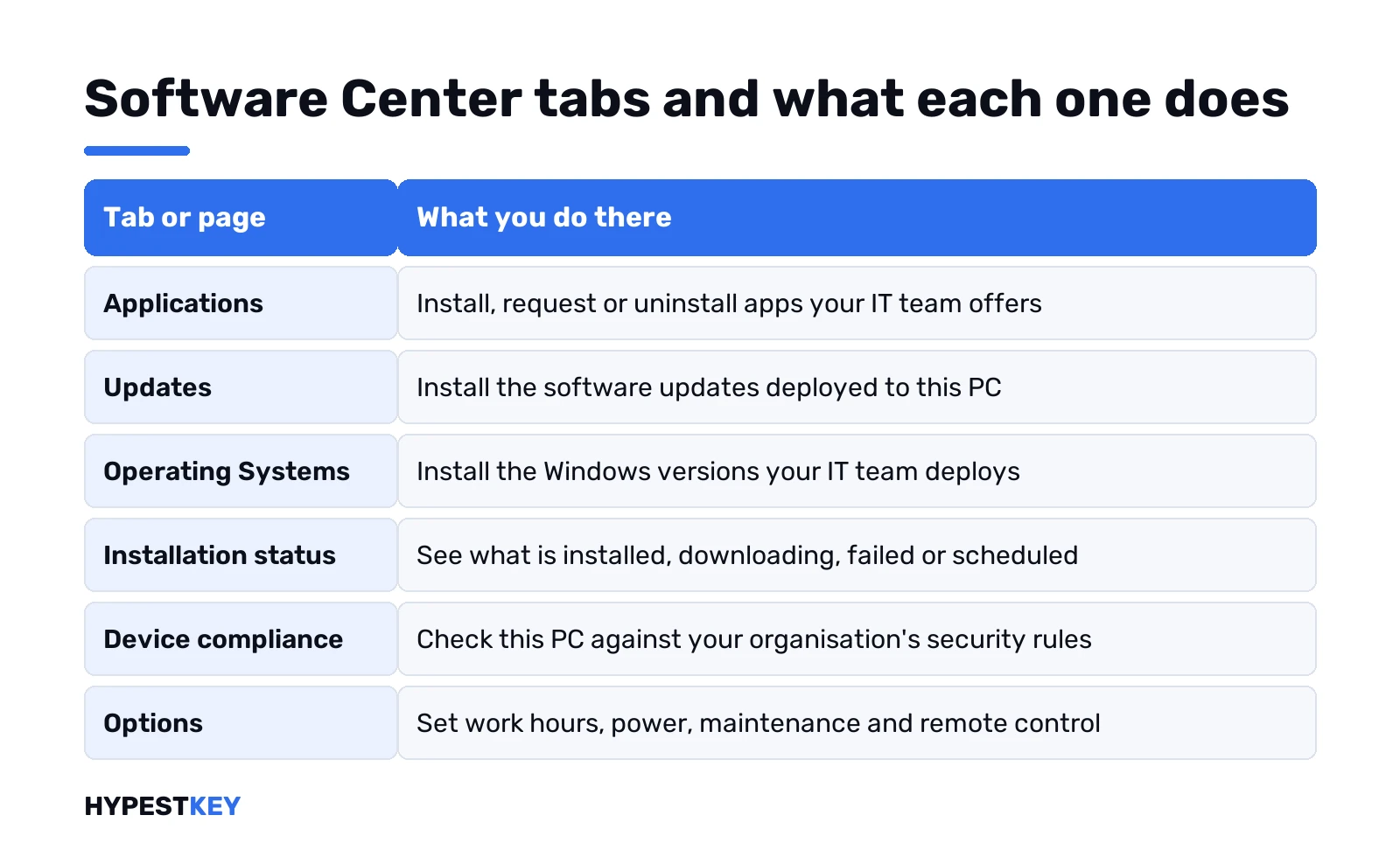
| Tab or page | What you do there |
|---|---|
| Applications | Install, request or uninstall apps your IT team offers |
| Updates | Install software updates deployed to this PC |
| Operating Systems | Install Windows versions your IT team deploys |
| Installation status | See what’s installed, downloading, failed or scheduled |
| Device compliance | Check this PC against your organisation’s security policies |
| Options | Work hours, power settings, maintenance, remote control |
Your screen may look a bit different. IT can hide tabs, add their own, and paint the whole thing in company colours.
Where Software Center comes from
Configuration Manager is Microsoft’s tool for running thousands of company PCs. Install its client on a Windows device and Software Center comes along automatically.
So what you see there, your IT admin decided. Apps they mark as available show up for you. Apps they mark as required get installed whether you click or not. We’d think of it as a company app store with a few extra switches.
Older guides call it SCCM, System Center Configuration Manager. Same family. Microsoft’s own Software Center user guide covers the current version. One more thing: the Ubuntu app with the same name is something else entirely.
How to open Software Center on Windows 10 and 11
- Start.
- Type Software Center.
- Open the best match.
Prefer browsing the Start menu? Look for the Microsoft Endpoint Manager group. Older client versions used a folder called Microsoft System Center instead.
Not there at all? Then this PC isn’t managed by Configuration Manager, or the client is broken. Either way, we’d ask IT. Downloading won’t fix it. More on that below.
The Applications tab: install, request, uninstall
This is where most people live. Click an app, read the details, press Install. Already installed? There may be an Uninstall button instead.
- All. Everything you’re allowed to install.
- Required. Enforced by IT. Uninstall one and Software Center puts it back.
- Filters. Categories, if your admin made some.
- Sort by. Most recent by default; new arrivals wear a New banner for seven days.
- Search. Faster than scrolling.
Some apps need approval. You write a short comment and press Request. The request history lets you cancel it. Once someone approves, you can install right away, or just wait. Software Center installs it by itself outside your business hours.
Several apps at once? Switch on multi-select mode with the icon top right. Tick the apps, then Install Selected. They go one after another. Apps that need approval can’t join that batch.
Office often arrives this way at work. If yours came through Software Center, it’s managed by IT; our pages on the Office Deployment Tool and Office Click-to-Run explain what’s going on underneath.
Updates and Operating Systems tabs
Updates lists the software updates IT deployed to this PC. Required ones are enforced. Install All does them in one go. Want only some? Multi-select, tick, Install Selected.
Operating Systems is for Windows upgrades. Same layout: All, Required, Sort by, Search. We’d start one before lunch, not five minutes before a meeting. If you wonder what edition you’ll end up on, our overview of Windows 11 editions helps.
Installation status and maintenance windows
The Installation status page shows four states.
- Installed. Done.
- Downloading. Give it time.
- Failed. Software Center couldn’t install it.
- Scheduled to install after. It waits for the next maintenance window, a time slot IT sets.
Don’t want to wait? Install Now is right there on scheduled items. Failed twice? Note the app name and the time, then call IT. That saves them a lot of digging.
Device compliance and the Options page
Device compliance has one button, Check compliance. It tests this PC against your organisation’s security rules. Windows activation? Different check. See how to check Windows activation status.
Options is where you can change things yourself:
- Work information. Your usual hours, 5:00 AM to 10:00 PM on weekdays by default. IT can schedule installs outside them. Leave at least four hours a day for maintenance.
- “I regularly use this computer to do my work”. Tick it on your main PC; some apps are offered to primary computers.
- Power management. You can exempt this PC from IT’s power policies.
- Computer maintenance. Install required software outside business hours, off by default. Pause in presentation mode, on by default.
- Sync Policy. Press it when IT asks; the PC checks for new apps and updates.
- Remote control. Full control and “Ask for permission each time” are the defaults.
Software Center stuck or not loading
Two complaints come up most: “waiting to install” forever, and “Software Center can not be loaded”. Here’s the order we’d try.
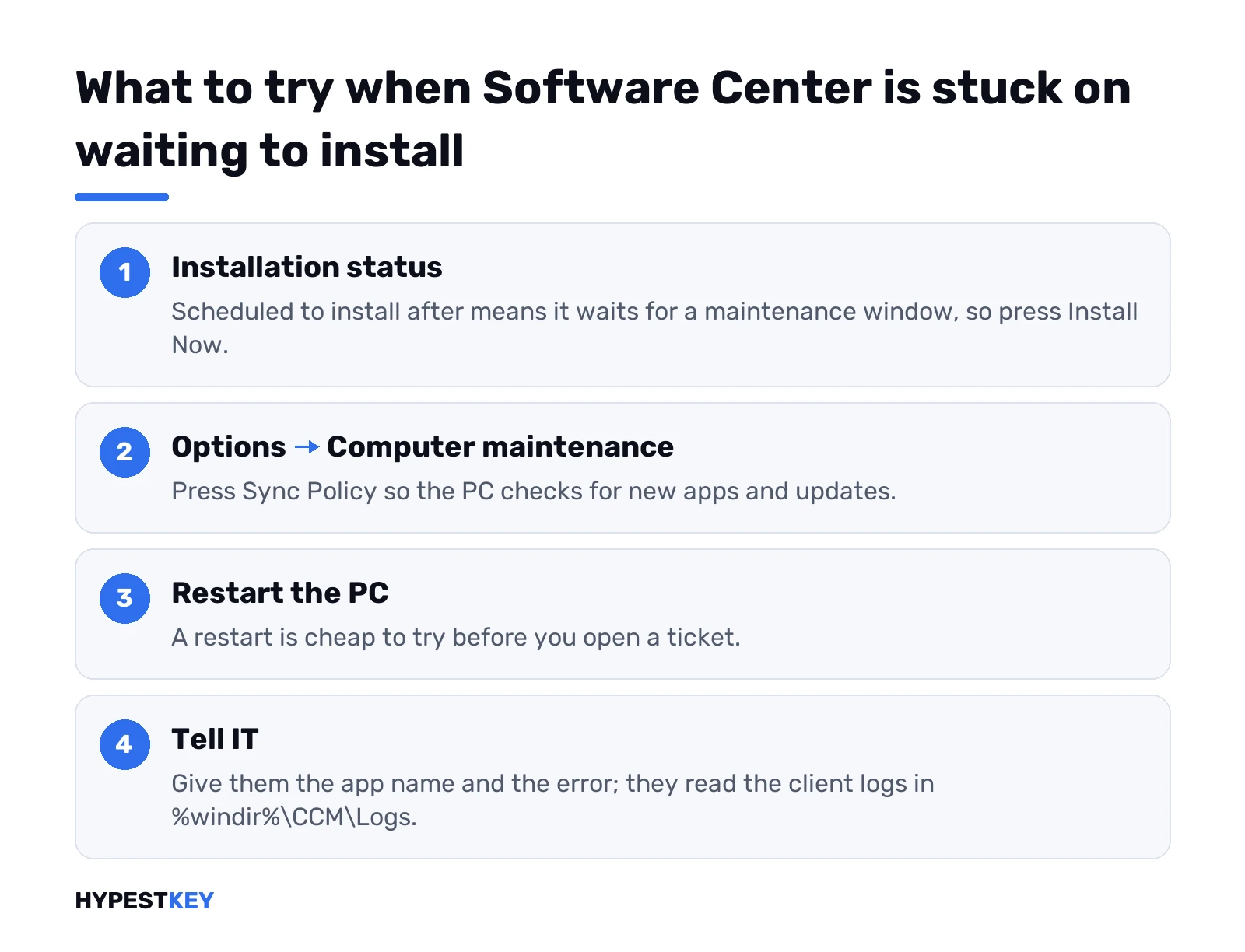
- Check Installation status. “Scheduled to install after”? A maintenance window, not a fault. Install Now.
- Options, Computer maintenance, Sync Policy.
- Restart the PC. Cheap to try.
- Shared or remote session? Only the user with the lowest session ID sees every deployment. Others may miss packages and task sequences.
- Still stuck. Tell IT, with the app name and the error.
Admins will look at the client logs. The default folder:
%windir%\CCM\LogsSCClient logs record Software Center activity per user, AppEnforce.log records installs and uninstalls, and SoftwareCenterSystemTasks.log checks Software Center’s prerequisites. You don’t need to read them. Knowing the names speeds up the ticket.
Software Center download for a home PC
There isn’t one that makes sense. Software Center talks to your organisation’s Configuration Manager servers. Without them it has nothing to show.
On a personal PC we’d use the Microsoft Store and the vendors’ own sites instead. Office at home? See installing Microsoft 365. Removing something Office left behind is covered in our Office uninstall tool guide.
Work laptop you also use at home? Leave Software Center alone. It’s how IT keeps the device patched. Some companies on co-management use the Company Portal app instead, for both Intune and Configuration Manager apps.
A few notes for admins
Everything is set in client settings. Microsoft’s Plan for Software Center page lists the options. Branding with name, colours and logo. Hiding default tabs. Up to five custom ones.
Apps deployed as Available to a user collection appear for those users. Required ones install by deadline. Licensing for the PCs themselves is its own topic: our pages on Windows 11 Enterprise vs Pro, KMS activation and Microsoft 365 E3 go there.
Setting up a single PC without any IT department behind it? A Windows 11 Pro key from us is a retail licence for one PC, instant to email.
FAQ
What is Software Center on my work laptop?
It's the self-service app of Microsoft Configuration Manager. Your IT team publishes apps, updates and Windows upgrades there for you to install.
Can I download Software Center for my own PC?
Not in any useful way. It installs with the Configuration Manager client and only shows what your organisation's servers deploy.
Why is my app stuck on waiting to install?
Usually it's scheduled for the next maintenance window. Open Installation status and press Install Now, or use Sync Policy in Options.
Software Center isn't in my Start menu, what now?
Type Software Center in Start first. Still nothing? The PC may not be managed or the client may be broken, so contact your IT team.
Can I uninstall apps from Software Center?
Often yes, with the Uninstall button on the app. Required apps come back, because Software Center reinstalls them automatically.
Do I need to call IT to install apps from Software Center?
No. Apps your IT team marks as available are self-service, so you install them yourself; some need an approval request first.
Is Software Center the same as SCCM?
Almost. SCCM was the old name of Configuration Manager, and Software Center is the part users see on their PCs.