Short answer: The 0x8007016a error appears when File Explorer needs OneDrive, the cloud file provider, and it isn't running. We'd start OneDrive and resume sync first. If that fails, we'd turn off Files On-Demand, reset OneDrive, then install the latest Windows updates.
The 0x8007016a error is a OneDrive message on Windows that reads “Error 0x8007016a: The cloud file provider is not running”, and it appears when File Explorer asks OneDrive for a file while the sync app is stopped or misconfigured. Usually a quick fix. We’d turn off Files On-Demand, reset OneDrive, then update Windows.
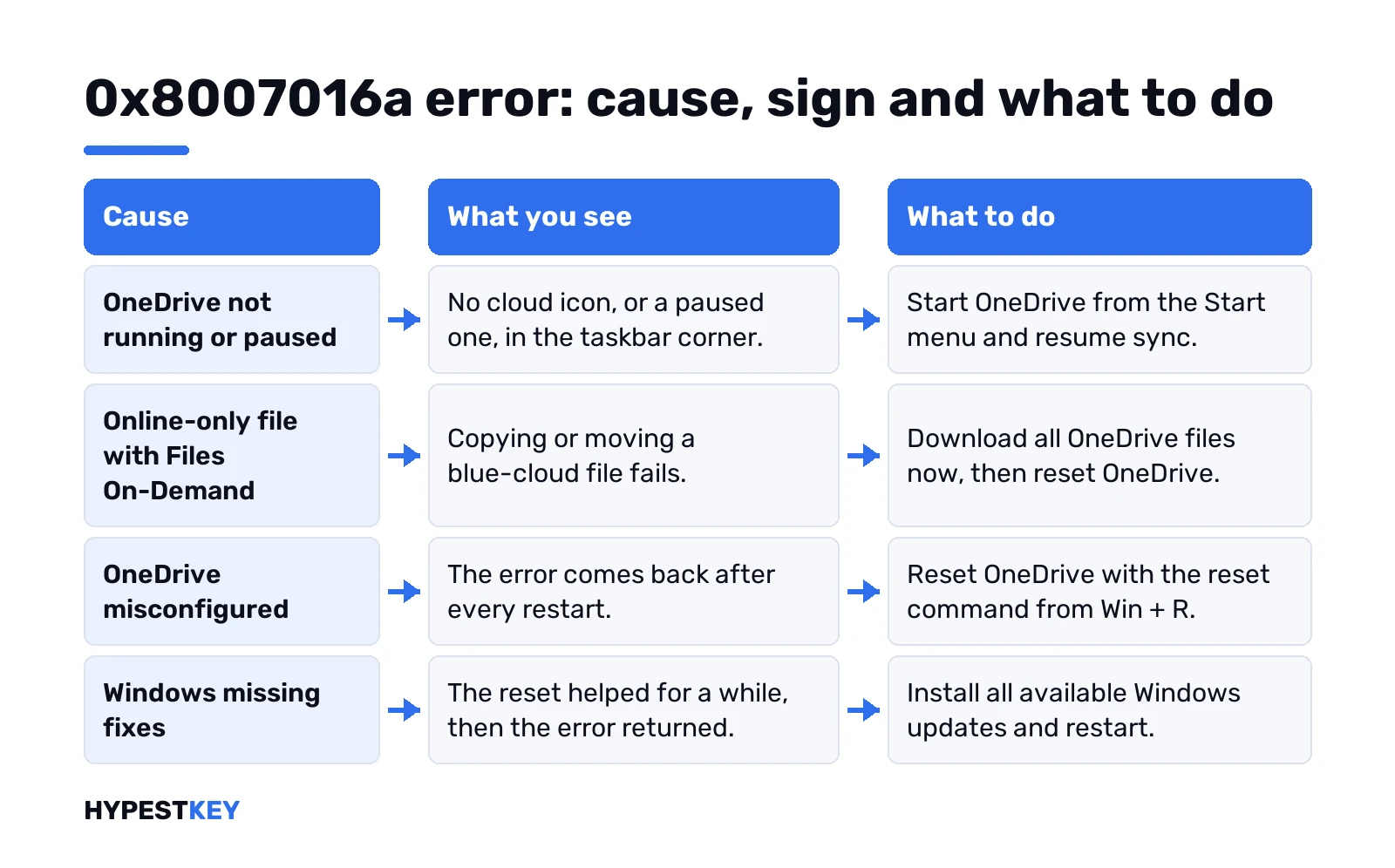
| Cause | What you see | What to do |
|---|---|---|
| OneDrive not running or paused | No cloud icon, or a paused icon, in the taskbar corner | Start OneDrive from Start, resume sync |
| Files On-Demand and an online-only file | Copy or move of a blue-cloud file fails | Download all files, then reset OneDrive |
| OneDrive misconfigured | Error comes back after every restart | Reset OneDrive with the reset command |
| Windows missing fixes | Reset worked for a day, error is back | Install all available Windows updates |
What the 0x8007016a error says
Files in your OneDrive folder can be placeholders. They look local, but the content stays in the cloud until something opens them. OneDrive is the “cloud file provider” that fetches them.
No provider, no file. Explorer asks, gets nothing back, shows 0x8007016a. Microsoft’s own support article for this error blames a misconfigured OneDrive and gives two fixes. We cover both below, plus a few checks that save time.
Your files aren’t gone. They sit in your OneDrive online, and you can see them at onedrive.com after signing in.
Why the cloud file provider stops
The usual reasons, all on the PC side:
- OneDrive closed. Someone quit it from the tray, or it crashed and never came back.
- Sync paused. By hand, or by Windows itself.
- Battery saver. OneDrive pauses on its own when the PC enters battery saver mode.
- Metered network. Same automatic pause on a connection set as metered.
- A broken setup. Settings or the sync database got into a bad state.
- Third-party antivirus. Some products don’t get along with Files On-Demand.
On a laptop running on battery, check the third one first. Quick settings show the battery saver state; our Windows 11 quick settings guide shows where.
Signs: when 0x8007016a appears
The message pops up inside File Explorer, not in OneDrive itself. Typical moments:
- Copying a file or folder out of the OneDrive folder to the desktop or a USB stick.
- Moving files between two folders inside OneDrive.
- Deleting a folder full of online-only files.
- Opening a file with the blue cloud icon.
Look at the status column in Explorer.
- Blue cloud: online-only. Needs the provider and a connection.
- Green check: on the PC, can go back to online-only later.
- Solid green circle: set to always keep on this device.
Files with a green mark usually copy fine even with the error around. That’s a good clue the provider, not the file, is at fault.
Quick checks before you reset anything
Quick ones first. In this order:
- Taskbar corner. No cloud icon? Start menu, type OneDrive, open the app and sign in.
- Paused icon? Select it and resume sync from the activity center.
- Battery saver on? Plug in or switch it off, then resume sync.
- Metered connection? Turn that setting off for the network you’re on, or sync on another one.
- Try the copy again.
Shaky Wi-Fi makes online-only files fail in other ways too. Our Wi-Fi problems on Windows 11 page helps if the connection keeps dropping.
Fix 1: turn off Files On-Demand
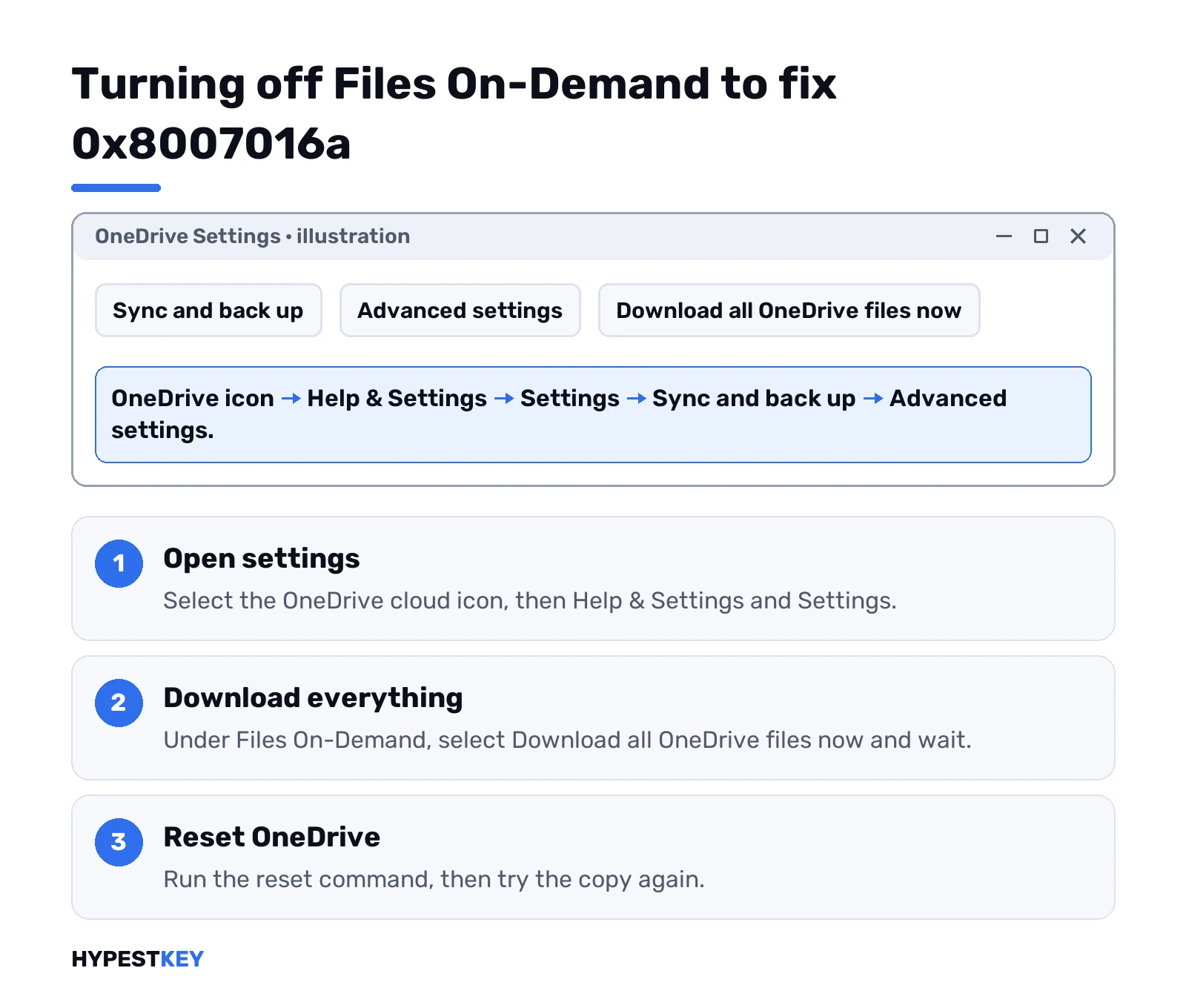
Microsoft’s first option. It pulls every file down to the PC, so Explorer no longer needs the provider for each copy. Check free disk space first, since everything downloads.
Newer OneDrive app:
- Select the OneDrive cloud icon in the taskbar corner.
- Help & Settings, then Settings.
- Sync and back up, then Advanced settings.
- Under Files On-Demand, select Download all OneDrive files now.
Older app with a Settings tab? Clear the box Save space and download files as you use them. Then OK.
Wait for the download to finish. Then go straight to the reset below, because Microsoft pairs the two steps.
Fix 2: reset OneDrive to clear 0x8007016a
A reset disconnects every sync connection and runs a full sync again. You won’t lose files or data. Win + R, then paste this and press Enter:
%localappdata%\Microsoft\OneDrive\onedrive.exe /reset“Windows cannot find” message? Then the app lives under Program Files. Try this one:
"C:\Program Files\Microsoft OneDrive\onedrive.exe" /resetStill the same message, use the x86 folder:
"C:\Program Files (x86)\Microsoft OneDrive\onedrive.exe" /resetThe cloud icon disappears for a while, then returns. Didn’t come back? Start menu, type OneDrive, open it.
Had only some folders syncing before? You’ll pick them again once the first sync finishes. That goes for personal and work accounts alike.
Want Files On-Demand back after the reset? Same menu as Fix 1, turn it on again. Optional, and handy on a small disk. Then try the copy once more.
Fix 3: install the latest Windows updates
Microsoft’s second option, for when the reset doesn’t hold. Start, type updates, then Check for updates. Install everything offered and restart.
Updates refuse to install? That’s a separate problem. We’d run through our Windows Update troubleshooter guide first, then come back here. If one large update takes forever, Windows 11 update time explains what’s normal.
Copy files now, fix 0x8007016a later
Deadline today, no time for resets? Two workarounds get the files out while the provider is down.
- Pin the files first. Right-click the folder, Always keep on this device. Once the icons turn solid green, copy as usual.
- Use the browser. Sign in at onedrive.com, select the files, Download. They land in your Downloads folder as normal files.
The first one needs OneDrive running for the download itself, so it only works if the app starts at all. The second one skips the PC side completely. Several files at once come down as one zip file. Unzip it afterwards.
Copying to a USB stick or another PC? We’d do it from the downloaded copy, not from the OneDrive folder.
Then come back and do the fixes properly. The workaround doesn’t cure the error, it just gets you past today.
Reinstall the OneDrive app
None of the commands work at all? Then the OneDrive sync app isn’t installed properly. Uninstalling it doesn’t cost you data either.
- Settings, Apps, Installed apps.
- Find Microsoft OneDrive and uninstall it.
- Download OneDrive again from Microsoft’s OneDrive download page.
- Run the installer and sign in with the same account.
Pick the same OneDrive folder location when asked. That way it reconnects to the files already there instead of downloading a second copy.
0x8007016a error when deleting files
Same cause, different moment. Explorer needs the provider running to work with online-only files, and a delete is no exception.
- Close the apps that use those files first.
- Get OneDrive running and syncing, as above.
- Still stuck? Right-click the folder and choose Always keep on this device, wait, then delete.
- Or delete it at onedrive.com and let the PC catch up.
Free up space does the opposite. It turns files back into online-only placeholders, which is useful later but not while the error is active.
Work accounts and synced SharePoint libraries
Microsoft files this code under SharePoint. Fair enough. Files On-Demand covers work files too. Synced team libraries show up in File Explorer under your organisation’s name.
Same provider behind them, same error when it stops. The fixes don’t change:
- Start the sync app and resume sync.
- Download all files, then reset.
- After the reset, sync the libraries you need again.
Company PC? We’d tell the IT team before resetting, since they may manage the sync settings.
Shared library with thousands of files? We’d download only the folders you actually work in with Always keep on this device, not the whole site.
When the error keeps coming back
Reset done, updates in, still there. A few less common causes:
- Antivirus. Some third-party products aren’t compatible with Files On-Demand. Pause it briefly and test.
- Work or school PC. Policies from the IT team can control OneDrive, so ask them before changing settings.
- Old Windows. Files On-Demand needs Windows 10 version 1709 or later.
- A different number on screen. Then it’s a different problem; an access denied error during activation is 0x80070005, for example.
- A system problem. Booting into Windows 11 Safe Mode rules out startup apps as the cause.
Before bigger changes we’d make a restore point in Windows 11. Cheap insurance.
OneDrive storage and your Office apps
The sync app comes with Windows, and a free Microsoft account gets a basic amount of cloud space. Larger storage comes with a Microsoft 365 plan. We explain it in our pages on what Microsoft 365 includes and installing Microsoft 365.
Prefer apps you pay for once? Compare in Microsoft 365 vs Office 2024; Office Home and Business 2024 is a one-time purchase.
Setting up a fresh PC while you sort this out? Our Windows 11 Pro key is Retail, instant to email. After any reinstall we’d check the activation status once.
FAQ
did i lose my files with 0x8007016a
Nope. They're still in your OneDrive online, and a reset or reinstall doesn't delete them either.
what does the cloud file provider is not running mean
OneDrive isn't answering when Explorer asks it for a file. Start it, resume sync, or reset it.
does resetting onedrive delete anything
No data goes. The reset disconnects sync and runs a full sync again, and you may reselect folders.
why does it happen only on battery
OneDrive pauses itself in battery saver mode. Plug in or turn battery saver off, then resume sync.
do i have to keep files on-demand off
Not forever. After the reset you can switch it back on in the same settings menu.
the reset command says windows cannot find it
Try the Program Files path, then the x86 one. If neither works, reinstall the OneDrive app.
it fails when i delete a folder
Get OneDrive running first, close apps using the files, or delete the folder at onedrive.com instead.