Short answer: The 0x80072EE7 activation error appears when Windows can't resolve the name of Microsoft's activation server. I'd test a lookup and check the hosts file for lines that block Microsoft names. Next, DNS filters and VPN go off. Flush the cache and press Activate.
The 0x80072EE7 activation error appears when Windows can’t turn the name of Microsoft’s activation server into an address. The lookup fails, so the request never leaves the PC.
| What you notice | First move |
|---|---|
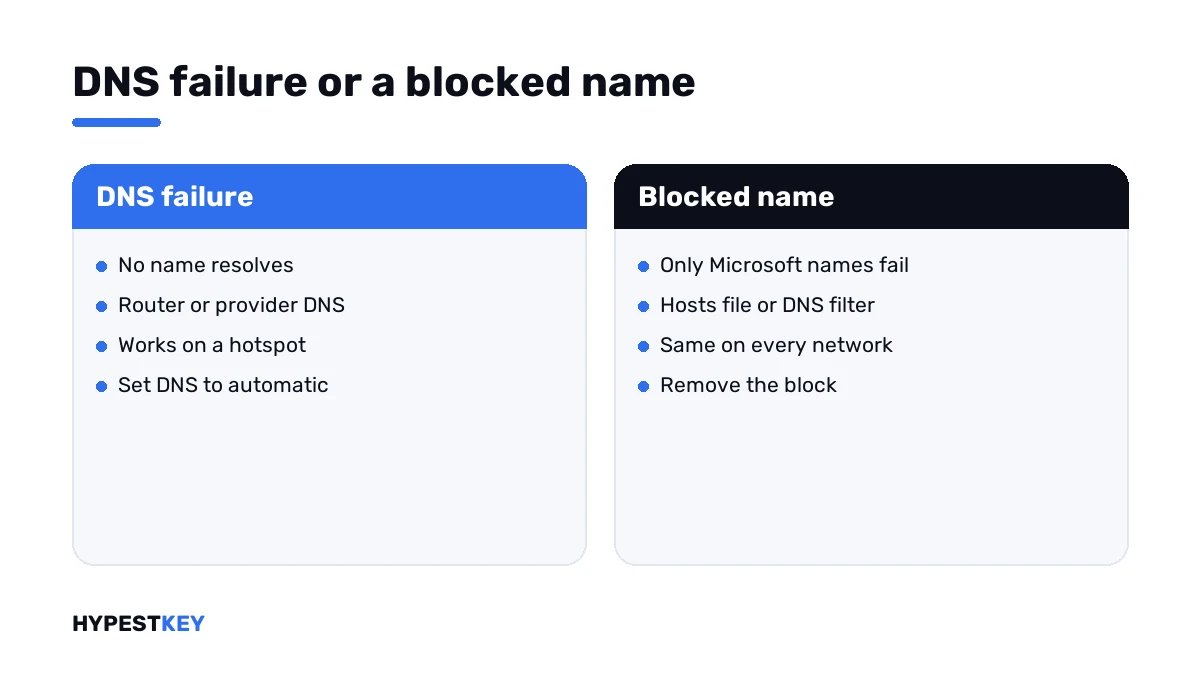
| No site opens by name | Fix DNS on the adapter, then activate again |
| Other sites open, Microsoft’s don’t | Look at the hosts file and at DNS filters |
| It fails on one network only | That network filters the name; use another or ask its admin |
The message behind the number says it plainly: “The server name or address could not be resolved”.
What 0x80072EE7 stands for
It’s a general Windows code for web requests, not one made for licensing. The Store and Windows Update show it for the same reason.
Every online activation starts with a name lookup. The PC asks its DNS server where the activation service lives, gets an address and connects.
With this code the first step already failed. Either nobody answered the question, or the answer was “no such name”.
Causes
| Cause | Detail |
|---|---|
| DNS server not answering | The router or the provider’s DNS has a bad moment |
| Entries in the hosts file | Lines that send Microsoft names nowhere, left by activator tools or privacy tweaks |
| Filtering DNS | An ad-blocking or parental-control DNS service has Microsoft names on its list |
| Security or “privacy” software | A tool that blocks telemetry and takes activation with it |
| VPN with its own DNS | Lookups go through the tunnel and fail there |
| No connection at all | Nothing resolves, activation included |
How to fix the 0x80072EE7 activation error
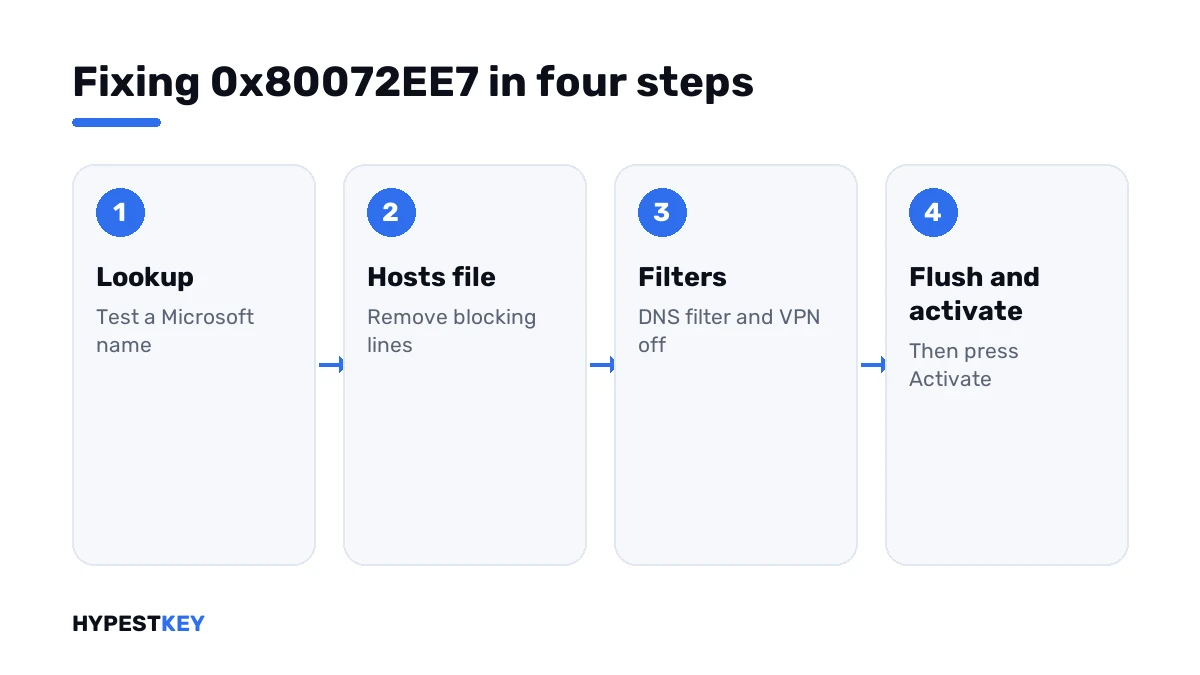
Test the lookup first. It tells you in ten seconds which half of the table you’re in.
- Open Command Prompt and run the lookup line for a Microsoft name and for any other site.
- If both fail, set DNS to automatic on the adapter and restart the router.
- If only Microsoft names fail, open the hosts file as administrator.
- Remove or comment out lines that mention Microsoft or Windows names, and save.
- Switch off DNS filtering, ad-blocking DNS or a VPN for the test.
- Flush the name cache.
- Open Settings, System, Activation and press Activate, or run the activation line.
nslookup www.microsoft.com
nslookup example.com
notepad C:\Windows\System32\drivers\etc\hosts
ipconfig /flushdns
slmgr /ato| Line | What it does |
|---|---|
nslookup with a name |
Asks DNS for the address of that name |
notepad with the hosts path |
Opens the hosts file; run it from an administrator prompt to be able to save |
ipconfig /flushdns |
Empties the local name cache |
slmgr /ato |
Asks for online activation |
The hosts file
Windows reads this small text file before it asks any DNS server. A line in it overrides the real address of a name.
A clean hosts file has only comment lines, each starting with a hash sign. Anything else was added later.
| What you find | What I’d do |
|---|---|
| Only lines starting with # | Nothing; the file is clean |
| Lines with 0.0.0.0 or 127.0.0.1 and Microsoft names | Put a # in front of each, or delete them |
| Hundreds of blocked names | A blocking tool wrote them; switch it off in the tool, then check the file again |
| Entries for your own devices | Leave them alone |
Lines that block Microsoft names are typical of activator tools. They keep Windows from checking its license, and they keep a genuine key from activating too.
If the PC ever ran such a tool, a full scan with Windows Security is time well spent.
DNS itself
When no name resolves, the adapter’s DNS setting or the router is at fault.
- Set DNS server assignment to Automatic under Settings, Network and internet.
- Restart the router and reconnect.
- Test with a phone hotspot to see whether the PC or the network is the cause.
Our DNS settings guide shows the screen. A PC with no DNS server set at all reports a different number, 0x8007267C.
Codes from the same family
| Code | What happened |
|---|---|
| 0x80072EE7 | The server’s name couldn’t be resolved |
| 0x80072EE2 | The request timed out |
| 0x80072F8F | The secure connection failed, often over a wrong clock |
| 0xC004FC03 | No internet, or a firewall in the way |
| 0x8007232B | A company KMS server wasn’t found in DNS |
The last row looks similar and isn’t. It only concerns PCs with a company volume key. Every other code is in our list of Windows 11 activation errors.
Once the name resolves
Activation gets its first real answer from Microsoft. Mostly that’s “activated”.
A new code in the answer? Then the key is the subject this time, and the code says what’s wrong with it.
For a clean start: our Windows 11 Pro and Windows 10 Pro keys are genuine and arrive instant to email. The key field is shown in how to activate Windows 11.
Offline for good? Phone activation skips the lookup entirely on most editions.
Where these steps apply
| System | Notes |
|---|---|
| Windows 11 and Windows 10 | All steps as written |
| Windows Server | Same commands; check the DNS servers the server is set to |
| Work devices | DNS and the hosts file are IT’s business |
Flaky Wi-Fi is covered in Wi-Fi problems in Windows 11.
Mistakes we see most
- Editing the hosts file without administrator rights and not noticing the save failed.
- Deleting entries a blocking tool rewrites at the next start.
- Leaving a filtering DNS on and blaming the key.
- Forgetting to flush the cache after the fix.
- Installing another “privacy” tool on top.
Terms used on this page
| Term | Meaning |
|---|---|
| DNS | The service that turns names into addresses |
| Name resolution | One lookup of a name |
| Hosts file | A local text file whose entries override DNS |
| DNS filter | A DNS service that refuses to resolve listed names |
| Name cache | Recent lookups that Windows remembers for a while |
FAQ
What does error 0x80072EE7 mean?
The server name or address could not be resolved. Windows asked for the address of the activation service and got none. I'd test whether other names resolve.
How do I fix 0x80072EE7 during activation?
Run a lookup for a Microsoft name. If it fails while other sites resolve, check the hosts file and any DNS filter. Then flush the name cache and press Activate.
What does the hosts file have to do with activation?
Windows reads it before asking DNS. A line that points a Microsoft name to nowhere blocks activation. We find such lines after activator tools and some privacy tweaks.
Can ad-blocking DNS cause this error?
Yes. A filtering DNS service refuses names on its lists. If Microsoft's names are among them, the lookup fails. I'd switch to automatic DNS for the test.
Is my key invalid if I get 0x80072EE7?
The code doesn't say. The request never left the PC, so the key wasn't checked. Once the name resolves, we'd read the answer that comes back.
How is it different from 0x8007267C?
With 0x8007267C the PC has no DNS server set at all. Here a DNS server exists, and this one name didn't resolve. The hosts file and filters are the first suspects.
I can't save the hosts file. Why?
It needs administrator rights. Open Notepad from an administrator Command Prompt with the file's path, edit and save. Some security tools also lock the file, and I'd pause them for the edit.