Short answer: Remote desktop on Mac now runs through Windows App, the free Microsoft client that replaced Microsoft Remote Desktop. The PC side needs a Pro edition with Remote Desktop on. In the app: plus icon, Add PC, type the PC name. Double-click the card and sign in with your Windows account.
Remote desktop on Mac runs through Windows App, the free Microsoft client that replaced the old Microsoft Remote Desktop app. Install it from the Mac App Store. Switch on Remote Desktop on the Windows PC, add that PC by name or IP address, then double-click it. That’s the whole loop.
- On the PC: Settings > System > Remote Desktop, switch on.
- Note the name under PC name on that same page.
- On the Mac: get Windows App from the App Store.
- Plus icon, then Add PC. Type the PC name or its IP address.
- Add. Double-click the new card and sign in with the Windows account.
Windows App: the new name for Remote Desktop on Mac
Same app, new name. The Windows App listing in the Mac App Store opens with the line that it was previously named Microsoft Remote Desktop. Price: free. Seller: Microsoft Corporation.
The current build asks for macOS 14.0 or later. Older Macs can’t install it, so we’d check the version under Apple menu > About This Mac before anything else. Can’t use the App Store at all? Microsoft also offers a standalone .pkg installer on its What’s new page for Windows App.
Things it connects to:
- a remote PC at home or at work, the case this page is about;
- Azure Virtual Desktop, if your employer hands out an account;
- Windows 365 Cloud PCs;
- Microsoft Dev Box;
- Remote Desktop Services, with a workspace URL from an admin.
One direction only. Windows shows up on the Mac, never the reverse. No Windows PC to reach? Windows can also live on the Mac itself, in a Windows virtual machine on Mac or through the setups in our guide to installing Windows 11 on a Mac.
What the Windows PC needs first
Edition first. The PC you connect to has to run Pro, Enterprise or Education. Home can’t host a session. It can still connect out to other machines, but nobody gets in.
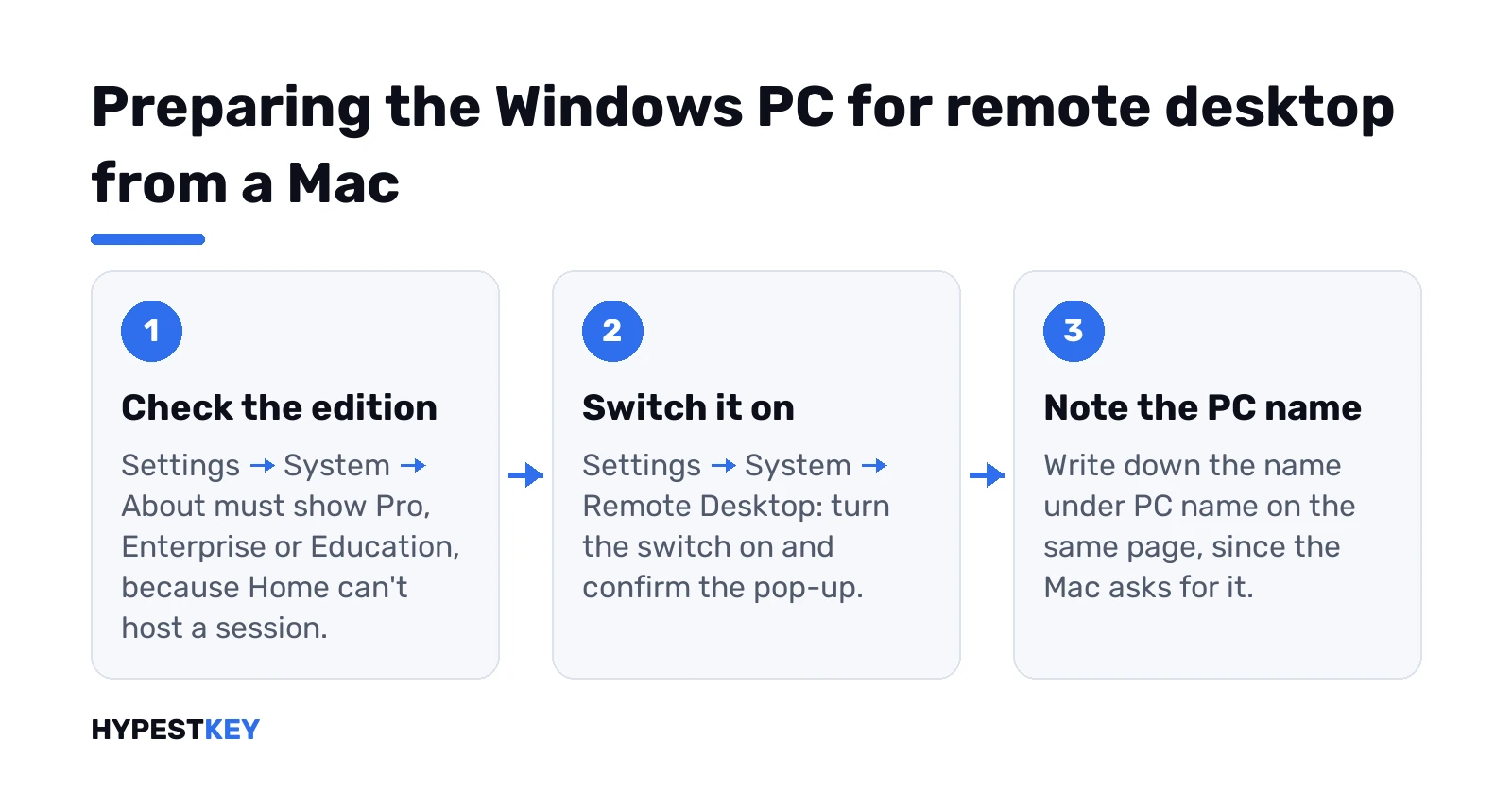
Not sure what you have? Settings > System > About shows it under Windows specifications. Our Windows 11 Home vs Pro comparison lists what else changes. The key entry itself is in the Home to Pro upgrade guide.
Then the checklist:
- PC powered on and on the network.
- Remote Desktop switched on.
- Your account allowed in. Administrators are by default, others get added under Remote Desktop users.
- The PC’s firewall lets Remote Desktop connections through.
- Network access to the PC, locally or over the internet.
Switching it on takes a minute:
- Start, Settings, System.
- Remote Desktop. Flip the switch to On.
- Confirm in the pop-up.
- Write down the name under PC name. The Mac will ask for exactly that.
Trusted networks only, like your home one. Every account with remote access needs a strong password. We’d also keep Network Level Authentication on, so the user signs in before a session even starts. Setting up a server instead of a desktop? Same idea, different screens: see how to enable RDP on Windows Server.
Set up remote desktop on a Mac, step by step
- Mac App Store. Search for Windows App, publisher Microsoft Corporation. Get, then Open.
- First launch shows a short tour. Done or Skip, either is fine.
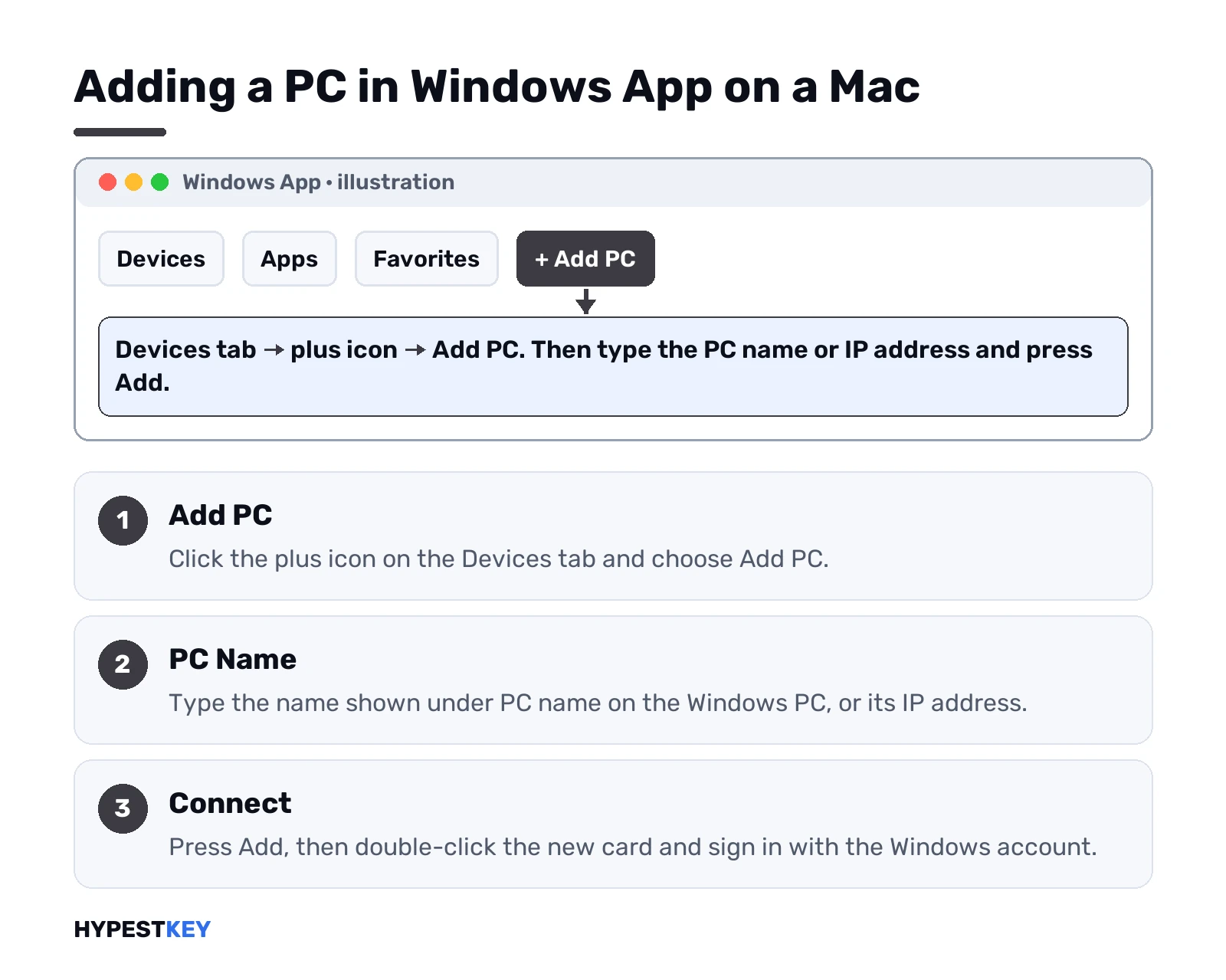
- The app opens on the Devices tab. Click the plus icon, then Add PC.
- PC Name: type the host name you wrote down, or the IP address of the PC.
- Optional extras: a saved user account, a friendly name, display and device settings. All of it can wait.
- Add. A card for the PC appears under Devices.
- Double-click the card. No saved account yet? The app asks for the Windows user name and password.
Connecting every day? Pin the card to the Favorites tab. Microsoft documents every screen of this in its Windows App getting-started page. A Windows Server box works the same way from the Mac; our page on accessing Windows Server from a Mac adds the server-side bits.
Keyboard: Command, the Windows key and shortcuts
Mac and PC keyboards differ a little. Inside a session the Command key stands in for the Windows key. Common Mac shortcuts get translated for you:
| Press on the Mac | What Windows gets |
|---|---|
| Command + C | Copy |
| Command + X | Cut |
| Command + V | Paste |
| Command + A | Select all |
| Command + Z | Undo |
| Command + F | Find |
| Command + W | Close |
The Option key to the right of the space bar works as AltGr. Handy on European layouts.
Wrong characters on screen? Two keyboard modes exist. Scancode sends the key position. The PC’s layout decides the rest. Unicode sends the character you typed on the Mac. We’d switch in the menu bar under Connections > Keyboard Mode, or by shortcut:
- Control + Command + K for scancode. Right for arrow keys, shortcut combos and some apps that ignore typed characters.
- Control + Command + U for unicode. The one we’d pick for accents and for input methods like Chinese or Japanese.
The session borrows the language of your Mac. Missing on the PC? Windows picks the closest one. When that goes wrong, our Windows 11 keyboard layout settings guide shows how to add the right layout on the PC.
Screens, Retina and multiple monitors
Display options sit behind the pencil icon on the PC card, on the Display tab:
- Use all monitors. Every connected display joins the session.
- Start session in full screen. Unchecked, you get a window.
- Fit session to window. Resizing scales the picture, resolution stays put.
- Update the session resolution on resize. Here the resolution follows the window.
- Optimize for Retina displays. Sharp text, four times the bandwidth.
- Color quality. Higher looks better and uses more bandwidth.
We’d leave Retina off on hotel Wi-Fi. On a wired home network it’s worth a try. Custom sizes go in the menu bar under Windows App > Settings, on the Resolutions tab, with the plus icon.
Two screens and one stays blank? Look at the macOS Mission Control setting Displays have separate Spaces. Turn it on, or tick Use all monitors in Windows App.
Clipboard, folders, printers and sound
Redirection lives on the same card. Pencil icon, then the Devices & Audio tab.
- Clipboard: Bidirectional, Local to Remote Only, Remote to Local Only, or Disabled.
- Devices: printers, smart cards, microphones, cameras. Tick what the session should see.
- Sound: on this computer, on the remote PC, or never.
Folders take another route. Menu bar, Windows App > Settings, General tab, Choose Folder. The Mac folder then appears in File Explorer as a network drive. Per PC, it’s the three dots on the card, Edit, then the Folders tab with Redirect folders and the plus icon. We’d share one working folder rather than the whole home folder.
Connecting from outside your home network
All of the above assumes the Mac and the PC share a network. Away from home, the PC name stops working. Two ways around it:
- A VPN into the home network. The Mac then behaves as if it were at home, and nothing on the PC faces the internet. Our pick.
- Port forwarding on the router. Remote Desktop uses port 3389 by default, and the router maps its public IP to that port on the PC. The PC then faces the open internet. Strong password, no exceptions.
Forwarding has a catch. The public IP can change whenever the provider decides so. Dynamic DNS gives you a stable name instead. We’d also give the PC a fixed internal IP so the router rule keeps pointing at it. Some people move the port too; our guide to changing the RDP port covers that, and DNS server settings in Windows 11 help when names don’t resolve.
When the Mac remote desktop connection fails
Error 0x204 on the Mac usually says one thing: the app never reached the PC. Go down the list:
- PC awake and on the same network as the Mac.
- Remote Desktop still on. On Home it can’t be on at all.
- PC name mistyped. Try the IPv4 address from the PC’s network properties instead.
- Account not allowed. Add it under Remote Desktop users.
- A VPN or firewall on the Mac side blocking port 3389.
- Away from home with no VPN or forwarding. See the section above.
Still stuck? We’d quit Windows App, update it from the App Store and try again before changing anything on the PC. A licensing message instead of a code points to a server farm; our page on no Remote Desktop license servers available covers that one, and connecting to Windows Server remotely has the wider picture.
Windows Home on the PC: another remote desktop route for Mac
Home can’t host a Windows App session. No setting changes that. Two ways out:
- Move the PC to Pro. Same files, same apps, and the Remote Desktop switch shows up in Settings.
- Chrome Remote Desktop from Google. It puts its own host program on the PC, so the edition stops mattering.
Google’s Chrome Remote Desktop help page covers Windows, Mac and Linux hosts. The short version:
- On the PC, open Chrome and go to remotedesktop.google.com/access.
- Set up Remote Access. Download, then follow the prompts.
- Pick a PIN. Write it down somewhere safe.
- On the Mac, same address in Chrome. Access, the PC, the PIN.
Different trade-offs. Chrome Remote Desktop rides on your Google account and the browser. Windows App talks to the PC over RDP, with the keyboard modes, shared folders and monitor options from the sections above. Other remote apps exist too; we’d download any of them only from the developer’s own site.
Work accounts: Windows 365, Azure Virtual Desktop and RDS
Work resources go in differently. Plus icon, Add Work or School Account, sign in. Desktops and apps then show up on the Devices and Apps tabs.
A personal Microsoft account won’t do here. For a company RDS farm, pick Add Workspace, then paste the URL from your admin. Running such a farm yourself takes Windows Server plus RDS CALs, and we explain the choice in our RDS CAL per user vs per device guide. For a plain home setup we’d reread Microsoft’s How to use Remote Desktop page, mostly for the edition part.
Still Home on the PC end? Our Windows 11 Pro key comes as a Retail license, instant to email.
FAQ
Is Windows App free on a Mac?
Yes. The Mac App Store lists it as free, and the seller is Microsoft Corporation.
Where did Microsoft Remote Desktop go?
Renamed. The same app is now called Windows App, and its App Store page still says it was previously Microsoft Remote Desktop.
Can I connect to a PC running Windows Home?
Nope. Home can't accept incoming Remote Desktop sessions. The PC you connect to needs Pro, Enterprise or Education.
Which macOS version do I need?
The current App Store build asks for macOS 14.0 or later. Older Macs can't install that build.
Does it work when I'm away from home?
Yes, with some setup. A VPN into the home network is the safer route. Port forwarding of port 3389 on the router works too, with a strong password.
Why do my keys type the wrong characters?
Keyboard mode, most likely. Switch to unicode with Control + Command + U, or back to scancode with Control + Command + K.
Can I copy files between the Mac and the PC?
Yes. Set the clipboard to Bidirectional on the PC card, or share a Mac folder that appears as a network drive in File Explorer.
My PC runs Home. Any way in from the Mac at all?
Yes, two. Upgrade the PC to Pro and use Windows App, or install Chrome Remote Desktop from Google on the PC and connect through Chrome on the Mac.