Short answer: "No Remote Desktop license servers available" appears when a session host can't get a client license. Usually the 120-day grace period is over. No license server or licensing mode was ever set. I'd run RD Licensing Diagnoser, set the mode and the server, and check that matching CALs are installed.
“No Remote Desktop license servers available” means the session host asked for a client license and found no license server to give one. Users are turned away at the door. We usually find the server itself in good health.
| Check | Why |
|---|---|
| Is a license server set for this session host? | After the grace period, a host with no license server refuses connections |
| Is the licensing mode set, Per User or Per Device? | An unset mode is the classic cause |
| Is the license server activated and does it hold CALs? | It can’t issue what it doesn’t have |
| Do the CAL version and the server versions fit? | Older CALs don’t serve newer session hosts |
The full message: “The remote session was disconnected because there are no Remote Desktop License Servers available to provide a license.”
What the message tells you
Microsoft’s troubleshooting article, Cannot connect to RDS because no RD Licensing servers are available, lists what users and administrators see.
| Where | Message |
|---|---|
| Client | The remote session was disconnected because there are no Remote Desktop License Servers available to provide a license |
| Client | The remote session was disconnected because there are no Remote Desktop client access licenses available for this computer |
| RD License Diagnoser | The grace period for the Remote Desktop Session Host server has expired, but the RD Session Host server hasn’t been configured with any license servers |
| RD License Diagnoser | License server is not available |
| Balloon on the server | Remote Desktop licensing mode is not configured |
For the first two, Microsoft’s instruction is the same: check the RD Licensing configuration.
Why it starts after four months
A fresh session host works without a license server for a while. Microsoft gives it a licensing grace period of 120 days.
During that time nobody notices that licensing was never set up. On day 121 the first user of the morning gets this message.
So the fault usually isn’t new. The deadline is.
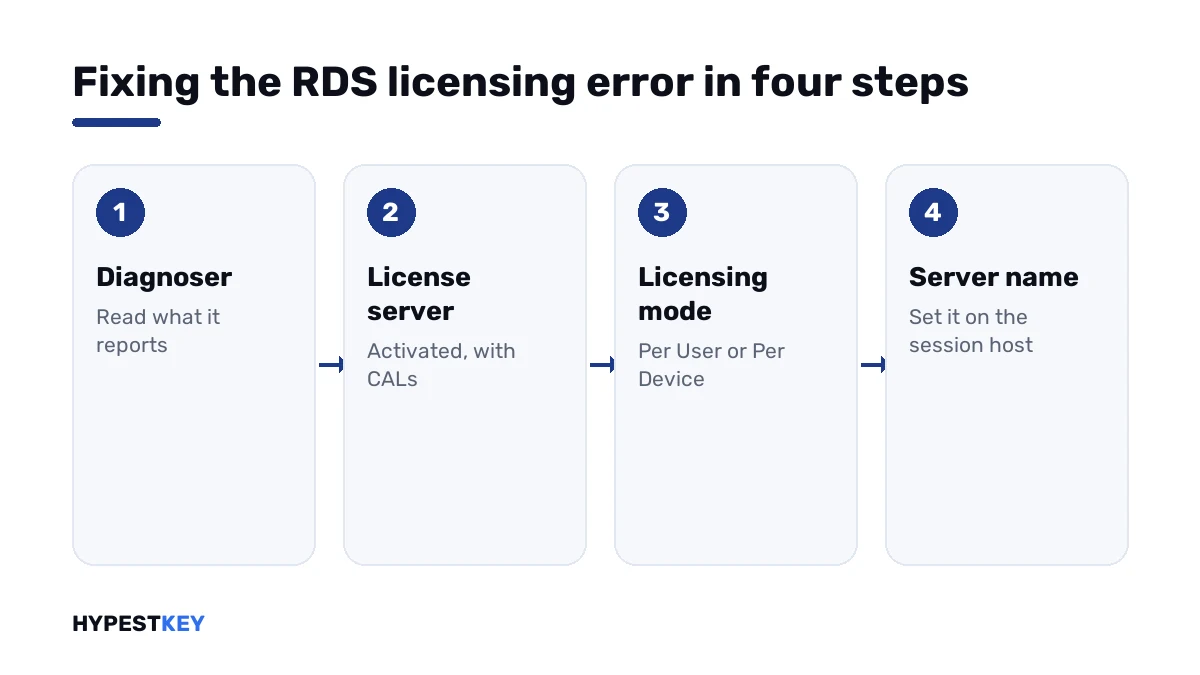
How to fix no Remote Desktop license servers available
Sign in to the session host as a domain administrator and work down the list.
- Open Server Manager, then Tools, and start RD Licensing Diagnoser; read the problems it lists.
- On the license server, open RD Licensing Manager and check for a green mark beside the server name.
- Check that the columns show installed and available licenses; install CALs if they’re empty.
- In a deployment with a Connection Broker, open Server Manager, Remote Desktop Services, Overview, Edit Deployment Properties, RD Licensing.
- Select the licensing mode, Per User or Per Device, enter the license server and press Add.
- On a standalone session host, set the same two things in Local Group Policy, as shown below.
- Check that the firewalls between session host and license server let the RDS ports through, then test a connection.
The two policy settings
On a session host without a Connection Broker, both settings live in the Local Group Policy Editor.
gpedit.mscThe path: Computer Configuration, Administrative Templates, Windows Components, Remote Desktop Services, Remote Desktop Session Host, Licensing.
| Policy | Setting |
|---|---|
| Use the specified Remote Desktop license servers | Enabled, with the name of the license server; several names are separated by commas |
| Set the Remote Desktop licensing mode | Enabled, with Per Device or Per User |
Apply both, then run the diagnoser again. It should now name the license server and the mode.
Per User or Per Device
The mode on the session host has to match the kind of CAL on the license server.
| Per User | Per Device | |
|---|---|---|
| One CAL covers | One person on any number of devices | One device for any number of people |
| Fits | Staff who connect from office, home and phone | Shared workstations and shift work |
| Domain-joined servers | Allowed | Allowed |
| Workgroup servers | Not permitted | Required |
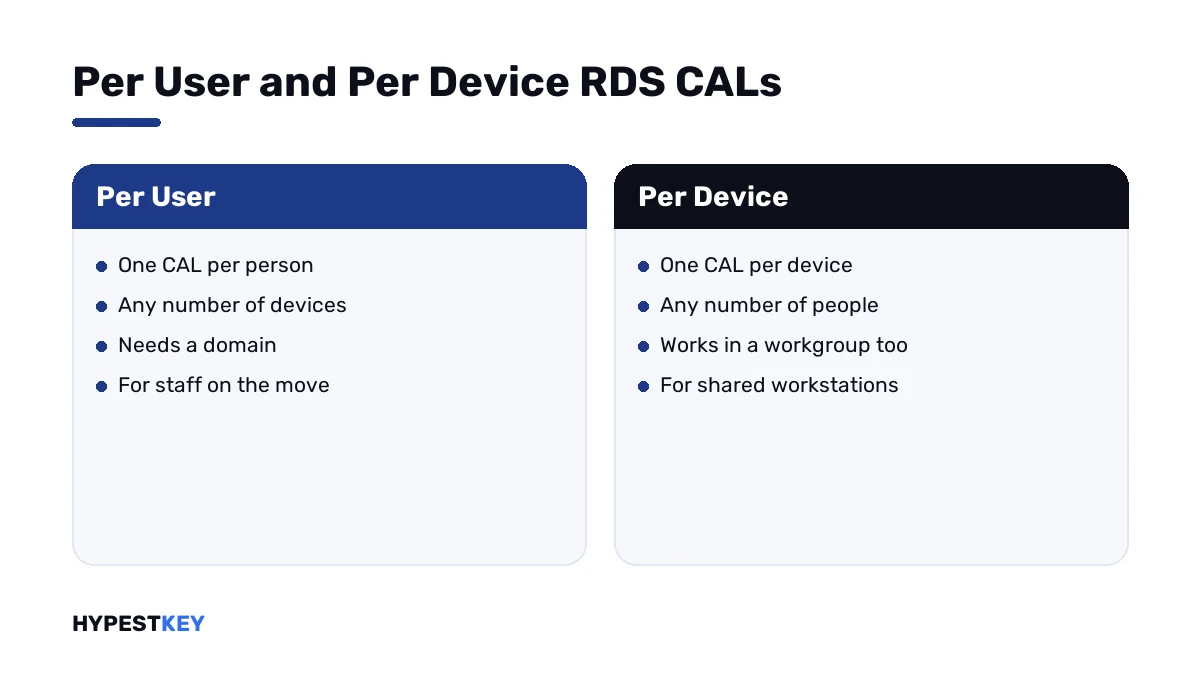
That last row comes straight from Microsoft’s article. Servers in a workgroup have to use Per Device CALs.
How to pick between them is in RDS CAL Per User vs Per Device.
CAL versions
A newer CAL serves older session hosts, and the reverse doesn’t hold. Microsoft’s two tables in short:
| Session host | CALs it accepts |
|---|---|
| Windows Server 2016 | RDS 2016, 2019, 2022, 2025 |
| Windows Server 2019 | RDS 2019, 2022, 2025 |
| Windows Server 2022 | RDS 2022, 2025 |
| Windows Server 2025 | RDS 2025 |
| License server | CALs it can hold |
|---|---|
| Windows Server 2016 | RDS 2016 |
| Windows Server 2019 | RDS 2016, 2019 |
| Windows Server 2022 | RDS 2016, 2019, 2022 |
| Windows Server 2025 | RDS 2016, 2019, 2022, 2025 |
So a 2022 session host with only 2019 CALs on the license server ends in this error, however many CALs there are.
Short of CALs, or holding the wrong version? Ours are genuine and arrive instant to email: RDS 2022, 50 User CALs and RDS 2022, 50 Device CALs. For the newest servers there are RDS 2025 User CALs. The whole range is under Windows Server CALs.
When the settings are right and it still fails
Microsoft’s article goes on with three more checks.
| Check | Detail |
|---|---|
| Blocked ports | The firewalls between session host and license server have to pass the ports RDS uses |
| “Access this computer from the network” | This user right, under Local Policies, User Rights Assignment, should include Authenticated Users, Domain Computers or the session host’s account if Everyone isn’t assigned |
| License certificates | If the diagnoser reports a protocol error, Microsoft has you back up and remove the X509 Certificate values in the registry, restart and reactivate the license server |
The third one edits the registry. Follow Microsoft’s article line by line for it, and export the key first as it says.
Related server topics
RDS licensing sits on top of the server’s own licensing. A few neighbours:
- How CALs work in general: managing CAL licenses in Windows Server 2022.
- Turning Remote Desktop on: enabling RDP on Windows Server.
- Activating the server itself: Windows Server 2022 activation guide.
- Connecting from outside: accessing and connecting to Windows servers.
- A different port for RDP: changing the RDP port.
Two admin sessions without any RDS CAL are a separate matter. Every Windows Server allows those for administration, and this error doesn’t apply to them.
Where these steps apply
| System | Notes |
|---|---|
| Windows Server 2016, 2019, 2022, 2025 | All steps; mind the CAL version tables |
| Deployments with a Connection Broker | Settings in Server Manager |
| Standalone session hosts and workgroups | Settings in Local Group Policy; Per Device only in a workgroup |
Server licenses themselves are in our Windows Server keys section.
Mistakes we see most
- Installing the RD Licensing role and never activating the license server.
- Installing CALs and leaving the licensing mode unset.
- Setting Per User on the host with Per Device CALs on the license server.
- Buying CALs one version older than the session host.
- Resetting the grace period in the registry and calling it fixed.
- Per User CALs on a workgroup server.
Terms used on this page
| Term | Meaning |
|---|---|
| RDS | Remote Desktop Services, the Windows Server role for remote sessions |
| Session host | The server users connect to |
| License server | The server that holds and issues RDS CALs |
| RDS CAL | A client access license for one user or one device |
| Licensing mode | Per User or Per Device, set on the session host |
| Grace period | The 120 days a new session host works without a license server |
| RD Licensing Diagnoser | The built-in tool that reports licensing problems |
FAQ
What does "no Remote Desktop license servers available" mean?
The session host needed a license for the connecting client and couldn't reach a license server that provides one. Microsoft's instruction for this message is to check the RD Licensing configuration. I'd start with the diagnoser.
How do I fix no Remote Desktop license servers available?
Run RD Licensing Diagnoser on the session host. Then set the licensing mode and the license server, in Server Manager or in Group Policy. Last, we check that the license server is activated and holds CALs.
Why did the error appear after about four months?
A new session host has a licensing grace period of 120 days. Until then it accepts connections without a license server. When the period ends, an unconfigured host starts refusing users.
Where do I set the Remote Desktop licensing mode?
With a Connection Broker: Server Manager, Remote Desktop Services, Overview, Edit Deployment Properties, RD Licensing. On a standalone host I'd use the policy "Set the Remote Desktop licensing mode" in the Local Group Policy Editor.
Can I use Per User CALs on a workgroup server?
No. Microsoft's article says workgroup servers have to use Per Device CALs, and Per User CALs aren't permitted there. Domain-joined servers can use either kind.
Do RDS 2019 CALs work with a Windows Server 2022 session host?
No. A session host accepts CALs of its own version or newer. For a 2022 host that's RDS 2022 or RDS 2025. We see this mismatch often after a server upgrade.
Do I need RDS CALs for administration?
Not for the two administrative sessions every Windows Server allows. RDS CALs are for users and devices that work in remote sessions. This error concerns those, and I'd count them before buying.