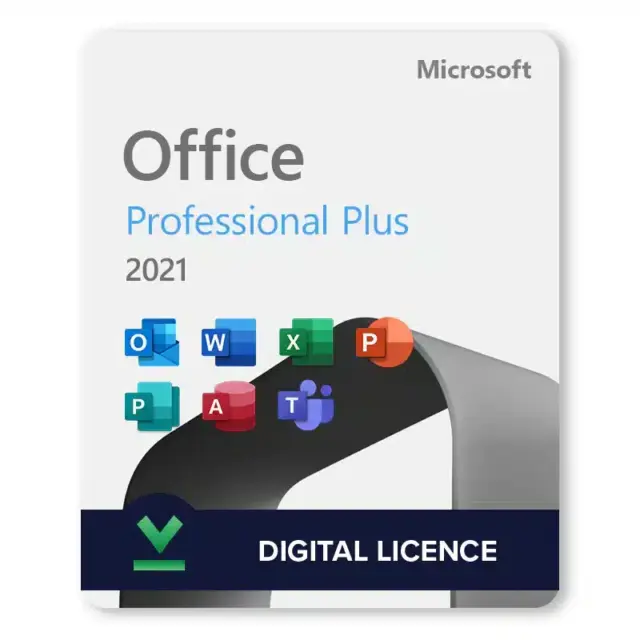





An Office 2021 Professional Plus key from us turns on the full perpetual suite on one Windows PC, instant to email. Office the way it used to be: owned, not rented. Seven desktop apps, databases and desktop publishing included. We’d pick it for a home office or a small business that wants the whole toolkit and no monthly bill. Key and Microsoft download link arrive by email right after checkout. We also write Office 2021 Pro Plus for Office 2021 Professional Plus; same edition, same key. Buy an Office 2021 Professional Plus key here; we email it right after payment.
| Detail | This key |
|---|---|
| Edition | Office 2021 Professional Plus |
| Also written | Office 2021 Pro Plus |
| Apps | Word, Excel, PowerPoint, Outlook, OneNote, Access, Publisher |
| Platform | Windows |
| Devices | 1 device |
| License | Lifetime access, one-time purchase |
| Download | Direct from Microsoft |
| Region and language | Global key, multi-language |
| Delivery | Instant to email |
What’s included in Microsoft Office 2021 Professional Plus
Seven apps. It’s the largest perpetual edition of this release. The only one with both Access and Publisher. They install together. One 25-character key activates the lot.
| App | What you use it for |
|---|---|
| Word | Documents, reports, letters; co-authoring on OneDrive files |
| Excel | Spreadsheets with XLOOKUP, dynamic arrays and LET |
| PowerPoint | Slides, plus recording a presentation with webcam to video |
| Outlook | Email, calendar and contacts with faster search |
| OneNote | Notes that sync across devices |
| Access | Desktop databases, forms and reports |
| Publisher | Brochures, flyers and print layouts |
It works fully offline. Internet is needed twice: for the download, and for activating with your key. After that the apps run without a connection. Handy for a laptop that lives on the road.
Who Microsoft Office 2021 Professional Plus is for
Two kinds of buyer, mostly. Home offices that want everything in one install and nothing to renew. And small businesses with an Access database or a drawer full of Publisher files.
The second kind has few options among the perpetual suites. Publisher isn’t in the 2024 one. So this suite fits, with one key per desk, since the license covers one PC.
No use for Access or Publisher? Then a smaller suite may do. Our Office 2021 Home & Business vs Professional comparison lays out who needs which. Diagrams and project plans? Outside the suite, so we’d add the Visio Professional 2021 key and the Project Professional 2021 key, same release year.
What changed since 2019
Quite a bit, and most of it in Excel.
- XLOOKUP, XMATCH and LET. New functions.
- Dynamic arrays. One formula, and the results spill into the neighbouring cells.
- Real-time co-authoring, for files on OneDrive or SharePoint.
- Video recording with a webcam in PowerPoint.
- Dark mode.
XLOOKUP is the one people notice first. It replaces VLOOKUP and INDEX/MATCH. It searches left or right. And it returns a clean “not found” value when there’s nothing to find.
Dynamic arrays are the one we’d miss. A single formula fills a whole range. Try =SORT(UNIQUE(A2:A500)) and you get a sorted list of unique values in one go. The 2019 suite has none of the dynamic array features.
PowerPoint records narration and webcam video alongside the slides. Co-authoring in Word feels smoother when files live in OneDrive. You see other people’s cursors, and their edits appear as they type.
Not flashy demos. Practical tools for real work. Full list of what’s new: our Office 2019 vs 2021 guide. Still need the 2019 release for compatibility? There’s an Office Professional Plus 2019 key too. Against the newest version? See our Office 2021 vs 2024 guide.
OneDrive and the cloud bits
Optional, all of it. Every app can open and save on OneDrive or SharePoint, straight from the File menu. Put a document there and share it. Several people can then work on it at once. Changes appear live.
Don’t want any of that? Save to your disk as before. Nothing is forced. Sign in with a Microsoft account, though, and your recent files, templates and settings follow you between apps.
Microsoft Office 2021 Professional Plus system requirements
If the PC was bought in the last five or six years, yes, without breaking a sweat. Windows 11 is the listed system. It installs on Windows 10 as well. Not on Windows 7 or 8.1, and not on a Mac.
| Component | Requirement |
|---|---|
| Processor | 1.1 GHz or faster, 2 cores |
| Memory | 4 GB RAM |
| Disk | 4 GB available space |
| Display | 1280 x 768 (64-bit Office needed for 4K and higher) |
| Graphics | DirectX 9 or later for hardware acceleration |
| Operating system | Windows 11 (Windows 10 also works; no Windows 7 or 8.1) |
| Other | Internet to download and activate; some features need .NET 3.5 or 4.6+ |
Source: Microsoft Support, system requirements for Office.
32-bit or 64-bit? Both exist. We’d pick 64-bit in most cases, because it handles large Excel files better. 32-bit only when an old add-in needs it.
Before you order
- Windows 10 or Windows 11.
- 4 GB of free disk space, and a connection that can pull a 4 GB download.
- No other Office on the PC. Or time to remove it.
- The email address you’ll check right after paying.
Office 2021 Professional Plus vs Office LTSC Professional Plus 2024
The 2024 suite is the direct successor. Same perpetual model, one PC, newer Excel features. This one still has Publisher. The 2024 suite doesn’t. Both are one-time purchases.
| Office 2021 Professional Plus | Office LTSC Professional Plus 2024 | |
|---|---|---|
| Apps | Word, Excel, PowerPoint, Outlook, OneNote, Access, Publisher | Word, Excel, PowerPoint, Outlook, OneNote, Access |
| Publisher | Yes | No |
| License | One-time, 1 PC | One-time, 1 PC |
| Platform | Windows | Windows |
So how we’d decide. Publisher files in daily use? Stay here. No Publisher in your life? Then the newer suite is the next step up.
How the license works
One key, one Windows PC. It never expires. You pay once and keep the version you bought. No subscription, and no upgrade to 2024 thrown in.
Two computers? Two keys. New hardware? Possible, once Office is off the old PC. Our guide to removing an Office product key covers that step. Uninstall there, install on the new machine, type the same key.
Sometimes online activation refuses because the key was used before. Phone activation gets around that. Or our support team does. The check itself happens on Microsoft’s servers. Key in, verification done, apps licensed.
How to install and activate Microsoft Office 2021 Professional Plus
About 15 minutes, typically. Most of that is downloading roughly 4 GB of files.
- Finish checkout. Key and download link arrive by email at once. Keep the key safe.
- Uninstall any trial or Microsoft 365 copy first. The two conflict.
- Run the installer from the Microsoft link. All the 2021 apps go on at once.
- Open Word. File > Account > Change Product Key. Type your key. Install.
- File > Account again. It should say “Product Activated”.
Prefer the command line? Command Prompt, as administrator. Then:
cd "C:\Program Files\Microsoft Office\Office16"
cscript ospp.vbs /inpkey:XXXXX-XXXXX-XXXXX-XXXXX-XXXXX
cscript ospp.vbs /act
And to check the license status afterwards:
cscript ospp.vbs /dstatusCustom install with a configuration file? Our Office Deployment Tool guide walks through it. The longer walkthroughs: installing Office 2021 and how to activate Office 2021.
Activation errors after an earlier Office or Microsoft 365 install are usually leftovers. Remove every old Office version first. Restart. Then install 2021.
Common Office 2021 Professional Plus activation snags
- A Microsoft 365 trial still on the PC. The licenses clash. Remove it.
- A typo in the key. Paste it.
- Windows 7 or 8.1. It won’t install there.
- The 64-bit build with an old 32-bit add-in. Reinstall as 32-bit.
Office 2021 Professional Plus next to other Office versions
Microsoft 365 already on the PC, or an older suite? Microsoft’s rule is plain. In most cases those versions can’t run together on one computer. Microsoft names Microsoft 365 and the one-time suites like 2021, 2019 and 2016 in the same breath.
- The exception. One of the two installed through MSI, the older Windows Installer format. Then side by side works. Common on volume licensed installs, rare at home.
- Install order. Older version first, newer after. Same for Visio, Project, language packs and proofing tools.
- Bitness. All Office on one PC is either 32-bit or 64-bit. No mixing.
- Remote Desktop Services. With RDS enabled, several Office versions on one machine aren’t supported.
- Standalone apps. A standalone app that’s also part of the suite gets removed when the suite installs.
So we’d keep it simple. One Office per PC, and for this key that’s 2021. Source: Microsoft Support, different versions of Office on the same PC.
Languages
It installs in your Windows display language by default. Dozens of interface and proofing languages are available. The key is global, not tied to a country, so it activates any language version. Extra language packs are free from Microsoft. You add them under File > Options > Language.
Delivery and help
The key is emailed instantly after payment. No account needed on our side. Keys go out instant to email. If it isn’t in your inbox, check spam or email support@hypestkey.com. Questions about activation, setup or moving to a new PC? Write to support@hypestkey.com or open the live chat. Something went wrong? We’ll help you fix it. A key that won’t activate gets replaced.
What arrives by email: the 25-character key and the Microsoft download link. No box, no disc, nothing to wait for.
After activation, Microsoft handles the software itself. We’re a trusted online store with genuine keys and have been selling Microsoft licenses since 2018. More versions are in the Office 2021 category.
Delivery and help
Visa, Mastercard and other cards, Apple Pay, Google Pay, processed by Stripe. Guest checkout, prices in USD.
Instant to email: the key is sent automatically as soon as your payment is confirmed.
Check your spam folder first. Still no email? Write to support@hypestkey.com with your order number and we will resend it.
Microsoft Office 2021 Professional Plus key: FAQ
Which apps do I get?
Seven desktop apps for Windows. The usual five, plus Access and Publisher. One product key activates all of them.
How do I activate it?
Install from the Microsoft link in your email and open Word. Then File > Account > Change Product Key. Type the 25-character key. Activation finishes online in under a minute.
Can I move it to a new computer?
Yes. Uninstall on the old PC, install on the new one, same key. If online activation refuses, phone activation or our support team will help.
Windows 11 or Windows 10?
Both. Windows 11 is the listed system, and it installs on Windows 10 too. Not on Windows 7 or 8.1, and not on a Mac.
Is this a subscription?
Nope. One payment for one PC, no expiry. You keep it for as long as you want to use it.
How fast is delivery?
Instant, by email, with the download link. Not in your inbox? Check spam, then write to support@hypestkey.com.
Can I keep Microsoft 365 installed next to it?
Usually not. Microsoft says Microsoft 365 and one-time suites like 2021 can't run together on one PC in most cases. Remove the other Office first, restart, then install 2021.
32-bit or 64-bit?
Either, same key. We'd pick 64-bit for large Excel files. All Office on one PC has to match, so an old 32-bit add-in means 32-bit Office.
Is Office 2021 Pro Plus the same as Office 2021 Professional Plus?
Yes. Pro Plus is the short name people use for Professional Plus. Same suite, same apps, same key. Microsoft writes Office 2021 Professional Plus on the box and in the installer.