Short answer: An Office language accessory pack adds display menus, help and proofing tools in another language to an existing Office install. Get it from Microsoft's language page for your version. Pick 32-bit or 64-bit and run it. Then File, Options, Language: set it as preferred. Office for Mac needs no pack.
An Office language accessory pack adds menus, help and proofing tools in another language to Office that’s already on your PC. You download it from Microsoft’s language page, pick 32-bit or 64-bit, run it, then set the new language under File, Options, Language. Restart the apps and it’s done.
- Check your Office version and build under File, then Account.
- Open Microsoft’s language accessory pack page and choose the tab for your version.
- Pick the language and download the matching 32-bit or 64-bit file.
- Run it and wait for setup to finish.
- File, Options, Language. Set the display and authoring languages.
- Close and reopen every Office app.
What an Office language accessory pack contains
Three parts, in the best case. Display covers the ribbon, menus and dialogs. Help comes in that language too. Proofing brings spelling and grammar.
Not every language gets all three. Microsoft labels each pack by how far the translation goes:
| Extent of localization | What you get | What stays in the original language |
|---|---|---|
| Full | Display, help and proofing tools | Nothing |
| Partial | Display for some apps, proofing in some cases | Parts of the menus and some apps |
| Proofing Tools only | A spell checker for the language | All menus and help |
Half the menus still in English after a partial pack? Nothing broke. Microsoft says so itself: with partial localization some parts of Office stay in the language of your copy. That language just isn’t translated all the way.
One list covers every region, too. German appears once and brings the tools for every country that uses German.
Language accessory packs that are partial or proofing only
Worth a look before downloading. Microsoft’s table marks each language, and a few groups stand out.
| Pack type | Examples from Microsoft’s list | What to expect |
|---|---|---|
| Proofing Tools only | Hausa, Igbo, isiXhosa, isiZulu, Kinyarwanda, KiSwahili, Kyrgyz, Pashto, Romansh, Sesotho sa Leboa, Setswana, Sinhala, Wolof, Yoruba | A spell checker, menus untouched |
| Partial, no proofing | Amharic, Belarusian, Filipino, Khmer, Quechua, Uyghur and others | Some apps translated, no spell checker from the pack |
| Version 2108 or later only | English UK, French Canada, Spanish Mexico | Not for Office 2019 |
| No Project or Visio | Hindi | Office apps only |
Picked a proofing-only language and expected new menus? That’s the mismatch. For the menus, only a Full or Partial pack does it. Microsoft 365 commands look different from the steps? Microsoft points those users to the Office 2016 tab.
Which Office versions take a language accessory pack
Microsoft’s page has three tabs. Newer versions covers Microsoft 365, Office 2024 and Office 2021. Then a tab each for Office 2019 and Office 2016.
- Microsoft 365 apps: the newer versions tab.
- Office 2024 and 2021 bought once: same tab.
- Office 2019: its own tab, with a few gaps.
- Office 2016: its own tab too.
- Project, Visio, Publisher and OneNote: covered where they apply.
Some exceptions. English UK, French Canada and Spanish Mexico need Version 2108 or later. Office 2019 can’t take them. The Hindi pack leaves out Project and Visio.
Don’t know your version? File, Account shows it. Our guide to Office versions sorts the names out, and what Microsoft 365 is explains the subscription side.
How to install the Office language accessory pack
Close Office first. Then:
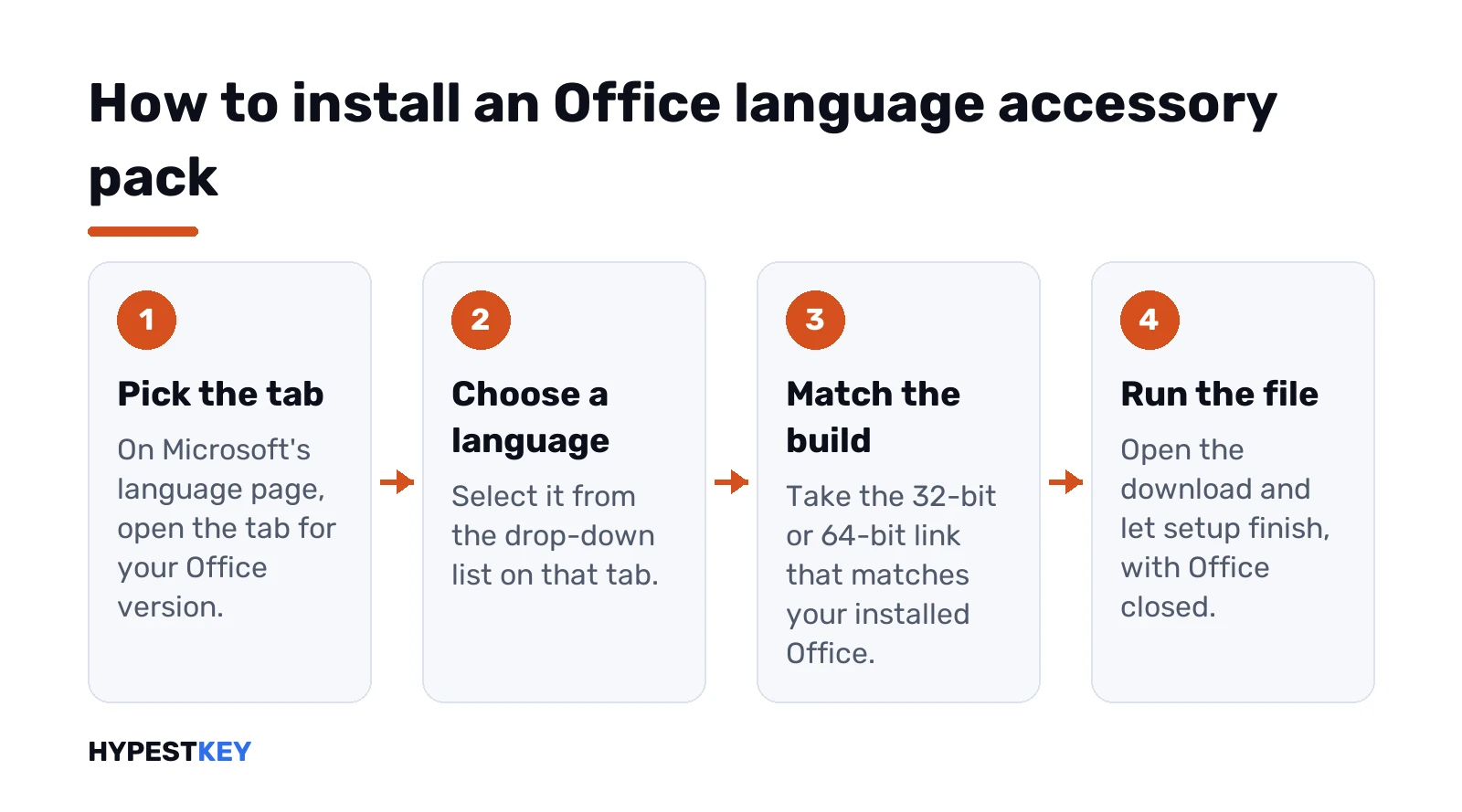
- Open the language accessory pack page on Microsoft’s site.
- Click the tab for your version.
- Choose the language from the drop-down list.
- Pick the 32-bit or 64-bit link.
- Open the downloaded file. Setup runs on its own.
Which link? We’d take the one that matches the Office already installed. About Word, under File and Account, shows the build. Recent installs default to 64-bit.
Current Office installs through Click-to-Run, and the pack goes in the same way. Our Click-to-Run guide covers that service.
No admin rights on the PC? Setup will ask for them. On a work laptop that’s normal, and the next section on managed PCs applies.
Set the display and proofing language
Installing isn’t the last step. Office keeps its old language until you tell it otherwise.
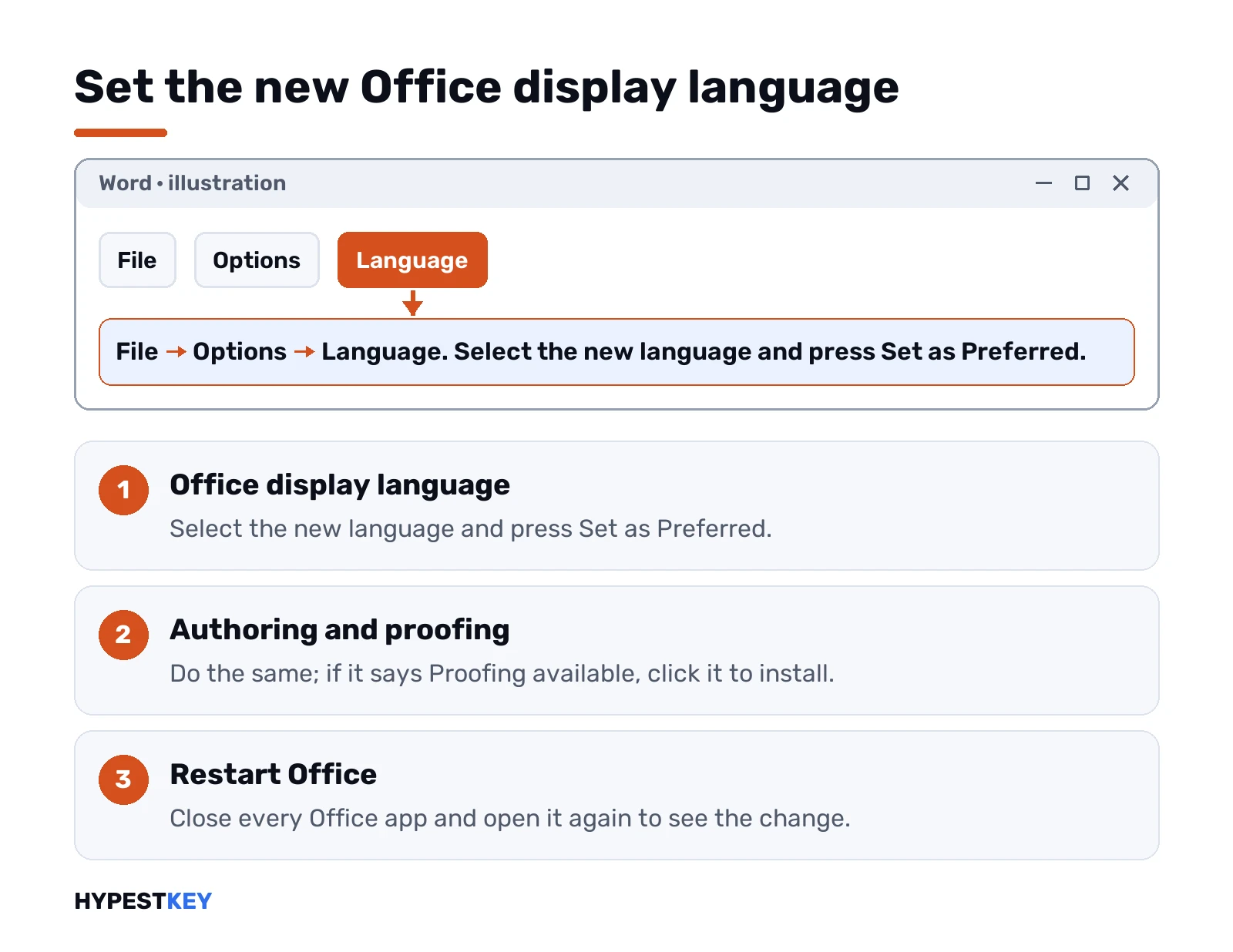
- Open Word, Excel or any Office app.
- File, then Options.
- Language, on the left.
- Under Office display language, select the new one and press Set as Preferred.
- Under Office authoring languages and proofing, do the same.
- Restart all Office apps.
See “Proofing available” next to a language? Click it, and the proofing tools install. Says “Proofing installed”? You’re set.
There’s also a “Match Microsoft Windows” option for the display language. Want Office fully switched? Microsoft suggests setting the same language in Windows first. Our Windows 11 language guide covers that part, and changing the keyboard layout sorts the typing side.
One catch with proofing. A change applies from that point on, in the current document. For text you already typed, press Ctrl and A first, then set the proofing language.
Proofing tools without the full pack
Need a spell checker, not new menus? You may have it already.
Each language version of Office ships with proofing for a few companion languages. A sample from Microsoft’s list:
| Office language | Companion proofing languages |
|---|---|
| English | English, French, Spanish |
| English UK | English, Irish, Scottish Gaelic, Welsh |
| German | German, English, French, Italian |
| French | French, English, German, Dutch, Arabic, Spanish |
| Spanish | Spanish, English, French, Basque, Catalan, Galician, Brazilian |
| Russian | Russian, English, Ukrainian, German |
| Japanese | Japanese, English |
So English Office already checks French and Spanish. For a language outside that set, the “Proofing Tools only” packs on the same page are the light option.
Office for Mac: no pack to download
Good news for Mac users. Office for Mac already includes every available language.
It follows the macOS language. Apple menu, System Settings, General, Language & Region. Older macOS calls it System Preferences. Drag your language to the top of Preferred Languages. Missing? Add it with the plus button. Then restart the Office app.
Proofing is per app. Word and PowerPoint use Tools, then Language, and Default makes it stick for new documents. OneNote has Tools, Set Proofing Language. More on the Mac apps in our Office 2024 for Mac overview.
Office on the web, phones and tablets
Nothing to install here either.
- Office on the web takes its language from the service holding the file, like OneDrive or SharePoint.
- Personal Microsoft account? Set the language in your account profile.
- Web proofing: Review, Spelling and Grammar, Set Proofing Language.
- Android and iOS follow the phone’s own language. Proofing changes inside Word.
Work PCs and volume editions
Office installed by your company? Ask IT. Microsoft says the same, and the pack often won’t install without admin rights anyway.
Volume editions don’t use the download page in the same way:
- Office LTSC 2021 and volume Office 2019: languages go in with the Office Deployment Tool.
- Volume Office 2016: an ISO of language packs and proofing tools from the Volume Licensing Service Center.
- Microsoft 365 Apps: the ODT or the portal, not MSI language files. MSI language packs don’t work with Click-to-Run.
For admins: language packs with the Office Deployment Tool
Adding a language to PCs that already run Office? Deploy just the pack, not the whole suite. Product ID LanguagePack, then the culture codes:
<Configuration>
  <Add AllowCdnFallback="TRUE">
    <Product ID="LanguagePack">
      <Language ID="de-de" />
      <Language ID="fr-fr" />
    </Product>
  </Add>
</Configuration>
On an existing install the ODT reads the architecture and source by itself. Handy. One file serves every group of PCs.
Volume Office 2019 works the same way. Language element in the configuration file. At install, or later. A ProofingTools product with its own Language IDs adds spell checkers alone, and those packages are smaller than full language packs. Source: Deploy Office 2019.
Only a spell checker wanted on those PCs? Use ProofingTools as the Product ID instead. Lighter on the network. It needs Microsoft 365 Apps Version 1803 or later.
A few more switches from Microsoft’s language deployment overview:
- MatchOS installs the Windows base language plus active display languages.
- MatchInstalled gives Visio or Project the same languages as Office.
- A Remove element with LanguagePack takes a language off again.
- A Group Policy lets users without admin rights add languages themselves.
The shortcut and right-click menu language is set by the primary language at install. Changing that one later takes an uninstall and reinstall.
When the language doesn’t change
- Apps still open? Close all of them, including Outlook, and reopen.
- New language not set as preferred under File, Options, Language.
- A partial pack. Some menus stay in the original language by design.
- Wrong tab on the download page, say a 2016 pack on Microsoft 365.
- Shortcuts and right-click menus unchanged. That’s the shell language from the original install.
Still stuck? A full reinstall in the right language is cleaner. Pick the language in the install window, as our Microsoft 365 install guide shows, or follow the Office 2024 install walkthrough. The Office uninstall tool guide handles the removal.
Common mistakes with language accessory packs
- Stopping after setup. The language still has to be set as preferred.
- Taking the pack for the wrong version tab.
- Expecting English UK on Office 2019. It needs Version 2108 or later.
- Hunting for a Mac download. Mac Office has the languages built in.
- Installing a full pack when only proofing was needed.
Setting up a new PC in another language? Our Office 2021 Professional Plus key is multi-language ready, one device, instant to email.
FAQ
what is a language accessory pack in Office?
A Microsoft download that adds menus, help and proofing in another language to the Office you already have.
why are some menus still in English?
The pack is probably partial. Microsoft marks those packs, and parts of Office stay in the original language.
32-bit or 64-bit pack, which one?
The one matching your Office build. About Word, under File and Account, tells you which build you have.
does it work with Office 2019?
Yes, through its own tab. English UK, French Canada and Spanish Mexico are the exceptions, since they need Version 2108.
where is the pack for Mac?
There isn't one. Office for Mac includes every language and follows the language set in macOS.
just want spell check in another language?
Check the companion proofing languages first. If yours isn't there, a Proofing Tools only pack is enough.
can I remove a language later?
Yes. Admins do it with a Remove element and LanguagePack in the Office Deployment Tool file.
pack for Swahili, will my menus change?
Nope. Proofing Tools only, that one. Spell checker in, menus stay in your current language.