
Short answer: To add an Excel watermark, put a picture in the page header. Insert, Header & Footer, click a header box. Then Picture, and choose the image. Format Picture with Washout makes it faint. Prints on every page. You'll see it in Page Layout view and Print Preview, not in Normal view, and Excel for the web can't add one.
An Excel watermark is a picture you put in the page header, because Excel has no Watermark button the way Word does. Insert, Header & Footer, Picture, pick an image, then fade it with Format Picture. It prints on every page. We use a gray DRAFT image for this.
- Pick one worksheet. Only one tab selected.
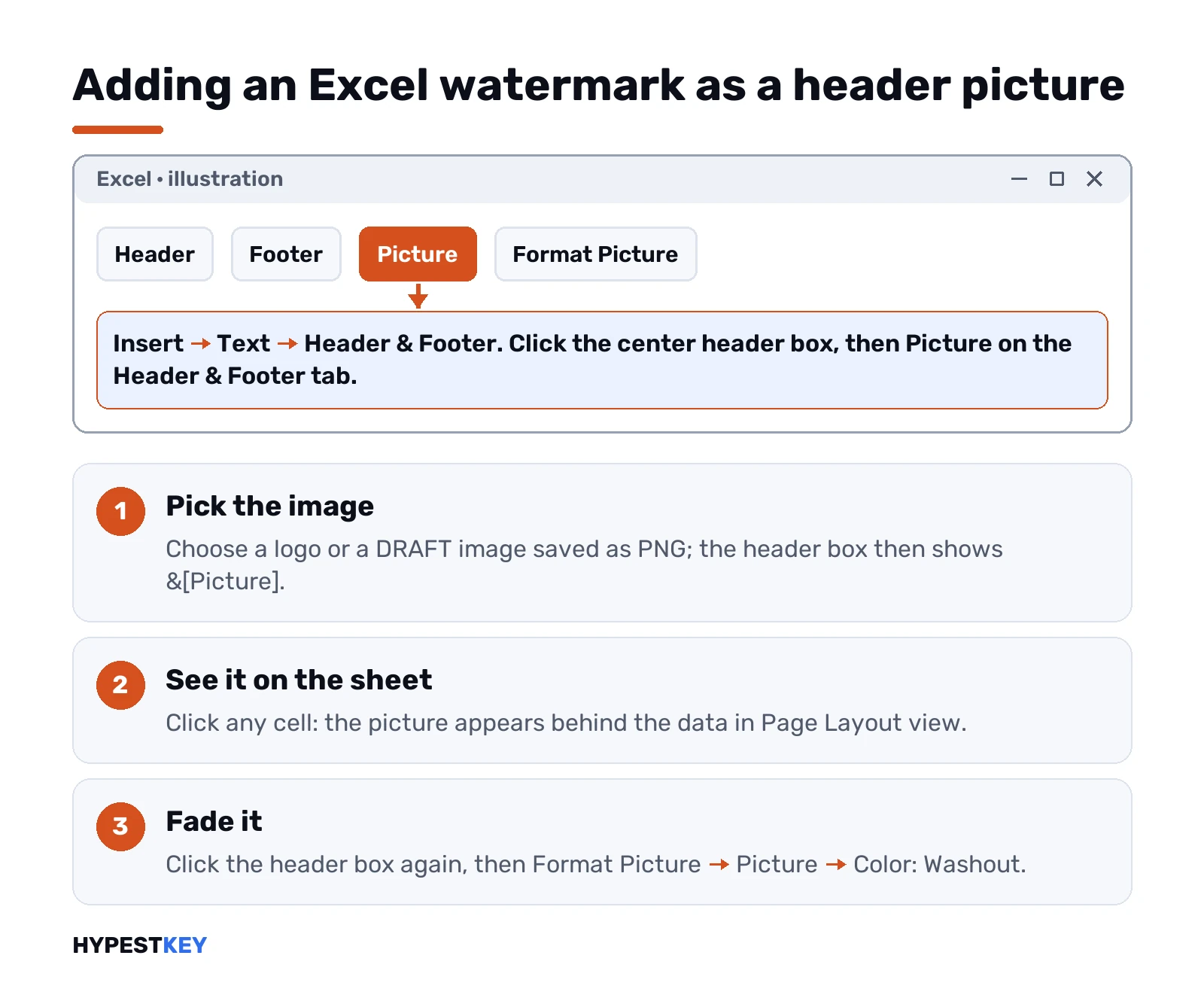
- Insert tab, Text group, Header & Footer. Excel jumps into Page Layout view.
- Click the left, center or right header box. Center is the usual pick.
- On the Header & Footer tab, click Picture and choose your image file.
- The box now shows &[Picture]. Click any cell and the image appears behind the data.
- Too dark? Click the header box again, then Format Picture, Picture tab, Color: Washout.
- File, Print. The preview should show the image on each page.
Steps follow Microsoft’s page Add a watermark in Excel. Same idea in Microsoft 365 and the one-time versions.
How to add a watermark in Excel with a header picture
The header route is the only one that prints. Everything else on this page either stays on screen or needs a workaround.
Why the header? A header repeats on every printed page. Put a big picture there and Excel draws it behind the cells. That’s the whole trick.
Ribbon names differ a little between versions:
- Current Excel: Insert, Text, Header & Footer. The tab that opens is called Header & Footer.
- Excel 2016: Insert, Header & Footer. The same buttons sit on a tab called Design instead.
Not sure which one you have? Our rundown of Microsoft Office versions helps you tell them apart.
Picture opens a small window. A few places to pick from. We’d always pick a file you made yourself. A logo, or a word typed in big gray letters and saved as PNG.
One thing confuses people. In the header box you never see the image. Only the text &[Picture]. Click a cell outside the header and the picture shows up on the sheet.
Several sheets in one workbook? Each one gets its own header. Repeat the steps per tab, or use the Page Setup route in the next section and do them in one go.
Making the picture faint: Washout, size and position
A fresh header picture is usually too big and too dark. Format Picture fixes both.
Click inside the header box that holds &[Picture]. On the Header & Footer tab, in the Header & Footer Elements group, select Format Picture. Two tabs matter.
| Tab | What we change there | Result |
|---|---|---|
| Size | Height and width, or the scale in percent | The image fits the printed page |
| Picture, Color | Washout | Light enough to read the numbers through it |
| Picture, Color | Grayscale | A colored logo turns gray |
Picture changes apply at once. They can’t be undone with Ctrl+Z, so if the result looks wrong, delete &[Picture] and insert it again.
Now the position. A header picture starts at the top of the page. To push it down to the middle, click right before &[Picture] and press Enter a few times. Each Enter moves the image one line lower. We’d check Print Preview after. Page Layout view and the printout don’t always match.
Also look at the header margin before printing. If the margin is too small, the picture can sit on top of the first rows of data. Page Layout tab, Margins, Custom Margins.
A text watermark: DRAFT or CONFIDENTIAL
Excel can’t type text into the background directly. The header only takes a picture, so a word has to become an image first.
Our quick way:
- New empty worksheet. View tab, untick Gridlines.
- Insert, WordArt. Type DRAFT, or CONFIDENTIAL, or your company name.
- Make it big and light gray. Rotate it if you want the diagonal look.
- Take a screenshot of just that word. Our guide on how to screenshot on Windows covers Win+Shift+S.
- Paste into Paint, crop, save as PNG.
- Insert that PNG as the header picture, as above.
Microsoft suggests the same screenshot detour on its sheet background page. Not elegant. It works, and you only do it once. Keep the PNG in a folder and reuse it on every report. Lost the file after the screenshot? Look in where screenshots go in Windows 11.
One Excel watermark on several sheets at once
Twelve monthly tabs, one DRAFT mark. Doing them one by one gets old fast.
Microsoft’s page on headers and footers has the shortcut. The Page Setup dialog box can put a header on more than one worksheet at a time.
- Hold Ctrl and click each sheet tab that needs the mark. The title bar now says [Group].
- Page Layout tab, the small arrow in the corner of the Page Setup group.
- Header/Footer tab, then Custom Header.
- Click the center box. Insert Picture, pick the PNG.
- Format Picture in the same dialog. Washout, then OK twice.
- Right-click any tab, Ungroup Sheets. Forget this and your next edit lands on every sheet.
Chart sheets work only this way, by the way. Microsoft says headers on chart sheets go through the Page Setup dialog box and nowhere else.
Two check boxes on the same Header/Footer tab matter for a watermark:
- Different first page. Ticked, the cover page prints clean and the mark starts on page 2.
- Scale with document. Ticked, the header shrinks along with the sheet when you fit it to one page. Untick it if the picture comes out tiny.
Details are on Microsoft’s page Headers and footers in a worksheet.
WordArt on the sheet, the on-screen route
Sometimes nobody prints the file. It goes out by email and people only open it. Then WordArt right on the sheet is faster.
- Insert, Text group, WordArt. Pick a style, type the text.
- Right-click it, Format Shape, Fill: Solid fill. Push the Transparency slider up.
- Shape Format, Arrange, Rotate. More Rotation Options lets you type an angle.
- Drag the handles to resize. Font size lives on the Home tab.
The catch: WordArt is a shape floating over the cells. It covers them, people can click it, move it or delete it. And it stays where you put it. Scroll down 200 rows and the mark is gone from view. For a printed report the header picture is still the better pick.
Why the Excel watermark doesn’t show
Inserted the picture, clicked back into the sheet, and nothing? Almost always it’s the view.
- Normal view hides headers and footers. The picture is there, you just can’t see it. View tab, Page Layout, or File, Print.
- Wrong sheet. The header belongs to the tab that was active when you inserted it.
- Picture too pale. Washout on a light image can make it almost white. Try Grayscale instead.
- Picture hidden by cell fill. Cells with a solid fill color cover whatever sits behind them. Set the fill to No Fill.
- Printed from the web version. See the Excel for the web section below.
To get back to the normal grid later: View tab, Workbook Views, Normal. Or the small Normal button on the status bar, bottom right.
Sheet background: looks like one, never prints
Page Layout tab, Page Setup group, Background. Pick an image and Excel tiles it across the whole sheet. On screen it looks like a watermark.
It isn’t one. A sheet background doesn’t print, and Excel doesn’t keep it when you save the file as a web page. Fine for a dashboard nobody prints. Useless for a stamped invoice.
If you go this way anyway, hide the gridlines and shade the cells that hold data. Otherwise the numbers get hard to read on top of the picture. Removing it is the same place: Page Layout, Delete Background. That button only appears when the sheet has one.
The big gray “Page 1” isn’t a watermark
A classic mix-up. A workbook opens with a huge gray “Page 1” across the cells. Delete key does nothing. No picture in the header either.
That’s Page Break Preview. Excel labels each printed page in that view. The blue lines? Page breaks. None of it prints. Click View, then Normal, and the label disappears. Saved the file in that view? The next person sees it too, so switch back before you send it.
How to remove a watermark in Excel
Depends on which kind it is. Quick check first: switch to Page Layout view and look at the header boxes.
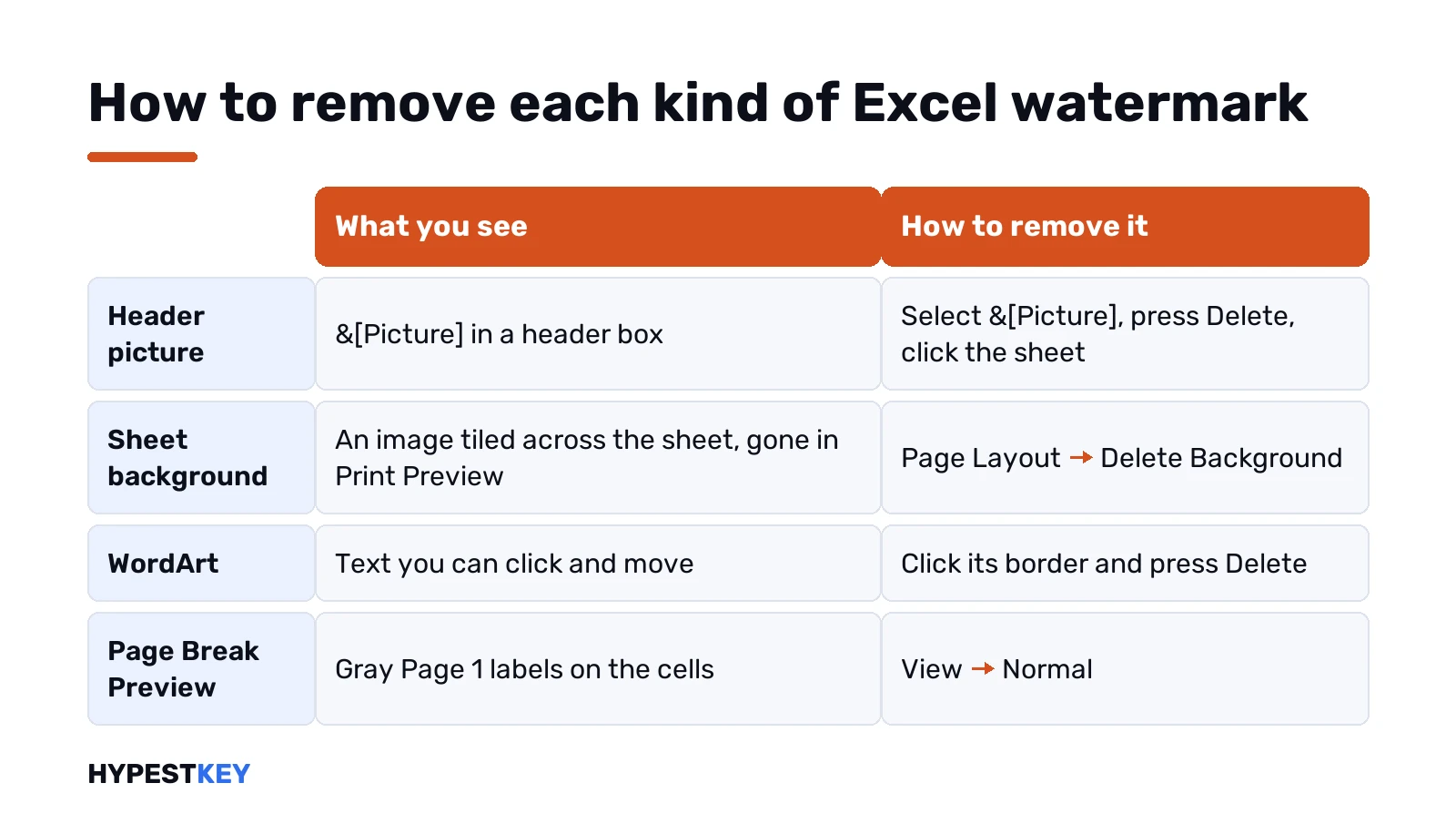
| What you see | What it is | How to remove it |
|---|---|---|
| &[Picture] in a header box | Header picture | Select &[Picture], press Delete, click the sheet |
| Image tiled across the sheet, gone in Print Preview | Sheet background | Page Layout, Delete Background |
| Text you can click and move | WordArt or a shape | Click its border, press Delete |
| Gray “Page 1” labels | Page Break Preview | View, Normal |
To swap the picture for a new one, don’t delete. Select &[Picture], click Picture again, and Excel asks to replace it.
The picture sits in the footer instead? Same steps, bottom of the page. And if every sheet in the file has one, you have to clear each tab on its own.
Excel for the web and Excel on a Mac
No header picture in Excel for the web. No sheet background either. Microsoft says so on both support pages. With a desktop copy installed, click Open in Desktop and do it there. Saved in OneDrive? The change syncs back to the same file.
On a Mac, start in View, Page Layout and click a header box. The Header & Footer tab appears on the ribbon. Look for Picture there. No such button in your build? WordArt on the sheet still works the same way as on Windows.
Any of this greyed out on Windows? Check the title bar. See “Unlicensed Product” up there? Office then runs with most editing turned off. Our page on the unlicensed product error in Excel explains the fix. After a reinstall, also see Office product activation failed.
Watermarks in Word, and the Windows one
Word has a real Watermark button on the Design tab. DRAFT and CONFIDENTIAL come built in. So one more route we’d consider: build the report in Word, paste the table, and use that. Different tool, less fiddling.
Some people search “watermark” and mean something else entirely. The “Activate Windows” text in the corner of the screen has nothing to do with Excel. Our guide to the Activate Windows watermark covers that one.
More Excel jobs on our blog: adding a checkbox in Excel for to-do lists, and how to calculate variance in Excel. Still deciding on a version? We compare subscription and one-time purchase in Microsoft 365 vs Office 2024.
No desktop Excel on this computer? Our Office Home and Business 2024 key covers one PC or Mac, instant to email.
FAQ
Is there a watermark button in Excel?
Nope. Excel has none, unlike Word. You insert a picture into the header, and that picture acts as the watermark on every printed page.
How do I put DRAFT behind my spreadsheet?
Make the word an image first. WordArt on an empty sheet, screenshot it, save as PNG, then insert that PNG as the header picture.
My watermark vanished when I went back to Normal view, did I lose it?
No. Normal view hides headers and footers. Switch to Page Layout or open Print Preview and the picture is still there.
How do I get rid of the gray Page 1 on my sheet?
That label comes from Page Break Preview, not a watermark. Click View, then Normal, and it goes away. It never prints anyway.
Does a sheet background print?
No. A background picture only shows on screen. For a mark that prints, use the header picture method with Washout instead.
Can I add one in Excel Online?
Not in the browser. Header pictures and backgrounds aren't available there. Click Open in Desktop and add it in the installed app.
How do I make the picture lighter?
Click the header box with &[Picture], open Format Picture, Picture tab, and set Color to Washout. Grayscale works for logos.
Can I put the watermark on all my sheets in one go?
Yes. Ctrl-click the tabs to group them, then Page Layout, Page Setup, Header/Footer, Custom Header and Insert Picture. Ungroup the sheets afterwards.