
Short answer: The Mac window server, a process called WindowServer, draws every window, the Dock and the menu bar on screen. It's safe and essential. When it uses a lot of CPU we close windows, reduce transparency and motion, and check external displays.
The Mac window server, a process called WindowServer, is the part of macOS that draws every window you see. We follow Apple’s developer documentation, which describes it as managing the onscreen windows on your desktop and the offscreen windows apps use. It’s safe and essential; we never force quit it, because that ends your session.
- What it is: a core macOS process, not malware and not Microsoft’s Windows Server.
- What it does: composes all windows, the Dock, menus and effects into one picture per display.
- Why it gets busy: many windows, several or large displays, transparency and motion effects, screen recording.
- What helps: closing windows, fewer displays, Reduce transparency, Reduce motion, a restart.
- What not to do: force quit it, which logs you out.
Apple’s wording comes from its Quartz Window Services documentation. The settings and Activity Monitor steps below come from Apple Support.
What the Mac window server does
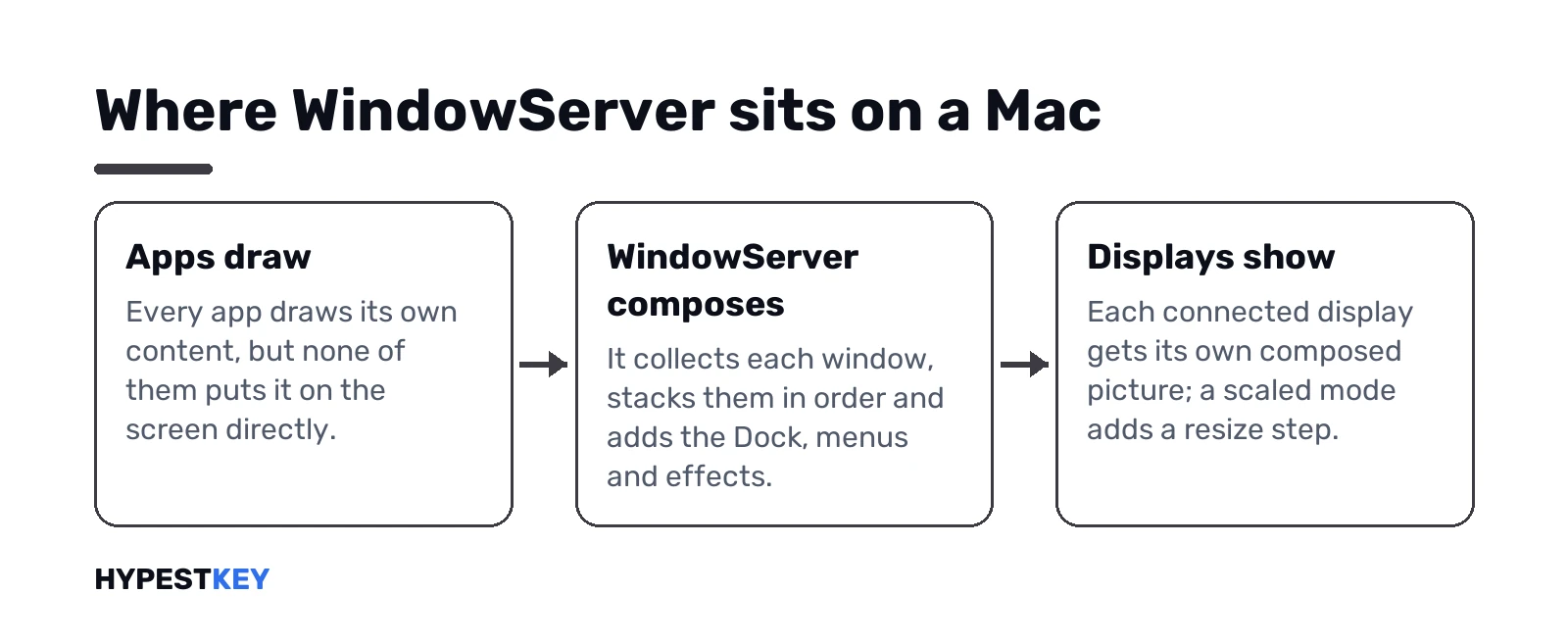
Every app on a Mac draws its own content, but none of them puts it on the screen directly. We think of WindowServer as the stage manager: it collects each window, stacks them in order and composes the final picture for each display.
| Job | What you’d see if it stopped |
|---|---|
| Drawing and stacking windows | No windows at all |
| Menu bar, Dock and desktop | An empty screen |
| Animations: opening apps, switching desktops, Mission Control | No movement |
| Transparency and blur effects | No effects |
| One picture per connected display | Blank external monitors |
| Offscreen windows apps keep for later | Apps redrawing from scratch |
Apple’s developer page also says apps can ask the window server for images of window contents. Screenshot and screen recording tools rely on that.
Safe, and part of every Mac
Yes. It’s part of macOS on every Mac and starts with the login window. Its name causes two common mix-ups.
| Mix-up | The facts |
|---|---|
| “Window server” sounds like Microsoft’s Windows Server | Unrelated: Windows Server is a Microsoft operating system for servers; WindowServer is a macOS process |
| A process with high CPU must be a virus | WindowServer’s load follows what’s on screen; high use usually has a visible cause |
Malware sometimes copies system process names. We’d check two things in Activity Monitor: the process belongs to the system, and there’s only one WindowServer running.
Why the Mac window server uses a lot of CPU
Its load grows with the amount of drawing your Mac has to do. Here are the usual causes, with the reason each one adds work.
| Cause | Why it adds work |
|---|---|
| Many open windows and browser tabs with animations | Each visible window is composed into every frame |
| Several displays, or one very large one | More pixels to compose, one picture per display |
| Scaled resolutions on external displays | Rendering at one size and scaling to another takes extra work |
| Transparency and blur effects | See-through backgrounds have to be recomputed when content behind them changes |
| Motion effects and animated wallpapers | Movement means more frames |
| Screen recording, screen sharing or video calls with screen share | Window images are captured continuously |
| Busy desktop: many files and widgets | More items to draw on the desktop layer |
| An app that redraws constantly | Its window changes every frame |
Short spikes are normal when you open Mission Control, switch desktops or drag a window across displays. We’d look closer only at a sustained high figure while the Mac sits still.
How to check WindowServer in Activity Monitor
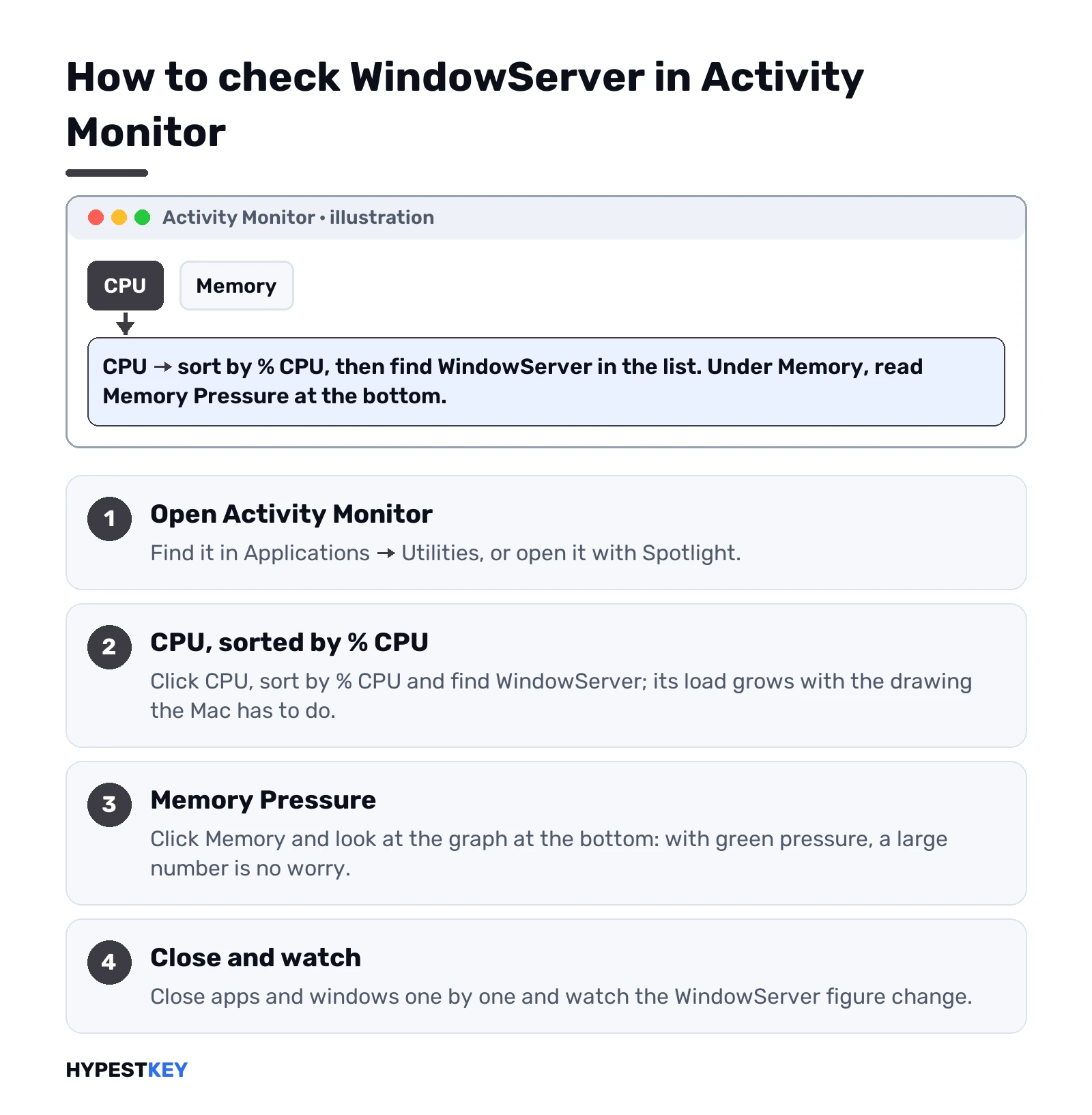
- Open Activity Monitor from Applications, Utilities, or with Spotlight.
- Click CPU and sort by % CPU. Find WindowServer in the list.
- Click Memory and look at Memory Pressure at the bottom of the window.
- Close apps and windows one by one and watch the WindowServer figure change.
Apple’s Activity Monitor guide explains Memory Pressure as a graph of how efficiently memory serves your needs. With green pressure we don’t worry about WindowServer’s memory use, however large the number looks.
In Terminal, the same figure is one line away:
top -o cpu -l 1 | head -20WindowServer shows up near the top when it’s busy.
Settings that lower the Mac window server load
Apple’s accessibility settings remove the effects WindowServer spends the most time on. Open Apple menu, System Settings, Accessibility.
| Setting | Where | What Apple says it does |
|---|---|---|
| Reduce transparency | Accessibility, Display | Replaces the transparent effect on some backgrounds with a solid one |
| Reduce motion | Accessibility, Motion | Reduces movement when you open apps, switch desktops or open Notification Center |
| Auto-play animated images | Accessibility, Motion | Turned off, pauses rapid animated images such as GIFs in Messages and Safari |
Apple describes them as accessibility options, not performance tweaks. Whether they help on your Mac is easy to test: switch them on and watch WindowServer in Activity Monitor for a minute.
Other things that help
- Close what you don’t use. Minimised windows and background tabs with video still cost something.
- Tidy the desktop. Move files into folders, or turn on Stacks from the desktop’s View menu.
- Check external displays. A default resolution instead of a scaled one, and matching refresh rates, reduce scaling work.
- Stop screen capture you don’t need. System Settings, Privacy & Security lists apps allowed to record the screen.
- Update macOS and your apps. Display and graphics fixes arrive through updates.
- Restart. It starts WindowServer fresh, with nothing held over from a long session.
If one app makes WindowServer jump the moment it opens, the problem is that app. We’d update it, or quit it from Activity Monitor and report it to its developer.
Desktop & Dock settings that change what WindowServer draws
Apple menu, System Settings, Desktop & Dock. Three options there decide how much sits on screen and how much moves. The descriptions are from Apple’s Desktop & Dock settings guide.
| Setting | What Apple says it does | Why it matters here |
|---|---|---|
| Show Items, On Desktop | Chooses whether to show desktop items | Turned off, files and folders on the desktop aren’t drawn |
| Minimized windows animation | Chooses the visual effect used when you minimize a window | A simpler effect means less movement to compose |
| Displays have separate Spaces | Sets up separate spaces for each display | Guides on WindowServer load suggest testing it off on multi-display setups |
Apple doesn’t link any of these to CPU use. We’d change one at a time and compare the WindowServer figure before and after.
External displays and WindowServer
Displays are usually the biggest single factor here. Every connected screen gets its own composed picture, and scaled modes add a resize step on top.
| Setup | Load on WindowServer | What we’d try |
|---|---|---|
| Built-in display only | Lowest | Nothing to change |
| One external display at its default resolution | Moderate | Nothing to change |
| One external display in a scaled mode | Higher | Try the default resolution in System Settings, Displays |
| Two or more external displays | Highest | Close windows on the screens you’re not using; keep refresh rates matched |
| Display connected through an adapter or dock that drops out | Spikes on each reconnect | Try another cable or port |
A quick test settles it. Unplug the external displays for a few minutes and watch WindowServer in Activity Monitor; if the figure drops sharply, the displays were the cause.
When the Mac window server crashes
A WindowServer crash looks dramatic: the screen goes black or flashes, then the login window appears and open apps are gone. macOS restarts the process by itself.
- Open the Console app and look under Reports in the sidebar. Crash reports for WindowServer carry its name and the time.
- Note what was happening: plugging in a display, waking from sleep, starting a screen share.
- Install macOS updates; display-related crashes are often fixed there.
- Test without accessories: displays, docks, capture devices.
Repeated crashes on a fully updated Mac with nothing attached are a case for Apple Support. We’d bring the crash reports along; Console can share them.
A troubleshooting order that works
- Watch WindowServer in Activity Monitor for a minute with the Mac idle.
- Quit apps one by one and see which one moves the figure.
- Unplug external displays to test their effect.
- Turn on Reduce transparency and Reduce motion.
- Check screen recording permissions and stop unneeded capture apps.
- Install updates for macOS and the apps you use.
- Restart, then check again.
If the figure drops at step two or three, you’ve found the cause. The later steps are fine-tuning.
Why you shouldn’t force quit it
Activity Monitor lets you select WindowServer and quit it. Apple’s guide warns that Force Quit ends a process immediately and may lose data in open files. It can also cause problems for processes that depend on it.
Almost everything on screen depends on WindowServer. Quitting it ends the graphical session: the screen goes to the login window and unsaved work in open apps is lost. It doesn’t fix anything that a normal restart wouldn’t.
| Instead of force quitting | Do this |
|---|---|
| To free CPU | Quit the app that drives the load |
| To reset the display system | Save your work and restart the Mac |
| To fix a frozen screen | Wait a minute, then hold the power button only as a last resort |
Mac window server memory use on Apple silicon
On Macs with Apple silicon, the processor and graphics share one pool of memory. So we’d expect window images, which a separate graphics card would keep in its own memory, to count against system memory instead.
That’s why WindowServer can show several gigabytes in Activity Monitor on a Mac with large or multiple displays. We read Memory Pressure rather than the raw number: green means the Mac has room, yellow or red means it’s short.
Microsoft’s Windows Server: the other meaning
Some people searching for “mac window server” mean Microsoft’s Windows Server, used from a Mac. That’s a different topic.
| Goal | How |
|---|---|
| Connect from a Mac to a Windows Server | Microsoft’s Windows App, which replaced the Remote Desktop client on macOS |
| Run Windows on an Apple silicon Mac | Microsoft supports Parallels Desktop for running Arm versions of Windows 11 Pro and Enterprise, or a Windows 365 Cloud PC |
| Manage a Windows Server from a Mac | Remote Desktop, or Windows Admin Center in a browser |
The connection steps are in accessing Windows Server from a Mac, and Remote Desktop on the server side in enabling RDP on Windows Server. We cover running Windows itself on a Mac in installing Windows 11 on a Mac and free Windows emulators for Mac.
Related guides
- Running macOS on a PC, and why Apple’s license says no: Mac emulator for Windows.
- Office on a Mac: Office 2024 for Mac.
- Does a new Mac include Office? MacBook Air and Microsoft Office.
- Word on a Mac: deleting pages in Word on a Mac.
- Windows in a window beside macOS: a Windows virtual machine on Mac.
- The server OS with almost the same name: Windows Server editions explained.
- Office for your Mac: our Office Home and Business 2024 key works on a PC or a Mac and arrives instant to email.
Terms used on this page
| Term | Meaning |
|---|---|
| WindowServer | The macOS process that manages and composes windows |
| Compositing | Combining every window into one final picture per display |
| Memory Pressure | Activity Monitor’s graph of how well memory meets demand |
| Scaled resolution | A display mode that renders at one size and scales to the panel |
| Windows Server | Microsoft’s server operating system, unrelated to WindowServer |
FAQ
What is WindowServer on a Mac?
A core macOS process that manages and draws every window on screen, along with the Dock, menu bar and effects. Apple's developer documentation calls it the macOS window server.
Is WindowServer a virus?
No. It's part of macOS and runs on every Mac. We'd only worry if Activity Monitor showed two processes with that name or one that didn't belong to the system.
Why is WindowServer using so much CPU?
Usually many open windows, several or large displays, scaled resolutions, transparency and motion effects, or screen recording. The load follows what has to be drawn.
Can I quit WindowServer?
You can, but it ends your graphical session and returns to the login window, and unsaved work is lost. We'd quit the app causing the load or restart instead.
How do I reduce WindowServer CPU usage?
Close windows you don't need and turn on Reduce transparency and Reduce motion in Accessibility settings. We'd also use default resolutions on external displays and stop unneeded screen recording.
Why does WindowServer use so much memory?
On Apple silicon, window images live in shared system memory, so large or multiple displays raise the figure. We check Memory Pressure in Activity Monitor rather than the raw number.
Can Desktop & Dock settings lower WindowServer load?
They can, because they change what's drawn. Hide desktop items with Show Items and pick a simpler minimize effect, then compare in Activity Monitor.
Is WindowServer the same as Windows Server?
No. WindowServer belongs to macOS. Windows Server is Microsoft's server operating system, which you reach from a Mac with Microsoft's Windows App.