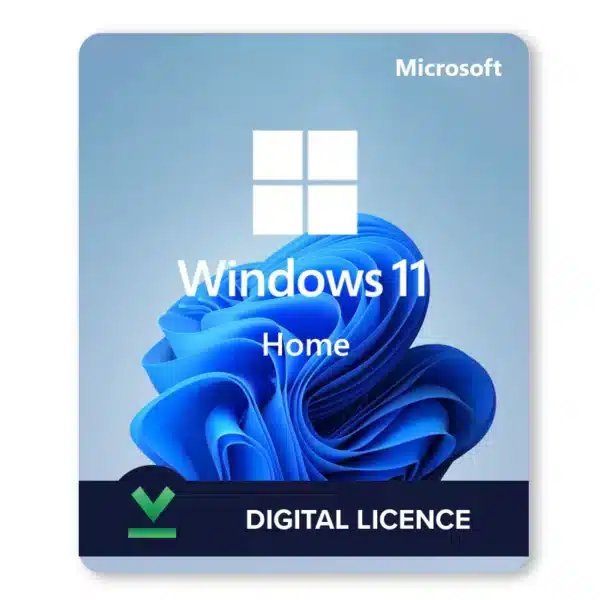



Pay, get the key by email, type it into Settings. A couple of minutes later Windows is activated. That’s the whole process with a Windows 11 Home key from us. It’s a genuine retail license for one PC, the standard consumer edition. Browsing, streaming, gaming, school work, Office. No subscription, no expiry date, and no account to create on our site.
The order email carries the key together with short activation steps for this product.
| Detail | This key |
|---|---|
| Edition | Windows 11 Home |
| License type | Genuine retail license |
| Devices | 1 PC |
| License duration | Lifetime license, no expiration |
| Compatibility | 64-bit systems only (Windows 11 has no 32-bit version) |
| Languages | All languages |
| Updates | Official online updates included |
| Download | Direct from Microsoft |
| Delivery | Instant to email |
What the key does
25 characters. They license this edition on one computer. Microsoft’s activation servers check the key and record a digital license for that PC. Later reinstalls on the same machine then activate on their own.
The yearly feature updates are covered. 25H2 and 26H2, the current ones, install with the same license.
Who buys it? People who built a new PC. People who replaced a drive. People with a laptop that came without a working license. And anyone staring at the “Activate Windows” watermark after a reinstall. We see that last group every single day.
What’s new compared with Windows 10
The look, first. A centered Start menu, rounded windows, and Snap Layouts for putting apps side by side. A Widgets panel and a redesigned Microsoft Store came along too. Most Windows 10 programs run unchanged.
The Start button moved to the middle of the taskbar. Don’t like it? Settings moves it back to the left.
Snap Layouts appear when you hover over the maximize button. Handy when you’re juggling a browser, a document and a chat window at once. It’s more useful than it looks.
Gamers get the most out of this version. The features come from Xbox Series X:
- DirectX 12 Ultimate.
- Auto HDR. It brightens older DirectX 11 and 12 games on an HDR screen.
- DirectStorage. Shorter loading times in games built for it, provided you have an NVMe SSD.
A first evening with it
Setup wants Wi-Fi and a Microsoft account, then drops you on a tidy desktop. Install your browser. Sign in to the Store. Pin the three apps you actually use.
The first thing people tell us they notice is the quiet. Fewer pop-ups than the old system had, and a Settings app where things are finally in one place.
Windows 11 Home system requirements
More than Windows 10 did. TPM 2.0, Secure Boot and a CPU on Microsoft’s list. Setup also wants an internet connection and a Microsoft account. We’d run the PC Health Check app before buying anything.
| Component | Minimum for Windows 11 Home |
|---|---|
| Processor | 1 GHz or faster, 2+ cores, compatible 64-bit CPU or SoC |
| RAM | 4 GB (8 GB feels much better) |
| Storage | 64 GB or larger |
| System firmware | UEFI with Secure Boot capability |
| TPM | Trusted Platform Module 2.0 |
| Graphics | DirectX 12 or later with a WDDM 2.0 driver |
| Display | 720p, larger than 9 inches diagonally, 8 bits per color channel |
| Internet and account | Internet and a Microsoft account required during setup |
Source: Microsoft, Windows 11 specifications.
TPM 2.0 is what catches most people out. Checking takes ten seconds. Press Win + R, type tpm.msc, press Enter. “Specification Version: 2.0” and you’re fine.
The console says no TPM was found? Look in the BIOS. On Intel boards the setting is called PTT. On AMD boards, fTPM. Switch it on.
One hard limit. There’s no 32-bit Windows 11, so a 32-bit-only machine can’t run it. The full detail is in our Windows 11 requirements guide.
Before you order
- PC Health Check, green.
- The edition, if Windows is already installed. It has to be Home. A Home key won’t activate Pro.
- A Microsoft account for setup.
- A USB stick of 8 GB, if you’re installing from scratch.
Where to buy Windows 11 Home
Microsoft, a shop, or a PC that already has it. Those are the routes on Microsoft’s activation page, and each one hands over the license differently.
| Where you buy Windows 11 Home | What you get | Where the key sits afterwards |
|---|---|---|
| Microsoft Store app, from Settings | A digital license, nothing to type | Linked to the PC and your Microsoft account |
| Microsoft Store online | A product key | The confirmation email with the order history |
| A boxed or digital copy from a shop or reseller | A product key | A label in the box, the confirmation email or the store’s digital locker |
| A new or refurbished PC with Windows 11 | A key that belongs to the device | Preinstalled, on the packaging, on a card or on the COA sticker |
Built the PC yourself? Then you’re the one who buys the license. Microsoft says as much on its Get Windows 11 page, custom builds included. Setup also wants a Microsoft account for Home.
Still on 10 Home, and the hardware passes? Hold off. That upgrade is free and keeps the Home edition, no key needed.
A refurbished laptop with no key in sight is the odd case. The refurbisher has to provide it, not Microsoft. We’d ask for it before the first boot.
Wherever the key comes from, it’s typed under Settings, System, Activation. Ours is a genuine retail Windows 11 Home license for one 64-bit PC, instant to email. Need the business tools instead? The Windows 11 Pro key is one click away.
Buying and downloading
Card, Apple Pay or Google Pay. The key is emailed the moment the payment goes through. A link to Microsoft’s official Windows 11 download page comes in the same message, with activation instructions.
- Add the product to your cart and pay.
- The key arrives by email right away. It’s also shown on screen.
- Open the Microsoft download link from the email.
- Upgrading? Use the Installation Assistant. Fresh install? Build a bootable USB with the Windows 11 Media Creation Tool.
Not in your inbox? Spam folder first. Then write to support@hypestkey.com or the live chat and we’ll resend it.
How to activate Windows 11 Home
Three ways. Settings is the easy one and works for nearly everybody. The other two are for the day Settings refuses.
Settings, the easy way
- Windows + I, to open Settings.
- System > Activation.
- Next to Change product key, click Change.
- Type the key. Next, then Activate.
- Wait for “Windows is activated”. Less than a minute, usually.
Command line
Right-click Start and choose the Terminal entry marked Admin. Then, with your real key in the first line:
slmgr /ipk XXXXX-XXXXX-XXXXX-XXXXX-XXXXX
slmgr /ato
slmgr /xpr
The second line activates online. The third confirms the machine is permanently activated.
By phone, when online activation fails
- Press Win + R and run this:
slui 4 - Select your country or region.
- Call the number shown and read out the installation ID. Windows sometimes offers a link for online phone activation. Follow it if it does.
- Type the confirmation ID you receive. Activate Windows.
Most activation errors come from a typo. Or from a key for a different edition. Seeing an error code? Our guide to fixing Windows 11 activation errors lists the common ones.
Snags we see
- Pro installed, Home key in hand. They don’t match. Reinstall Home, or get a Pro key.
- A typo. Paste the key.
- No internet at the moment of activation. Connect, then press Activate again.
- An N edition on the PC. That one needs its own kind of key.
Upgrading to Windows 11
Depends on where you start. From Windows 10 on compatible hardware it’s an in-place upgrade, and files and apps stay. From anything older, we’d do a clean install.
From Windows 10, the smooth path
- Back up your files first. Seriously, don’t skip this.
- Download the Windows 11 Installation Assistant from Microsoft.
- Run it and follow the prompts. Files and apps stay in place.
- If Windows asks for a key afterwards, type it under Settings > System > Activation.
From Windows 7 or 8.1, a clean install
- Back up everything you want to keep.
- Create a bootable USB stick with the Media Creation Tool. 8 GB or larger.
- Restart the PC and boot from the stick.
- Custom: Install Windows only. Select the target drive.
- Type your key when setup asks. Or choose “I don’t have a product key” and activate later in Settings.
A warning about that second path. Hardware from the Windows 7 era generally fails the TPM 2.0 and CPU requirements. So run PC Health Check before anything else.
Windows 11 Home vs Pro
Home covers everything a personal PC does. Apps, games, browsing, Office, the Microsoft Store. Pro adds business tools on top. None of them matter to you? Then Home is the economical choice.
| Feature | Windows 11 Home | Windows 11 Pro |
|---|---|---|
| Games, Office, browsing, Store apps | Yes | Yes |
| BitLocker drive encryption | No (device encryption on some PCs) | Yes |
| Remote Desktop host | No (client only) | Yes |
| Hyper-V and Windows Sandbox | No | Yes |
| Group Policy, domain join | No | Yes |
Need any of the Pro features? Go for a Windows 11 Pro key instead. You can also move from Home to Pro later with a Pro key, without reinstalling.
Other editions, the N versions included, are in the Windows 11 category.
How the Windows 11 Home license works
One payment. No subscription and no expiration date. It’s retail, so it can move to a new PC later. Deactivate or wipe Windows on the old machine, then type the same key on the new one. One PC at a time.
Delivery and help
The key is emailed instantly after payment. No account needed. Something goes wrong during installation or activation? Write to support@hypestkey.com or use the live chat. Order number and a screenshot, please. Something went wrong? We’ll help you fix it or send a replacement key.
We’re a trusted reseller with genuine keys and have been selling Microsoft licenses since 2020, with 30,000+ delivered. Working from home, gaming or just browsing, you’ll be on an activated system before your coffee gets cold.
Delivery and help
Visa, Mastercard and other cards, Apple Pay, Google Pay, processed by Stripe. Guest checkout, prices in USD.
Instant to email: the key is sent automatically as soon as your payment is confirmed.
Check your spam folder first. Still no email? Write to support@hypestkey.com with your order number and we will resend it.
Windows 11 Home key: FAQ
How do I activate with this key?
In Settings. Open Settings > System > Activation and click Change next to Change product key. Type the 25-character key, select Next. "Windows is activated" shows up in about a minute.
Is it a lifetime license?
Yes. One payment, no subscription, no expiration date.
Can I move it to a new PC?
Yes. It's a retail license. Deactivate or wipe Windows on the old PC, then type the same key on the new one. One PC at a time.
Will this key activate Pro?
No. A Home key activates only the Home edition. If Pro is installed, either reinstall Home or get a Pro key.
Can I upgrade from Windows 10 without losing files?
Yes, if the PC meets the Windows 11 requirements. Run the Windows 11 Installation Assistant from Microsoft. It keeps files and apps. We'd back up anyway before starting.
How fast will I get the key?
Instantly. It's emailed after payment and shown on screen after checkout. Not in your inbox? Check spam, then write to us.
My key doesn't activate. What now?
We'll help you fix it. Email support@hypestkey.com or use the live chat. Send your order number and a screenshot of the error. We get activation working or send a replacement.
Is a Windows 11 Home activation key the same as a product key?
Yes. Activation key, product key and license key all mean the same 25-character code. You enter the Windows 11 Home product key under Settings, System, Activation, and Windows checks it with Microsoft.