Short answer: The C++ build tools version that Visual Studio 2026 uses by default is MSVC Build Tools 14.51, with 14.52 as the preview and 14.50 still available. Check yours with cl in a Developer Command Prompt, or open Microsoft.VCToolsVersion.default.txt. We'd confirm in the Visual Studio Installer under Individual components.
The current C++ build tools version from Microsoft is MSVC Build Tools 14.51, the default toolset in Visual Studio 2026 since version 18.6, with 14.52 in preview and 14.50 still installable. To check yours, open a Developer Command Prompt and run cl, or read the Microsoft.VCToolsVersion.default.txt file.
| MSVC Build Tools | _MSC_VER | Status in the Visual Studio Installer | Shipped with |
|---|---|---|---|
| 14.52 | 1952 | Preview toolset | Visual Studio 2026, preview option |
| 14.51 | 1951 | Default toolset | Visual Studio 2026 version 18.6 |
| 14.50 | 1950 | Long-term release, Individual components | Visual Studio 2026 version 18.0 |
| 14.44 | 1944 | Last Visual Studio 2022 toolset | Visual Studio 2022 version 17.14 |
Current C++ build tools version in Visual Studio 2026
Short answer: 14.51 is what new C++ projects get by default. Platform toolset stays v145 for MSBuild projects in Visual Studio 2026.
What changed is the rhythm. Since Visual Studio 2026 the MSVC version no longer follows the Visual Studio version, so the compiler’s minor number can stay the same across several IDE updates. The installer then offers three kinds of toolset side by side:
- A preview toolset, refreshed with each update. Right now that’s 14.52.
- The default toolset. 14.51.
- Older toolsets that still get fixes, such as 14.50.
We’d treat the first table as a snapshot. Microsoft moves the default forward, and an upgrade can replace 14.50 with 14.51 on your machine. The MSVC compiler versioning page is where the current list lives.
New in 14.51? More C++23 and C++20 features. The flat_map and flat_set headers. A reworked regex, plus NEON-vectorized STL algorithms on ARM64. Binary compatibility with code from Visual Studio 2015 onwards stays.
C++ build tools version table: Visual Studio 2015 to 2026
Old projects name a platform toolset, new ones a Build Tools number. This table maps them:
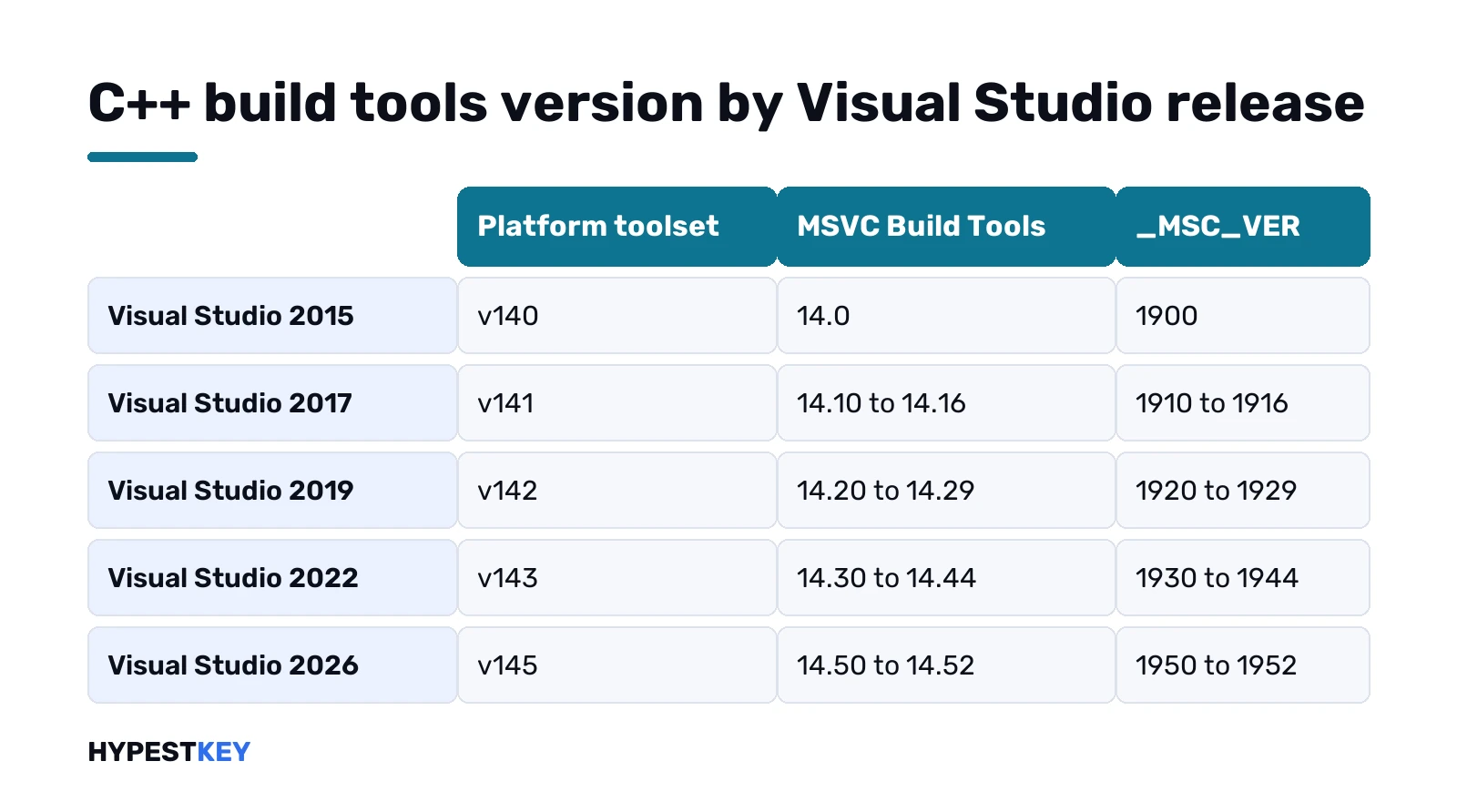
| Visual Studio | Platform toolset | MSVC Build Tools | _MSC_VER |
|---|---|---|---|
| Visual Studio 2015 | v140 | 14.0 | 1900 |
| Visual Studio 2017 (15.0 to 15.9) | v141 | 14.10 to 14.16 | 1910 to 1916 |
| Visual Studio 2019 (16.0 to 16.11) | v142 | 14.20 to 14.29 | 1920 to 1929 |
| Visual Studio 2022 (17.0 to 17.14) | v143 | 14.30 to 14.44 | 1930 to 1944 |
| Visual Studio 2026 (18.0 onwards) | v145 | 14.50, 14.51, 14.52 | 1950, 1951, 1952 |
One quirk in the 2019 line. Versions 16.8 and 16.9 share one _MSC_VER value. So do 16.10 and 16.11. Only _MSC_FULL_VER tells them apart.
Anything older? Visual Studio 2013 is 1800 and 12.0, and the jump to 1900 marked the start of the binary-compatible era.
Toolset, Build Tools and compiler: three different numbers
Easy to mix up. One install, three version numbers:
- Platform toolset, like v143 or v145. What a .vcxproj file stores.
- MSVC Build Tools version, like 14.51. The folder name under VC\Tools\MSVC and what the installer shows.
- Compiler version, like 19.51. What cl.exe prints in its banner.
The compiler number has four fields: major, minor, build, revision. Microsoft’s example is Visual Studio 2022 version 17.9, compiler 19.39.33519. In code that becomes:
_MSC_VER      = 1939
_MSC_FULL_VER = 193933519
_MSC_BUILD    = 0
So 1951 in _MSC_VER lines up with Build Tools 14.51 and compiler 19.51. Want to branch on a servicing release in code? We’d test _MSC_FULL_VER, not _MSC_VER.
How to check your C++ build tools version
Pick whichever fits where you are.
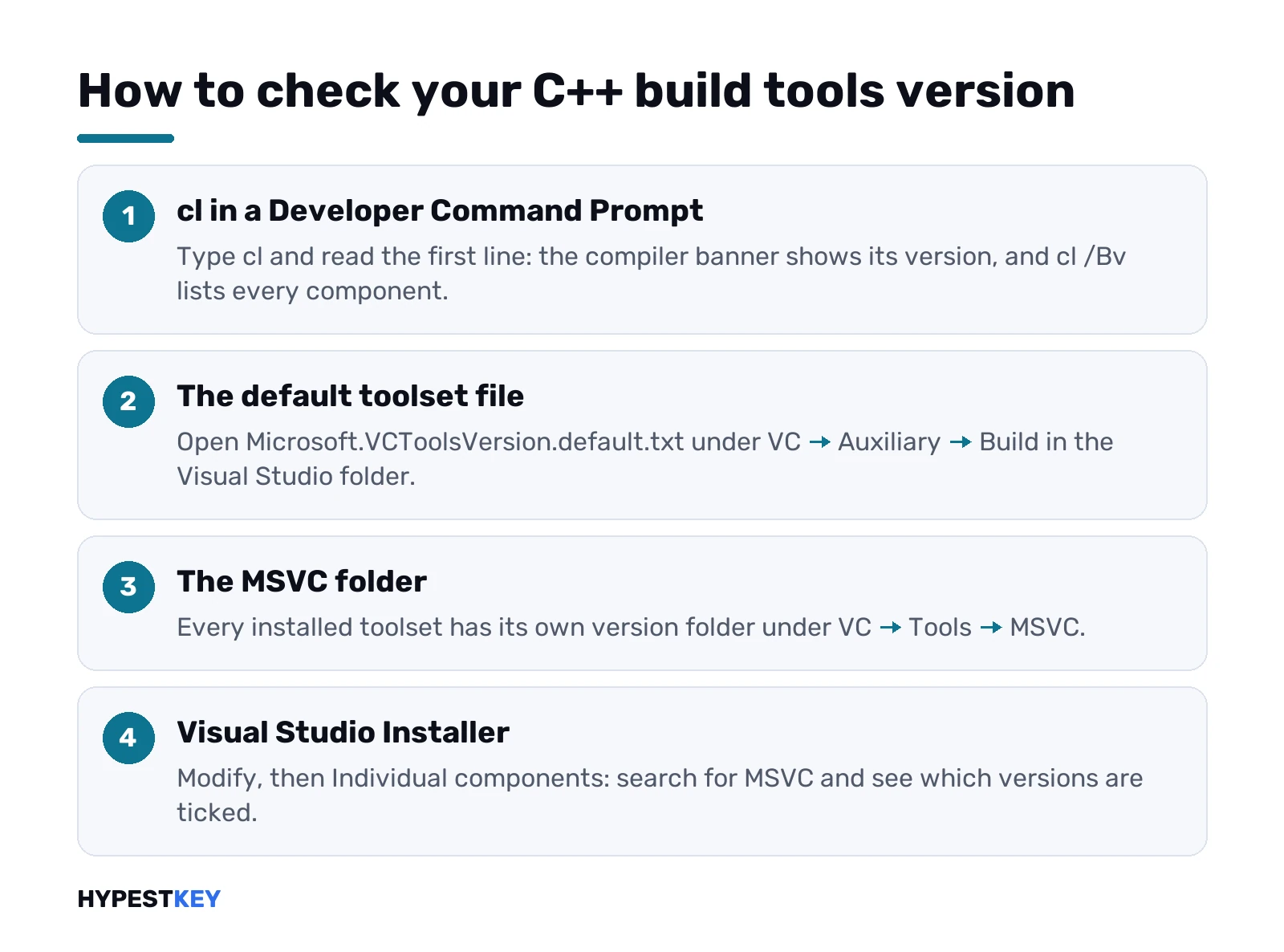
From a Developer Command Prompt. A plain Command Prompt won’t find the compiler, so use the Start menu shortcut for your Visual Studio. Then:
clThe first line of output is the compiler banner with its version. Need every component’s version, linker included? This one lists them:
cl /BvFrom the file system. The default toolset is written in a small text file:
<vs-install-dir>\VC\Auxiliary\Build\Microsoft.VCToolsVersion.default.txtNext to it, Microsoft.VCToolsVersion.Preview.txt names the preview toolset. Every installed toolset also has its own folder here:
<vs-install-dir>\VC\Tools\MSVC\From the installer. Visual Studio Installer, Modify, Individual components, search for MSVC. Ticked entries such as MSVC Build Tools v14.50 for x64/x86 are installed.
Several Visual Studio installs on one box? vswhere ships with the installer and lists every instance it finds:
"C:\Program Files (x86)\Microsoft Visual Studio\Installer\vswhere.exe" -prerelease -format jsonInstall an older or preview MSVC toolset
Side-by-side installs are normal. In the Visual Studio Installer:
- Workloads tab, Desktop development with C++. That gives the default toolset.
- Installation details panel: the Preview entry of MSVC Build Tools for x64/x86.
- Individual components tab, search MSVC, tick the older version you need.
Only want the compiler without the IDE? Build Tools for Visual Studio 2026 is the separate download on visualstudio.microsoft.com/downloads. For scripted installs we’d use winget:
winget install -e --id Microsoft.VisualStudio.BuildTools
winget search Microsoft.VisualStudio.BuildTools --versions
Pinning an exact toolset in a .vsconfig file works by component ID. For 14.50 on x64/x86 that ID is:
Microsoft.VisualStudio.Component.VC.14.50.18.0.x86.x64Entries marked as no longer serviced still show up for old projects. They get no fixes, and we’d move off them.
Pick the toolset for a build
Installed is one thing, used is another. Per build system:
- Visual Studio project: Configuration Properties, General, MSVC Build Tools Version. Or set Use MSVC Build Tools Preview to Yes.
- MSBuild on the command line: pass VCToolsVersion with the full folder name.
- CMake: the toolset argument with a version substring.
- vcpkg: the VCPKG_PLATFORM_TOOLSET_VERSION triplet variable.
- Any other build system: start the prompt through vcvars64.bat with a version prefix.
The matching commands:
msbuild app.vcxproj /p:Platform=x64 /p:Configuration=Release /p:VCToolsVersion=14.50.35717
cmake -G "Visual Studio 18 2026" -T "version=14.50" ..
set(VCPKG_PLATFORM_TOOLSET_VERSION "14.50")
<vs-install-dir>\VC\Auxiliary\Build\vcvars64.bat -vcvars_ver=14.50
Toolset installed in another Visual Studio on the same PC? From version 18.8, EnableVCToolsVersionDiscovery in a Directory.Build.props file lets MSBuild find it there.
Stable, Insiders and how often the version changes
Two Visual Studio channels, same toolsets, different speed.
- Stable channel: monthly updates, carries the latest released toolset as the default.
- Insiders channel: preview toolsets refresh roughly every week.
- Release candidates: they land on Insiders about a month before Stable.
Each update touches every toolset you have. The preview gets new features. The default and older ones get targeted bug fixes only, so a 14.50 build stays a 14.50 build. That’s why we’d pin the full folder version in CI, like 14.50.35717, and let developer machines float on the default.
Build Tools, Redistributable and Windows SDK are separate
Three downloads that sound alike:
- MSVC Build Tools: compiler, linker, libraries. On the machine that builds.
- Visual C++ Redistributable: the runtime DLLs. On the machine that runs the app.
- Windows SDK: headers and libraries for Windows APIs, its own component in the installer.
A fuller .vsconfig from Microsoft pulls them together, the SDK as Microsoft.VisualStudio.Component.Windows11SDK.26100 next to the MSVC components. The end user never needs the Build Tools, just the Redistributable.
Mixing binaries from different versions
Good news first. Everything built with Visual Studio 2015 or later is binary-compatible, which is why the major number stayed at 14. A library from v140 links into a v145 app without a rebuild.
Three rules still apply:
- The linker has to be at least as new as the newest toolset that built any input.
- Code compiled with /GL or linked with /LTCG needs exactly the same toolset everywhere.
- The Visual C++ Redistributable on the target PC must be as new as the newest toolset used.
Only one Redistributable of this family sits on a machine, and a newer one replaces the older. Installing an older one over it fails with 0x80070666, by design.
Build Tools download and license
Free to download, not free of terms. The Build Tools download page puts it plainly: using them needs a valid Visual Studio license, unless you only build open-source dependencies for your project.
Stuck on an older line for a customer? Visual Studio 2022 keeps its long-term servicing baselines on the same downloads page. We stock both lines.
- Visual Studio 2022 Professional key, the 2022 IDE for one developer.
- Visual Studio 2022 Enterprise key, same line with the bigger tool set.
- Visual Studio 2026 Enterprise key, for the current release.
A build box runs Windows, so the OS matters too. A desktop build machine is fine on Windows 11 Pro; a shared build server is a job for Windows Server 2025 Standard. We compare editions in Windows 11 Pro for Workstations vs Pro and Windows vs Windows Server, and list the Windows 11 requirements. Mac users can build in a Windows virtual machine on a Mac. License types are explained in retail vs OEM vs volume.
Need the IDE and the license in one go? Our Visual Studio 2026 Professional key is perpetual, emailed instantly.
FAQ
how do i check my msvc version
Open a Developer Command Prompt and type cl. The first line shows the compiler version, and cl /Bv lists every component.
What toolset does Visual Studio 2022 use?
Platform toolset v143, with MSVC Build Tools from 14.30 up to 14.44 in version 17.14.
Is 14.51 the same as compiler 19.51?
Yes. Build Tools 14.51 ships compiler 19.51, and _MSC_VER reads 1951 in your code.
Can I keep 14.50 after an upgrade?
Yes. Add it back from the Individual components tab in the Visual Studio Installer and select it per project.
Do Build Tools need a license?
Yes, a valid Visual Studio license, unless you only build open-source dependencies for your project.
Will a library built with VS 2019 link into a VS 2026 project?
Yes. Toolsets from 2015 onwards are binary-compatible, as long as the linker is the newer one and no /GL code is mixed.