
 Microsoft Windows
 Microsoft Office
 Office for Mac
 Windows Server
What Is Windows 11 Quick Access in File Explorer?
Hit Win + E and there it is. Windows 11 Quick Access, right in the left panel of File Explorer. Desktop, Documents, Downloads, Pictures, whatever folders Windows thinks you need. You can pin your own stuff there too, and Windows auto-adds folders you open frequently (whether you want it to or not).
Microsoft mangled the naming in 22H2 (build 22593 and up). The old “Quick Access” that was the whole File Explorer landing page got renamed to “Home.” Then they took the name Quick Access and put it on just the pinned folders section inside Home. Pinned files turned into “Favorites” because of some branding alignment with Office and OneDrive. Basically they renamed three things at once and everybody got lost.
If you are here, you probably want to either pin folders, get rid of the auto-added junk, or turn off Quick Access completely. All covered below. Registry hacks too, for when the normal settings are not enough.
Quick Reference Table: All Quick Access Actions
| Action | How to Do It | Difficulty |
|---|---|---|
| Pin a folder | Right-click folder > Pin to Quick Access | Easy |
| Unpin a folder | Right-click pinned folder > Unpin from Quick Access | Easy |
| Hide recent files | Folder Options > Privacy > Uncheck recent files | Easy |
| Hide frequent folders | Folder Options > Privacy > Uncheck frequent folders | Easy |
| Clear Quick Access history | Folder Options > Privacy > Clear button | Easy |
| Open to This PC instead | Folder Options > Open File Explorer to > This PC | Easy |
| Reset to defaults | Delete f01b4d95cf55d32a.automaticDestinations-ms | Medium |
| Remove from nav pane | Registry: HubMode DWORD = 1 | Advanced |
| Completely remove Quick Access | Registry: ShellFolder Attributes = a0600000 | Advanced |
How to Pin and Unpin Folders in Windows 11 Quick Access
This is what Quick Access is actually for. Take a folder like D:\Work\Clients\2026\ProjectX\Deliverables, which normally means five clicks just to reach it. After pinning, it shows up right at the top of Explorer and stays there.
If you’d rather watch than read, here’s a quick walkthrough of the pin and unpin process in the new File Explorer UI:
Pin a Folder to Quick Access
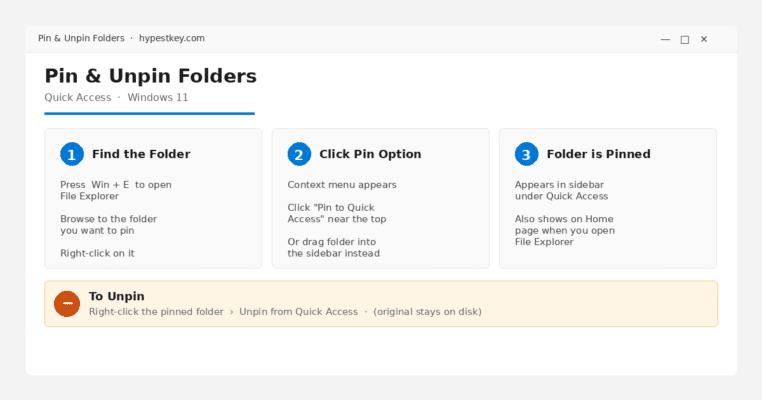
Hit Win + E for Explorer. Find your folder in the tree, right-click on it. “Pin to Quick Access” sits near the top of that context menu. Click it. The pin shows up in the left sidebar under Quick Access, also on the Home page.
You can skip the menu entirely by dragging. Grab the folder, drop it onto the Quick Access section in the sidebar. Same outcome.
One quirk: pinning only works on folders, not files. I learned this the hard way after trying to pin a Word doc three different ways and wondering why no option appeared. Files have their own thing called “Add to Favorites” which lives under a different right-click menu. Separate feature, separate mechanism.
Unpin a Folder from Quick Access
Same idea in reverse. Right-click any pinned folder in the Quick Access list, pick “Unpin from Quick Access.” Gone from the sidebar. The actual folder on disk stays put, only the shortcut is removed.
Worth knowing though: an unpinned folder can resurface a day or two later. First time it happened to me I assumed unpin was broken. It isn’t. Windows has a separate tracking system for “frequent folders” that re-adds anything you keep opening, and those auto-adds look identical to manual pins in the sidebar. To stop a folder from coming back, you need to disable that tracking in Folder Options, which I cover a few sections down.
Rearrange Pinned Folders
Drag pinned folders up or down within Quick Access to reorder them. The order sticks across reboots and across File Explorer sessions. If you try to drag and nothing happens, check whether “Show all folders” is enabled in the nav pane options, that setting breaks drag reordering for some reason. Turn it off, do your rearranging, turn it back on afterwards if you had a reason to enable it originally.
How to Change Windows 11 Quick Access Settings in Folder Options
Everything Quick Access does is controlled from one spot, but Microsoft hid it behind a weird menu in the new Explorer UI.
Opening Folder Options
Bit unintuitive in the new UI. Open Explorer with Win + E, look at the toolbar along the top. You’ll see three dots (…) over on the right, easy to miss if you’re not looking. Click them, find Options near the bottom of the dropdown. That opens Folder Options on the General tab, which is where every Quick Access toggle sits.
Change What File Explorer Opens To
Very top of the General tab, there’s a dropdown labeled “Open File Explorer to:”. Two options, Home or This PC. Home is default and what most people have. This PC gives you the Windows 10 style drives view.
Which works better really depends on your usage. On my desktop, I bounce between three drives constantly, system drive, a storage drive, and a NAS share. Opening straight to This PC saves me a click every single time. My laptop’s different because 95% of what I touch lives in Documents and Downloads, and Home puts those right in front of me. Quick Access remains in the sidebar regardless of which you pick, you just don’t land there by default.
Control Recent Files and Frequent Folders
Keep scrolling down the General tab and you’ll hit the Privacy section. Four checkboxes control what shows up in Quick Access: “Show recently used files in Quick access” (the label sometimes says “in Home” on newer builds, same thing), “Show frequently used folders in Quick access,” “Show files from Office.com” which only applies when you’re signed in with a Microsoft account, and the newest addition, “Show recommended section,” which appeared in later 22H2 updates.
Uncheck all four and Quick Access becomes strictly what you manually pinned. No more random folders from last week’s cleanup session popping in, no Office docs from a colleague’s shared OneDrive. My preferred setup is everything off except the first checkbox.
Right next to those checkboxes is a Clear button under “Clear File Explorer history.” This wipes the auto-added entries immediately but leaves your manual pins alone, so it’s safe to click whenever Quick Access gets cluttered.
One thing to watch out for is the “Show recommended section” checkbox I mentioned. It’s new and kind of sneaky about what it does. When enabled, Microsoft pushes OneDrive and Office file suggestions into your Home page, and your actual Quick Access pins get demoted or sometimes disappear from view entirely. I’ve seen dozens of Reddit threads from confused users after updates, their pins looked gone, but all they needed was to uncheck this one box.
How to Disable Windows 11 Quick Access Completely
If Quick Access bothers you more than it helps, there are three ways to get rid of it. Each goes deeper than the last.
Level 1: Switch to This PC (No Registry Needed)
The simplest approach uses only the Folder Options you just saw. Change “Open File Explorer to” from Home to This PC. While you’re there, uncheck all the Privacy checkboxes and click Clear. Apply and close the dialog. From now on, Explorer opens to your drives view, Quick Access technically still lives in the sidebar but you basically never see it.
Level 2: Hide Quick Access from the Navigation Pane (Registry)
When you want Quick Access pulled out of the sidebar completely, a registry edit is the way. Win + R, type regedit, Enter. Find your way through the left tree to HKEY_CURRENT_USER\SOFTWARE\Microsoft\Windows\CurrentVersion\Explorer. Right-click on the empty space in the right pane, choose New > DWORD (32-bit) Value. Call it HubMode, double-click to edit, set the value to 1. Reboot.
Quick Access is no longer in the sidebar after that. Deleting HubMode or setting it to 0 brings things back, followed by another reboot.

Level 3: Remove Quick Access Entirely (Advanced Registry)
Harshest option. Pulls Quick Access out of everywhere in the system, including Save As and Open dialogs in every Windows app. Open Registry Editor as administrator, then go to HKEY_CLASSES_ROOT\CLSID\{679f85cb-0220-4080-b29b-5540cc05aab6}\ShellFolder.
The catch is permissions. By default you can’t write to this key. Right-click ShellFolder, Permissions, and try to give your admin account Full Control. Most of the time that dialog won’t accept the change, and that’s where people give up. The workaround is to click Advanced first, change the owner to your account, confirm, then come back to the regular Permissions dialog and grant Full Control. Now you can edit.
With write access sorted, double-click Attributes in the right pane, change a0100000 to a0600000. Reboot.
Back to a0100000 reverses it. Real talk though, leave this one alone unless you’re confident with registry work. The permissions step can brick Explorer behavior in subtle ways, and debugging that isn’t fun. Export the key to a .reg file before editing so you have a rollback.
The LaunchTo Registry Value
One more registry value worth knowing. Same effect as the Folder Options dropdown but scriptable, which matters if you’re rolling out settings across many PCs. Go to HKEY_CURRENT_USER\SOFTWARE\Microsoft\Windows\CurrentVersion\Explorer\Advanced, find the DWORD called LaunchTo. Three valid values: 0 disables the default, 1 opens to This PC, 2 opens to Quick Access / Home. Drop it in a .reg file and push to new machines during provisioning.
How to Reset Windows 11 Quick Access to Default
Quick Access can go sideways in a bunch of ways: pins vanishing without warning, phantom entries for folders you deleted ages ago, drag and drop just ignoring you. Resetting the underlying database almost always fixes it. Four methods below, pick whichever fits your comfort level.
Method 1: Through File Explorer
Easiest if you don’t want to touch a command line. Paste %AppData%\Microsoft\Windows\Recent\AutomaticDestinations into the Explorer address bar and hit Enter. That folder opens up, find the file f01b4d95cf55d32a.automaticDestinations-ms, delete it. Close every Explorer window that’s open, reopen Explorer.
Quick Access resets to its six default entries, the ones that ship with Windows, Desktop, Documents, Downloads, Pictures, Music, and Videos. Everything custom gets wiped in the process. Your manual pins, your frequent folders, gone. So anything you want to keep, re-pin after the reset.
Method 2: Command Prompt
If you prefer the command line, close every Explorer window first, then run this:
del /f /q "%AppData%\Microsoft\Windows\Recent\AutomaticDestinations\f01b4d95cf55d32a.automaticDestinations-ms"
Same outcome as Method 1 in a single line.
Method 3: PowerShell (Wipes Everything)
Use this when Method 1 and 2 do not stick. Open PowerShell as admin:
Remove-Item -Path "$env:APPDATA\Microsoft\Windows\Recent\AutomaticDestinations\*" -Force
Wipes out the whole AutomaticDestinations folder. Takes your Quick Access pins AND taskbar jump lists with it. I had to resort to this once on a machine where the single-file delete was not holding. Turned out the database was regenerating with corrupted entries on every boot, a full wipe broke that cycle.
Want to nuke the taskbar pinned items (like pinned documents in app jump lists) too? Add this:
Remove-Item -Path "$env:APPDATA\Microsoft\Windows\Recent\CustomDestinations\*" -Force
What Is That f01b4d95cf55d32a File?
The nonsense filename is actually a hex hash of Explorer’s application identifier. Windows maintains one of these per app, they back the jump list you see on right-clicking taskbar icons. For Explorer in particular, this binary file stores your pins, the recent folder list, and access counts for the frequent folders algorithm. Nuke the file and Windows builds a clean one on next launch, which is why deleting it resets Quick Access to the six defaults.
Method 4: Folder Options Restore Defaults
The least destructive option. Folder Options (three dots > Options), scroll to the bottom of the General tab, hit “Restore Defaults.” Just resets the Privacy checkboxes and default landing page. Your pins stay exactly where they are. Use this if you only want the checkboxes back to factory settings without losing your pin layout.
Windows 11 Quick Access vs Home vs Favorites: The Naming Confusion
I swear Microsoft hired someone whose only job is renaming things nobody asked them to rename. Quick rundown of the mess:
Windows 10: File Explorer opens, you see Quick Access. Pinned folders, recent files, done. Simple.
Windows 11 before 22H2: Same deal. Quick Access was the landing page, worked like Windows 10.
Windows 11 22H2+: They reshuffled everything. Microsoft confirmed it in their official File Explorer docs:
- The landing page is now called Home
- Quick Access now refers to just the pinned/frequent folders section within Home
- Pinned files became Favorites (to match Office and OneDrive)
- Recent shows your recently opened files
- Shared shows files shared with your Microsoft account (if using Azure AD)
When someone posts “my Quick Access is gone” on Reddit, what they really mean is: the pinned folders section under Home stopped showing. It is still there, just hidden behind a checkbox. Microsoft moved the furniture around.
Fix: Windows 11 Quick Access Missing After Update
This comes up on Microsoft Q&A and r/Windows11 all the time. Windows Update runs, Explorer opens, pinned folders replaced by “Recommended” OneDrive stuff. Panic ensues.
Under a minute to fix. Open Explorer, click the three dots in the toolbar, pick Options. On the General tab, find the Privacy section and uncheck “Show recommended section.” Apply, OK. Your pins should pop back into view straight away in most cases. Sometimes Explorer has to be fully closed and reopened before they show up again. I’ve used this same procedure on every build from 22621 forward, including every 23H2 and 24H2 release I’ve dealt with.
When that one checkbox doesn’t work, go harder. Uncheck every Privacy option, click Clear, Apply, close all Explorer windows, reopen. Go back into Folder Options and turn on only the options you actually want. This forced toggle cycle makes Windows rebuild the Quick Access database from scratch, which clears out whatever the update corrupted.
Quick Access Changes in Windows 11 24H2 (2024 Update)
Microsoft quietly changed some things in the 24H2 release (build 26100+) that affect how Quick Access and File Explorer work. None of this made the official release notes, but if you’re debugging weird behavior on 24H2 it helps to know what shifted.
Biggest change under the hood: File Explorer’s Home page was rewritten to run on WinUI and the Windows App SDK. Used to be pure Win32 shell code. Visually it’s close enough that most people won’t notice, but internally it’s a different rendering pipeline, which is why several registry hacks from 22H2 and 23H2 broke on 24H2. The Windows 10 ribbon restorations in particular stopped working for a lot of users after they updated.
Something else worth mentioning because of constant confusion on forums: Quick Settings (the Win + A panel with volume, Wi-Fi, Bluetooth, etc.) also got redesigned in 24H2. No more pencil icon for adding or removing tiles. You can only reorder them now, and all available tiles show in one scrolling list. This is NOT related to Quick Access. Totally separate feature, shared word in the name is the only connection. I see people mixing them up all the time.
And one more 24H2 thing: the “Recommended” section in Home got pushier for Microsoft Entra ID accounts (what Microsoft calls Azure AD these days). If your corporate laptop starts showing Office file suggestions where your pinned folders used to be, that’s the Entra integration working. Uncheck “Show recommended section” in Folder Options to clear it. But if your IT is pushing that setting through Intune policy, it’ll come back every time policies sync down.
Stop Windows 11 Quick Access from Auto-Pinning Folders
Classic Windows annoyance. Open some folder a couple of times and boom, it’s in Quick Access, with the same look as your manual pins. The mechanism behind this is called “frequent folders,” a background tracker that watches which folders you open and auto-adds the ones you hit often. Auto-adds don’t have the pin icon that manual pins get, but the visual difference is tiny. Easy to miss.
Three clicks to shut it down. Folder Options from the three-dot menu, uncheck “Show frequently used folders in Quick access” under Privacy, click Clear to nuke the existing auto-adds, Apply. From that moment forward, only what you pin yourself shows up. Windows stops its folder-visit tracking for Quick Access purposes.
Stronger option for Pro and Enterprise users is Group Policy. Run gpedit.msc, go to User Configuration > Administrative Templates > Start Menu and Taskbar. Two settings matter here. Enable “Do not keep history of recently opened documents,” and enable “Remove Recent Items menu from Start Menu.” Neither touches Quick Access pinning directly, but both kill the recent-file tracking that the frequent folders system relies on.
I pushed this combo via GPO for a 12-workstation office once, and it cleaned up Quick Access across every machine in one go without touching individual PCs. Good to remember that gpedit.msc doesn’t ship on Windows 11 Home. Home users can only work with the Folder Options checkboxes or the registry.
Windows 11 Quick Access Keyboard Shortcuts
Tough one for keyboard users. Windows 10 used to have a clean shortcut: Alt + F followed by 1, 2, 3, etc, jumped to whichever Quick Access folder was in that position. When File Explorer got rebuilt for Windows 11, those shortcuts got dropped. No replacement, and that’s still the case in 24H2.
You’re left with workarounds. Win + E still opens Explorer to Home, where Quick Access lives. Ctrl + L inside Explorer focuses the address bar so you can type a path if you already know where to go. For folders you access constantly, pin them to the Windows 11 Start menu or taskbar to get one-click access even when Explorer isn’t open. Power users can also wire up AutoHotkey or PowerToys to map custom key combos to specific folder paths. More work to set up, but once it’s running it’s solid.
Real talk, losing those keyboard shortcuts was a genuine regression. If you depend on them, StartAllBack (one-time $5) restores the old Windows 10 ribbon and brings the shortcut system back along with it. Kind of lame that a paid third-party tool is the actual fix, but it does what it says.
Using Windows 11 Quick Access with Network Drives and OneDrive
Works exactly like pinning local folders. Right-click any mapped drive letter or UNC path folder, pin it. SMB shares, NAS devices, WebDAV paths, all work the same way.
The real issue with network pins is when the network location isn’t available. Explorer tries to probe pinned paths on launch, and if yours is offline (VPN disconnected, NAS powered off, whatever the case), Explorer just hangs trying. No intelligent timeout, no background retry. Had a Synology pinned for a while that I only powered on for nightly backups, and every Explorer launch during the day froze for 10-15 seconds on that one pin. Eventually swapped it for a desktop shortcut and Explorer went back to being instant.
OneDrive is a different story since the files sync down to local disk. The OneDrive integration in Windows 11 also pulls recent Office documents into the Home page automatically when you’re signed in with a Microsoft account.
Quick Access Tips from Real Usage
Couple of things picked up from years of using this on various machines:
Build yourself a hub folder. Pinning fifteen separate project folders makes the sidebar useless. Better play: create one folder somewhere (mine is called “Quick Links”), fill it with .lnk shortcut files pointing to wherever your real folders live, then pin that single hub folder. One entry, access to everything underneath.
Save As dialogs pick up your pins. This one a lot of people miss. Pin a folder to Quick Access and it automatically appears in the Save As and Open File dialogs for every Windows app. Word, Excel, Photoshop, whatever. Saves you from manually browsing to D:\Projects\Client\2026\Q2\Assets every time you hit Ctrl+S.
Default folders got unpinned on you? Happens now and then after Windows Updates. The six default folders, Downloads, Desktop, and the rest, just quietly vanish. Quick fix: open C:\Users\YourUsername, right-click each folder, pin it back. Or use Folder Options > Restore Defaults to get all six at once in one shot.
Your pin layout is worth backing up. The f01b4d95cf55d32a.automaticDestinations-ms file in AutomaticDestinations contains every pin you’ve set up. Copy it somewhere before a clean Windows reinstall. On the new install, drop the file back in the same path and your pins transfer over. Cross-version restore isn’t always perfect, but it beats manually re-pinning 20+ folders from memory.
Windows 11 Quick Access and Privacy on Shared PCs
On a shared PC, Quick Access is showing everyone what you have been working on. Recent files, frequent folders, it is all right there when someone opens Explorer. Same problem with screen shares and presentations. I had a Zoom call where my “taxes 2024 FINAL FINAL v3” folder was visible the entire time. Not ideal.
Lockdown takes a few minutes. In Folder Options, uncheck both “Show recently used files” and “Show frequently used folders” under Privacy. Click Clear to wipe whatever activity Windows already logged. If cloud activity concerns you too, uncheck “Show files from Office.com” as well. And here’s a nice extra: change “Open File Explorer to” from Home to This PC. This PC just shows drives, nothing about recent activity, which adds another privacy layer on top of the Privacy section changes.
Shared workstation or kiosk setup? Combine the Folder Options settings with the Group Policy entries from the auto-pinning section. The GPO re-pushes settings at every login, so even if a user tries to change them locally, it reverts next time they sign in. I’ve used this combo for training labs and it holds up well.
Common Windows 11 Quick Access Problems and Fixes
“Pin to Quick Access” Option Is Missing
Try holding Shift while right-clicking the folder, then pick “Show more options.” That gives you the classic Windows 10-style context menu where the pin option should be. On certain Windows 11 Pro builds, the simplified right-click menu hides it for no obvious reason. Another workaround: click the folder first, then use the three-dot menu in the Explorer toolbar.
Folders Keep Reappearing After Unpinning
If a folder comes back after you unpin it, it is probably a “frequent folder” not an actual pin. Uncheck “Show frequently used folders” in Folder Options. Then clear the history. It should stop.
Quick Access Is Slow to Load
Most common cause is a pinned network path that cannot be reached. Unpin any network folders that are not currently online. If Explorer is still sluggish, the AutomaticDestinations database might be too big or corrupted. Nuke it (the reset method above) and start fresh with fewer pins.
Drag and Drop Not Working in Quick Access
Usually because “Show all folders” is turned on in the navigation pane options. That setting breaks drag reordering in Quick Access. Switch it off, rearrange, flip it back on if you want it. The other edge case is when Quick Access is completely empty (no pins), drag does not work then either. Keep at least one pin. And if you used a third-party tool to remove “This PC” from the nav pane, that can break drag behavior too.
“Docfile Has Been Corrupted” Error When Pinning
A less common one, though I’ve seen it come up on Microsoft Q&A several times. You attempt to pin a folder and get hit with “Docfile Has Been Corrupted.” That means the AutomaticDestinations database has broken internally.
The fix that worked both for me and for several people posting about the same error: open Folder Options from the three-dot menu, uncheck every option under Privacy, click Clear, then Apply and OK. Close all Explorer windows. Reopen Explorer, go back into Folder Options, and re-check the options you actually want. Apply and OK again. This toggle cycle forces Windows to rebuild the database file from scratch, which resolves most corruption issues.
If even that doesn’t work, go nuclear: delete everything in %AppData%\Microsoft\Windows\Recent\AutomaticDestinations\ and %AppData%\Microsoft\Windows\Recent\CustomDestinations\ folders, then reboot. That’s the full wipe.
Windows 11 Quick Access vs Windows 10 Quick Access
Coming from Windows 10? Here is what they changed on you:
- “Quick Access” label now covers only the pinned folders section, not the whole page
- The whole page is called “Home” now
- Pinned files got renamed to “Favorites”
- Keyboard shortcuts (Alt+F+number) for Quick Access folders? Gone. No replacement
- Ribbon is dead, replaced with a minimal command bar
- “Recommended” content shows up if you sign in with Microsoft/Azure AD account
- Default folders (Desktop, Documents, etc.) moved from “This PC” into Quick Access in 22H2
Day to day it works the same. You pin folders, you see recent stuff. Microsoft renamed everything and killed the keyboard shortcuts. The renaming creates confusion, the shortcut removal is the actual loss.
Frequently Asked Questions
How do I open Quick Access settings in Windows 11?
Win + E, three dots at top, Options. General tab, that is where everything is.
How do I pin a folder to Quick Access in Windows 11?
Right-click the folder, “Pin to Quick Access.” Or drag it into the nav pane. Stays put until you manually remove it.
How do I stop Quick Access from showing recent files and folders?
Three dots > Options > General > Privacy section. Uncheck the two checkboxes about recent files and frequent folders. Click Clear, then Apply.
Can I completely disable Quick Access in Windows 11?
Set “Open File Explorer to” to This PC in Folder Options. That is the easy way. For total removal from the nav pane, add HubMode DWORD (value 1) at HKEY_CURRENT_USER\SOFTWARE\Microsoft\Windows\CurrentVersion\Explorer. Reboot.
Why did Quick Access disappear after a Windows 11 update?
In 22H2+ the landing page got renamed to “Home” and Quick Access became a subsection. If your pins vanished, check Folder Options > Privacy and uncheck “Show recommended section.” That usually brings everything back.
How do I reset Quick Access to default in Windows 11?
Open %AppData%\Microsoft\Windows\Recent\AutomaticDestinations in Explorer. Delete f01b4d95cf55d32a.automaticDestinations-ms. Close and reopen Explorer. Default pins return.
What is the difference between Quick Access and Home in Windows 11?
Home is the whole landing page in Explorer (22H2+). Quick Access is a section inside Home showing your pinned and frequent folders. Microsoft renamed the old Quick Access to Home and reused the name for the folder list.
Last updated: April 2026
